Find sensible first checks for a slow computer
Find sensible first checks for a slow computer
Choose safe checks for a busy app or a slow sign-in.
Distinguish a busy app, startup load and storage pressure.
A slow response can have several causes: many busy apps, little free storage, an update or a hardware limit. A high number in Task Manager is a clue about current activity, not proof that an app is malicious. Begin with what changed and which tasks are affected.

Make the choice that fits your task
How this works
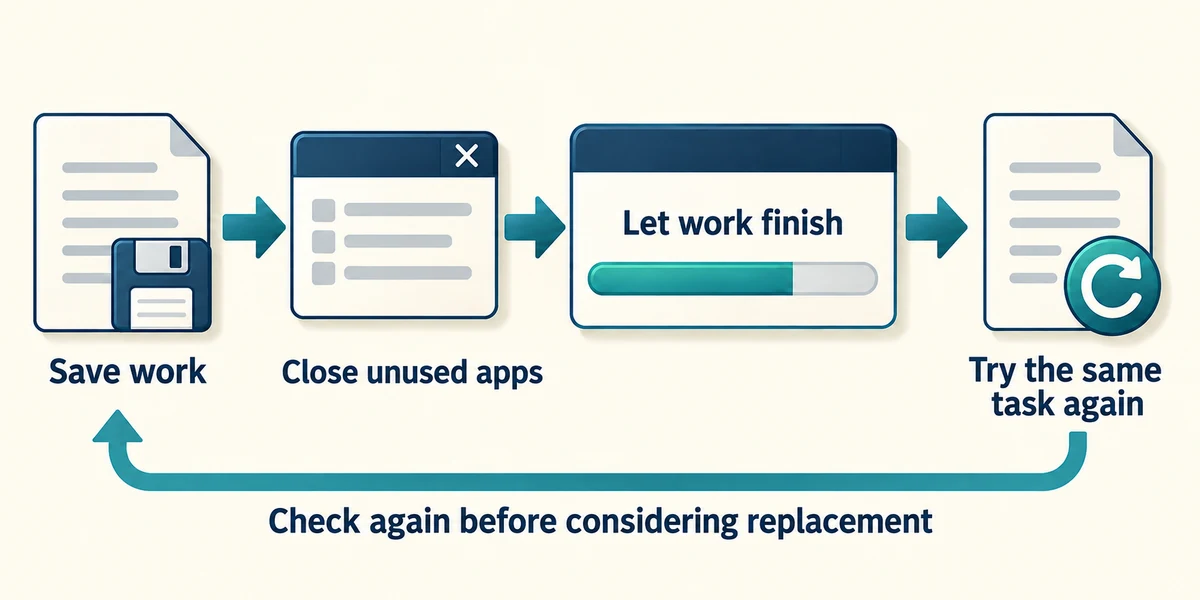
Save current work and close apps you no longer need using each window’s top-right X. Allow an update or large copy time to finish. Compare the same task again before assuming the computer needs replacing.
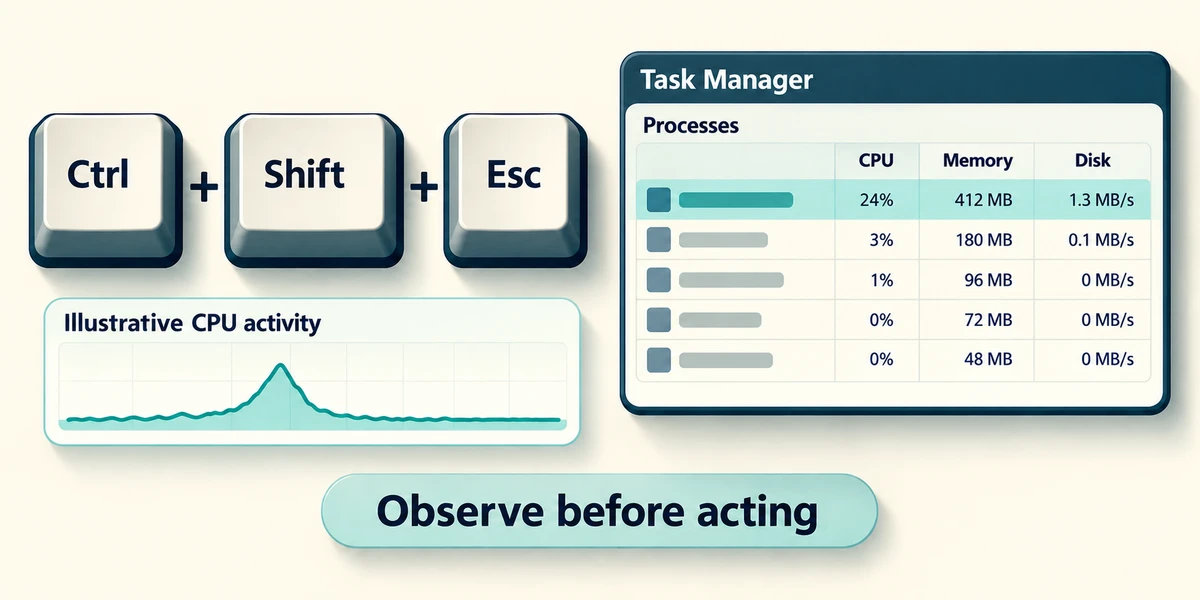
Hold Ctrl and Shift, press Escape, then release all keys to open Task Manager. Click Processes if needed. Observe CPU, Memory and Disk while the problem occurs. Brief spikes can be normal; do not end an unfamiliar process just because it is near the top.
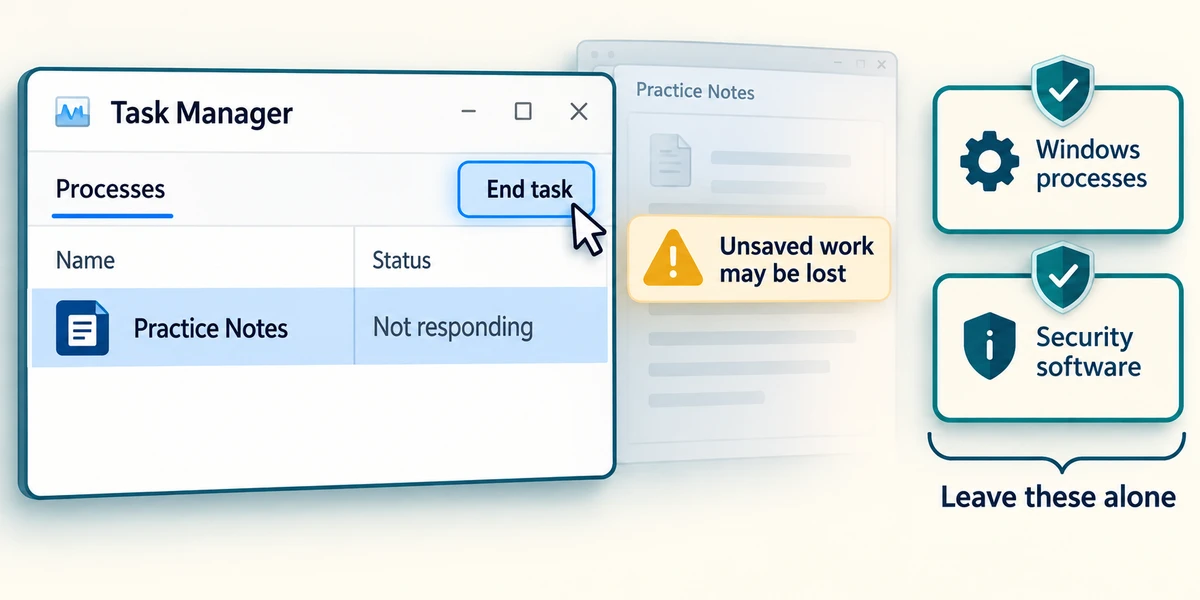
If a known app is unresponsive and will not close normally, click its row once in Processes. The End task button near the top closes the selected process; click it only if you accept losing that app’s unsaved work. Leave Windows processes, security software and unknown entries alone.
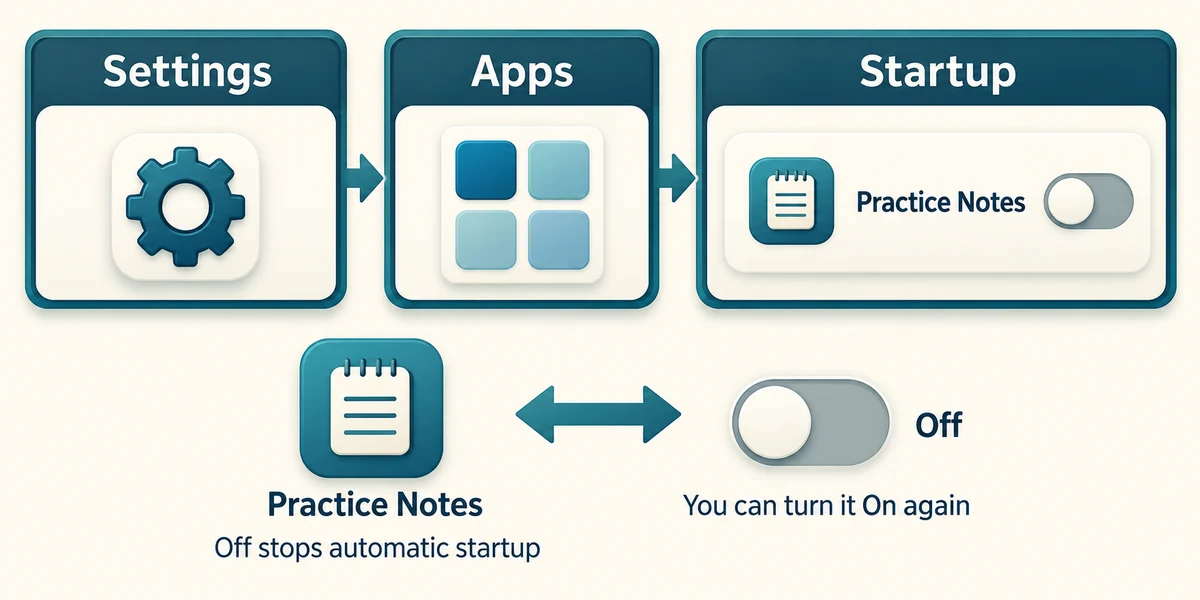
Hold the Windows key, press I once, then release both keys to open Settings. Click Apps, then Startup. Review recognised optional apps that you do not need immediately when signing in. Turn off only a choice you understand. This prevents automatic startup; it does not uninstall the app, and you can turn it on again.
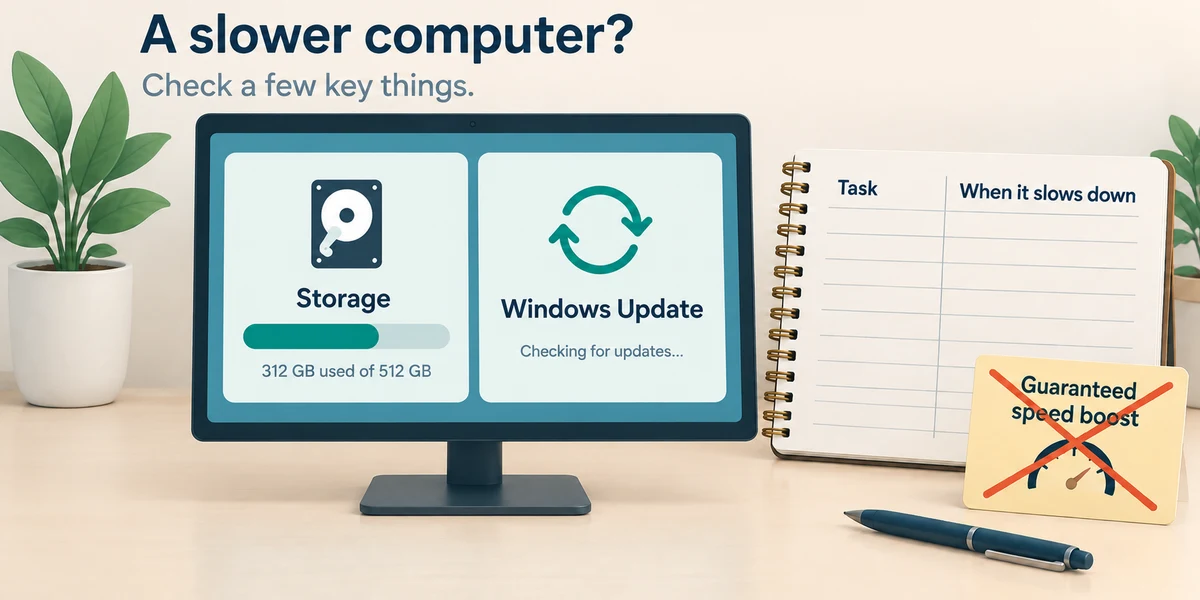
Also review System, then Storage and Windows Update. If slowness persists, record the tasks affected and ask for help. Avoid cleaner advertisements that promise a guaranteed speed boost.
A music app you rarely use starts whenever you sign in. You want to keep it installed but launch it only when needed. Which choice fits?
Turn off its automatic startup setting
Check what you understand
In guided learning, click Start 3 questions to receive a selection from this lesson. Click the circle beside an answer, then click Check answer. Read the feedback and try again if needed. Click Next question after each correct answer. Answer all 3 correctly to continue.
Returning to guided learning keeps the questions and answers in your current attempt.
Read all 3 questions and explanations
Task Manager shows a brief high CPU value while a video is exporting. What can that mean?
Answer: The computer is busy doing the requested work
A demanding task can legitimately use resources.
What is a consequence of End task on an unresponsive editor?
Answer: Its unsaved changes may be lost
Ending a process can bypass normal save prompts.
Disabling an optional app in Startup does what?
Answer: Stops its automatic launch at sign-in
You can still start it yourself.
Take this to your computer
- 1
Hold Ctrl and Shift, press Escape and release all keys to open Task Manager. Click Processes and observe the changing resource values without selecting End task.
- 2
Click Startup apps to inspect recognised items and their status. Leave unfamiliar entries unchanged. Close Task Manager with the top-right X. Observation alone is enough for this task.
The lesson examples do not change your computer. On your PC, read each confirmation before continuing; available controls can vary.
Prefer a more personal, one-to-one lesson? Basic Computing can help. Explore our services.