Follow a learning path
Work through related units and lessons, from everyday Windows tasks to understanding your computer. Start with the topic that matters to you.
Browse learning pathsRead, explore, practise and discover. Choose a way into learning that suits you.
You do not need to know the technical words or get everything right first time. Start with one useful idea and go at your own pace.
Find your starting point
Follow a route, look up one useful skill, or spend time exploring. You can move between these whenever you like.
Work through related units and lessons, from everyday Windows tasks to understanding your computer. Start with the topic that matters to you.
Browse learning pathsFind a lesson when you have a particular question. Plain-English explanations, illustrations and short checks help you understand the idea.
Find a lessonTry familiar Windows-style apps and sample files. Follow the tutorials below the desktop, or explore freely, with hints, a mystery and hidden discoveries along the way.
Open the practice desktopRotate and zoom in on internal components, select named parts and explore separated views. Follow the related lessons to understand what each component does.
Explore computer partsThe Basic Computing YouTube channel offers another way to learn. Pause and replay a video, then return here to explore a related topic. Videos are optional.
Visit YouTubeIf you would prefer someone beside you, Euan offers one-to-one help. Ask about availability and costs, or use personal support alongside the free hub.
Explore one-to-one helpYour learning helps you pick up a lesson again and find suggestions based on your saved progress and the practice topics you have marked as tried.
Lessons use the sections that suit the topic. These are the kinds of learning you will meet, rather than five steps in every lesson. Return to an explanation whenever it helps.
Computer parts and short keyboard lessons often use Understand, Learn and Quick check. Practical tasks may also include See it and Try it. Some component lessons include a 3D viewer alongside the explanation.
Activities vary too: you might write a document, explore a spreadsheet, practise an email, choose a safer response to a message or work through a troubleshooting problem. The lesson explains what to do and gives feedback along the way.

Start with a plain-English explanation of what something is and why it is useful.
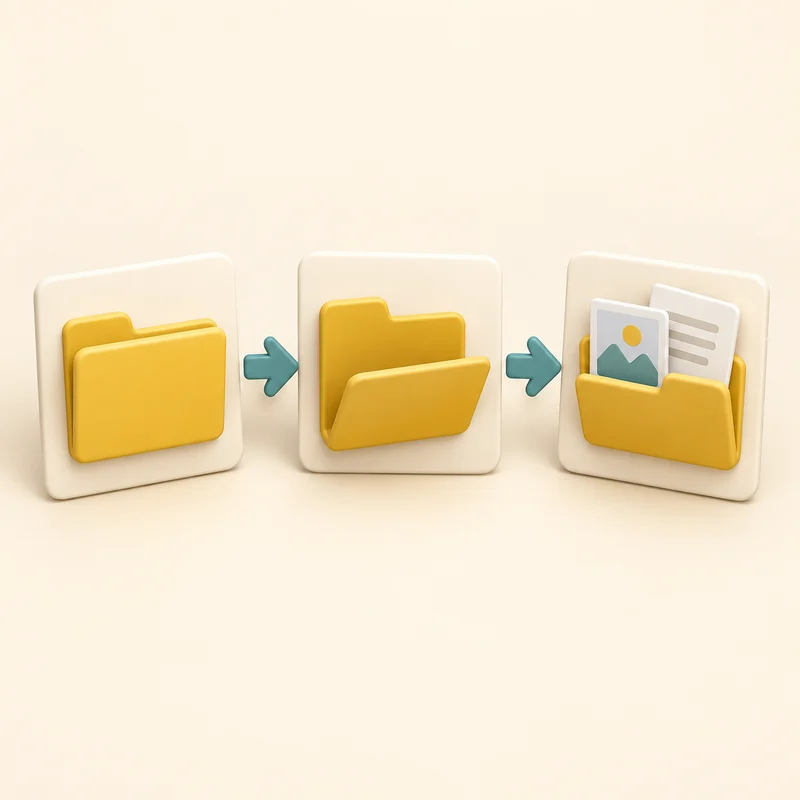
In lessons with a practice desktop, See it guides you with pop-up instructions. You perform each action yourself. Other lessons use illustrated examples or labelled parts.
Where Try it is included, put the skill into practice. Desktop lessons give you a fresh task without the guided pop-ups, with optional help underneath. Restart whenever you need to.

Answer a few questions and read the feedback. If something is unclear, revisit the explanation and try again.

Look for In Windows or On your PC for optional steps with your real apps and files. This takes you outside the practice area, even if you have been learning on the same computer.
Optional, when you feel ready
The simulated desktop works inside this webpage. Moving or deleting its sample files does not move or delete your real computer files. Clearly labelled download actions can save a copy to your device.
Explore sample apps including Writer, Spreadsheets, Mail and Music. Hover over a control, or focus it with Tab, to find out what it does. Desktop lessons give you a separate practice session, so your standalone desktop files do not carry into a lesson.
Use the way of learning that feels most comfortable. You can return to an explanation whenever it helps.
Read and explore on the device that suits you. The practice desktop and lessons using it are designed for a computer with a mouse and keyboard, rather than a touchscreen. Press Tab to move between controls and Enter to activate a focused button.
Open Display options at the top of the page to change text size, colours or contrast. Each lesson also has a whole-lesson reading view, so you can read the written steps together. Return to the guided view for the activities and checks; reading alone does not complete them.
If something makes learning difficult, find accessibility help and contact details.
Our practice scenarios and characters are fictional unless clearly identified otherwise. Euan is real, as are the products and services we refer to when teaching. Some creative material is AI-generated.
Read about fictional content, educational use and rightsYour lesson progress is saved in this browser on this device. It does not automatically follow you to another browser or computer. Clearing this website’s stored site data can remove it. Clearing only cached images and files normally does not remove it.
If your browser cannot save it, the lesson tells you that progress is available for this visit only. A lesson completed in one unit also counts when the same lesson appears in another unit.
View your progressThis version does not send your answers or practice folder names to Basic Computing. There are no advertising trackers, analytics, account registration or payments in this version.
The local preview runs on your computer. If the hub is published later, ordinary hosting access logs may be recorded. Privacy information will need to reflect the chosen host.
Yes. Euan offers personal support by video call and in person across parts of central Scotland. You can ask about availability and session costs, or use personal support alongside the free lessons.
Explore one-to-one helpChoose a learning path and begin with something useful to you.