Free space without losing important files
Free space without losing important files
Review which storage decisions need checking before deletion.
Review storage categories before choosing what to remove.
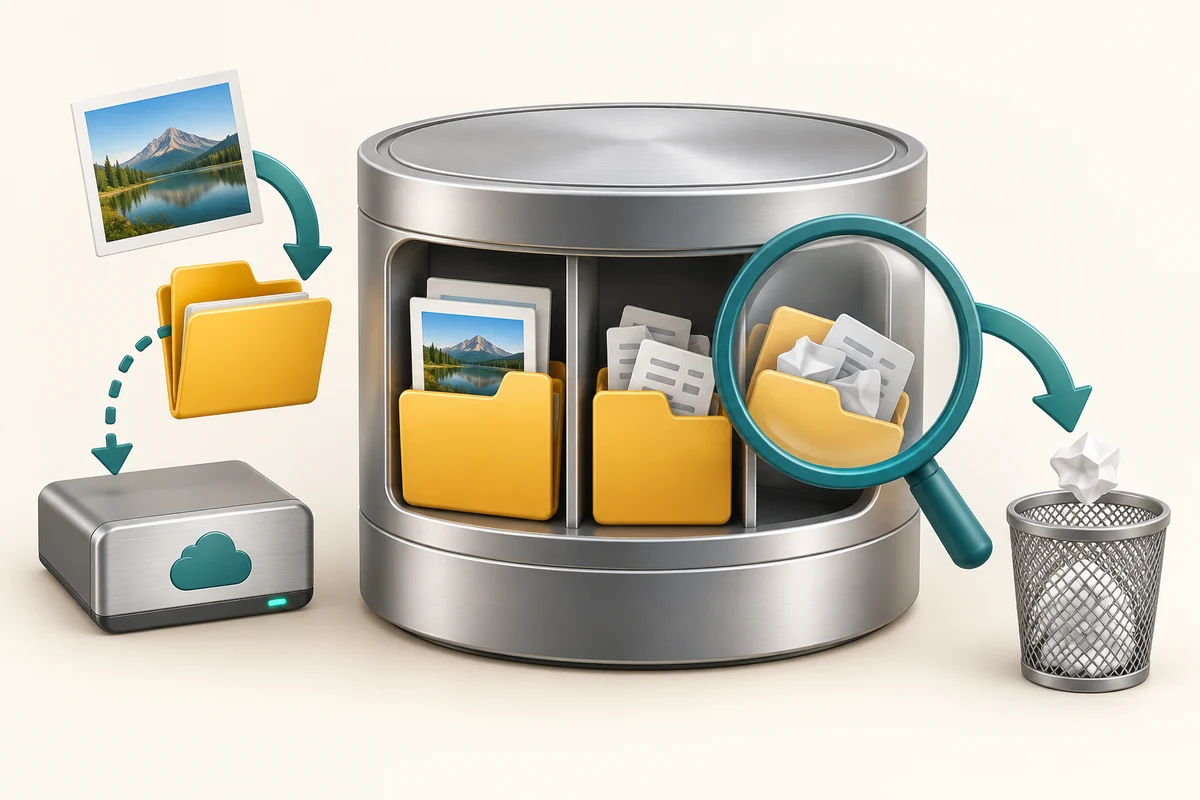
A full drive can make saving work and installing updates difficult. Freeing space means removing data or keeping some of it elsewhere. A recommendation is a starting point for review, not permission to delete everything. Your Downloads and Recycle Bin can still contain things you need.
Make the choice that fits your task
How this works

Hold the Windows key, press I once, then release both keys to open Settings. Click System, then Storage. Wait for the categories to load. Compare large categories with what you actually use. Storage space and working memory are different: closing an app does not remove its saved files.

Click Cleanup recommendations and read the descriptions. Review the named files before selecting them. Leave anything you do not recognise or need unselected. Only click Clean up after checking what will be removed.

Click Storage Sense to inspect its schedule and rules. It manages the system drive, usually C:. Review Recycle Bin, Downloads and cloud-content options individually rather than assuming they have identical effects.

Keep important work backed up before cleanup. Making a cloud file online-only can remove the local copy while keeping the cloud version, but deleting a synced file can also delete it online. These are different actions.

For large apps you no longer use, use Apps, then Installed apps and the app’s Uninstall option. Do not manually delete Windows folders. If space remains low, plan a suitable additional storage location instead of removing unknown system files.
Cleanup recommendations lists a large download that is your only copy of an important document. What should you do?
Keep it or back it up before considering removal
Check what you understand
In guided learning, click Start 3 questions to receive a selection from this lesson. Click the circle beside an answer, then click Check answer. Read the feedback and try again if needed. Click Next question after each correct answer. Answer all 3 correctly to continue.
Returning to guided learning keeps the questions and answers in your current attempt.
Read all 3 questions and explanations
Storage Sense is configured for C:. What should you expect?
Answer: Its cleanup applies to the system drive
Other drives need their own review.
A synced file is marked online-only. How is this different from deleting it?
Answer: Its cloud copy can remain while local space is released
Online-only availability is distinct from deleting the file.
You need room for updates. Which is a sensible first review?
Answer: Large known files and unused apps, with backups checked
Start with items whose purpose you understand.
Take this to your computer
- 1
Hold the Windows key, press I once, then release both keys to open Settings. Click System, then Storage. Read the categories after they finish loading.
- 2
Click Cleanup recommendations and inspect descriptions without selecting files. Identify one category you understand and one you would ask about. Close Settings using its top-right X without deleting anything during this observation.
The lesson examples do not change your computer. On your PC, read each confirmation before continuing; available controls can vary.
Prefer a more personal, one-to-one lesson? Basic Computing can help. Explore our services.