Keep and test a separate backup
Keep and test a separate backup
Compare a copy, a move and a tested independent backup.
Make a recoverable extra copy of important files.
A backup gives you another way to recover work if the original is lost, damaged or changed. A second folder on the same drive does not protect against that drive failing. A useful backup is separate, reasonably recent and tested. Sync can copy unwanted changes too, so do not treat syncing alone as proof of recovery.
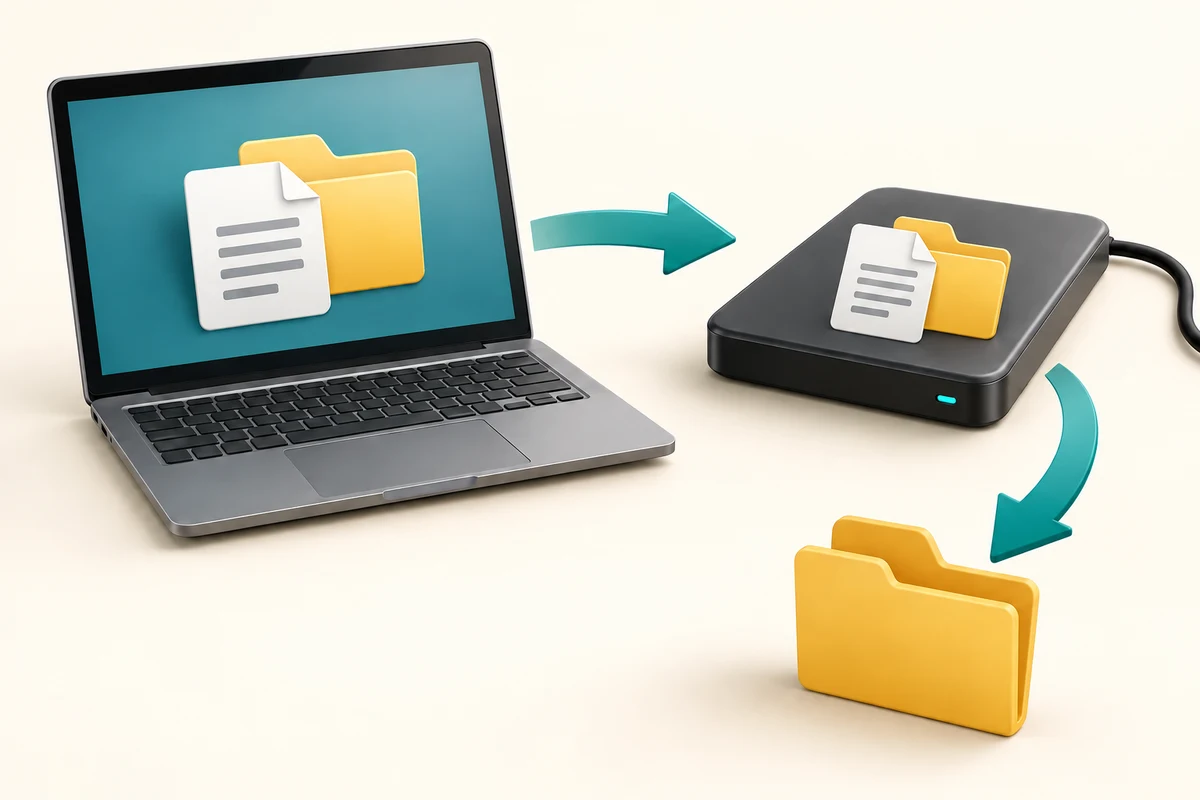
Make the choice that fits your task
How this works
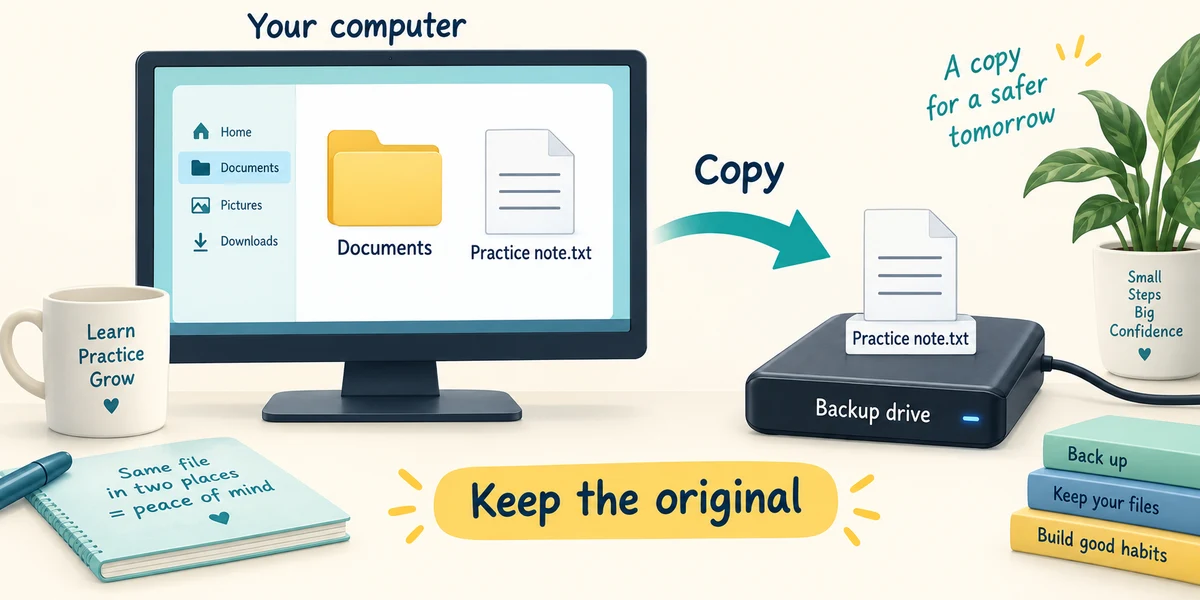
Choose important files and a suitable independent destination, such as an external drive with enough space. Keep the original. A backup is a copy, not a move. For irreplaceable work, consider another protected copy stored away from the computer.
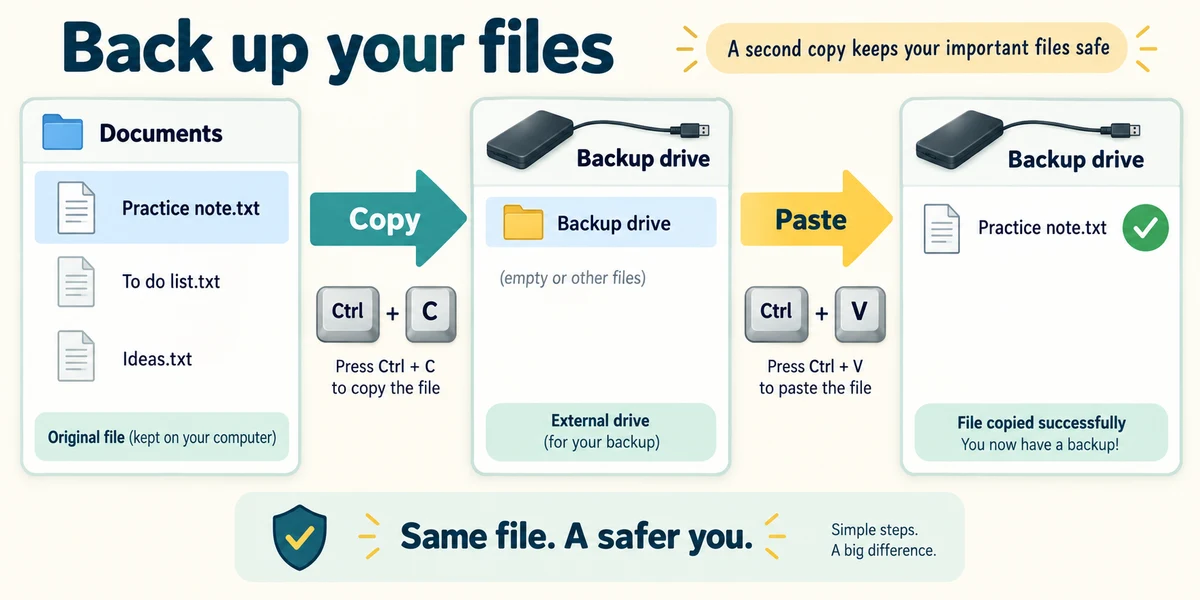
For a small manual backup, open File Explorer by holding Windows, pressing E and releasing. Select a practice file with one left click, hold Ctrl and press C, then release. Open the destination drive and folder with two quick left clicks; hold Ctrl and press V, then release. Wait for copying to finish.
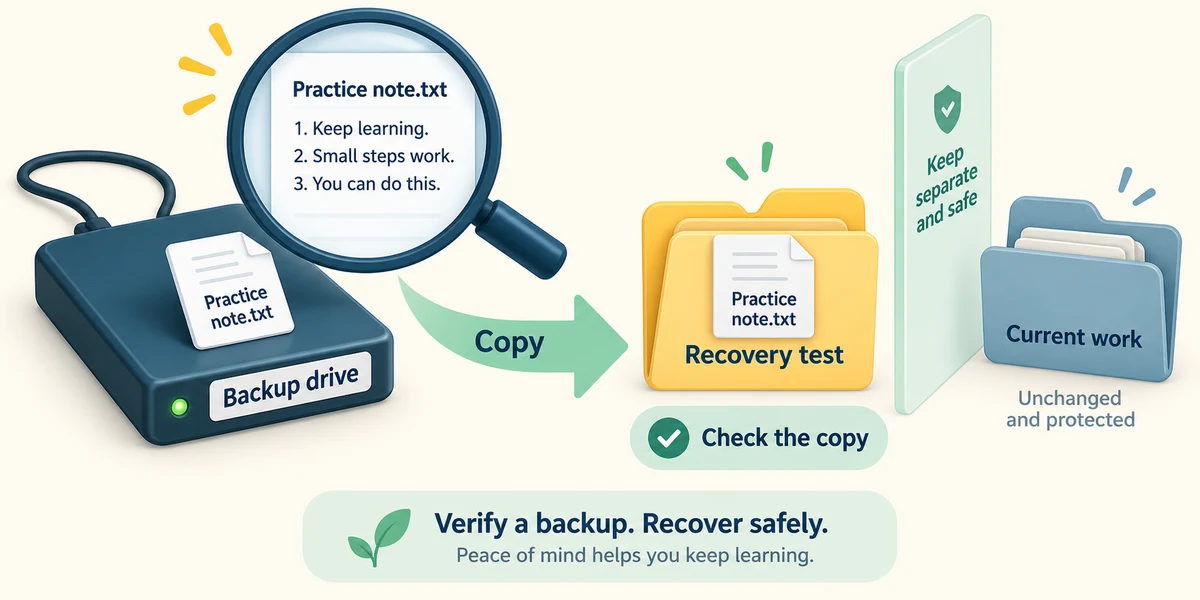
Check the new copy by opening it from the destination, not from the original location. Use a harmless practice file first. If you need to recover it later, copy it back into a new folder so you do not overwrite current work while testing.
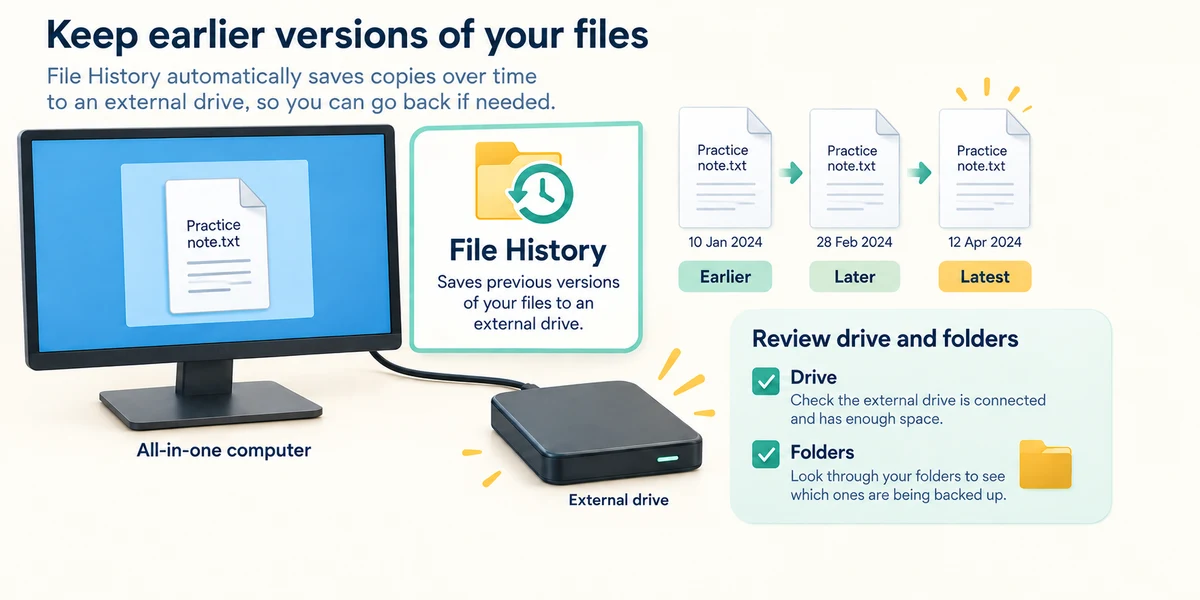
For recurring backups, Windows File History can keep versions on an external drive or network location. Open Start, type File History and choose its Control Panel result. Review the selected drive and protected folders before enabling it; do not assume every location is included.
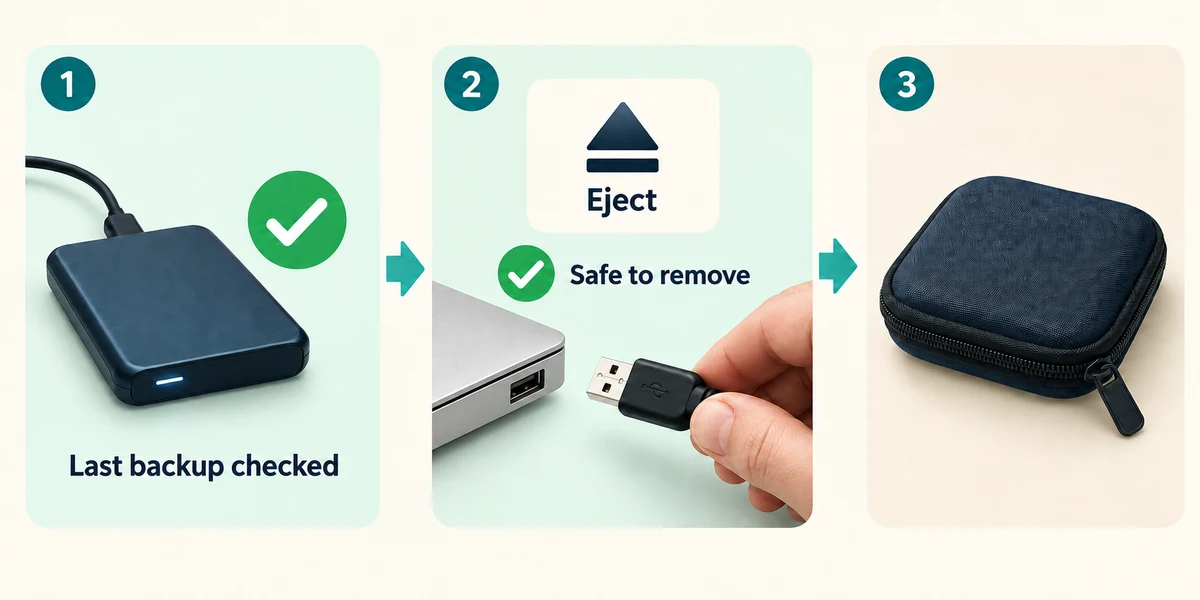
Reconnect the backup drive on a routine that suits how often files change. Check the last successful backup. After copying completes, use the Safely Remove Hardware notification-area control or the drive’s available Eject command and wait for safe removal before unplugging. Keep the backup protected from loss and damage.
Your only extra copy is in another folder on the same drive. What risk remains?
A failure of that drive could lose both copies
Check what you understand
In guided learning, click Start 3 questions to receive a selection from this lesson. Click the circle beside an answer, then click Check answer. Read the feedback and try again if needed. Click Next question after each correct answer. Answer all 3 correctly to continue.
Returning to guided learning keeps the questions and answers in your current attempt.
Read all 3 questions and explanations
You want to check a backup without risking your current file. What should you do?
Answer: Recover a practice copy into a different folder and open it
This tests recovery without replacing current work.
Why is moving the only file to an external drive not the same as backing it up?
Answer: You still have only one copy
Backup requires an additional recoverable copy.
What should you check in a recurring backup system?
Answer: Included folders and the last successful backup
A schedule is useful only if the intended files were actually protected.
Take this to your computer
- 1
If you have a suitable external drive and a harmless practice file, hold Windows, press E and release to open File Explorer. Click the file once, hold Ctrl, press C and release. Double-click the destination drive and folder, then hold Ctrl, press V and release. Keep the original.
- 2
From the destination folder, use two quick left clicks on the copy to check it opens. Close its app with the top-right X, then repeat Copy and Paste into a separate practice folder to test recovery. Wait for transfers to finish. Click the Safely Remove Hardware icon near the taskbar clock (inside the upward arrow if hidden), choose the drive and wait for safe removal before unplugging. If you have no drive, write down a suitable destination and a routine instead.
The lesson examples do not change your computer. On your PC, read each confirmation before continuing; available controls can vary.
Prefer a more personal, one-to-one lesson? Basic Computing can help. Explore our services.