Crop a photo and keep the original
Choose what belongs inside the frame
Choose between changing a picture and changing only its view.
Distinguish crop, rotation and zoom, and save a checked separate result.
Cropping changes a picture's framing by leaving out part of its edges. It can help attention stay on the subject. Keeping an original matters because details outside the new frame may be useful later.
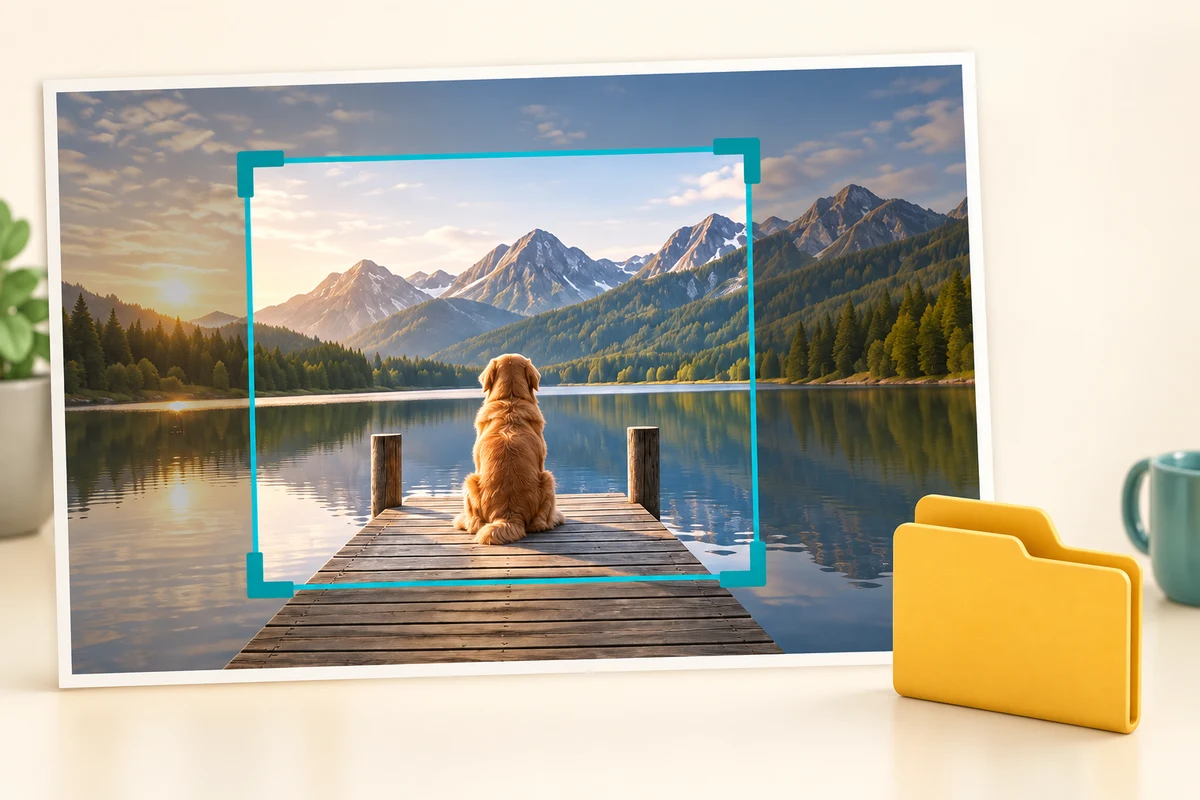
Make a reversible first attempt
How this works
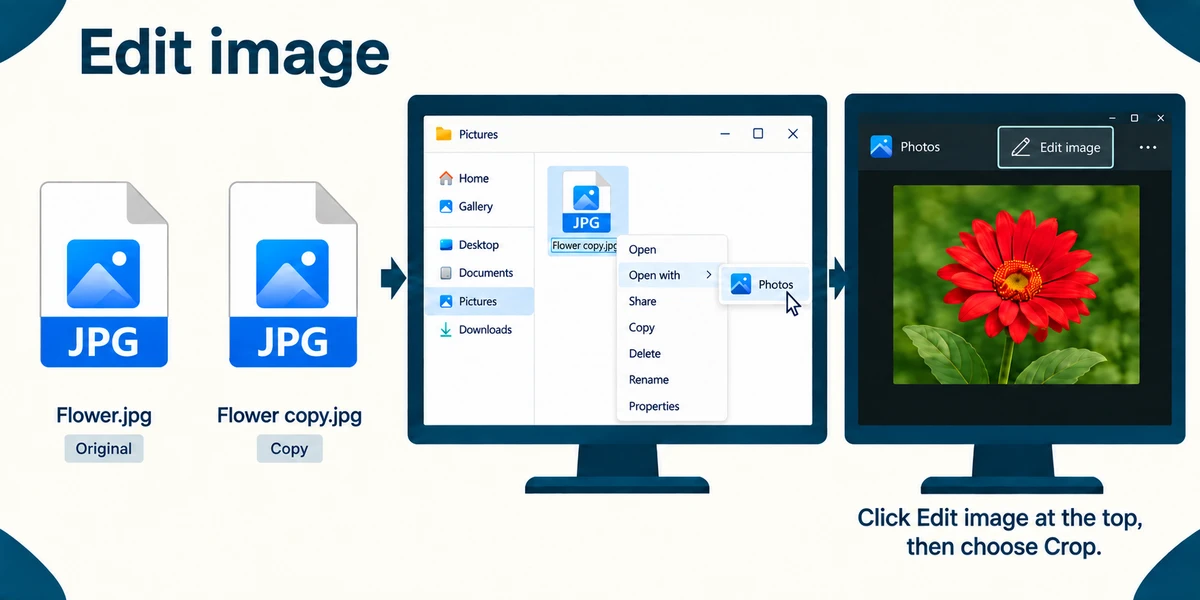
Start with a disposable copy of a photograph, so your original is already protected. In File Explorer, right-click the copy, choose Open with and then Photos if available. In Photos, click Edit image near the top. Its position and icon can vary; resting the pointer over a control reveals a label in many versions. Choose the crop controls.
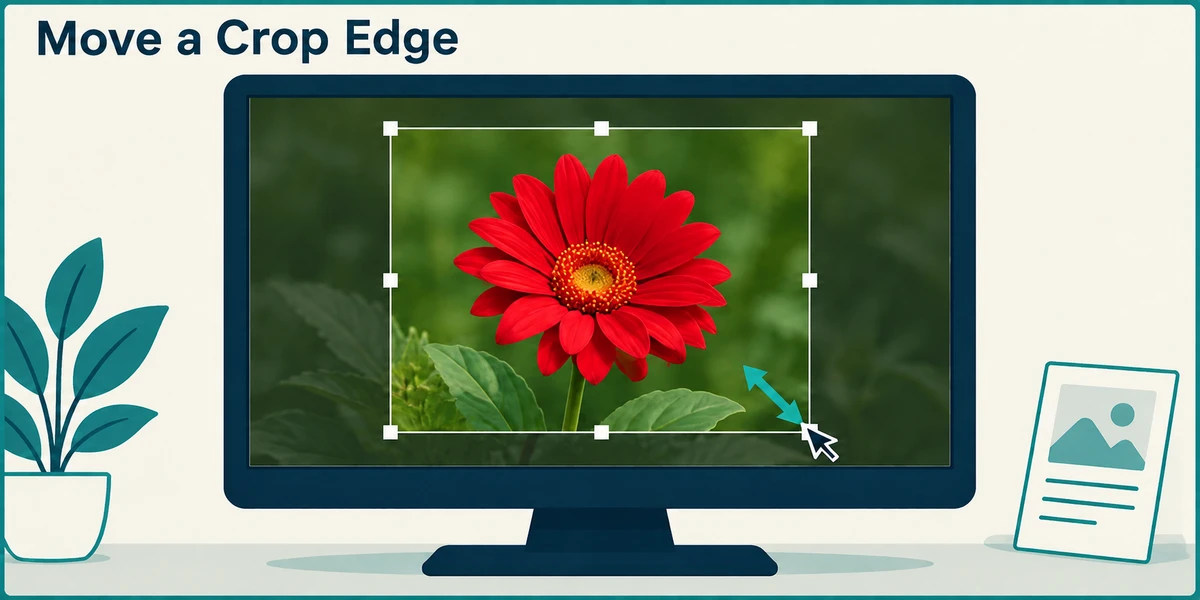
Point at a crop-frame edge or corner, hold the left mouse button, move it inward and release. Inspect which parts will remain. If an aspect ratio is selected, the frame may keep a fixed shape; choose the available freeform option if you need another shape. Moving a crop edge is different from zooming the viewer, which does not by itself change the saved picture.
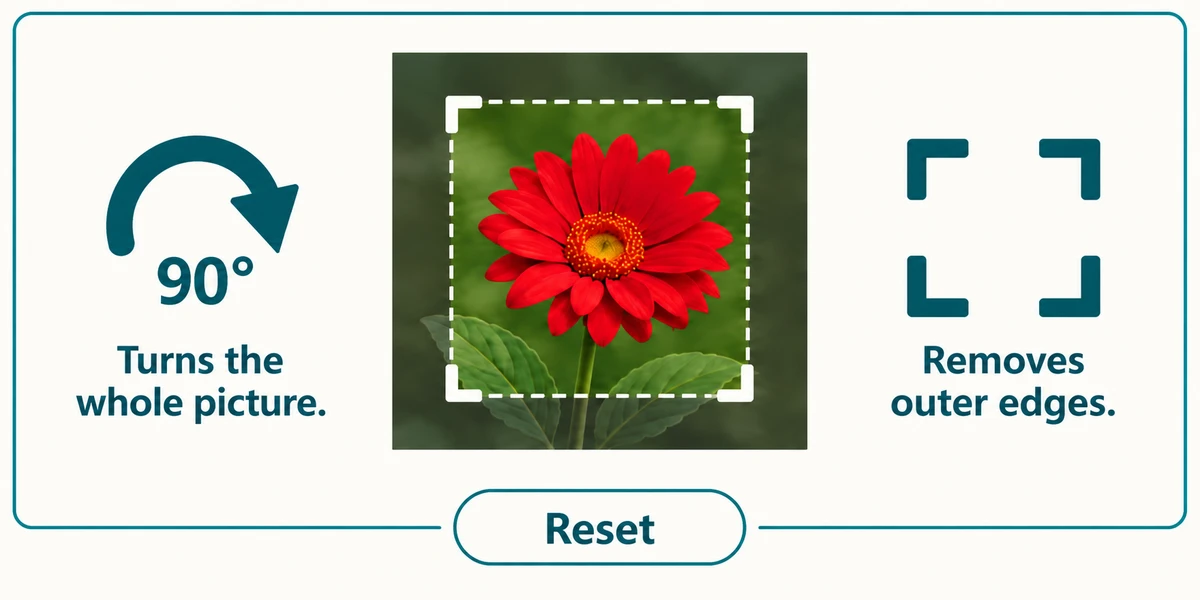
Use Rotate if the whole picture is sideways; cropping is not the same as turning it. Check faces, signs and details near the edges before accepting the framing. Use the editor's Reset or cancel route if the attempt removes too much. Take time: a tighter crop is not automatically a better picture.
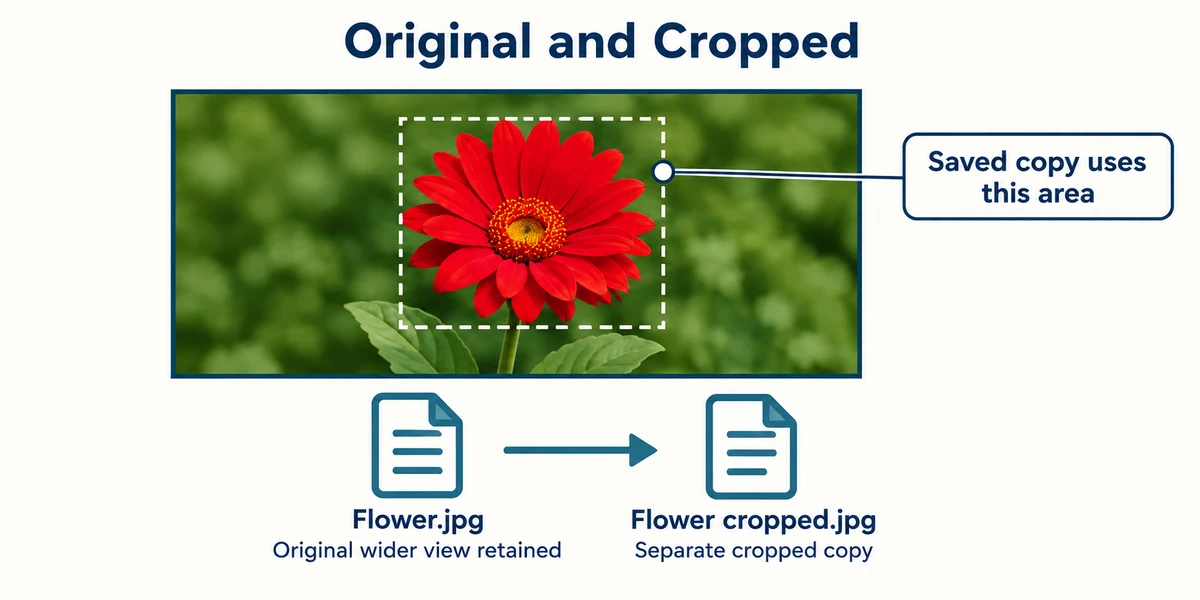
Use Save options to keep a separate copy where offered, or save only the disposable copy you deliberately made. Read whether the command will replace the current file. Find and reopen the result to check its framing, and confirm that the original still shows the wider view. Renaming a .jpg file to .png is not a real format conversion.
You want a distracting border removed from the picture you send, while keeping the wider original. Which approach fits?
Crop a separate copy, save it and check both versions.
Check what you understand
In guided learning, click Start 3 questions to receive a selection from this lesson. Click the circle beside an answer, then click Check answer. Read the feedback and try again if needed. Click Next question after each correct answer. Answer all 3 correctly to continue.
Returning to guided learning keeps the questions and answers in your current attempt.
Read all 3 questions and explanations
The entire photo is sideways. Which edit addresses that directly?
Answer: Rotate the picture.
Rotation changes the picture's orientation.
You crop too tightly and cut off part of the subject before saving. What should you do?
Answer: Reset or cancel the edit and choose a wider frame.
Revising the unsaved edit lets you preserve the intended subject.
After saving a cropped version, what useful verification remains?
Answer: Open the result and check that the original wider version still exists.
The saved result and preserved original are both part of the intended outcome.
Take this to your computer
- 1
Make a disposable copy of a harmless photograph before opening the editor.
- 2
Try a small crop or rotation and inspect the result before saving.
- 3
Save and reopen the copy, then compare it with the unchanged original.
Trying this on your own computer is optional. Use only disposable practice information. This lesson's choices check your decisions; they do not operate your computer or prove that you have performed the real task. The example uses Microsoft Photos. Editing controls and Save options can vary by app version.
Prefer a more personal, one-to-one lesson? Basic Computing can help. Explore our services.