Copy files to and from a USB drive
Keep an original while making another copy
Choose a safe transfer and removal sequence.
Explain source, destination, completed copying and safe ejection.
Copying between your computer and another drive gives you a file in each place. The direction matters: one is the source and one is the destination. A successful transfer ends with checking the new copy, not just seeing a progress message begin.
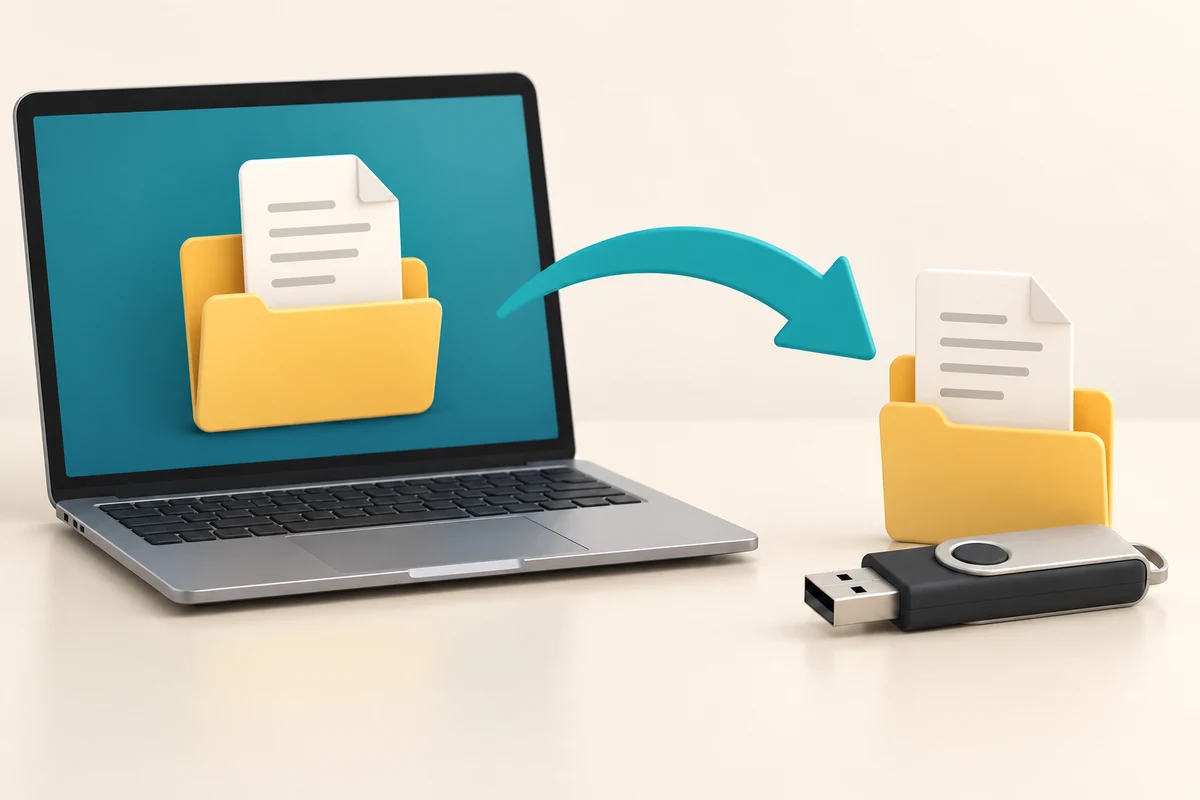
Copy, check, then disconnect
How this works
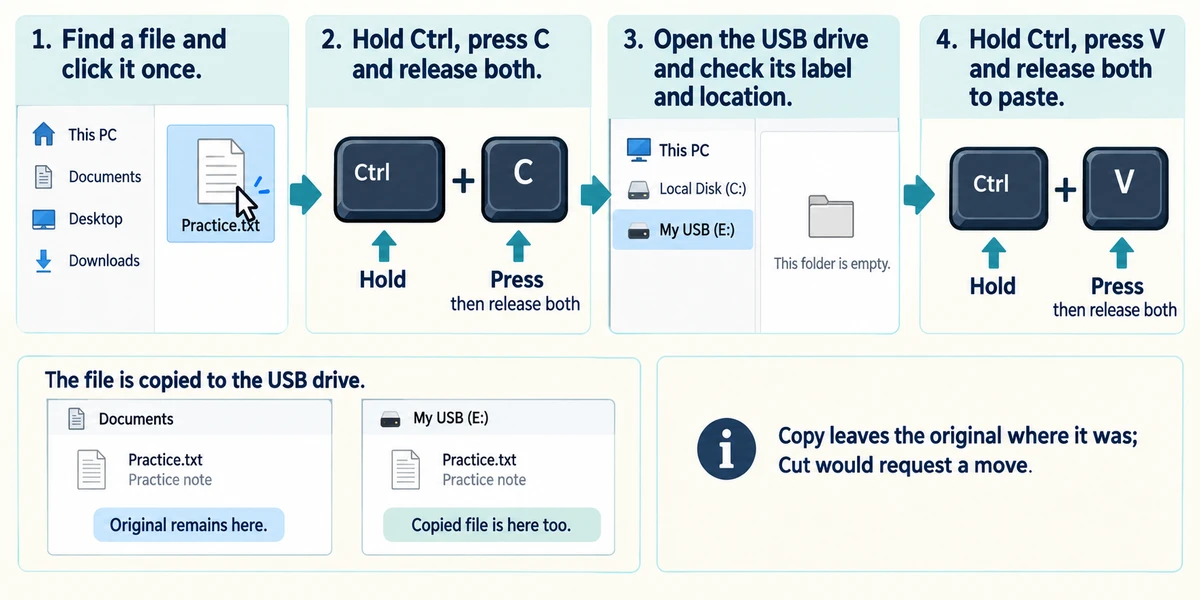
Identify your known USB drive in File Explorer. Find a harmless practice file on the computer and click it once. Hold Ctrl, press C and release both to copy. Open the intended folder on the USB drive, check its label and location, then hold Ctrl, press V and release both to paste. Copy leaves the original where it was; Cut would request a move.
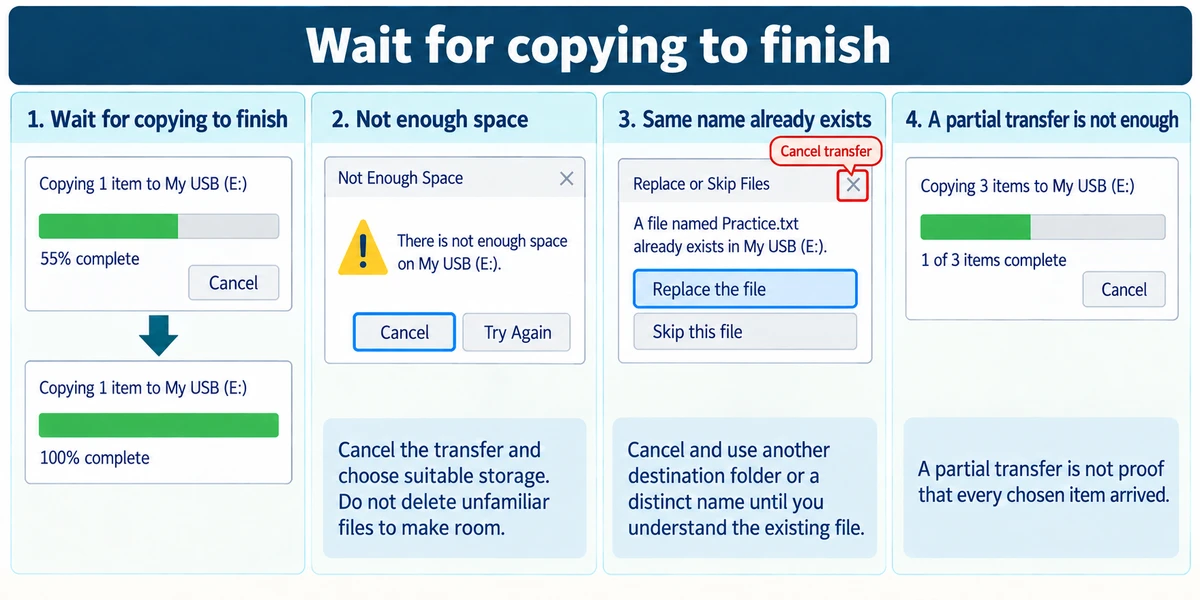
Wait until copying has finished. If Windows reports insufficient space, cancel the transfer and choose suitable storage; do not delete unfamiliar files to make room. If a same-name message appears, cancel and use another destination folder or a distinct name until you understand the existing file. A partial transfer is not proof that every chosen item arrived.
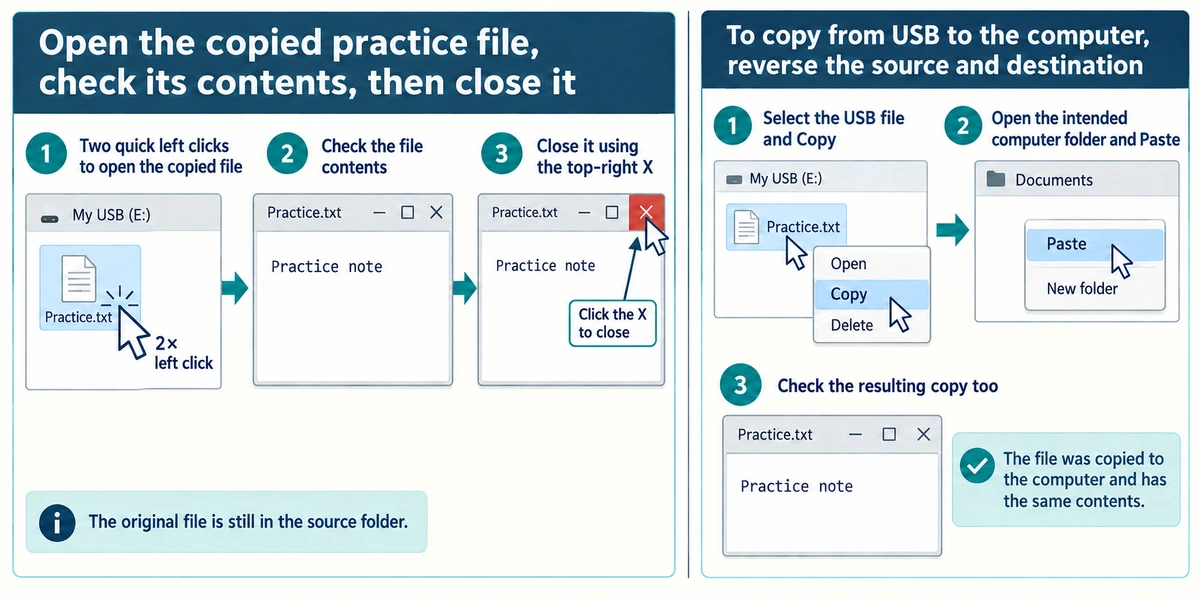
Open the copied practice file from the destination with two quick left clicks and check its contents, then close it using the app's top-right X. To copy from USB to the computer, reverse the source and destination: select the USB file, Copy, open the intended computer folder, then Paste. Check that resulting copy too.
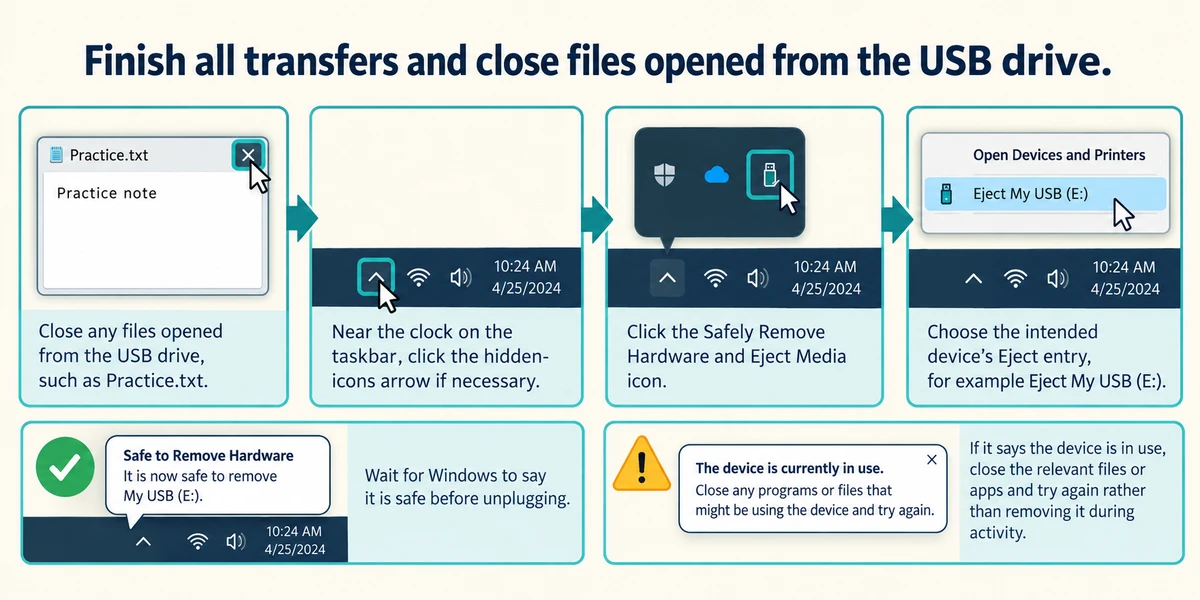
Finish all transfers and close files opened from the USB drive. Near the clock on the taskbar, click the hidden-icons arrow if necessary, then use the Safely Remove Hardware and Eject Media icon and choose the intended device's Eject entry. Wait for Windows to say it is safe before unplugging. If it says the device is in use, close the relevant files or apps and try again rather than removing it during activity.
A progress window has only just started copying your holiday photos. You need to leave. What should you do?
Wait for completion, check the copy and safely eject before unplugging.
Check what you understand
In guided learning, click Start 3 questions to receive a selection from this lesson. Click the circle beside an answer, then click Check answer. Read the feedback and try again if needed. Click Next question after each correct answer. Answer all 3 correctly to continue.
Returning to guided learning keeps the questions and answers in your current attempt.
Read all 3 questions and explanations
You want the file on USB and the computer. Which action matches that aim?
Answer: Copy from the source and Paste at the destination.
Copy makes another file while retaining the source.
A transfer reports not enough space. What can you conclude?
Answer: The entire transfer may not have completed; check before relying on it.
An error needs attention and verification of what actually arrived.
Windows says the USB device is still in use. What should you try?
Answer: Close files or apps using it, then try Eject again.
An open file or ongoing activity can prevent safe removal.
Take this to your computer
- 1
Copy one disposable file to a known USB drive and inspect the destination copy.
- 2
Close it and practise copying it into a different practice folder on the computer.
- 3
Finish all activity, eject the correct device through Windows and wait before unplugging.
Trying this on your own computer is optional. Use only disposable practice information. This lesson's choices check your decisions; they do not operate your computer or prove that you have performed the real task.
Prefer a more personal, one-to-one lesson? Basic Computing can help. Explore our services.