Keep Windows up to date
Keep Windows up to date
Decide how to finish an update without losing work.
Check Windows updates and choose a sensible time to restart.
Windows updates can repair faults, close security gaps and change features. Some changes cannot finish while Windows is using the affected files, so a restart may be required. Keeping a computer updated is a routine part of caring for it, separate from updating individual apps.

Make the choice that fits your task
How this works
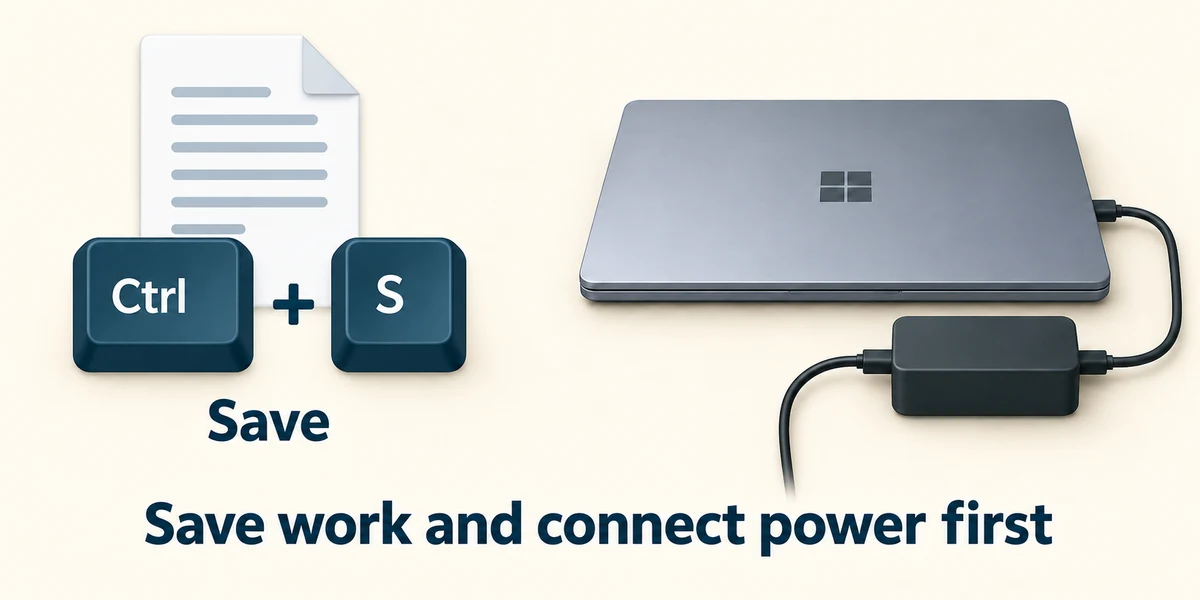
Save any work first. In an app, hold Ctrl, press S, then release; if a save window opens, choose a name and location before clicking Save. Connect a laptop to its charger before a long update.

Hold the Windows key, press I once, then release both keys to open Settings. Click Windows Update. Read the status and click Check for updates if you want to check now. Use this Windows page rather than an unexpected website claiming to provide an urgent Windows repair.
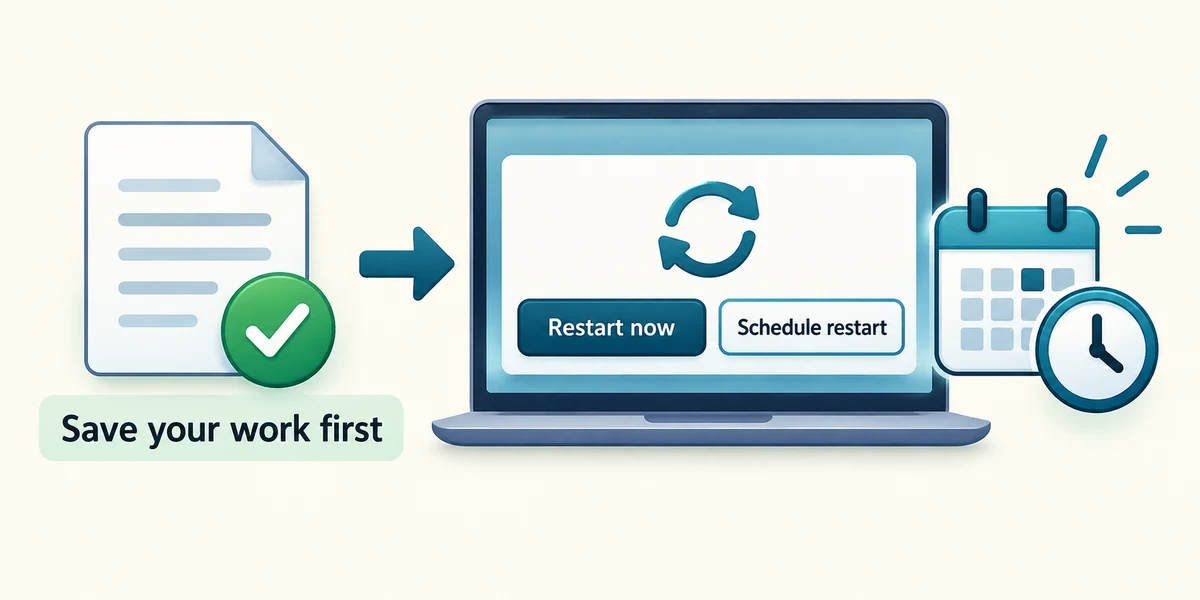
If a restart is required, finish and save your work before clicking Restart now. Alternatively choose the available schedule option for a suitable time. Active hours help Windows avoid inconvenient restarts; they are not a promise that an update never needs your attention.
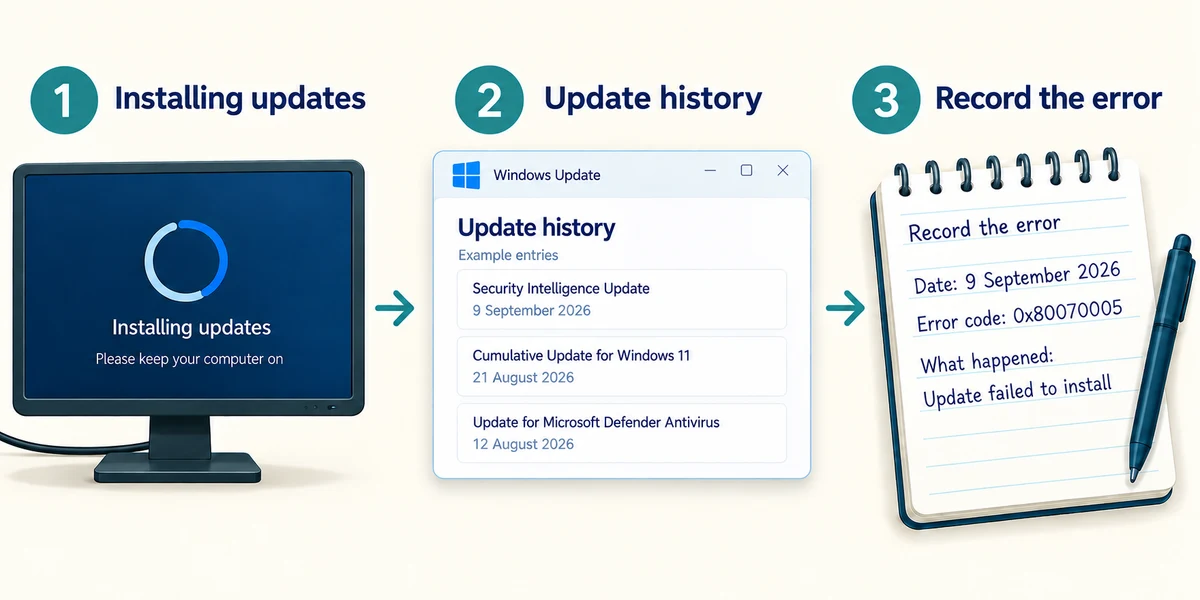
Let installation finish. Do not disconnect power because progress appears slow. After restarting, return to Windows Update and read whether anything is still pending. Click Update history to inspect update names and dates; a recent entry can help describe when a problem began, but timing alone does not prove the update caused it. Record an error rather than repeatedly forcing shutdowns or removing updates without guidance.
Windows has downloaded an update, but your unsaved letter is still open. What is the sensible next step?
Save the letter before arranging the restart
Check what you understand
In guided learning, click Start 3 questions to receive a selection from this lesson. Click the circle beside an answer, then click Check answer. Read the feedback and try again if needed. Click Next question after each correct answer. Answer all 3 correctly to continue.
Returning to guided learning keeps the questions and answers in your current attempt.
Read all 3 questions and explanations
A webpage suddenly demands payment to install a Windows repair. Where should you check the real update status?
Answer: Windows Update inside Settings
That is the built-in place to inspect Windows updates.
The status says a restart is needed. Has downloading alone finished the process?
Answer: No, the restart may be needed to apply changes
Some changes finish when Windows restarts.
What do active hours help Windows do?
Answer: Avoid inconvenient automatic restarts while you usually work
They help scheduling, while updates may still need attention.
Take this to your computer
- 1
Hold the Windows key, press I once, then release both keys to open Settings. Click Windows Update and read the current status.
- 2
Write down whether Windows is up to date, downloading or waiting for a restart. You do not need to restart just to finish this lesson. If you arrange a restart later, save work first and keep a laptop connected to its charger.
The lesson examples do not change your computer. On your PC, read each confirmation before continuing; available controls can vary.
Prefer a more personal, one-to-one lesson? Basic Computing can help. Explore our services.