Write a simple document
Give your words a readable shape
Write a short practice note with separate paragraphs and list items.
Explain a blank document, natural line wrapping and a bulleted list.
A document is more than a pile of typed characters. Paragraphs separate thoughts, and lists make related items easier to scan. A simple structure helps someone understand your message without needing elaborate formatting.

Build one small page
How this works
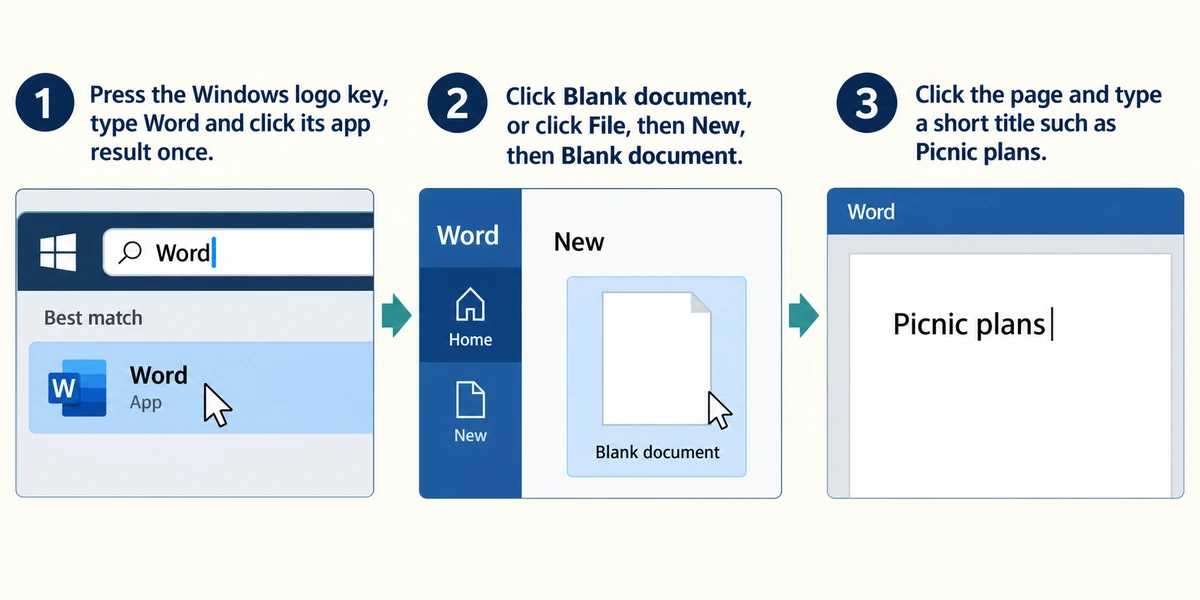
These instructions use desktop Microsoft Word; Word for the web and other document apps may place controls differently. If Word is installed, press the Windows logo key, type Word and click its app result once. Click Blank document, or click File, then New, then Blank document. Click the page and type a short title such as Picnic plans. No Word purchase or sign-in is needed to complete this lesson's decision activities.
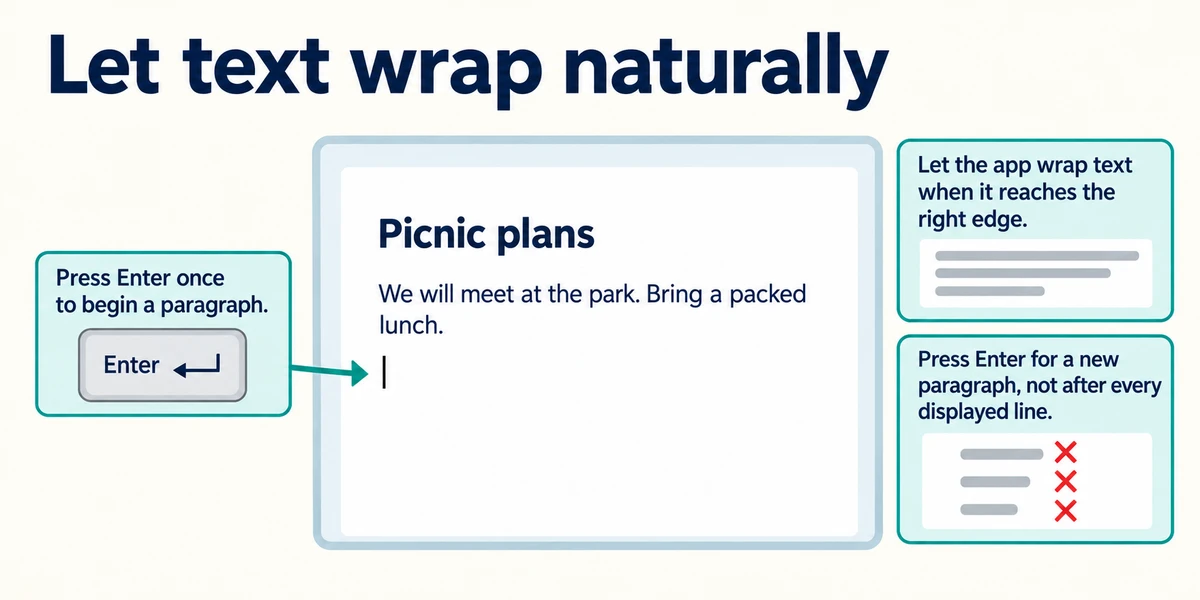
Press Enter once to begin a paragraph and type two short sentences. Let the app wrap text when it reaches the right edge. Press Enter when you want a new paragraph, not after every displayed line. If you insert unnecessary breaks at each edge, later changes in font or page width can leave awkward short lines.

For a list, start a new paragraph and click the Home tab near the top. In its Paragraph group, choose Bullets, the control showing dots beside lines. Type one item, press Enter for the next bullet and type another. Press Enter twice after the final item to finish the list. Use numbered lists when sequence matters, not just because they look different.

Read the note from beginning to end. Check that its title, paragraphs and list support the message. Save it with an unused descriptive name in a known practice folder, using File > Save As or the saving choices your app offers. Reopen the saved file later to check that your work was kept.
Your invitation includes a short explanation followed by three things people should bring. What structure would help?
A paragraph for the explanation and a bulleted list for the three items.
Prepare a practice document
Click in the Practice document box and type the four lines below. Press Enter to start each new line. Click Check document when ready. This teaching editor does not create a real file.
Community meeting
Meet at the library on Tuesday.
Bring a notebook
Bring a pen
Check what you understand
In guided learning, click Start 3 questions to receive a selection from this lesson. Click the circle beside an answer, then click Check answer. Read the feedback and try again if needed. Click Next question after each correct answer. Answer all 3 correctly to continue.
Returning to guided learning keeps the questions and answers in your current attempt.
Read all 3 questions and explanations
Words wrap onto another line while you type a paragraph. What should you normally do?
Answer: Keep typing until you need a new paragraph.
The app handles line wrapping within a paragraph.
You need steps that must happen in a particular order. Which list style is useful?
Answer: A numbered list.
Numbers help communicate an ordered sequence.
You finish the final bullet and want ordinary paragraph text below. What commonly works in Word?
Answer: Press Enter twice after the final list item.
The extra Enter ends the empty final bullet in a standard list.
Take this to your computer
- 1
If you already have a suitable document app, create a disposable blank document.
- 2
Write a title, a short paragraph and two bulleted items using that app's list control.
- 3
Save it with a distinct name and check the saved version.
Trying this on your own computer is optional. Use only disposable practice information. This lesson's choices check your decisions; they do not operate your computer or prove that you have performed the real task. This example uses desktop Word. Your app's menus and licence requirements may differ.
Prefer a more personal, one-to-one lesson? Basic Computing can help. Explore our services.