Use the Windows key
Use a computer with a mouse and keyboard. This practice desktop is designed for clicking, right-clicking, dragging and typing with physical keys, rather than touchscreen use on a phone or tablet.
A key that opens Start
You are going to open the practice Start menu and choose Settings.
You will learn what the Windows logo key does on a Windows PC.
The Windows key has the Windows logo on it. It is usually near the bottom left of a Windows keyboard. Pressing and releasing it opens Start, where you can find apps and settings.
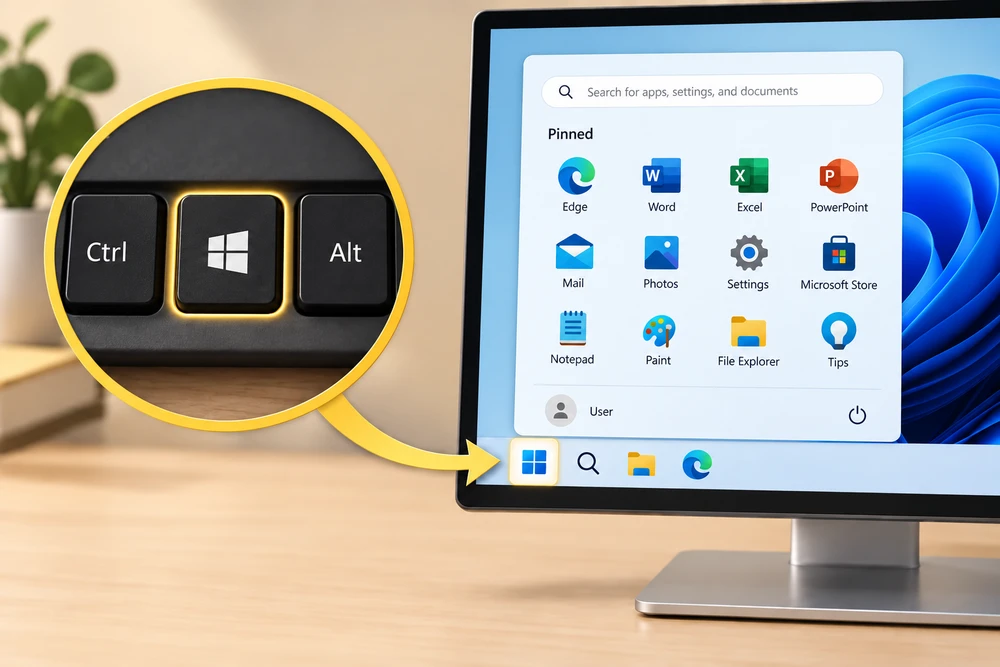
A key can act on the computer itself, even when a webpage is open. That is why this lesson has a Windows key you can click on the practice keyboard.
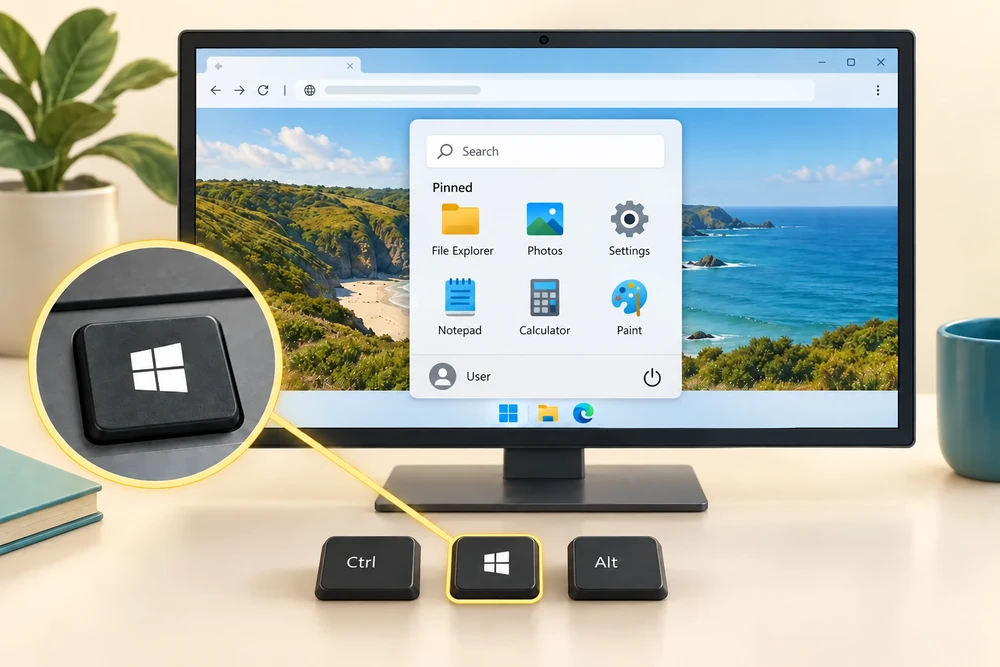
Clicking the Windows key shown in this lesson opens our practice Start menu. Pressing the physical Windows key on your keyboard can open your own computer’s Start menu instead.
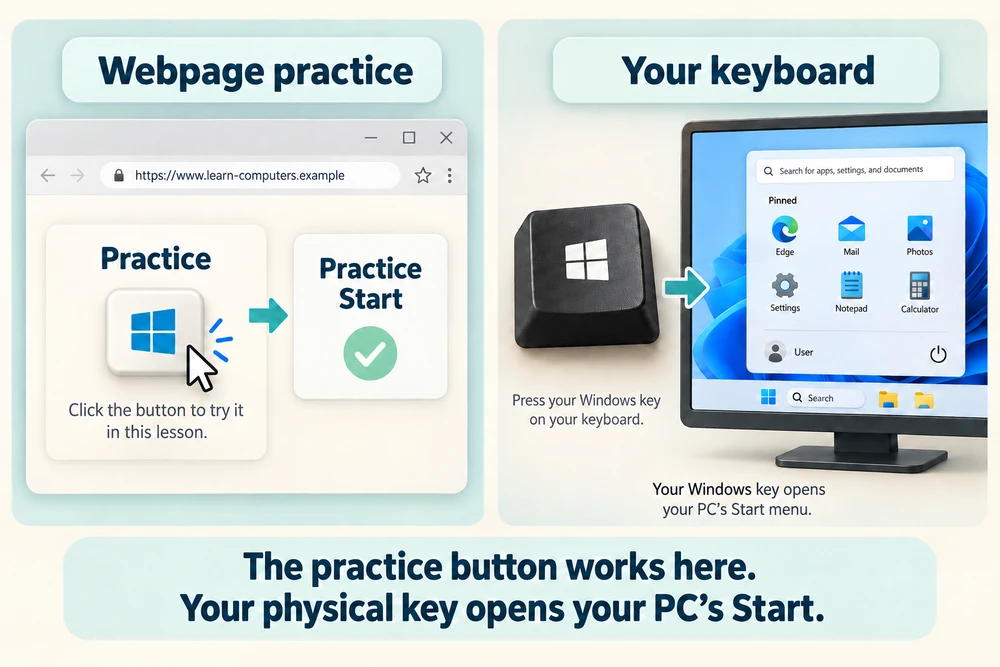
See the route through Start
Follow the instruction popup on the practice desktop. Carry out each action yourself. The guide moves to the next step when you complete the action. On the last step, click Check the result. Afterwards, Try it gives you a fresh desktop to practise independently. Click Check my work when you finish, or use the optional hints underneath.
Click the four-pane Start button on the taskbar at the bottom of the desktop. When Start opens, click Settings once, using the grey gear among the pinned apps.
Open Start and choose Settings
You are going to open the practice Start menu and choose Settings. This fresh practice desktop stays inside the webpage. Try the task independently, using the optional hints underneath if you need help.
Click the Windows key button above the practice desktop. You can also click the four-pane Start button on the taskbar along the bottom of the desktop. When Start appears, click Settings once. Look for its grey gear among the pinned apps. Use these on-screen controls for this webpage task so you can practise without switching to your own Start menu.
Check the idea
You have an app open. What normally happens if you press and release the Windows logo key by itself?
The Start menu opens or closes.
Try this outside the practice desktop
You have practised inside this webpage. If you feel ready, you can repeat the skill in Windows on the same computer, outside the practice desktop. This is optional. The steps below use your actual apps and files, so use only disposable practice items. Files made in the webpage do not appear in Windows File Explorer.
Start gives you a familiar place to begin when you want to find an app.
- 1
Look near the bottom left of your keyboard for the Windows logo key.
- 2
Press and release it once. Look for your computer’s Start menu to appear.
- 3
Press the Windows key again, or press Escape, to close Start. The window behind it becomes visible again.
PC practice is optional. Some keyboards label this key differently. Windows 11 Start layouts and pinned apps vary by version and your choices. You can also click the Start button on your PC’s taskbar to open the same menu.
Prefer a more personal, one-to-one lesson? Basic Computing can help. Explore our services.