Use the Shift key
Use a computer with a mouse and keyboard. This practice desktop is designed for clicking, right-clicking, dragging and typing with physical keys, rather than touchscreen use on a phone or tablet.
One key changes another
You are going to type A! using Shift with another key.
You will learn how Shift changes the character produced by a key while you hold it.
Shift is usually labelled Shift or marked with an upward arrow. There are often two Shift keys, one on each side of the letter keys. Either can be used.
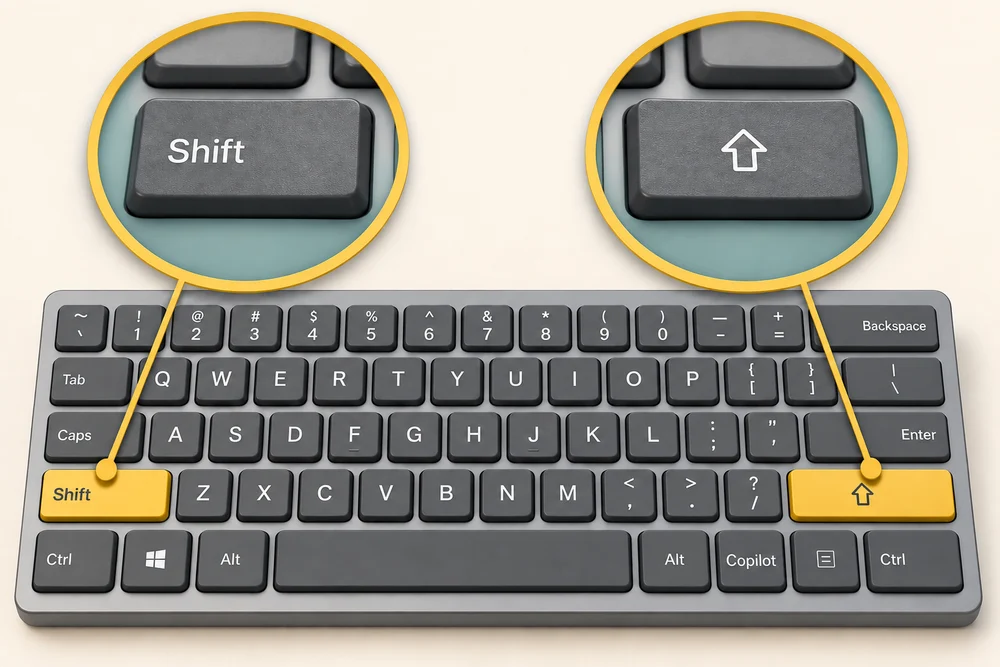
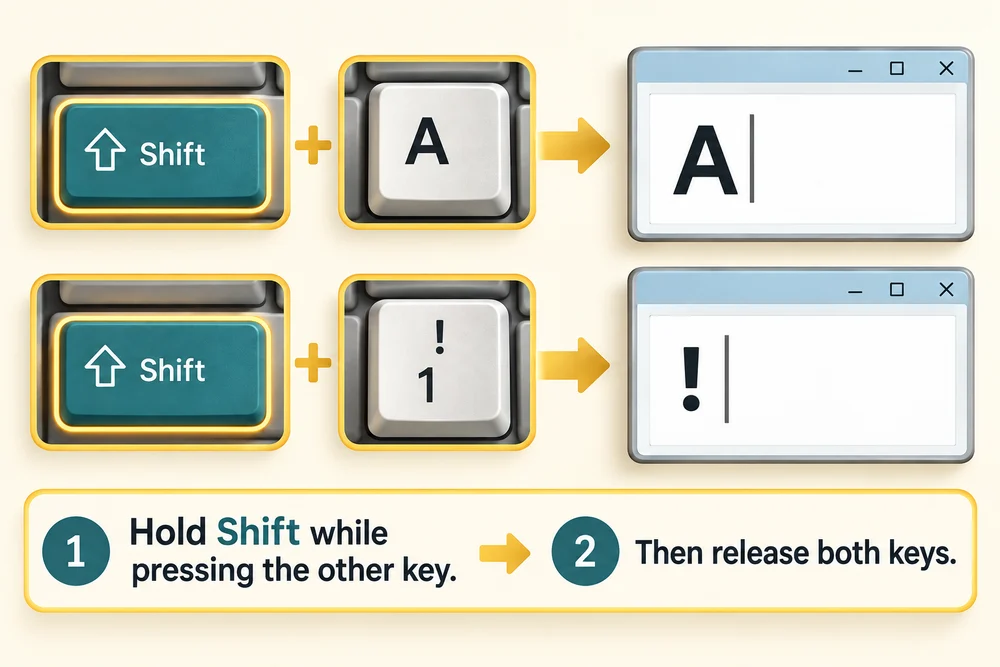
With Caps Lock off, hold Shift while pressing a letter to type its uppercase form. On the UK and US keyboards used in this example, holding Shift while pressing 1 types an exclamation mark, !.
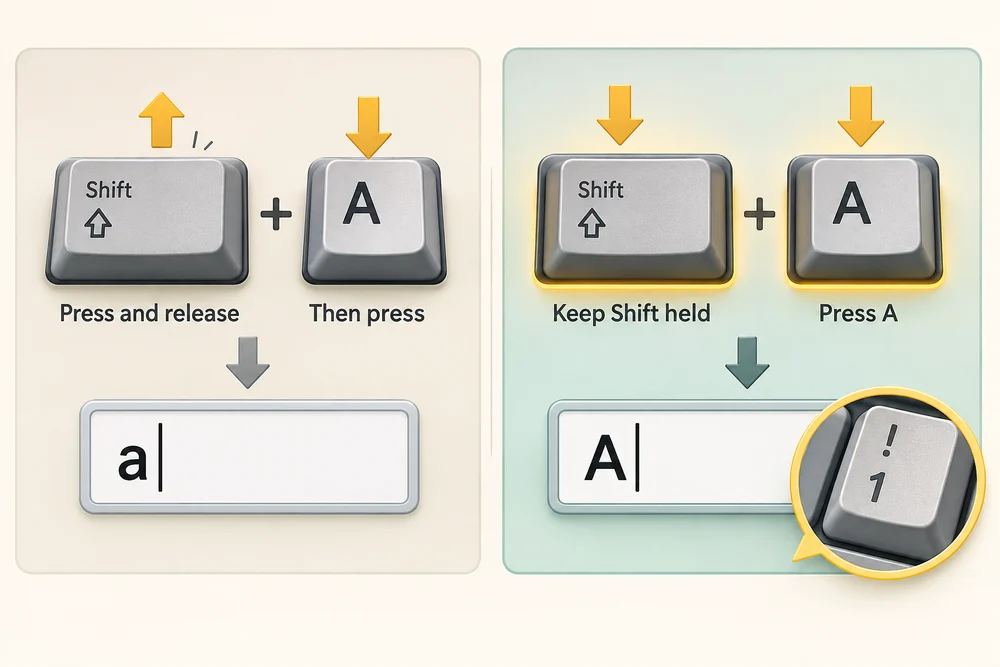
Pressing and releasing Shift before pressing the letter will not combine the keys. Keep Shift held while you press the second key. Symbols vary by keyboard layout, so look at the symbols printed on yours.
Try Shift with guidance
Follow the instruction popup on the practice desktop. Carry out each action yourself. The guide moves to the next step when you complete the action. On the last step, click Check the result. Afterwards, Try it gives you a fresh desktop to practise independently. Click Check my work when you finish, or use the optional hints underneath.
Click the writing area, hold Shift and press A, then release both keys to type uppercase A. Hold Shift and press 1, then release both keys to add !. Together the practice text becomes A!.
Type a capital and a symbol
You are going to type A! using Shift with another key. This fresh practice desktop stays inside the webpage. Try the task independently, using the optional hints underneath if you need help.
Click the blank writing area in Notes for Shift practice.txt. Hold down Shift, press A, then release both keys. Next hold Shift, press 1 and release both keys to add !. The text should read A!. If it is wrong, click the writing area, hold Ctrl and press A to select its text, release both keys, then press Backspace to clear it before trying again.
Check the idea
On a physical keyboard with standard settings and Caps Lock off, how do you type one capital A?
Hold Shift, press A, then release both keys.
Try this outside the practice desktop
You have practised inside this webpage. If you feel ready, you can repeat the skill in Windows on the same computer, outside the practice desktop. This is optional. The steps below use your actual apps and files, so use only disposable practice items. Files made in the webpage do not appear in Windows File Explorer.
Shift helps you type a capital at the start of a name or choose a symbol printed above another character.
- 1
Press the Windows logo key, type Notepad and click the Notepad app in the results. Hold Ctrl, press N and release both keys to start a new blank tab. Click its writing area.
- 2
With Caps Lock off, hold Shift, press A and release both keys. Look for an uppercase A. If you get a lowercase a, press Backspace once to remove it. Check whether Caps Lock is on and turn it off if needed, then try again while keeping Shift held until you have pressed A.
- 3
Find ! on your keyboard. If it is above 1, hold Shift and press 1, then release both keys. Your text should now say A!.
- 4
Click the X at the top right of the Notepad window when finished. If asked to save this disposable practice text, choose Don’t save.
PC practice is optional. A keyboard layout or Caps Lock setting can change the result. Use the ! symbol printed on your keyboard if its position differs from this example.
Prefer a more personal, one-to-one lesson? Basic Computing can help. Explore our services.