Use Tab and Enter
Use a computer with a mouse and keyboard. This practice desktop is designed for clicking, right-clicking, dragging and typing with physical keys, rather than touchscreen use on a phone or tablet.
Choose a control with the keyboard
You are going to move keyboard focus to Holiday plans in File Explorer with Tab, then open it with Enter.
You will learn to recognise keyboard focus and use it to choose a button.
Keyboard focus marks the control that will receive your next key press. An outline or other highlight usually shows where focus is.
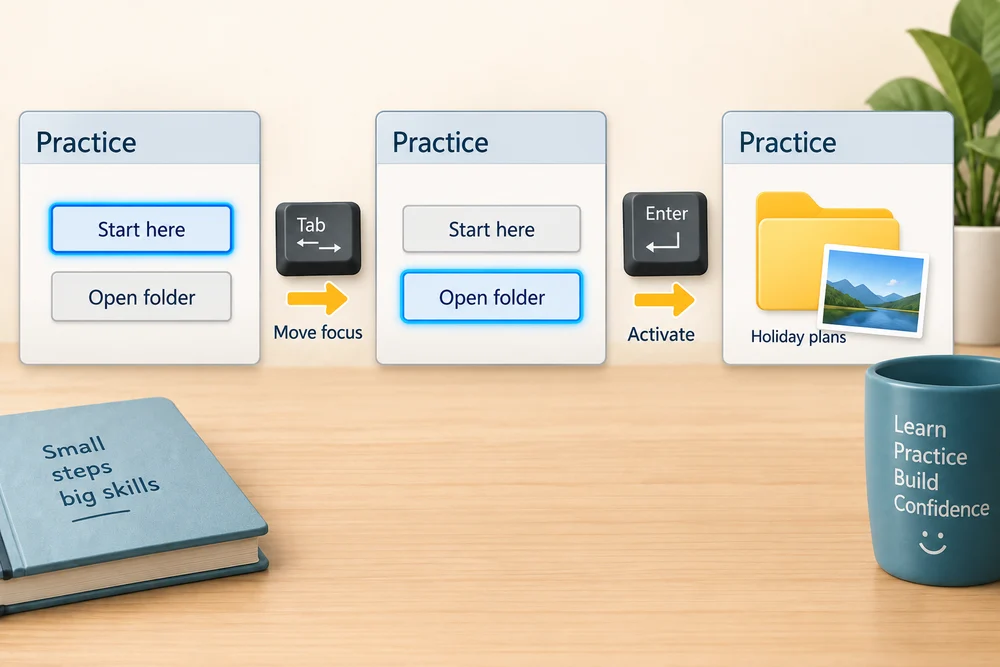
Pressing Tab normally moves focus to the next control, such as a button or text box. Enter can activate a focused button. Holding Shift while pressing Tab moves focus backwards.

The pointer and keyboard focus can be in different places. Watch the focus outline, not just where the mouse pointer is sitting. Enter’s effect depends on the control or app you are using.

Move focus with guidance
Follow the instruction popup on the practice desktop. Carry out each action yourself. The guide moves to the next step when you complete the action. On the last step, click Check the result. Afterwards, Try it gives you a fresh desktop to practise independently. Click Check my work when you finish, or use the optional hints underneath.
Follow the popup to place keyboard focus in the desktop. Press Tab to move the outline to the requested control, then press Enter to activate it. The outline shows which control will respond.
Open the folder with keys
You are going to move keyboard focus to Holiday plans in File Explorer with Tab, then open it with Enter. This fresh practice desktop stays inside the webpage. Try the task independently, using the optional hints underneath if you need help.
Click the File Explorer title bar to bring that window forward. Press Tab repeatedly and follow the focus outline through its controls. When the Holiday plans folder row has the outline, press Enter to open it. If you move past it, hold Shift and press Tab to move back, then release both keys. Focus and selection are different: the outline shows which item Enter will open.
Check the idea
In this practice, you want to activate a particular button with Enter. Which sign shows it is ready to receive that key press?
It has the keyboard focus outline.
Try this outside the practice desktop
You have practised inside this webpage. If you feel ready, you can repeat the skill in Windows on the same computer, outside the practice desktop. This is optional. The steps below use your actual apps and files, so use only disposable practice items. Files made in the webpage do not appear in Windows File Explorer.
Tab and Enter provide another way to use buttons when you prefer a keyboard or cannot use a mouse.
- 1
On this lesson page, press Tab and look for the focus outline. Keep pressing Tab one step at a time to move between links and buttons.
- 2
If you go too far, hold Shift, press Tab and release both keys to move back one control.
- 3
When a lesson section button has the outline, press Enter to choose that section.
PC practice is optional. Some controls, such as checkboxes, use Space to change their value. This lesson practises Enter on a button.
Prefer a more personal, one-to-one lesson? Basic Computing can help. Explore our services.