Check what Windows Backup protects
Know what is inside the promise
Identify a gap between protected folders and the files you actually need.
Distinguish Windows Backup folder syncing and remembered settings from a full-system backup.
A backup feature can protect useful parts of your digital life without containing everything on the computer. The important question is not just whether a switch is on. It is whether the files, settings and access you would need are actually included and recoverable.

Check the account, scope and result
How this works
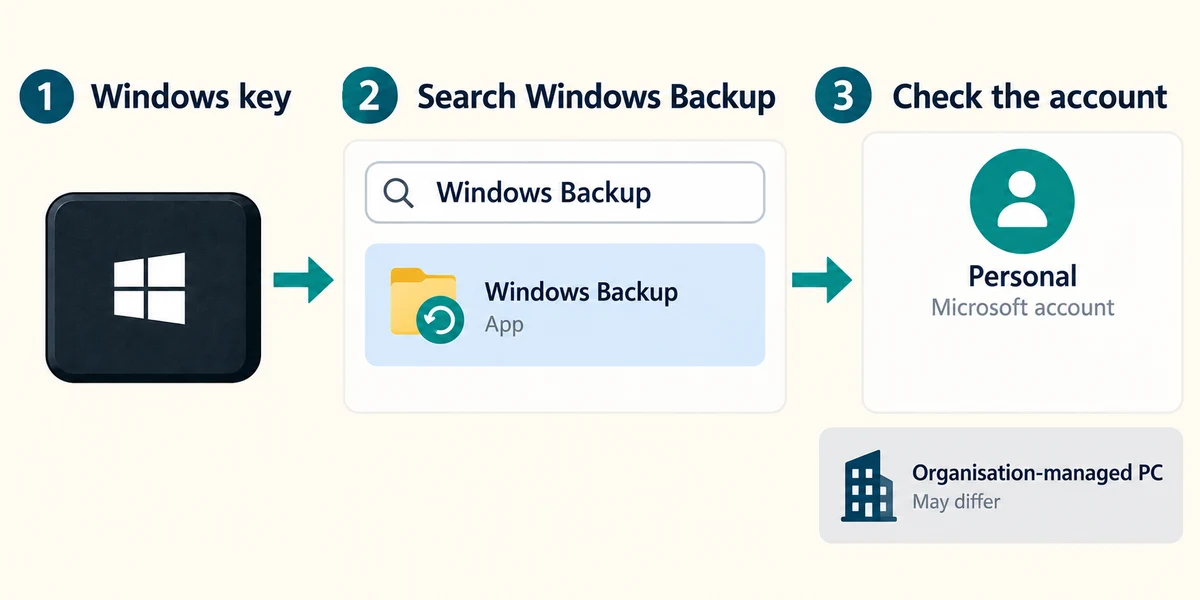
Windows Backup is intended for consumer PCs using a personal Microsoft account; organisation-managed devices can behave differently. Press Windows once, type Windows Backup and click its app result to inspect it. Check the account shown before changing anything. You do not need to sign in or enable it to finish this lesson.
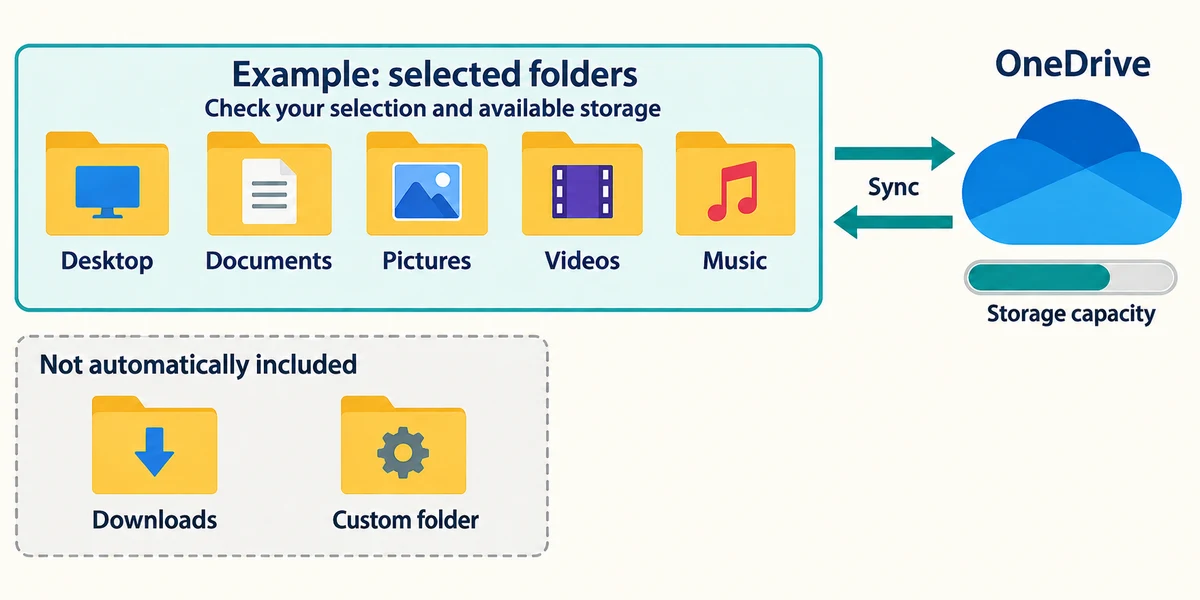
Expand Folders to inspect the personal folders offered, such as Desktop, Documents, Pictures, Videos and Music. Selected folder backup uses OneDrive syncing and needs sufficient available cloud storage. A Downloads folder or a custom folder on another drive is not covered just because another listed folder is enabled.
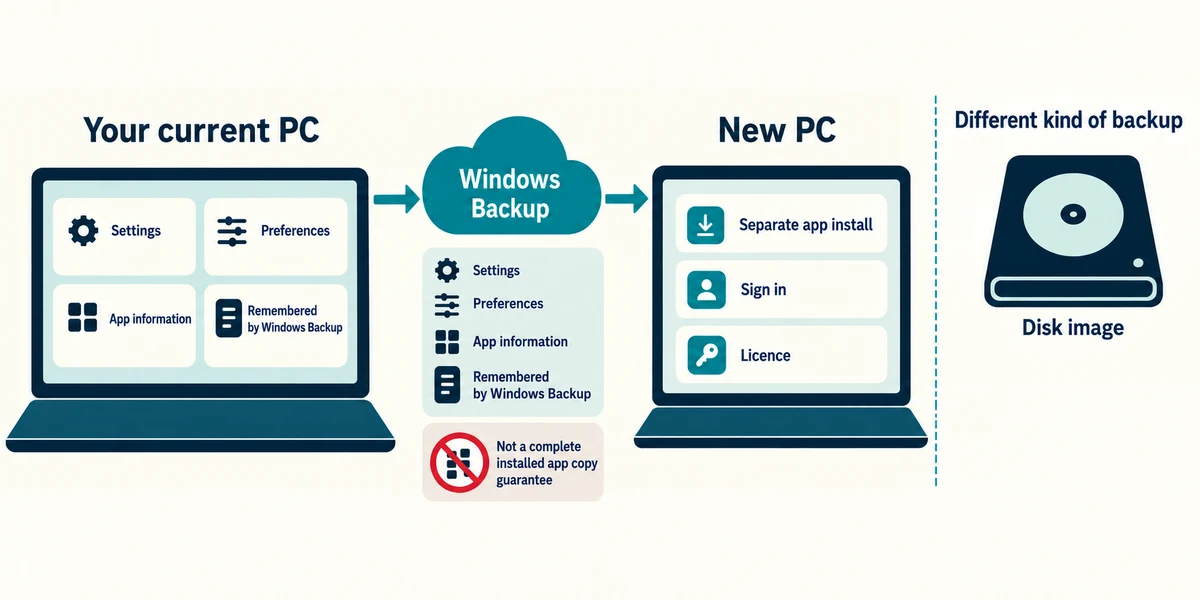
Other sections can remember supported settings, preferences and app information. This does not mean every installed program and its private data is stored as a complete working copy. Apps may need reinstalling, signing in or licences on the new PC. A full disk image is a different kind of backup.
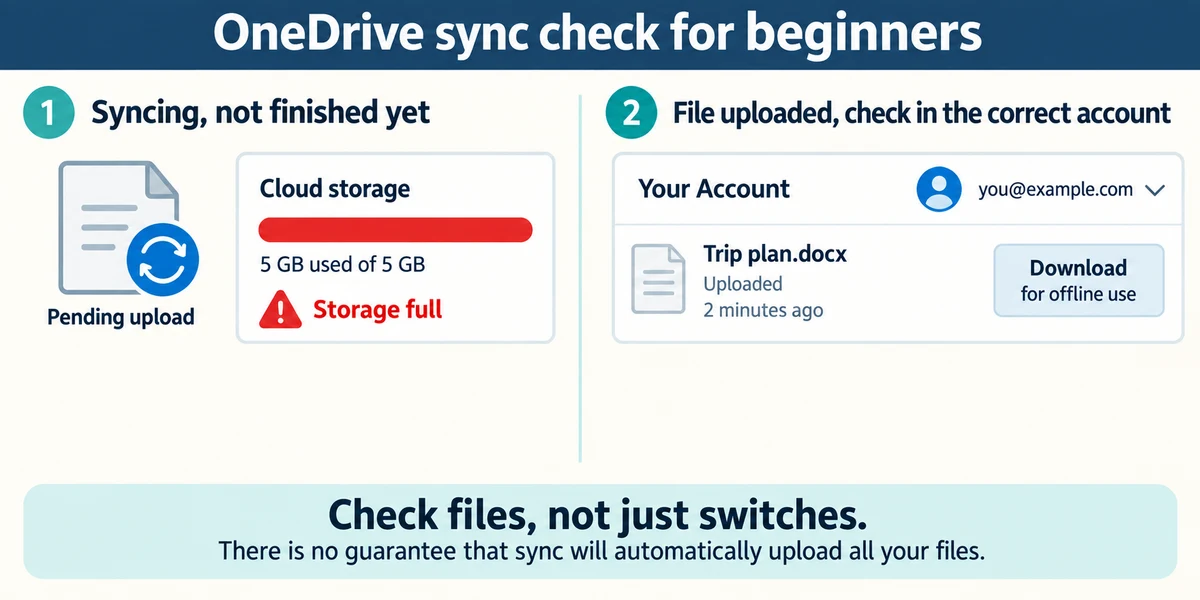
Check the reported result and OneDrive sync status, then inspect important files in the intended online account. If offline access is needed on a new PC, download the relevant files and verify their availability. A pending upload or full storage allowance can leave a gap despite a chosen switch.
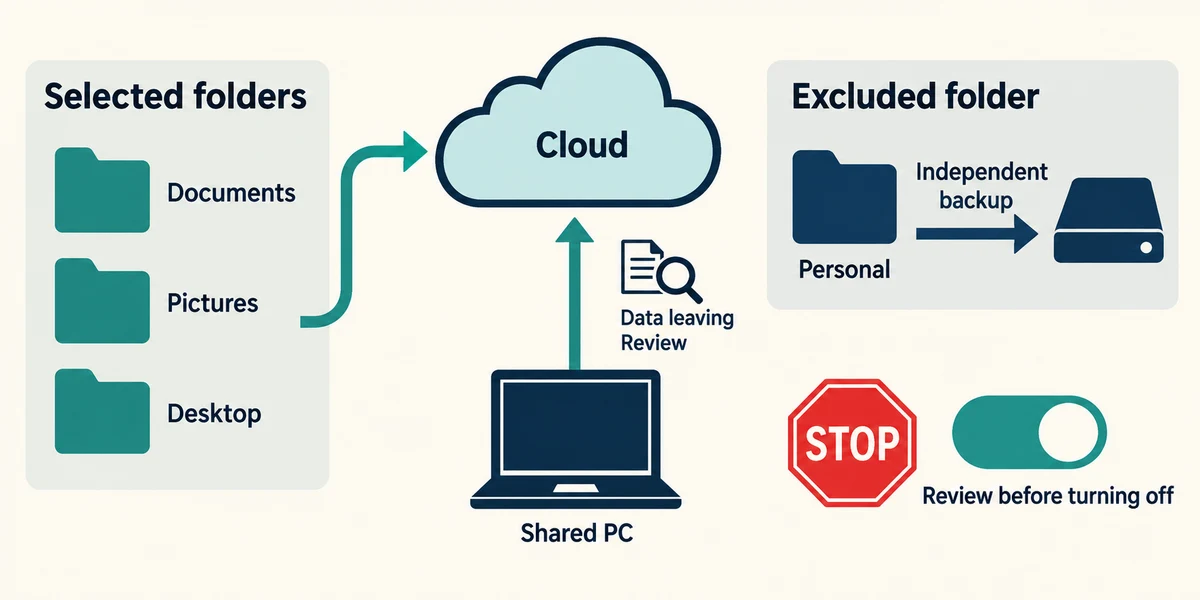
Keep an independent recovery plan for excluded folders and unwanted synced changes. Review which data will leave the PC before enabling cloud storage, especially on shared or managed equipment. Do not turn folder backup off merely as a practice test; stopping it can change where files are presented and needs deliberate review of the offered choices.
Documents is protected, but your important archive is in a custom folder on another drive. What should you do?
Check that archive separately and arrange suitable coverage if it is excluded.
Check what you understand
In guided learning, click Start 3 questions to receive a selection from this lesson. Click the circle beside an answer, then click Check answer. Read the feedback and try again if needed. Click Next question after each correct answer. Answer all 3 correctly to continue.
Returning to guided learning keeps the questions and answers in your current attempt.
Read all 3 questions and explanations
Windows remembers an app in your backup information. What should you still allow for on a new PC?
Answer: Reinstallation, sign-in or licence requirements for that app.
Remembered app information is not always a complete installed copy.
The selected folders show an upload problem because cloud storage is full. What does that mean?
Answer: Some intended files may not yet be recoverable online.
A selected setting is not proof of completed transfer.
Why keep another recovery route even when folder syncing is working?
Answer: Unwanted changes and deletions can sync too.
A separate recovery route can protect earlier useful contents.
Take this to your computer
- 1
Inspect Windows Backup’s account and offered folder list if available, without changing switches.
- 2
Compare those locations with a fictional inventory and note any missing coverage or account-access requirement.
No account connection or cloud upload is required here. Available Windows Backup features, account support and storage allowances can change. Verify the current Microsoft guidance before configuring a real device.
Prefer a more personal, one-to-one lesson? Basic Computing can help. Explore our services.