Understand storage: HDD and SSD
Understand storage: HDD and SSD
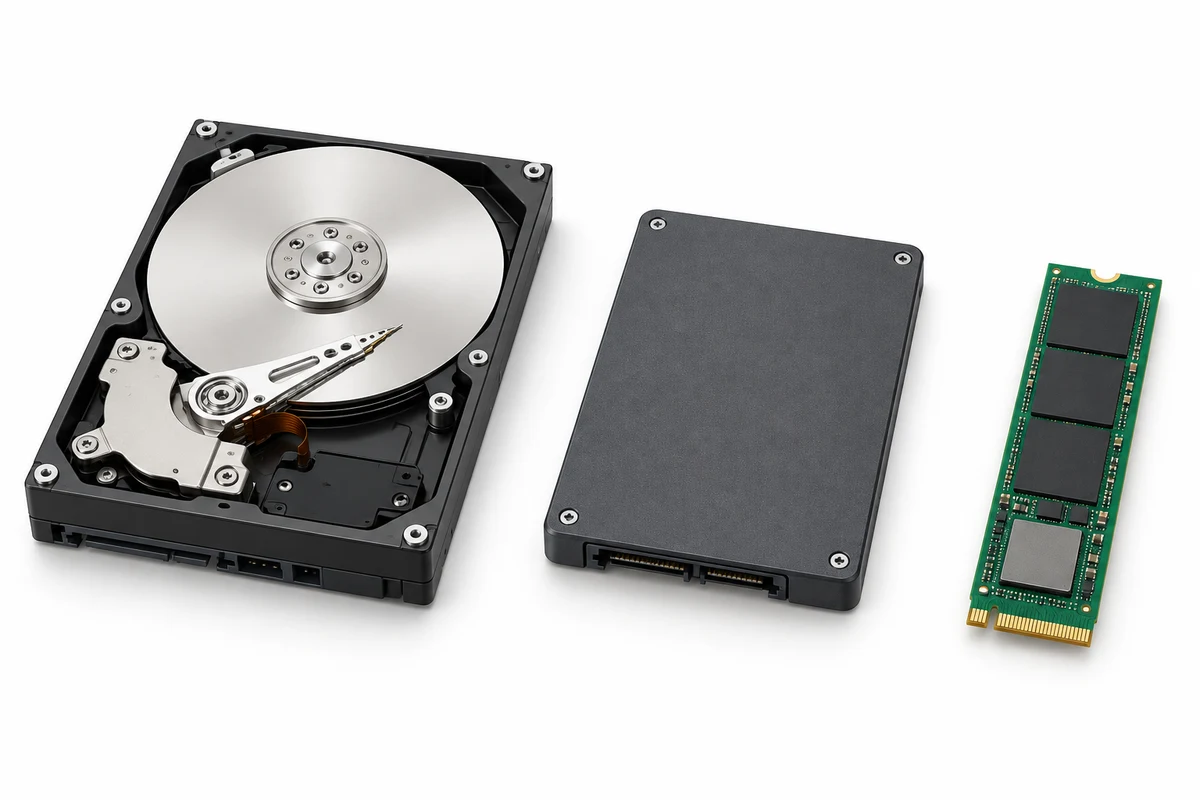
You are going to identify parts in the numbered pictures, explore six illustrated topics, then answer three short questions about what you have learned.
You will understand storage capacity and speed, and recognise why an SSD, an HDD and RAM have different roles.
Storage is where a computer keeps saved files, installed programs and its operating system. A hard disk drive, shortened to HDD, and a solid-state drive, shortened to SSD, are two common kinds. Both can keep saved information when the computer is switched off.

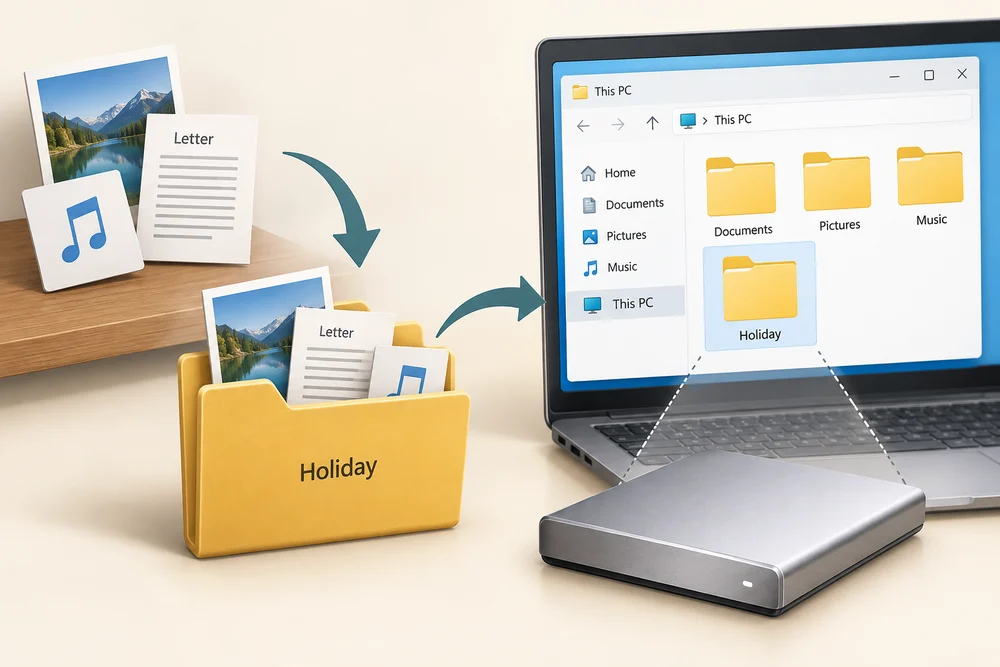
A file is a saved item of information, such as a photo, a letter or a music recording. Folders organise those files. The folders you see on screen are part of how files are organised, not separate physical drawers inside the drive.
RAM provides temporary working space, while storage keeps saved information between sessions. In this lesson you will compare HDD and SSD examples, then separate three useful questions: how much it holds, how quickly it works and what type it is.

Explore how it works
Explore the numbered parts first. Click or tap a spot, or choose its named button, then click Read explanation to move to its description. The six topic cards further down explain the wider ideas. Click a card once to read more, then Back to the pictures to return. With a keyboard, press Tab to reach a button and Enter to activate it. Explore at your own pace.
Inside a hard disk drive
The cover and underside electronics are separated for illustration. Real drives keep their delicate recording surfaces enclosed.
Protective cover
The cover encloses the recording mechanism. This view is for understanding the parts, not a task to open your own drive.
Magnetic platter
Saved information is recorded magnetically on the platter surfaces. The disks rotate during operation. A drive can contain more than one platter.
Arm and recording head
The arm positions a tiny read/write head near the platter surface. The head is at the arm's tip; it reads or changes the magnetic recording as the disk turns.
Spindle and motor
The motor rotates the platters around this central hub. The rotation and movement of the arm are why a hard drive has moving mechanical parts.
Control electronics
The underside circuit board controls the drive and communicates with the computer. The platter surfaces, rather than this board alone, hold the recorded files.
Inside a solid-state drive
This example is a 2.5-inch SATA SSD with its case opened in the illustration. M.2 SSDs use a different shape and connection.
Protective case
The enclosure supports and protects the board. The size of the case is not a direct measure of how much it can store.
Flash memory
NAND flash chips hold saved information without continuous power. There is no rotating disk and no arm that must move to reach a file.
Controller chip
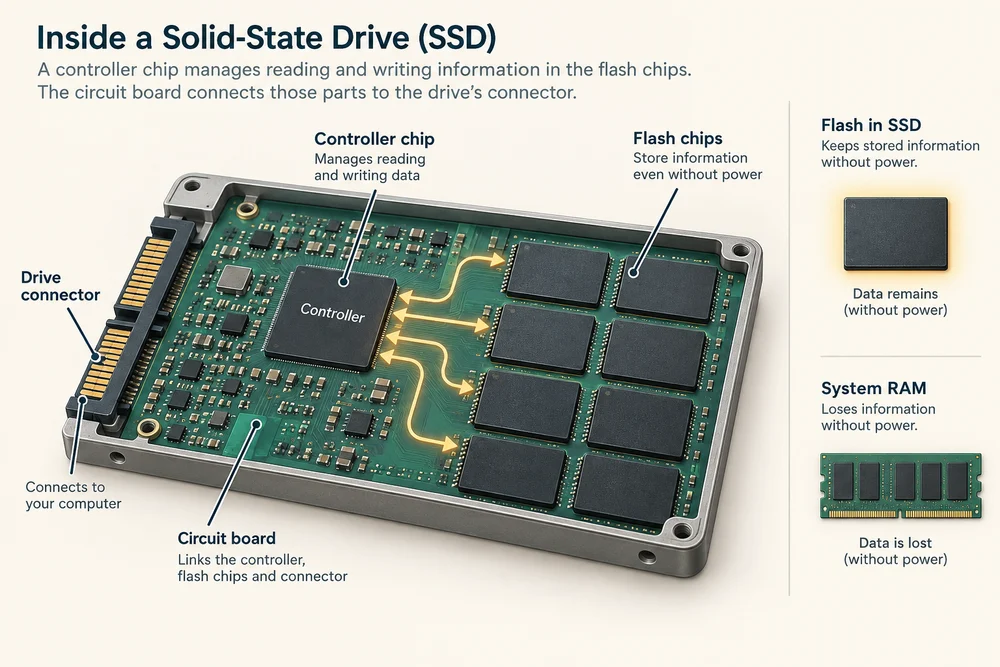
The controller manages communication with the computer and how data is read and written in the flash chips. It helps manage errors and the use of the memory cells.
Data and power connections
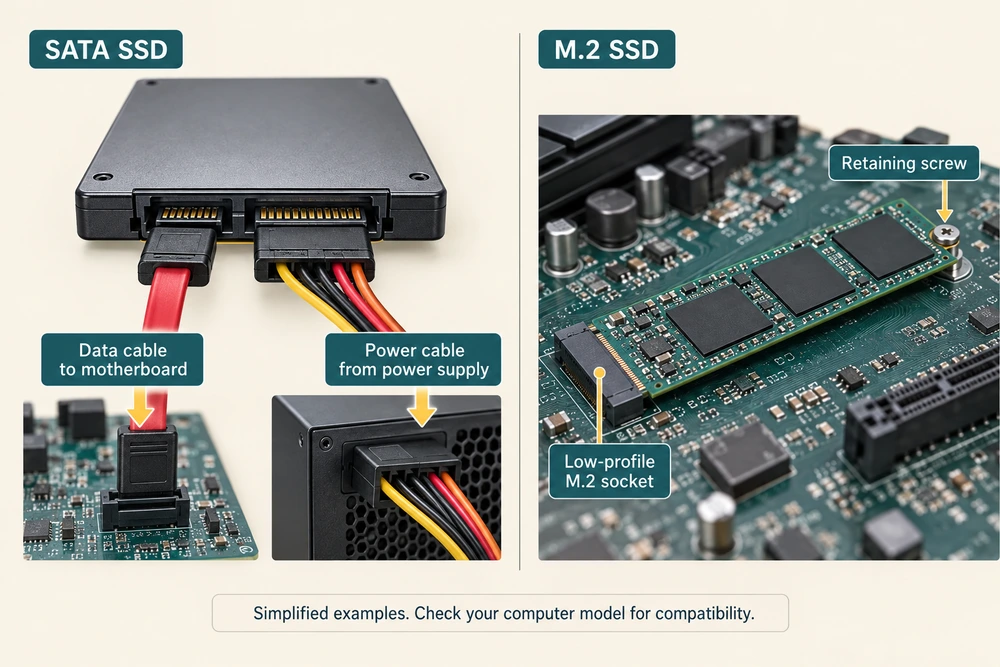
A SATA SSD uses adjacent but separate connections for data and power. This differs from an M.2 drive, which connects directly to a suitable slot.
Files stay between sessions
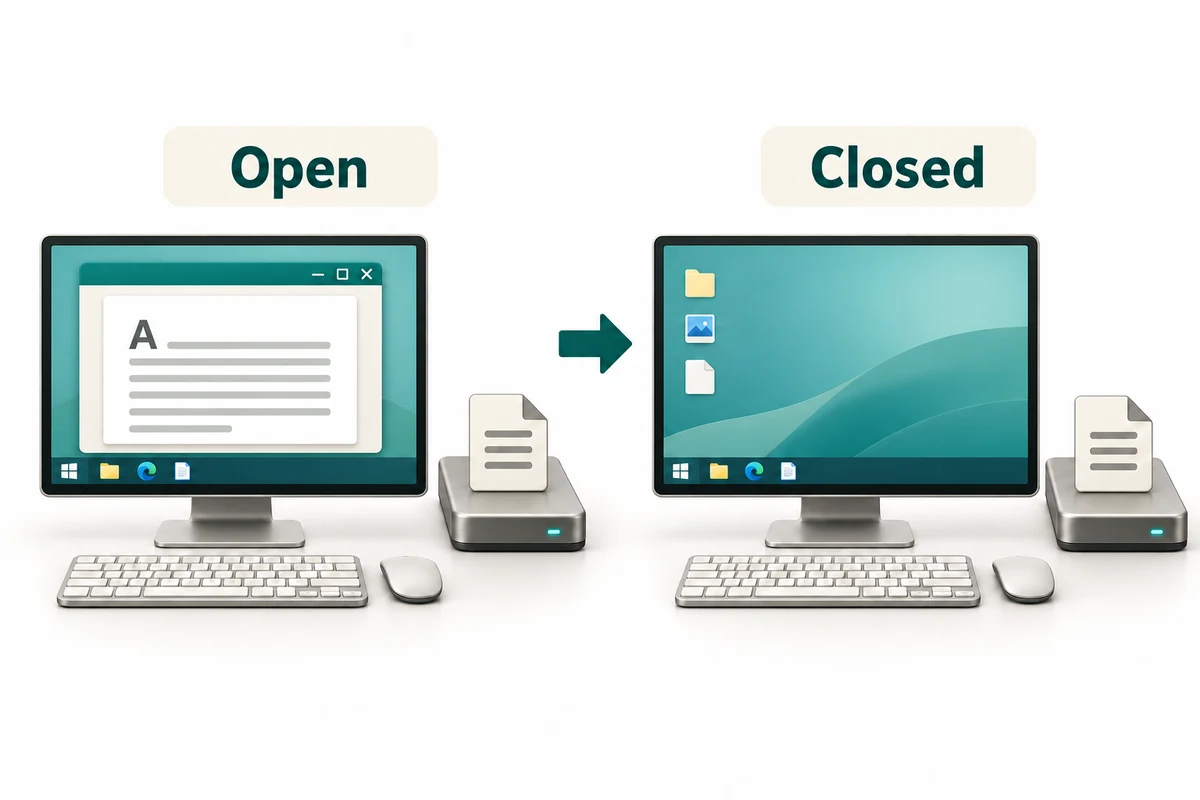
Saving writes information to storage so it can be used later. Opening a file reads information from storage into the computer’s current work. Deleting a file and closing its window are different actions: closing a window does not, by itself, delete a saved file.
A drive can hold many folders and file types together. Its capacity is the total amount it can hold; free space is the part not currently used. Programs and the operating system need space too, not just your own photos and documents.

- Operating system
20 GB (2%) - Programs
200 GB (20%) - Documents
250 GB (25%) - Photos
300 GB (30%) - Other files
50 GB (5%) - Free space
180 GB (18%)
820 GB used + 180 GB free = 1,000 GB
Example sizes only. Actual space used varies between computers.
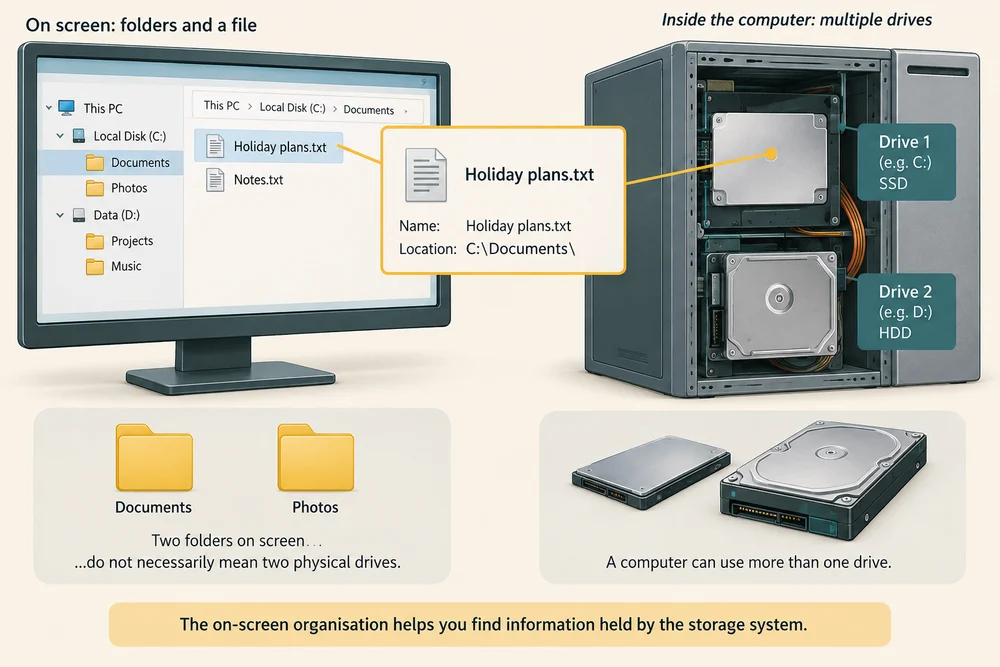
A saved file has a location as well as a name. A computer can use more than one drive, so two folders on screen do not necessarily describe two physical drives. The on-screen organisation helps you find information held by the storage system.
Inside a hard disk drive
An HDD records information magnetically on spinning disks called platters. A moving mechanism positions the read-and-write heads to reach the information. That movement is one reason an HDD can make a gentle whirring or working sound.

HDDs can provide large amounts of storage and are often used for bigger collections of files. Their moving parts also mean that reaching information takes physical movement. An exposed-platter illustration is for understanding the design; drives are normally enclosed.

The spindle at the centre turns the platters. An arm positions the small heads that read and write information, while the drive’s circuit board manages its operation and connection to the computer. The head is a recording component, not the centre of the disk.

An SSD uses chips
An SSD stores information in electronic flash-memory chips rather than on spinning platters. It has no moving read-and-write mechanism. This commonly gives quicker access to files and can make starting the computer or opening programs feel more responsive than on an HDD.
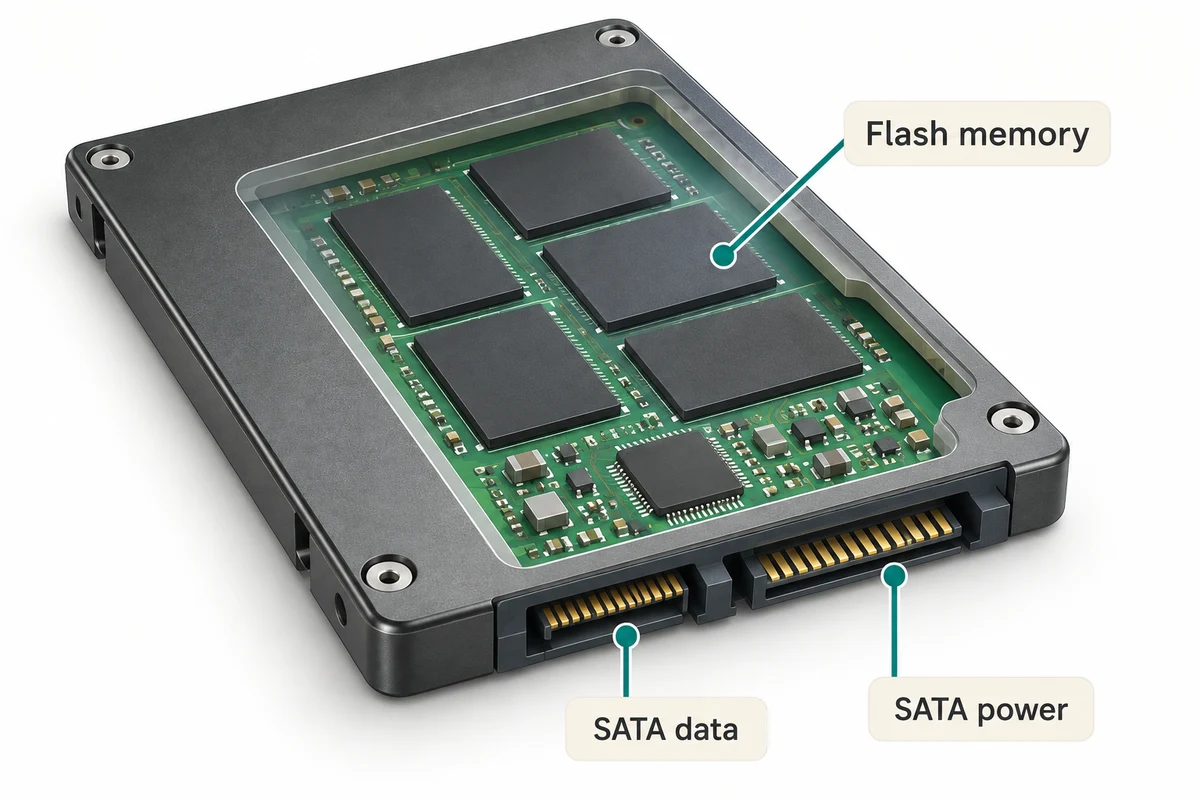
No moving parts does not mean impossible to damage or lose. SSDs can still fail, and files can still be deleted accidentally. Both HDDs and SSDs benefit from a separate backup copy of important files.

Inside the SSD, a controller chip manages reading and writing information in the flash chips. The circuit board connects those parts to the drive’s connector. Flash keeps saved information without power, which is a different role from ordinary system RAM.
A box and a small board can both be SSDs
A 2.5-inch SATA SSD is a small, flat box. An M.2 SSD is a slim circuit-board module. They can look very different while both storing information in flash chips. The size of the outside does not tell you how many files the drive can hold.
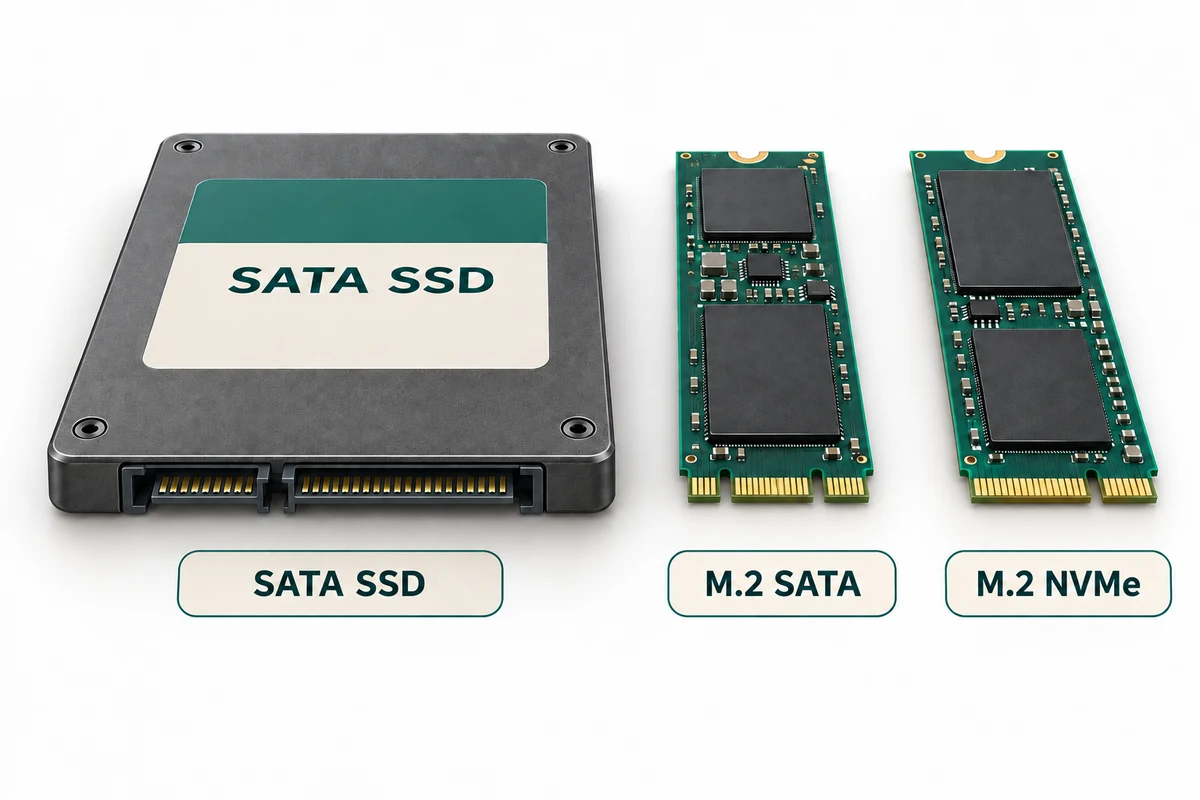
M.2 describes a physical format, not a guarantee of one speed. M.2 SSDs may use SATA or NVMe communication, depending on the drive. NVMe commonly uses a fast PCIe connection. A supported slot and matching technology are both needed.

The connector is where the drive exchanges information with the computer. On a boxed SATA example it is at the edge of the case; on an M.2 example it is the contact edge of the small board. Their outside shapes reflect different connection arrangements.
Capacity is different from speed
Storage capacity is commonly measured in GB or TB. A 1 TB drive has more capacity than a 500 GB drive, but that alone does not tell you which opens files faster. Drive technology, the connection and the kind of work affect performance.

For example, a smaller SSD may open a program more quickly than a larger HDD, while the HDD can hold a larger collection. Neither more GB nor a smaller physical shape automatically means faster. Capacity answers how much; performance describes how quickly.

Files do not all take the same amount of space. A long video can use far more than a short letter, so a drive’s capacity cannot be translated into one fixed number of files. Free space changes as information is added or removed.

Keeping another copy
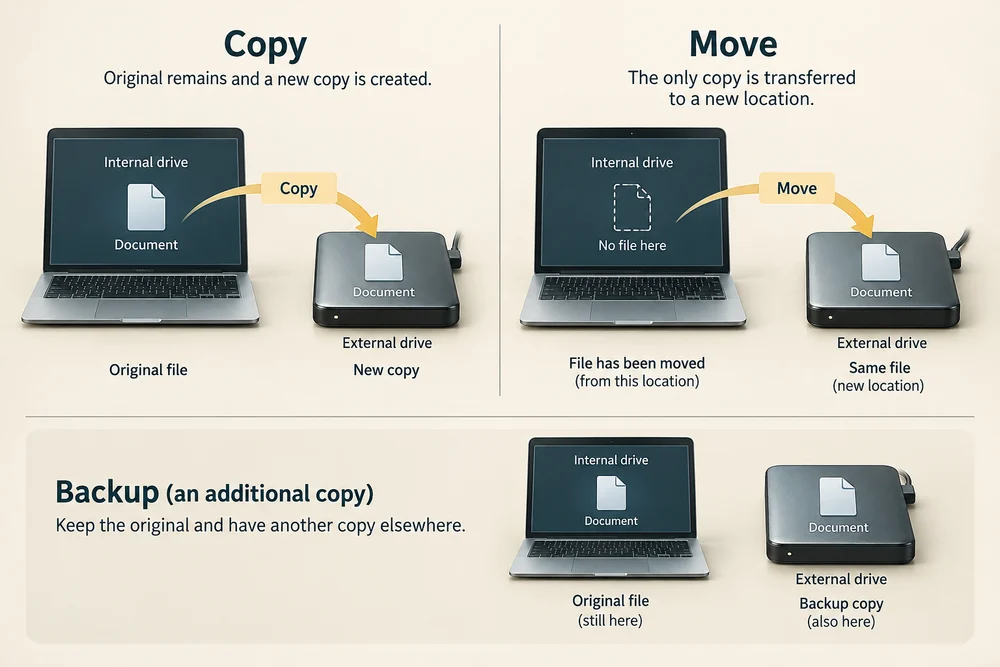
A backup is an additional copy that helps you recover important information if the original is lost or damaged. It can be kept on another suitable drive or a backup service. The original and the backup should not depend on one single drive staying healthy.

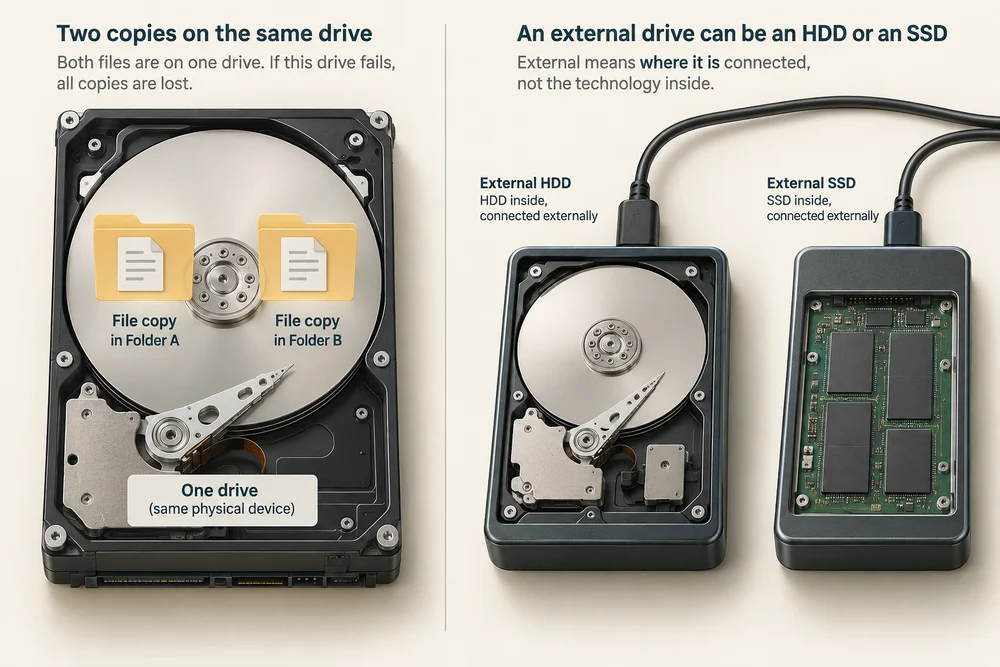
Putting a second copy in another folder on the same drive does not protect it from that drive failing. An external drive can be either an HDD or an SSD: external describes where it is connected, not the technology inside. This lesson explains backups without asking you to move or delete any files.
Copying and moving have different results. A backup needs an additional copy: the original remains and another copy exists elsewhere. Moving the only copy to an external drive changes its location, but still leaves just one copy to depend on.
Check your understanding
Click Start 3 questions to begin a selection from this lesson’s ten questions. Read the guidance beside each question. After the first two correct answers, click Next question. When all three are correct, click Continue below. With a keyboard, press Tab to reach a button and Enter to activate it.
In guided learning, click Start 3 questions to receive a selection from this lesson. Click the circle beside an answer, then click Check answer. Read the feedback and try again if needed. Click Next question after each correct answer. Answer all 3 correctly to continue.
Returning to guided learning keeps the questions and answers in your current attempt.
Read all 10 questions and explanations
Which resource retains a saved file between sessions with the power off?
Answer: Storage, such as an HDD or SSD.
Yes. HDDs and SSDs retain saved information without power. RAM and processing serve current work.
Which example is a file rather than its container or physical storage?
Answer: A saved photograph.
Yes. A file is a saved item such as a photograph. A folder organises files and a drive stores them.
You close the window showing a previously saved photograph. What happens to its saved copy?
Answer: It remains in its storage location.
Yes. Closing the window ends that view. It does not delete the saved photograph or undo its saved status.
Which description matches the storage mechanism inside an HDD?
Answer: Magnetic recording on spinning platters.
Yes. An HDD uses magnetic platters and moving heads. SSD flash chips and ordinary system RAM are different technologies.
Which parts hold saved information inside an SSD?
Answer: Electronic flash-memory chips.
Yes. SSD flash keeps saved information without power. Ordinary RAM is temporary, and magnetic platters belong to an HDD.
Why can changing from an HDD to an SSD make program opening more responsive?
Answer: The SSD commonly accesses stored information more quickly.
Yes. Quicker storage access can reduce delays. Replacing storage does not itself add CPU cores or system RAM.
Which detail does the name M.2 describe about an SSD?
Answer: Its physical format.
Yes. M.2 describes the physical format. Capacity and supported communication technology are separate details.
A 1 TB drive and a 500 GB drive are listed without other details. Which comparison is supported?
Answer: The 1 TB drive can hold more information.
Yes. Capacity describes how much information fits. It does not alone establish performance or outside size.
A second copy is placed in another folder on the same drive. What protection does that give if the drive fails?
Answer: Both copies still depend on that one drive working.
Yes. A drive failure can affect both folders. A backup should not depend on the same single drive as the original.
What does the word external tell you about a storage drive?
Answer: It connects outside the computer and may use HDD or SSD technology.
Yes. External describes the connection arrangement. Both HDD and SSD technology can be used in an external drive.
Connect the idea to your computer
These optional observations help connect the pictures with your own computer. You can finish the lesson without opening the case, changing a setting or buying a part.
- 1
If you have your computer’s specification sheet, look for Storage and read the capacity beside it. Look for HDD, SSD, SATA, M.2 or NVMe if those details are listed.
- 2
Compare any listed type with the lesson pictures. A small M.2 board and a larger boxed SSD are both possible solid-state drives, so do not judge only by outside size.
- 3
Think of one saved file that matters to you. Consider whether another copy exists somewhere that does not rely on the same drive. You do not need to copy, move or delete anything for this lesson.
If you do not have the specification sheet or cannot identify a part, use the lesson pictures instead. Every computer is different. This activity is about understanding, not fitting or replacing hardware.
Looking to build a computer or find one that suits your needs? Contact Basic Computing for help.
Look inside your computer
Explore hardware in 3D
Choose an internal component below. Click once on Open 3D model to load a model you can turn and inspect.
Meet the component
Hard drive (HDD)
A hard drive stores files on spinning magnetic platters. A moving arm positions tiny read/write heads close to the platter surfaces.
Choose a part
Click once on a named part above to learn what it does. When the 3D view is open, a bright yellow glow highlights it on the model.
These are simplified, representative designs. Details and proportions vary between real products. Separated parts are a teaching illustration, not instructions for taking a device apart.