Read OneDrive sync and availability
Connected copies share changes
Choose how to keep an online file available on the PC for offline use.
Distinguish online-only, locally available and always-kept files from sync errors.
Syncing keeps a connected folder and its online service up to date with one another. Changes can travel in both directions, including deletions. Status information helps you see whether a file is available here and whether changes have finished travelling. Sync is useful, but it is not an independent safety copy of every earlier state.
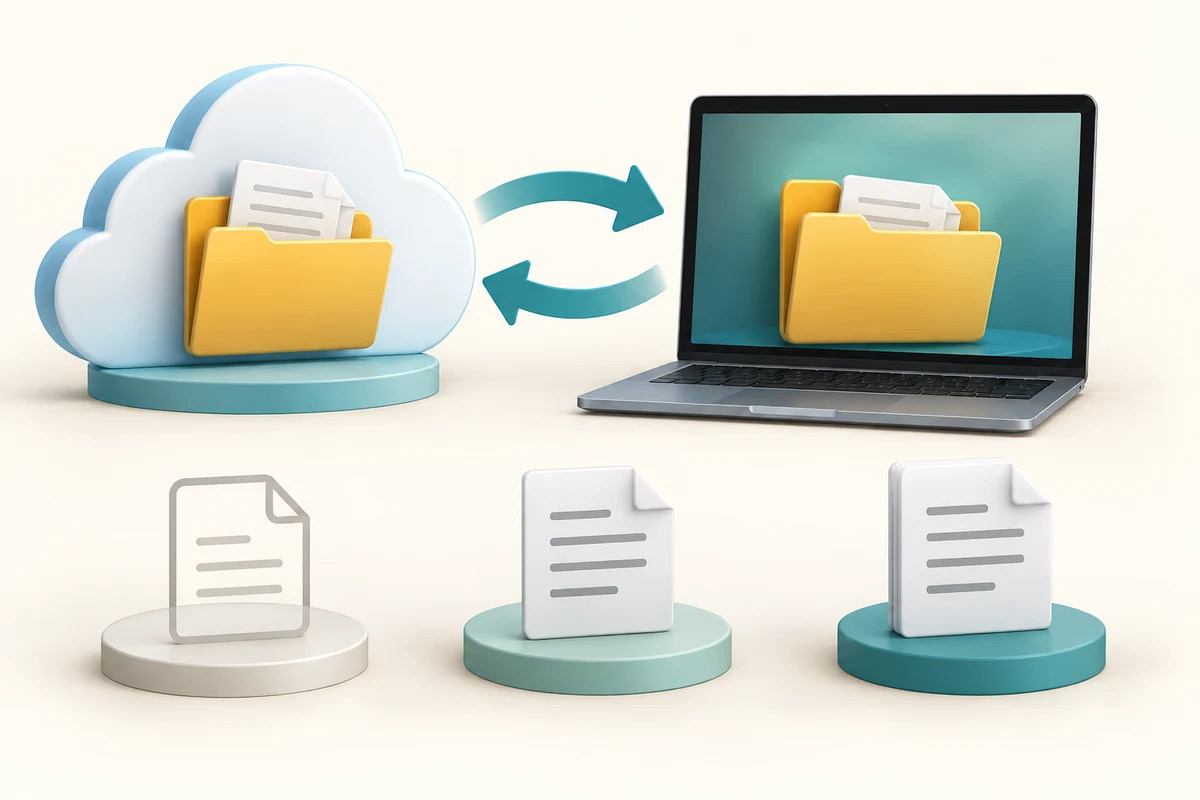
Read the status before changing the file
How this works
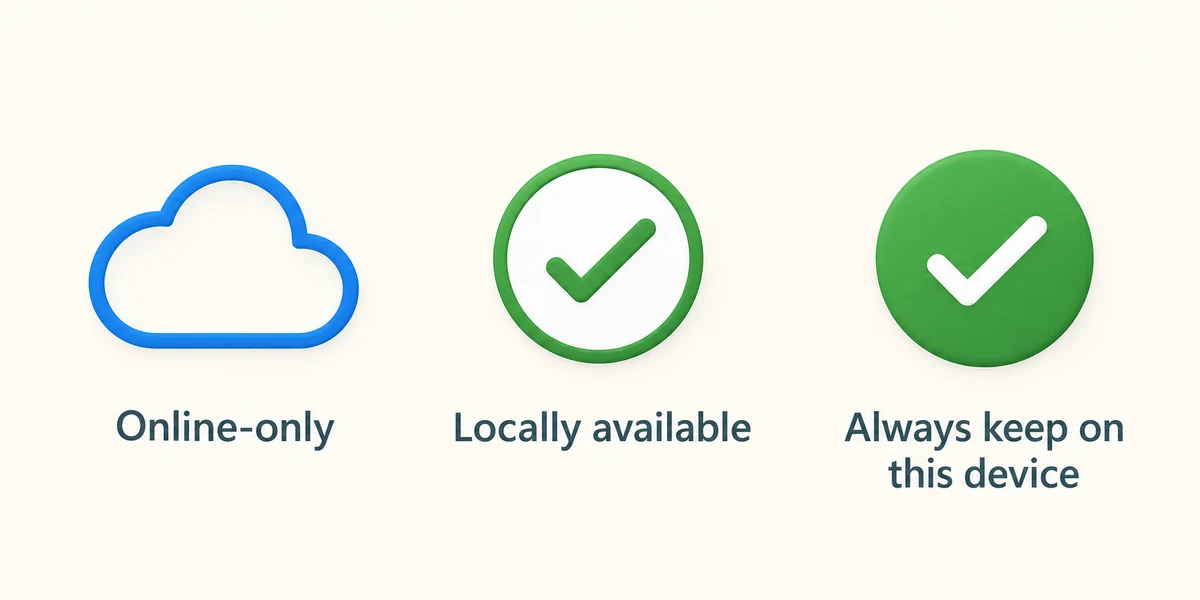
In File Explorer, the OneDrive area identifies the synced account. With Files On-Demand, a blue cloud beside a file means online-only. A green tick in an outlined circle means locally available after download. A solid green circle with a white tick means Always keep on this device. The last choice is intended to retain an offline copy; an ordinary locally available copy can later be freed to save space.
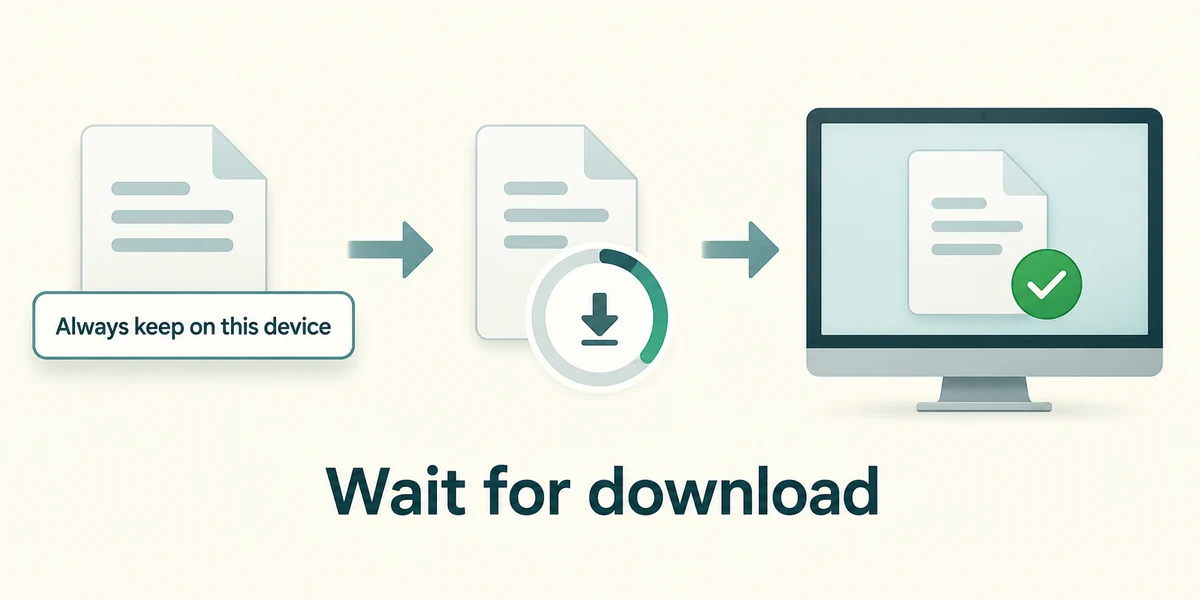
To prepare a known file for offline use, right-click it once in its OneDrive folder and click Always keep on this device. Wait while it downloads and check the solid green tick status. Keep the connection available until completion. Right-click opens its action menu; it does not open the document itself.
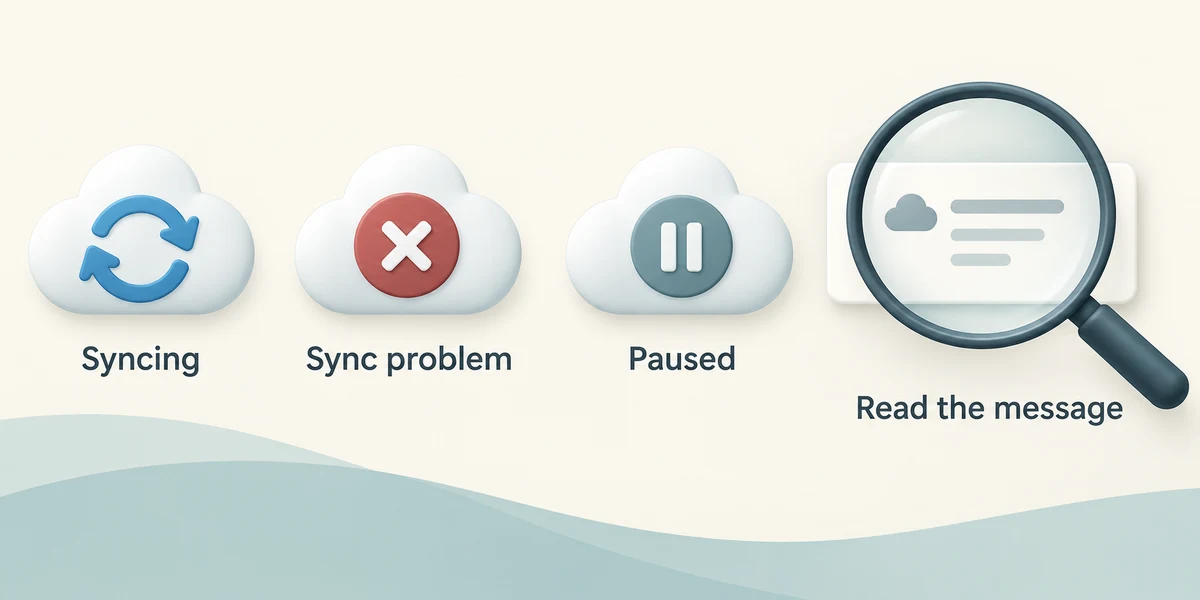
Circular arrows indicate syncing, while a red cross can indicate a sync problem. A paused cloud status means syncing is paused. Click the OneDrive cloud in the taskbar notification area near the clock once to read its status and any explanation. If it is hidden, click the small upward arrow there to show hidden icons. Do not infer the cause from colour alone.
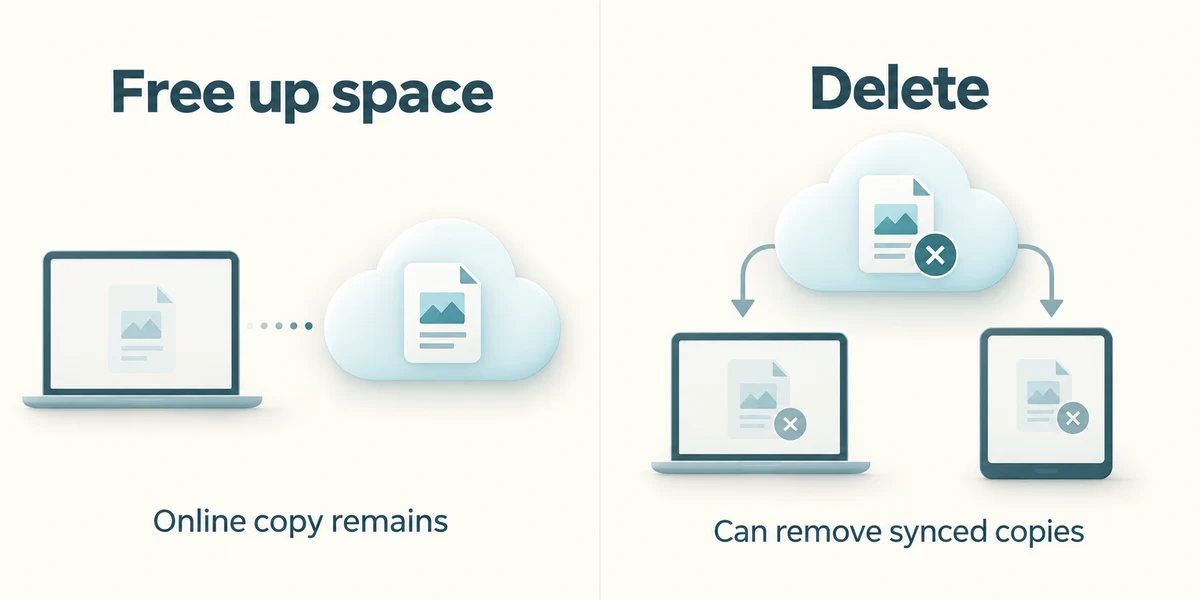
Free up space makes a synced file online-only while keeping its online copy; Delete is different and can remove it from OneDrive and other synced devices. Do not delete a file merely to remove its local download. If syncing has a problem, read the message or get help before moving files repeatedly. A backup should preserve recoverable copies beyond just mirroring today's changes.
You need a known online-only OneDrive document for a trip without internet. Which action matches that aim?
Choose Always keep on this device and wait for the completed availability status.
Check what you understand
In guided learning, click Start 3 questions to receive a selection from this lesson. Click the circle beside an answer, then click Check answer. Read the feedback and try again if needed. Click Next question after each correct answer. Answer all 3 correctly to continue.
Returning to guided learning keeps the questions and answers in your current attempt.
Read all 3 questions and explanations
What does a blue cloud beside a OneDrive file indicate?
Answer: Its contents are online-only on this device.
The blue cloud indicates online-only availability. Errors and always-kept status use different indicators.
Why is deleting from a synced folder different from Free up space?
Answer: Deletion can remove the online file too; Free up space retains it online.
Sync carries deletions. Use the availability action when you intend to retain the online file.
A red cross appears beside a file. What should you do before relying on the latest online copy?
Answer: Read the OneDrive status and resolve or seek help with the reported sync problem.
An error can mean changes have not synced. Read its explanation rather than assuming completion or changing names blindly.
Take this to your computer
- 1
No availability setting must be changed. If OneDrive is already configured, observe one file's icon and compare it with this explanation.
- 2
For a future intended offline copy, use the right-click menu described above and wait for completion before disconnecting.
OneDrive setup and workplace policies vary. This lesson does not alter your sync settings or files.
Prefer a more personal, one-to-one lesson? Basic Computing can help. Explore our services.