Understand files in the cloud
Your files can live beyond this computer
Choose what must be checked before relying on a file away from the internet.
Explain why seeing a cloud filename is not the same as having its contents offline.
Cloud storage keeps files on computers run by a service, reached through an account. OneDrive is Microsoft's example. Your own device may also hold copies, but online storage and local storage are not the same place. Understanding that difference helps you find work and decide whether it will be available without the internet.
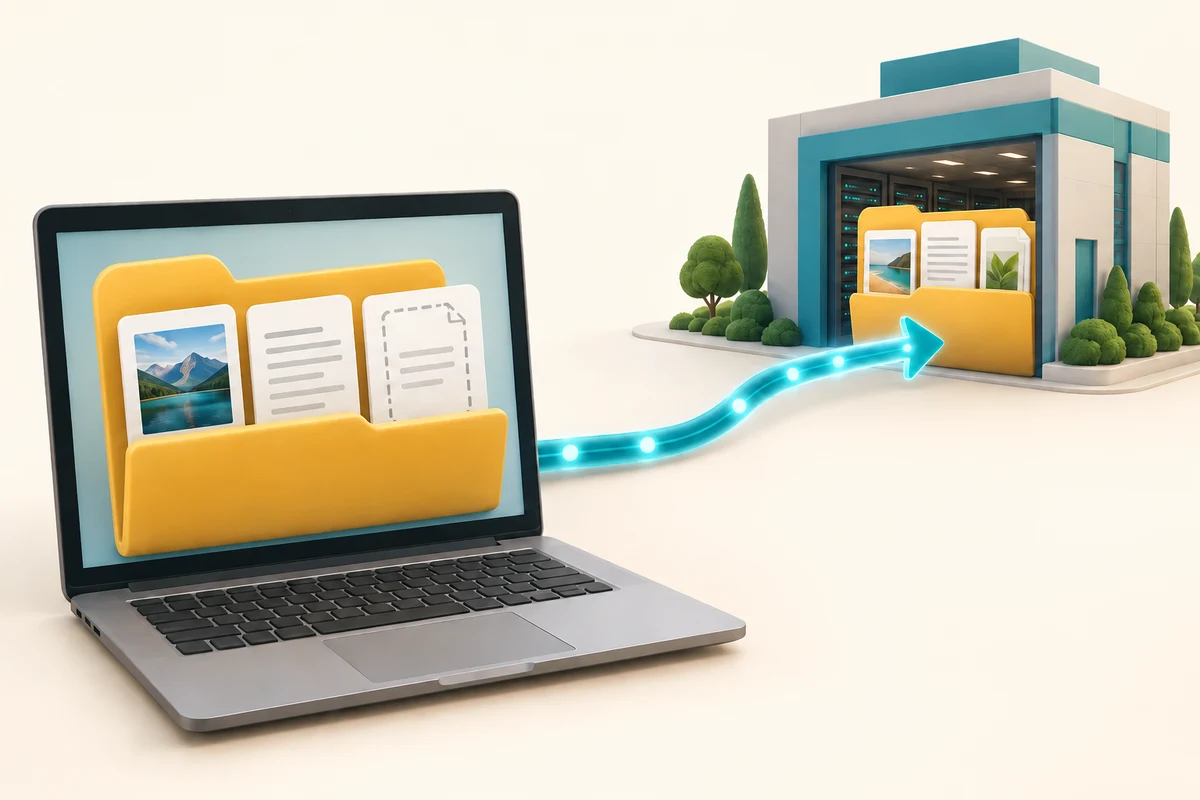
Think about account, location and availability
How this works

A cloud account is the identity used to reach your online files. Your browser or a sync app gives you a way to use it. Personal and work or school accounts can contain different files even on the same PC. Check the displayed account name before deciding that something is missing.
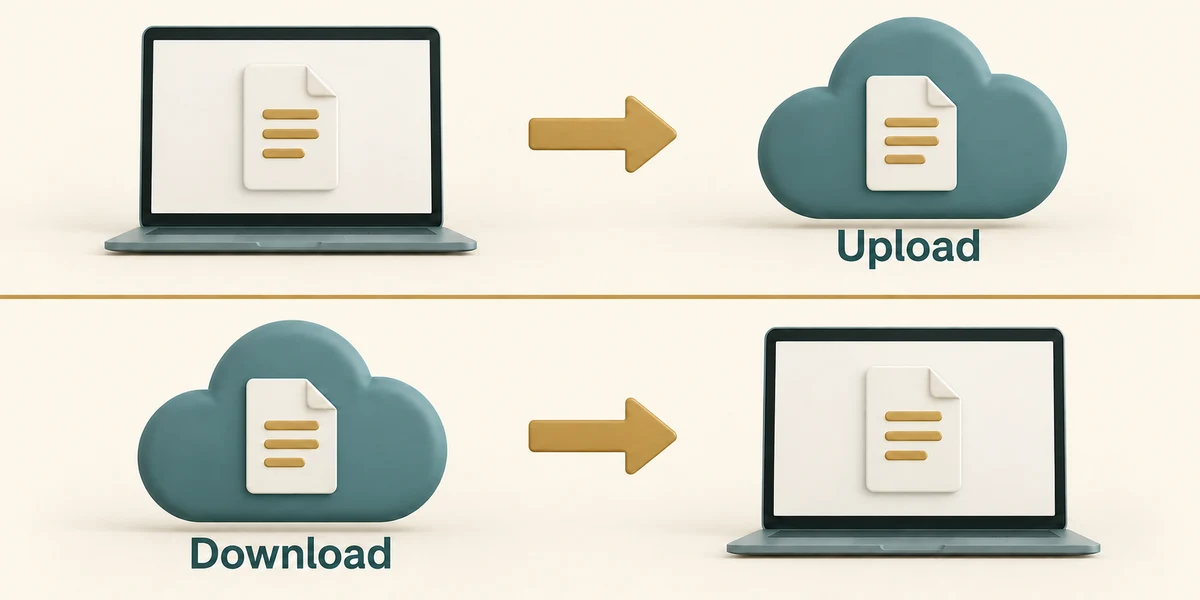
Uploading sends a copy from your device to a service; downloading brings a copy to your device. A file saved only in an unsynced local folder does not automatically appear on every device. A service may also connect a folder through syncing, which keeps changes coordinated rather than making an independent copy on every edit.
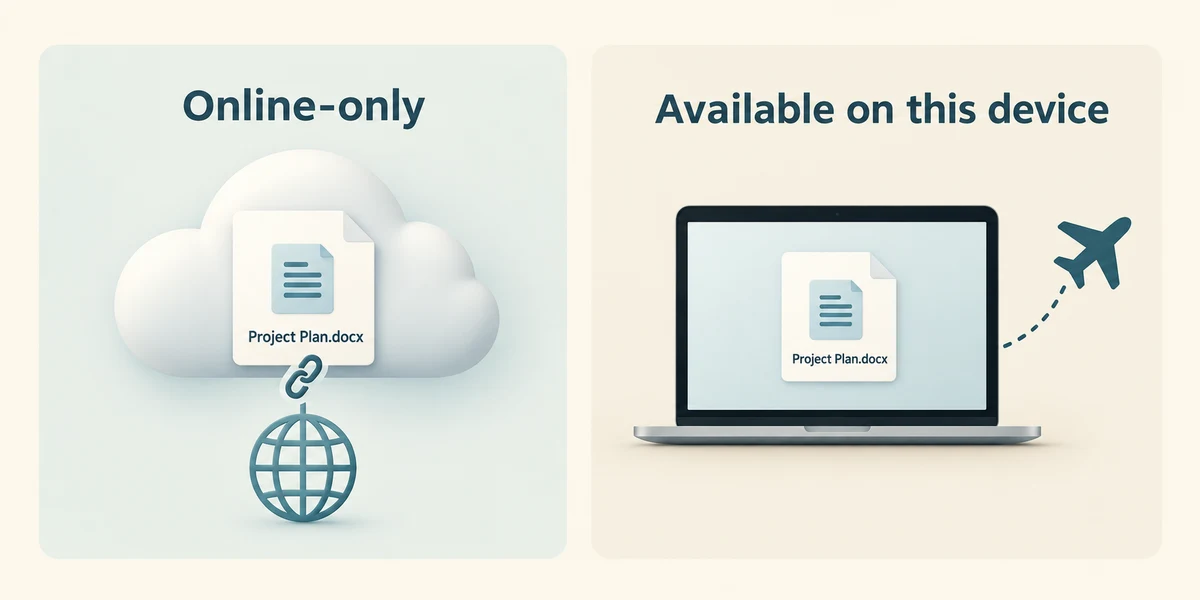
A listed cloud file can be online-only: you can see its name before its full contents are stored locally. Opening it may need the internet. Another file may already be available on this device. Check the service's availability status before relying on it for a journey without a connection.

Cloud storage does not mean unlimited space, permanent recovery or automatic access for other people. Accounts have storage limits, and sharing has its own permissions. If you are not sure which account or folder holds a file, observe its location and status before moving or deleting anything. The later OneDrive lessons show those distinctions in more detail.
A travel document's name appears in OneDrive, but its status says online-only. You want to use it where there will be no internet. What needs checking first?
That its contents have been made available on this device before leaving.
Check what you understand
In guided learning, click Start 3 questions to receive a selection from this lesson. Click the circle beside an answer, then click Check answer. Read the feedback and try again if needed. Click Next question after each correct answer. Answer all 3 correctly to continue.
Returning to guided learning keeps the questions and answers in your current attempt.
Read all 3 questions and explanations
What does cloud storage refer to?
Answer: Files held by an online service on its computers.
A cloud service stores files beyond your own device, reached through an account and connection.
A file is saved in a local folder that is not synced. What should you assume about another device?
Answer: The file will not necessarily be there until deliberately transferred or synced.
Local saving does not automatically transfer the contents to another device or another installation of the app.
Your work files are absent from a personal cloud account. What is a useful first check?
Answer: Whether you are viewing the intended work account.
Different accounts can hold different files. Check the account before treating a same-named folder or the wrong recycle bin as the work location.
Take this to your computer
- 1
No cloud account is needed. Compare the fictional local and online examples here.
- 2
If OneDrive is already set up on your PC, observe its displayed account name and one file's status without changing it.
This lesson does not sign in, create an account or transfer a file. An account name may be private, so keep it off shared screens.
Prefer a more personal, one-to-one lesson? Basic Computing can help. Explore our services.