Understand antivirus protection
Understand antivirus protection
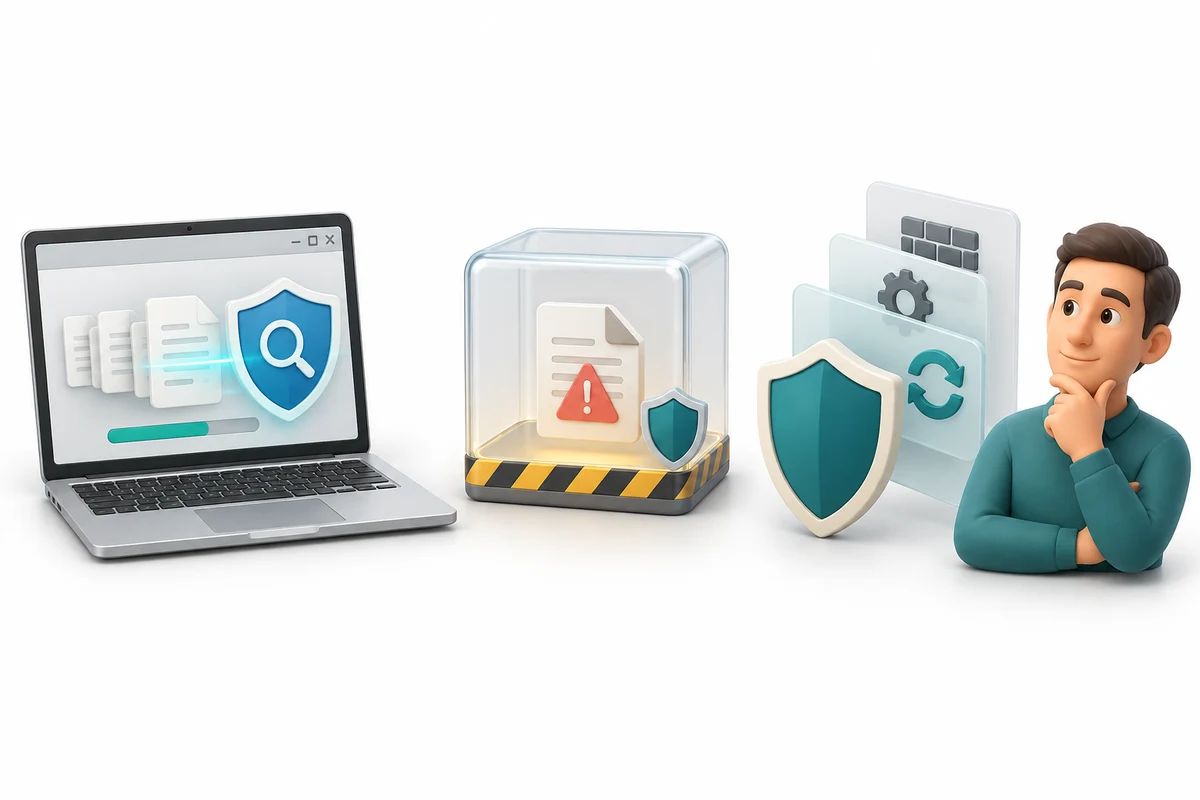
You are going to explore an illustrated protection example and answer three questions about what antivirus does and does not do.
Explain what malware and antivirus mean. Recognise Microsoft Defender Antivirus within Windows Security. Combine protection with updates and careful choices.
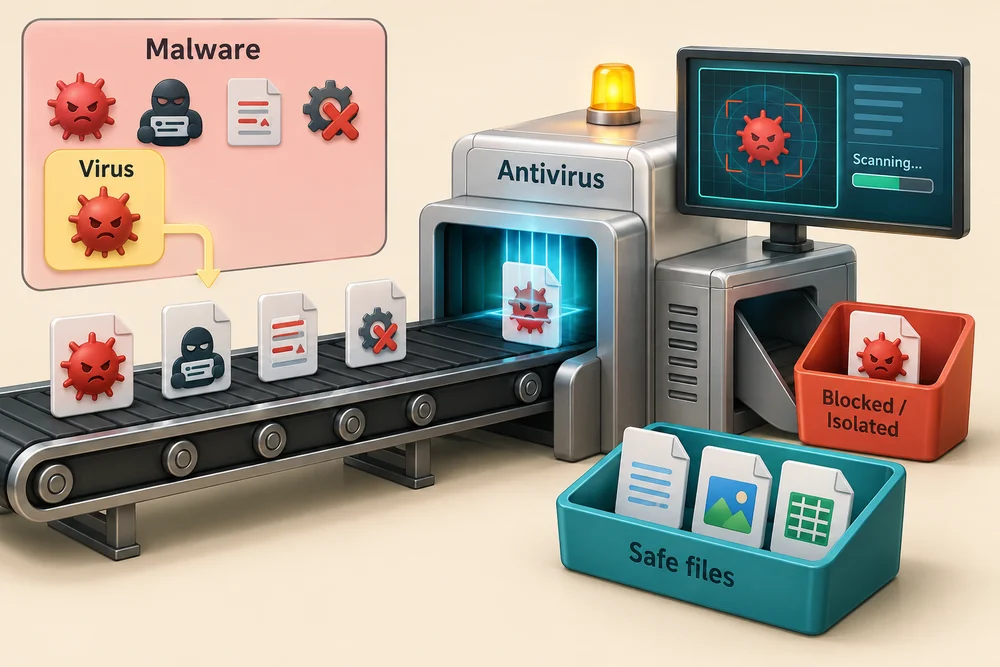
Malware means software made to cause harm, such as stealing information or interfering with files. A virus is one kind of malware. Antivirus is the familiar name for software that looks for harmful files and activity and can block or isolate threats. Think of it as a watchful check, with limits, rather than a promise that nothing bad can happen.
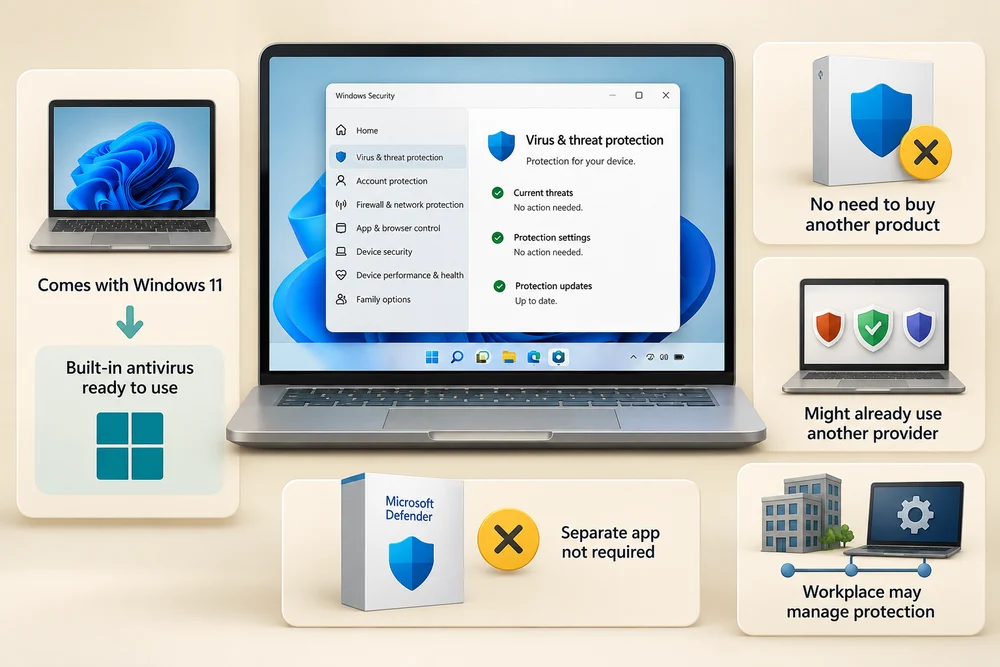
Windows 11 includes Microsoft Defender Antivirus. Windows Security is the app where you can see protection information, including Virus & threat protection. You do not have to buy an extra product simply because the computer is new. A computer may already use another antivirus provider, and a workplace may manage its protection. The separate Microsoft Defender app offered with some subscriptions is not required to get the antivirus built into Windows 11.
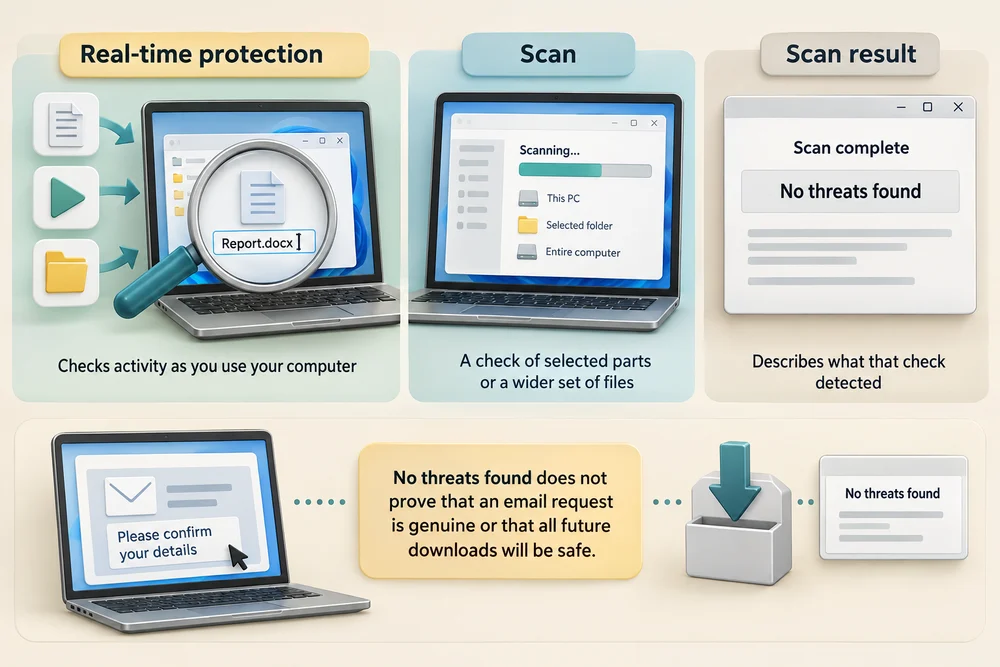
Real-time protection checks activity while you use the computer, such as files being opened or programs running. A scan is a check of selected parts of the computer or a wider set of files. A scan result describes what that check detected. No threats found does not prove that an email request is genuine or that all future downloads will be safe.
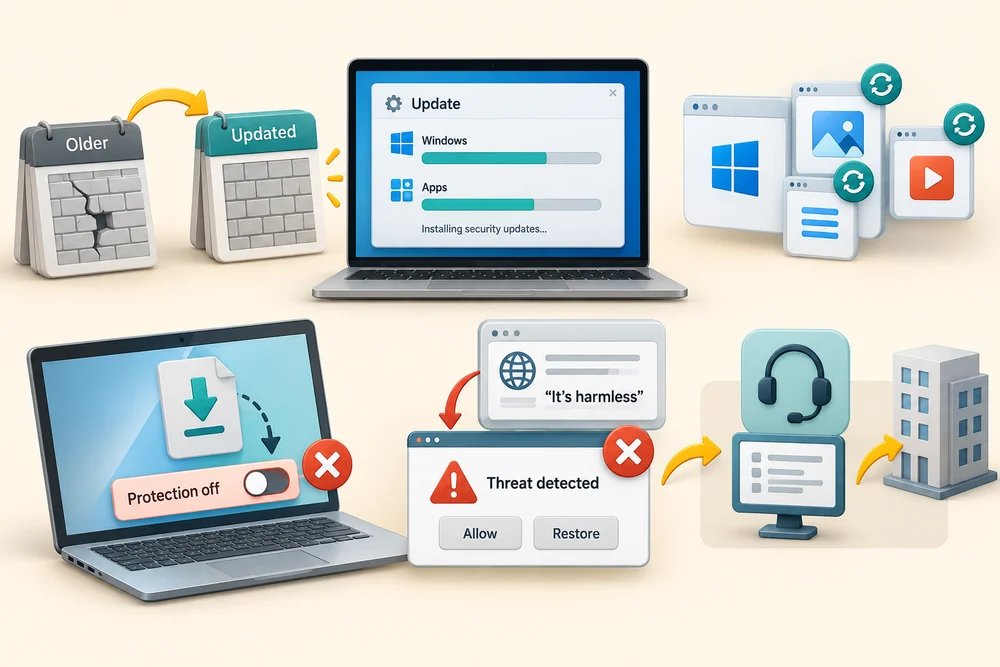
Security updates give protection newer information and fix software weaknesses. Windows and apps need updates too. Turning protection off to make a download work removes a useful check. Do not allow or restore a detected item just because a website tells you it is harmless. If a real warning is unclear, get help through the security provider or your organisation’s known support route.
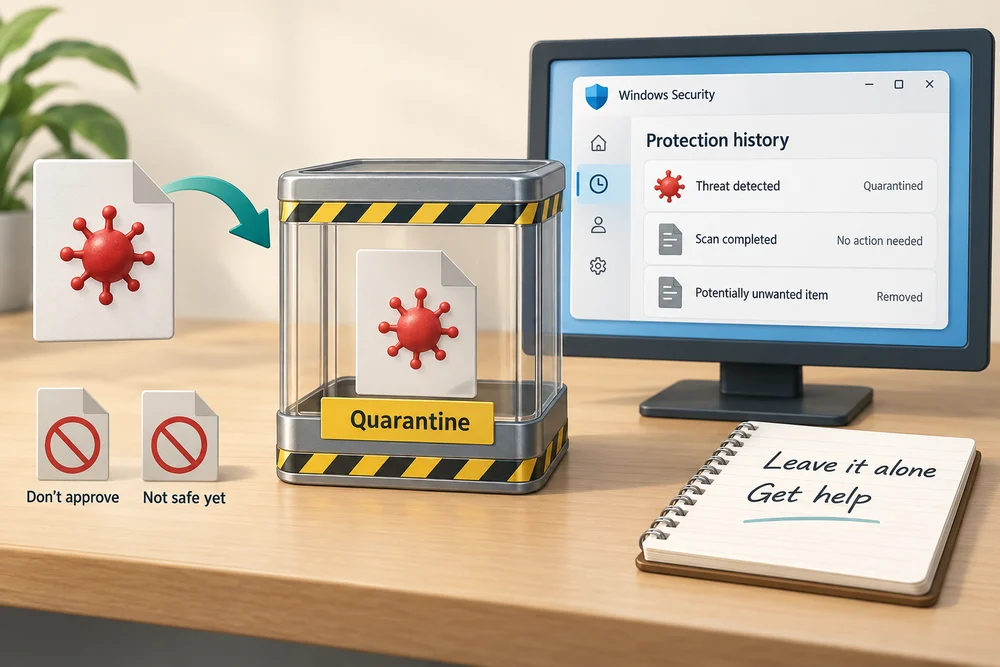
Quarantine means a detected item has been isolated so it cannot run normally. It is different from approving the item or deciding it is safe. Windows Security can show protection history and actions taken. Leave a quarantined item alone while you get help understanding an unfamiliar warning.
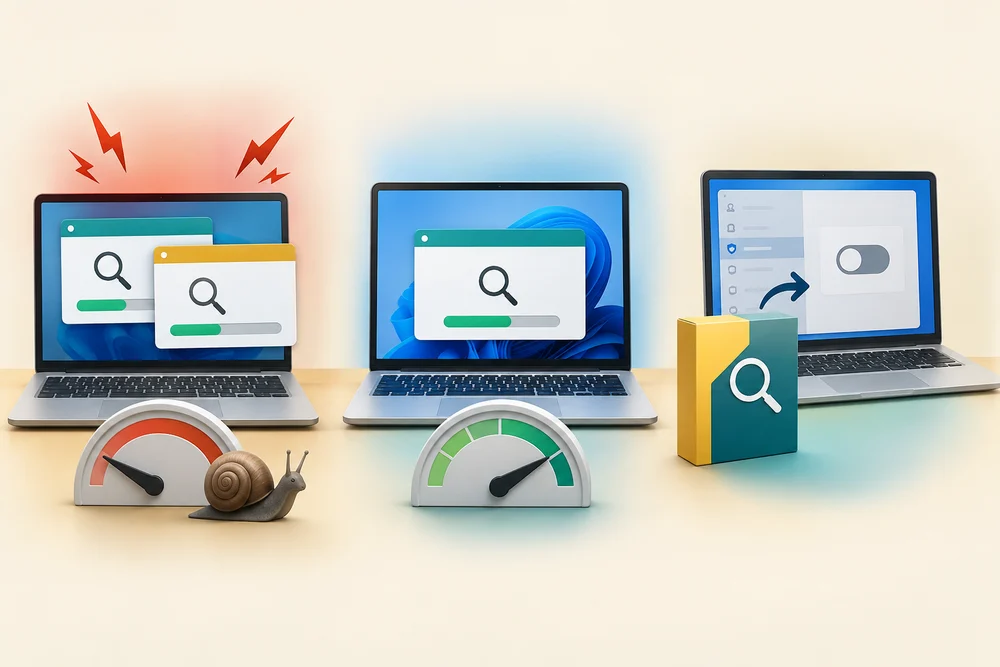
More antivirus apps do not automatically mean more protection. Two products doing real-time scanning together can conflict or slow the computer. Use the supported arrangement for your computer rather than switching on several scanners. When a compatible alternative is installed, Windows normally adjusts Defender’s antivirus role. Do not change providers as part of this lesson.
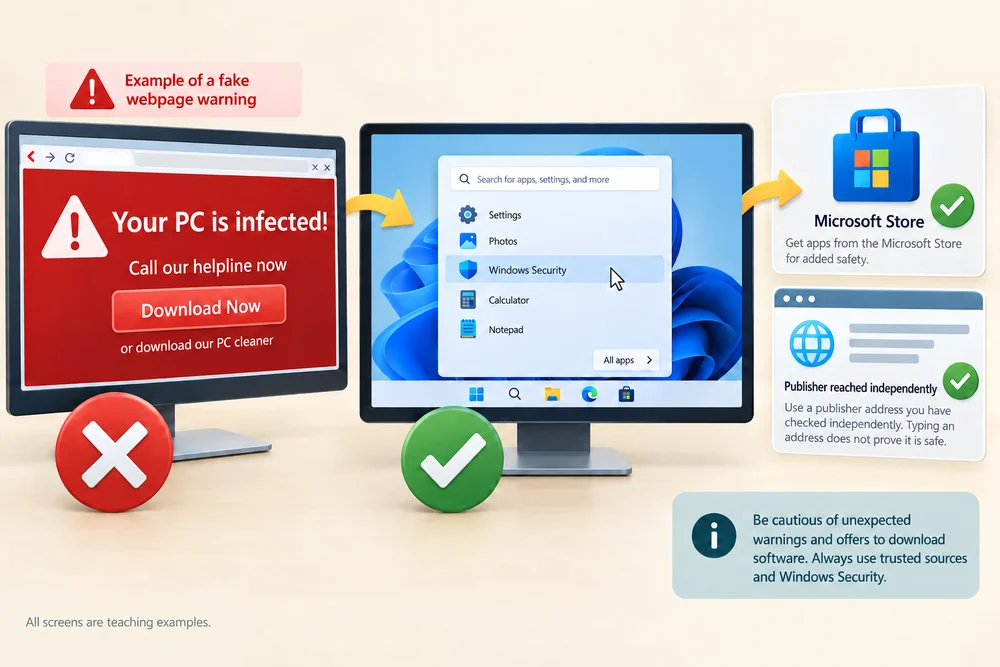
A website can draw a convincing warning that looks like Windows. An alarming page asking you to phone a number or download a cleaner is not a scan result you should accept on appearance. Open Windows Security yourself through Start to look at the actual app. If software is needed later, use Microsoft Store or the genuine publisher’s site reached independently, not a pop-up’s download button.
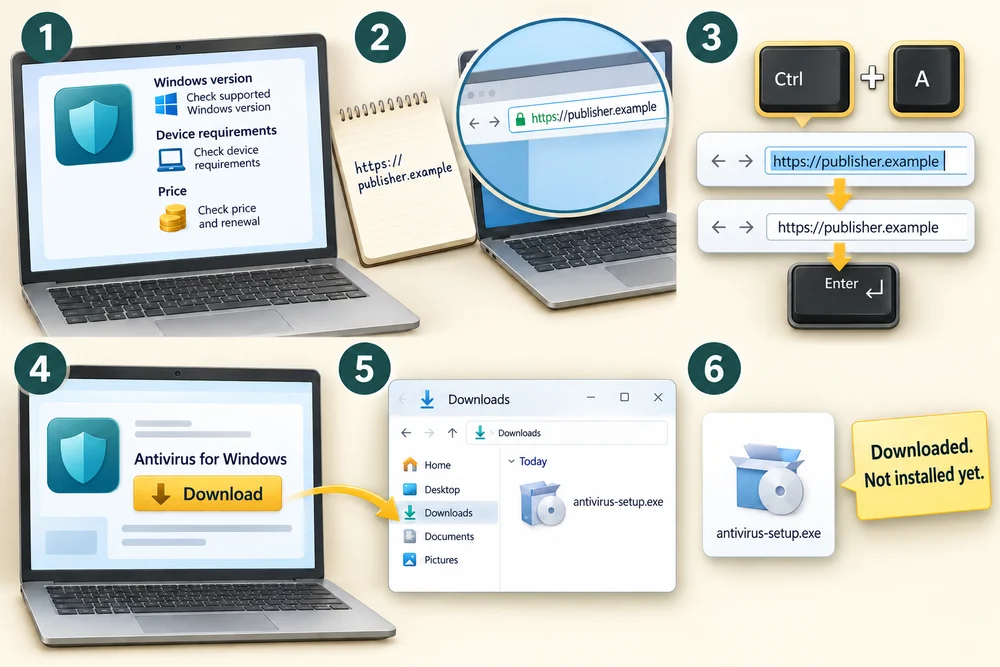
For later reference only, here is how a publisher’s download usually works. First check its Windows version, device requirements, price and any trial renewal terms. Reach the publisher through an address you have independently confirmed. In your browser, click the address bar at the top, hold Ctrl and press A, release both keys, type that address and press Enter. On the publisher’s own page, click the download for the Windows product you intend to use. The browser usually saves its installer in Downloads; downloading it does not itself complete installation.
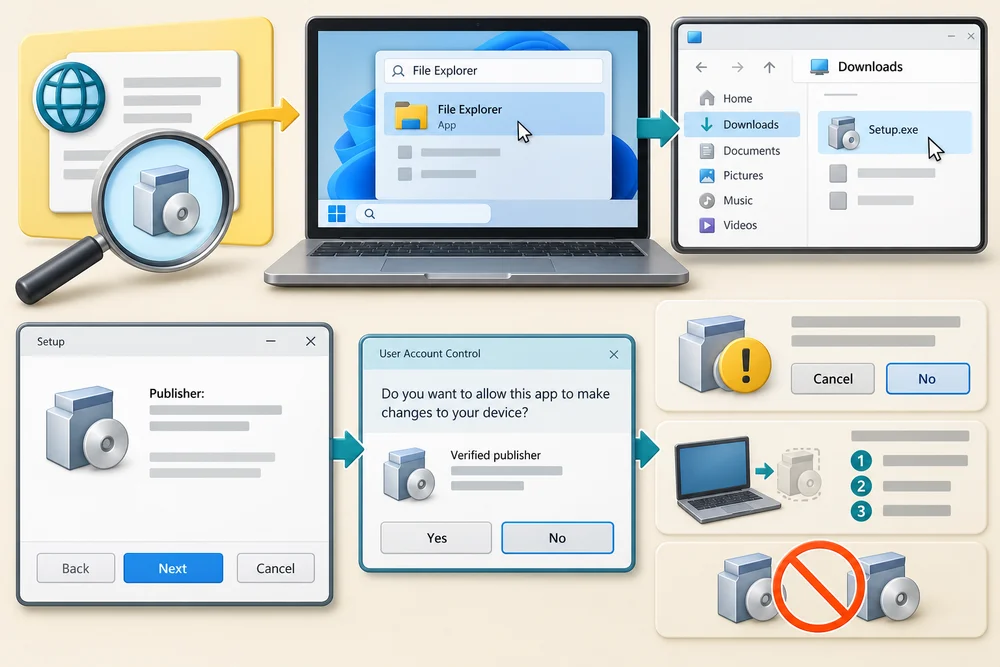
Only after confirming the source and intended product would you open that installer. Press the Windows logo key, type File Explorer and click that app in the results. Click Downloads on the left, then make two quick left clicks on the verified installer. Read each setup page and review the named publisher before approving a request to change the computer. If anything differs from what you expected, click Cancel or No and seek help through the publisher’s known route. Follow its instructions for replacing an existing product; do not manually disable Defender or try to run two real-time scanners together.
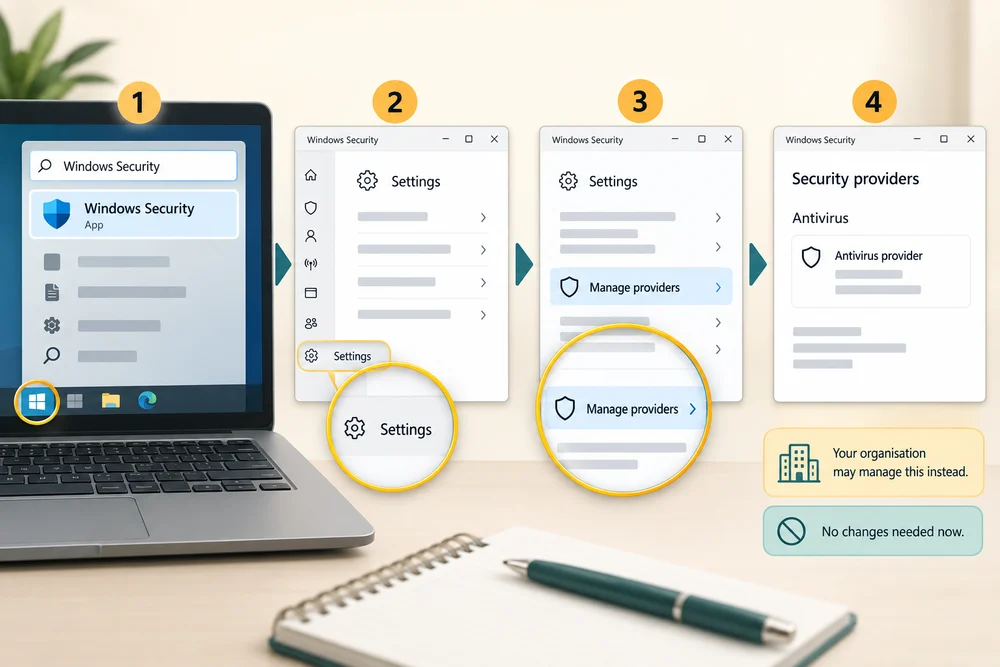
After an intentional installation, check which provider is active: press the Windows logo key, type Windows Security and click the app in the results. Click Settings, then Manage providers, and read the Antivirus information. Your organisation may manage this instead. These are future-reference steps, not a task for this lesson. No download, installation or change of protection is needed now.
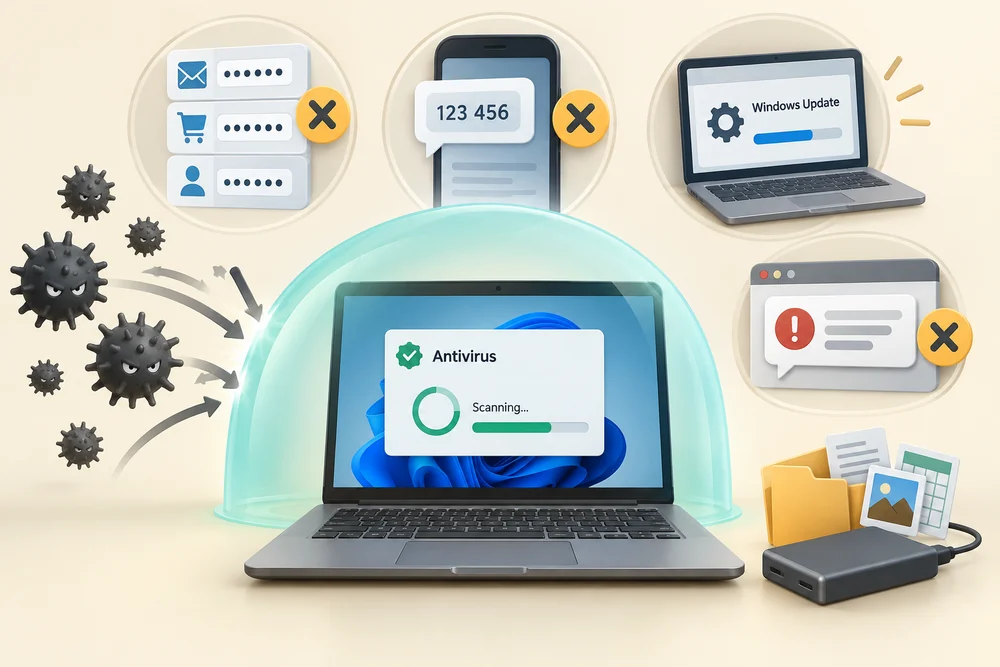
Antivirus is one part of protection. It cannot make a reused password unique or reliably stop you voluntarily giving a sign-in code to a scammer. Keep software updated, check unusual requests and protect accounts as well. Saved copies of important files also matter: antivirus is not a backup service.
Explore the examples
Explore the illustrated protection example and how scanning, updates and careful choices work together. Use the numbered stages or Next stage beside the example. This teaching illustration does not inspect your computer. The separate Quick check comes next.
What protection can and cannot do
1. Check for threats
Antivirus checks files and activity for signs of harmful software. Windows 11 includes Microsoft Defender Antivirus, managed through Windows Security. Current protection and updates help it recognise threats. A scan is a check, not a promise that everything is safe.
2. Separate a detected threat
Quarantine isolates a detected item so it is harder for it to cause harm. It is different from opening the item or approving it to run. Follow the protection app’s guidance; do not restore an unfamiliar quarantined item merely to clear a warning.
3. Keep the limits in mind
Security software cannot make every message genuine or prevent every scam. Keep software current and check unexpected requests. Running two real-time antivirus scanners together can cause conflicts; more simultaneous scanners is not automatically better protection.
Check your understanding
Click Start 3 questions to begin. Click the circle beside your answer, then Check answer. After each of the first two correct answers, click Next question. When all three are correct, click Continue below. You can change a wrong answer and check again. With a keyboard, Tab reaches choices, arrow keys choose an answer, and Tab then Enter activates a button.
In guided learning, click Start 3 questions to receive a selection from this lesson. Click the circle beside an answer, then click Check answer. Read the feedback and try again if needed. Click Next question after each correct answer. Answer all 3 correctly to continue.
Returning to guided learning keeps the questions and answers in your current attempt.
Read all 10 questions and explanations
Software secretly copies private information from a computer. Which description fits?
Answer: Malware, because it was made to cause harm.
Yes. Malware is harmful software. Copying information without permission is not the same as a backup you chose.
A new Windows 11 PC has no separately purchased security package. What is already available?
Answer: Microsoft Defender Antivirus as part of Windows protection.
Yes. Windows 11 includes Defender Antivirus. A paid subscription or advert’s download is not required for that built-in protection.
You want to read the computer’s own protection information. Where should you look?
Answer: Windows Security opened through Start.
Yes. Windows Security displays the device’s protection information. A webpage can imitate a warning, and filenames do not show protection status.
What is the role of protection that stays active while you work?
Answer: Checking files and activity as they are used.
Yes. Real-time protection operates during use. A manual scan and a backup have different roles.
A scan reports no threats found. A new email asks you to reveal a sign-in code. What follows from the scan?
Answer: It does not establish whether that request is genuine.
Yes. A scan reports detections within its scope. It does not verify every message or justify sharing account information.
Why does protection need newer security information?
Answer: To help it recognise threats that have changed or appeared recently.
Yes. Protection must keep learning about threats. Other software still needs updates, and unusual messages still need judgement.
A detected file has been placed in quarantine. What has happened?
Answer: It has been isolated to stop it running normally.
Yes. Quarantine isolates a suspected threat. It is not an approval or a trusted backup.
Two different products are both enabled to scan every file in real time. Which description fits this arrangement?
Answer: They can conflict, so use the supported protection arrangement.
Yes. Multiple real-time antivirus products can interfere with one another. More scanners are not automatically better protection.
A webpage claims your PC is infected and offers a cleaner. Which next step is appropriate?
Answer: Open the actual security app independently to check its information.
Yes. A page can imitate a system warning. Use the actual app or a known support route, not controls supplied by the alarming page.
Antivirus is active. Which habit still protects you from a different kind of risk?
Answer: Using a separate password for each account.
Yes. Account protection, message checks and software updates remain necessary alongside antivirus.
Connect the idea to everyday use
These observations are optional. You can finish with the lesson examples. No real message, installation, password entry or settings change is required.
- 1
On a Windows 11 PC, press the Windows logo key once, type Windows Security, then click the Windows Security app in the results. If the result is unavailable or your organisation manages the computer, use the lesson illustration instead.
- 2
Click Virus & threat protection in the app. Read the provider and status information that is available. Another installed provider or organisation policy may change what you see. No scan or settings change is needed for this observation.
- 3
Leave switches, Allow, Restore and installation controls unchanged. If you do not understand a real warning, ask your organisation or a trusted support provider through contact details you already know.
- 4
Click the X at the top right of the Windows Security window to close its view. Closing this window does not turn off the antivirus protection working in the background.
If your screen differs or you prefer not to use a real account, stay with the fictional examples. Nothing needs to be sent, bought, installed or revealed.
Prefer a more personal, one-to-one lesson? Basic Computing can help. Explore our services.