Start and finish a computer session
Give your work a safe stopping point
Choose a suitable way to finish a short computer session.
Distinguish sleep, restart and shutdown, and save before finishing.
A computer session has a beginning and an ending. Leaving your work visible is different from keeping it for next time. Understanding the ways a computer rests or stops helps you choose what suits your plans without losing changes.

Begin calmly, finish deliberately
How this works
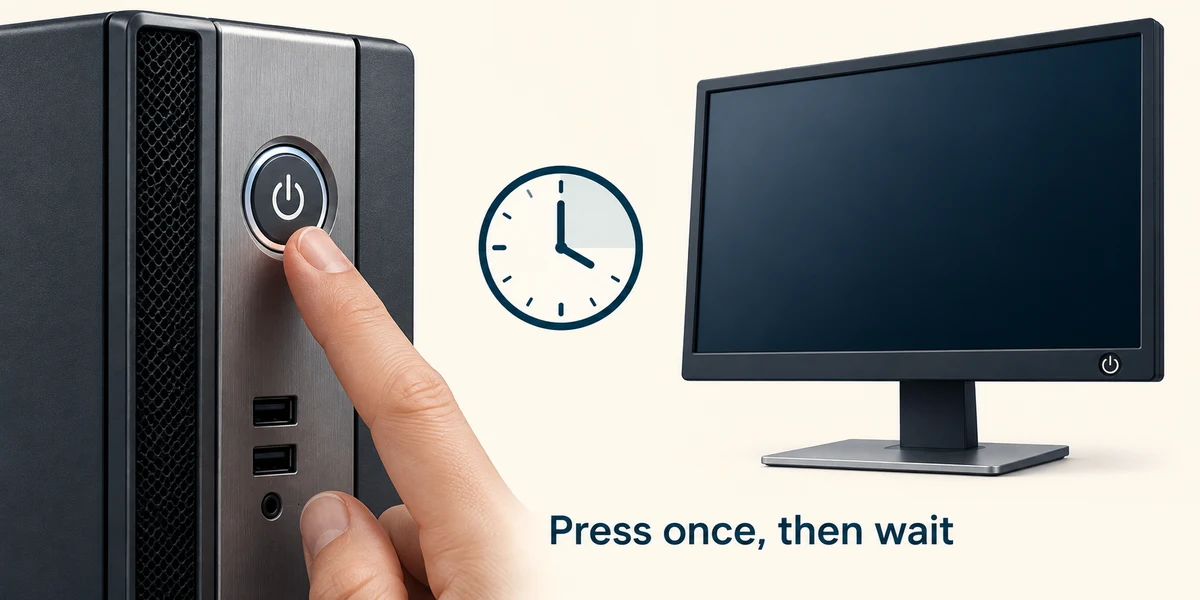
Find the computer's power button, usually marked with a circle and a short vertical line. Its position varies. Press and release it once, then wait for the screen to respond. A separate desktop monitor may have its own power button. Repeated presses do not make Windows start faster. If the computer is only asleep, moving the mouse or pressing a key may wake it instead.
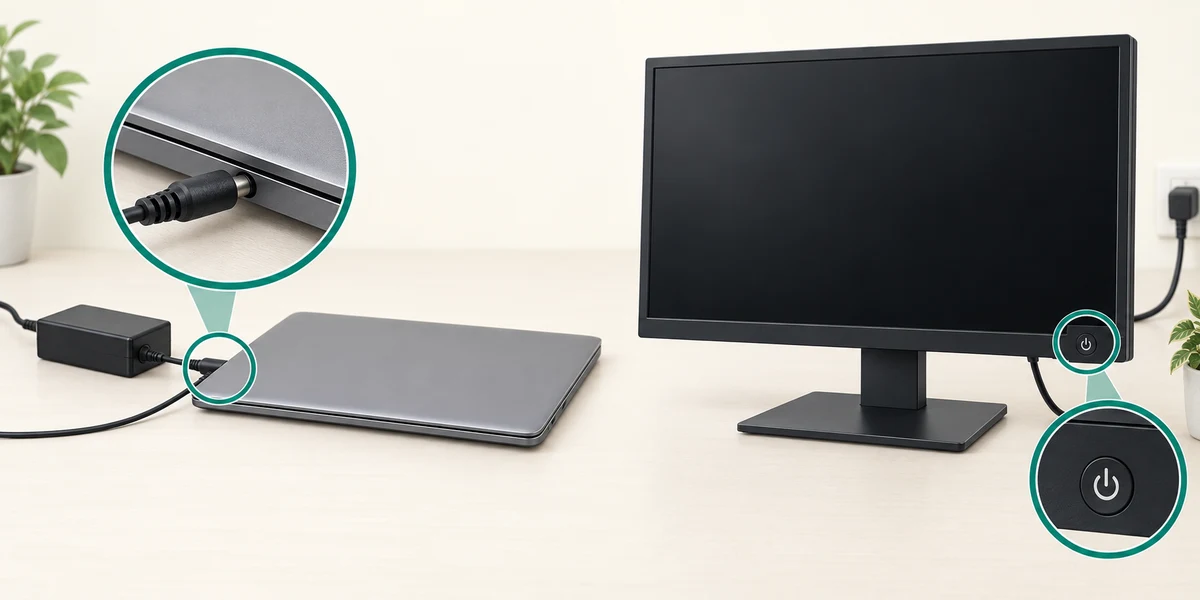
If nothing responds, first check the normal external power connection and whether a laptop needs charging with its correct charger. Check a separate monitor is switched on too. A dark screen alone does not prove the whole computer is off. Follow the exact model's official starting guidance or ask a trusted helper; do not try random chargers or open the power supply. Stop using damaged equipment.
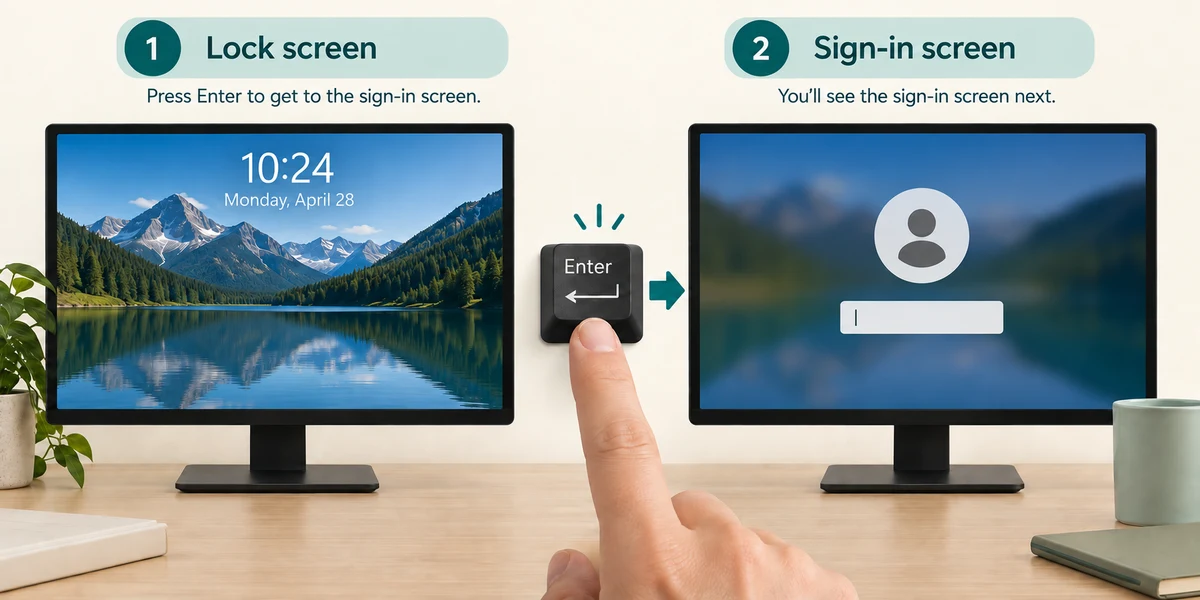
If a lock-screen picture appears, press Enter to reveal sign-in. Choose your own account if several are shown, then use its normal PIN, password or Windows Hello method. A Windows PIN and an online account password can be different. Do not put either into this lesson. Wait for the desktop and any startup activity to settle.
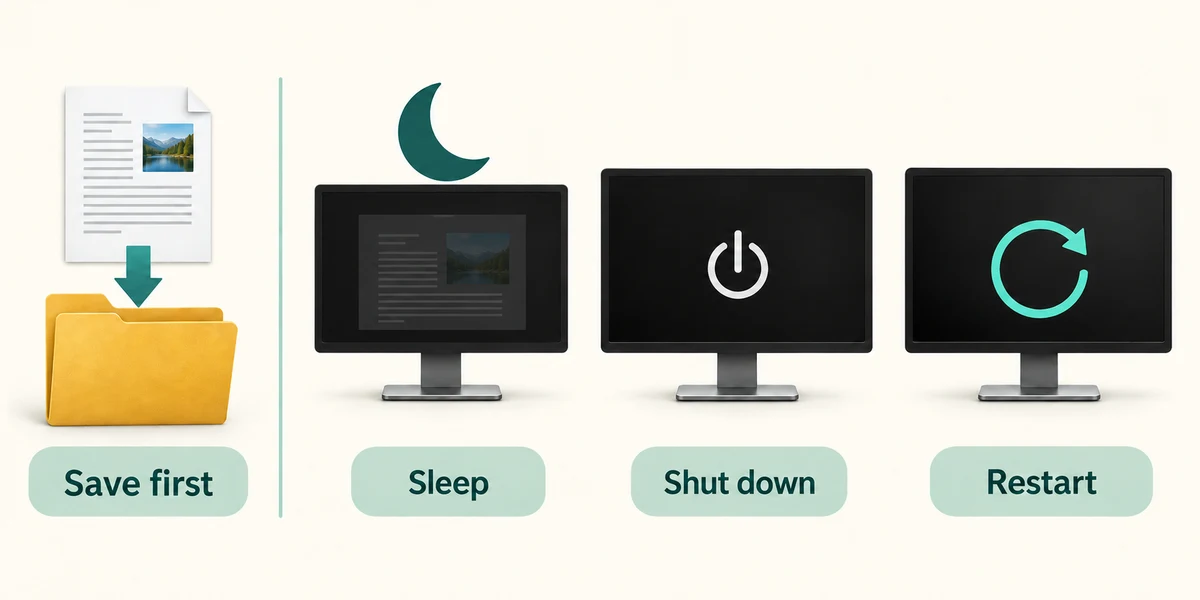
Before finishing, save changes in each app and check the saved name and location. Click Start, the Windows symbol on the taskbar, then click Power. Sleep is useful for a short break and keeps the session ready to resume, but it is not a substitute for saving. Shut down closes the session and turns the computer off. Restart closes it and starts Windows again, which can help after updates or a temporary fault.

Read any save or update message before continuing. Wait for shutdown or an update to finish before switching off power at the wall. Closing a laptop lid or briefly pressing its power button can have different effects depending on settings. Holding the power button down is a forced stop for particular recovery situations, not the normal way to finish.
You have finished a letter and will not use the computer again today. What is the best sequence?
Save the letter, then use Start > Power > Shut down.
Check what you understand
In guided learning, click Start 3 questions to receive a selection from this lesson. Click the circle beside an answer, then click Check answer. Read the feedback and try again if needed. Click Next question after each correct answer. Answer all 3 correctly to continue.
Returning to guided learning keeps the questions and answers in your current attempt.
Read all 3 questions and explanations
You will return after a short break. Which choice usually keeps the current session ready?
Answer: Save important work, then choose Sleep.
Sleep pauses normal use, but saving still protects your changes.
An update asks you to restart. What should you expect?
Answer: The current session ends and Windows starts again.
Restart gives Windows a fresh running session; save your changes first.
You briefly press a laptop's power button and it sleeps. Why might another laptop behave differently?
Answer: The button's action can depend on power settings.
The same physical control can be configured for different power actions.
Take this to your computer
- 1
Find the power symbol on your device without pressing it while you are working.
- 2
Save any important work. Click Start once, then Power once, and read the available choices.
- 3
If you only wanted to look, press Escape. If you are finished, choose Shut down and wait.
Trying this on your own computer is optional. Use only disposable practice information. This lesson's choices check your decisions; they do not operate your computer or prove that you have performed the real task.
Prefer a more personal, one-to-one lesson? Basic Computing can help. Explore our services.