Show media on a television
Sharing a video and sharing your desktop are different
Choose a display method and a privacy check.
You will know how to check receiver support, what is shared and how to stop.
A supported app can send media to a television or receiver, while screen mirroring shows the device’s display. Both can be called casting, but they may use different technologies. The important questions are whether the devices support the same method and what other people will see.
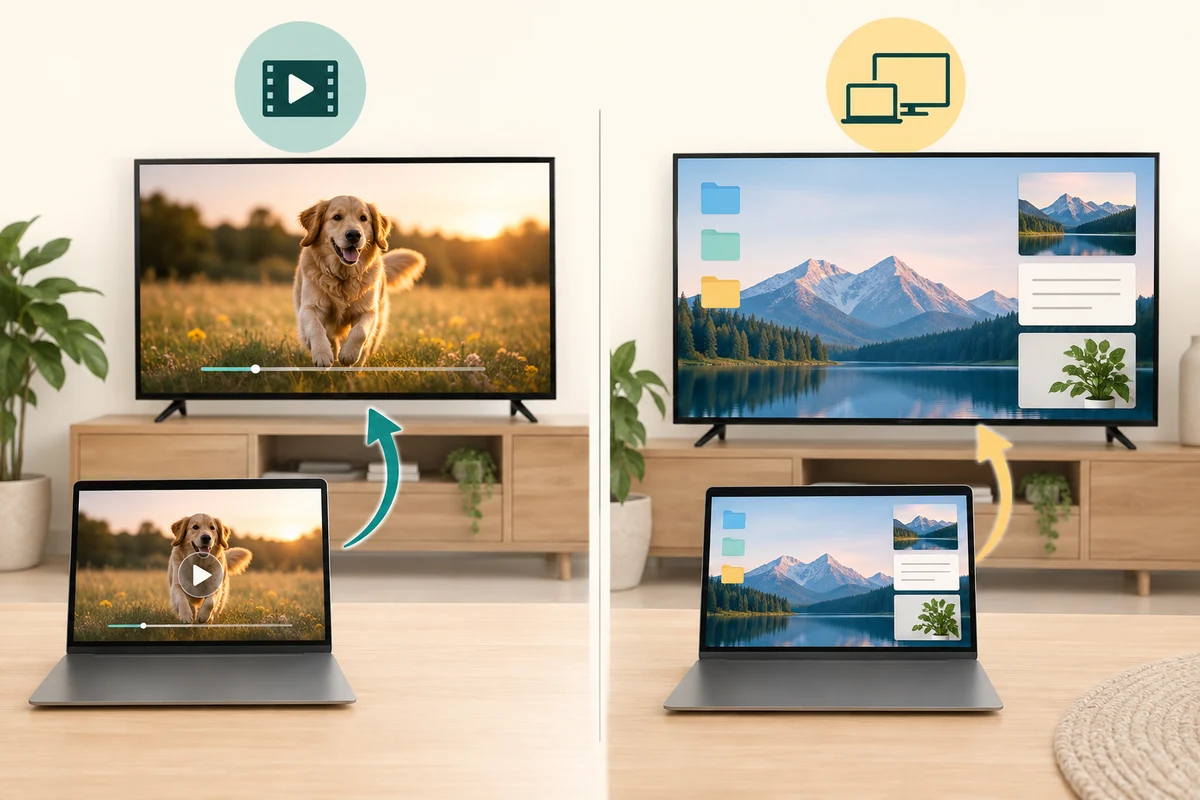
Check the receiver and the sharing scope
How this works
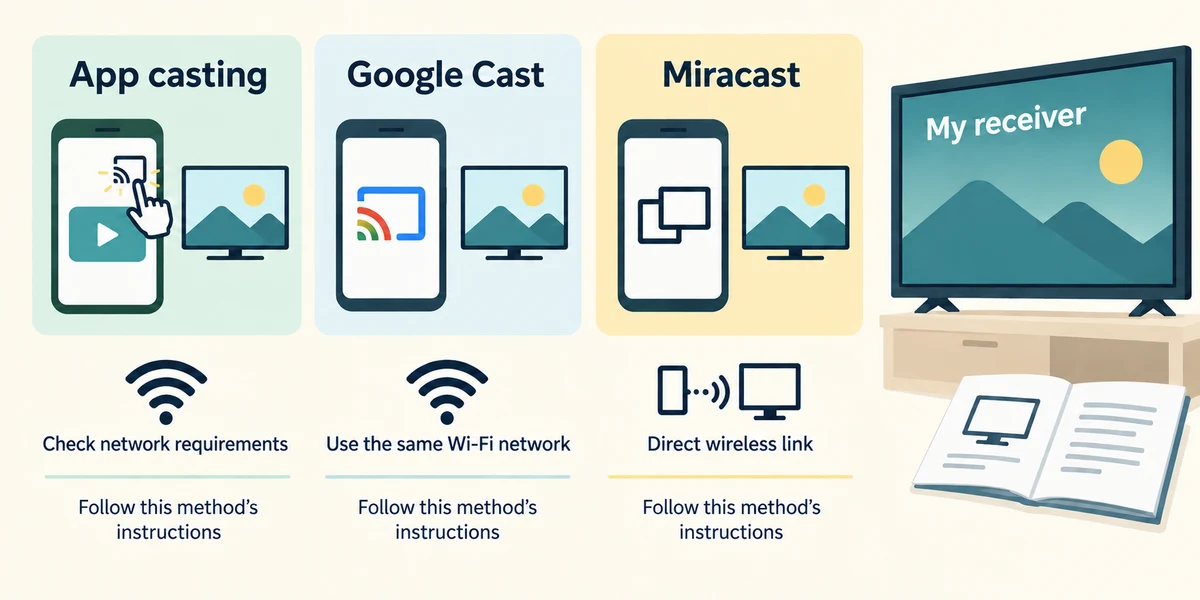
Read the television or receiver’s official connection instructions. App casting, Google Cast and Windows Miracast are not interchangeable just because a TV is described as smart. Some methods require the same Wi-Fi network; others establish a direct wireless connection. Follow the specific method’s instructions and choose only a receiver you recognise.
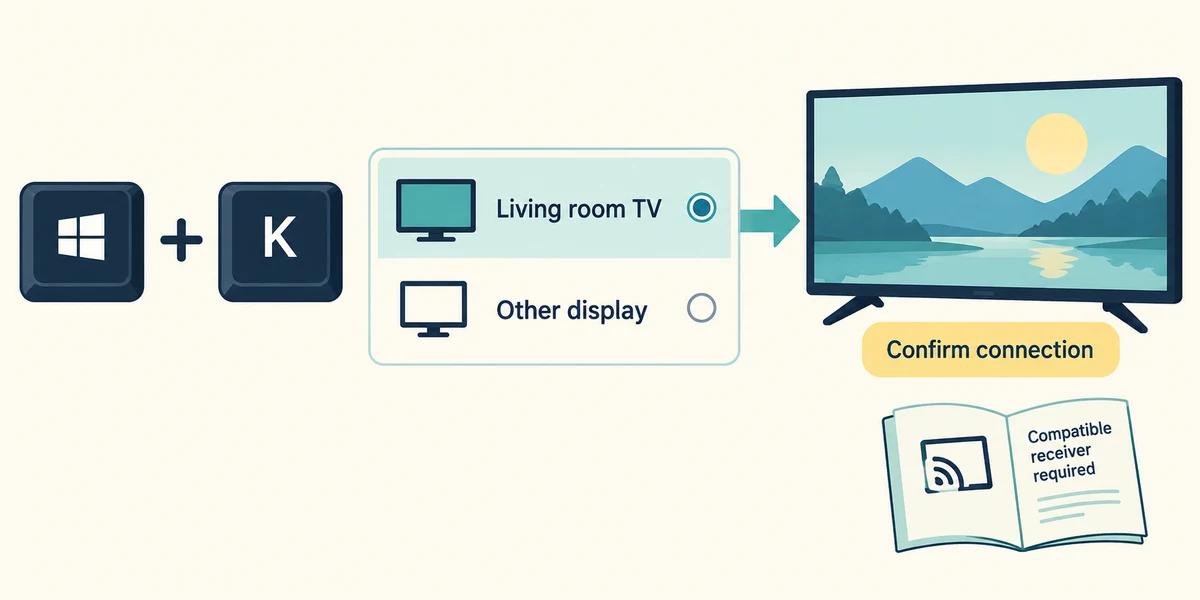
For supported Windows wireless displays, turn on the receiver’s required mode, then hold the Windows key, press K and release both. Read the available display names and select the intended one. Follow any confirmation shown on the TV. If it is absent, check compatibility and the receiver’s instructions instead of trying unrelated nearby devices.
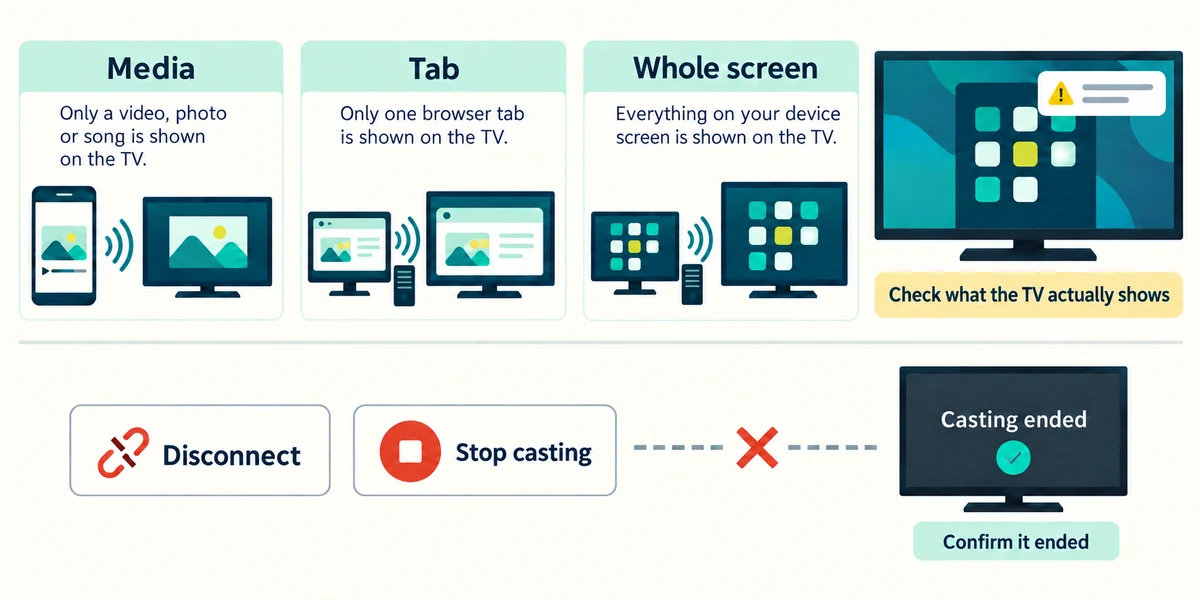
For a supported media app, use its labelled Cast control and read whether it sends media, a tab or a screen. Mirroring a whole desktop can reveal notifications and other windows. Close private material first and inspect the TV’s actual view. When finished, use the connection’s Disconnect or Stop casting control and confirm that transmission ended.
You want to show a video without exposing other desktop windows. The app supports sending that video to your TV. What should you choose?
The app’s media-casting option, checking the TV’s actual view
Check what you understand
In guided learning, click Start 3 questions to receive a selection from this lesson. Click the circle beside an answer, then click Check answer. Read the feedback and try again if needed. Click Next question after each correct answer. Answer all 3 correctly to continue.
Returning to guided learning keeps the questions and answers in your current attempt.
Read all 3 questions and explanations
A TV supports one casting system. What should you check before using Windows wireless display?
Answer: Whether it also supports the required Windows-compatible method
A smart TV label or one casting technology does not guarantee Miracast support.
You mirror the whole desktop and then open a private message. What may happen?
Answer: The message can also appear on the television
Mirroring shares the displayed screen. Check privacy before and during transmission.
You finish the presentation. What establishes that sharing has stopped?
Answer: Use Disconnect or Stop casting and check the receiver
Minimising and volume do not necessarily end the connection. Stop it through its named control.
Take this to your computer
- 1
Read your TV’s official help to identify supported casting methods. Do not connect to an unfamiliar receiver.
Compatibility and network requirements vary. This lesson makes no connection and streams no media.
Prefer a more personal, one-to-one lesson? Basic Computing can help. Explore our services.