Share a cloud file with the right access
A link and its permissions work together
Set the recipient and viewing permission for a fictional shared file.
Distinguish sharing a link, sending it and granting editing access.
A cloud sharing link is a route to a stored file. Its permissions determine who can use that route and whether they can read or edit. Creating the link does not automatically mean the right person has received it, and copying a link does not make every permission appropriate.
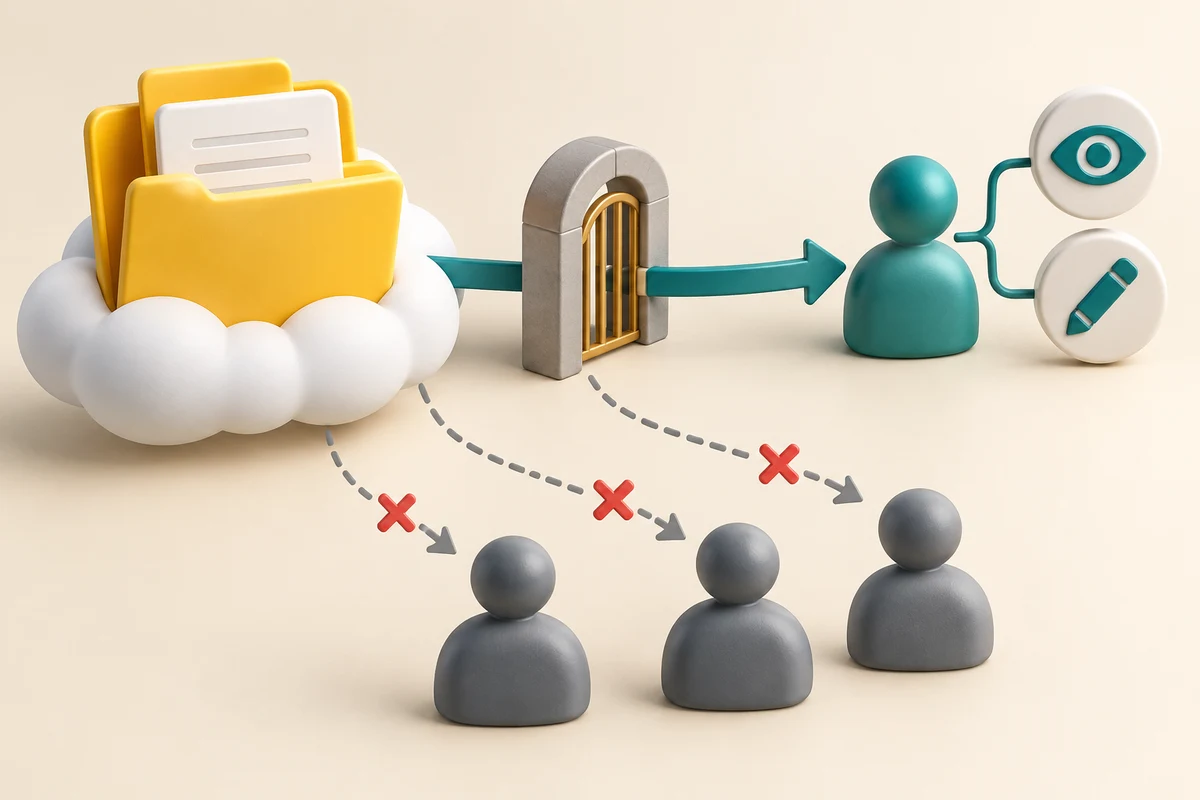
Set the audience before sending the route
How this works
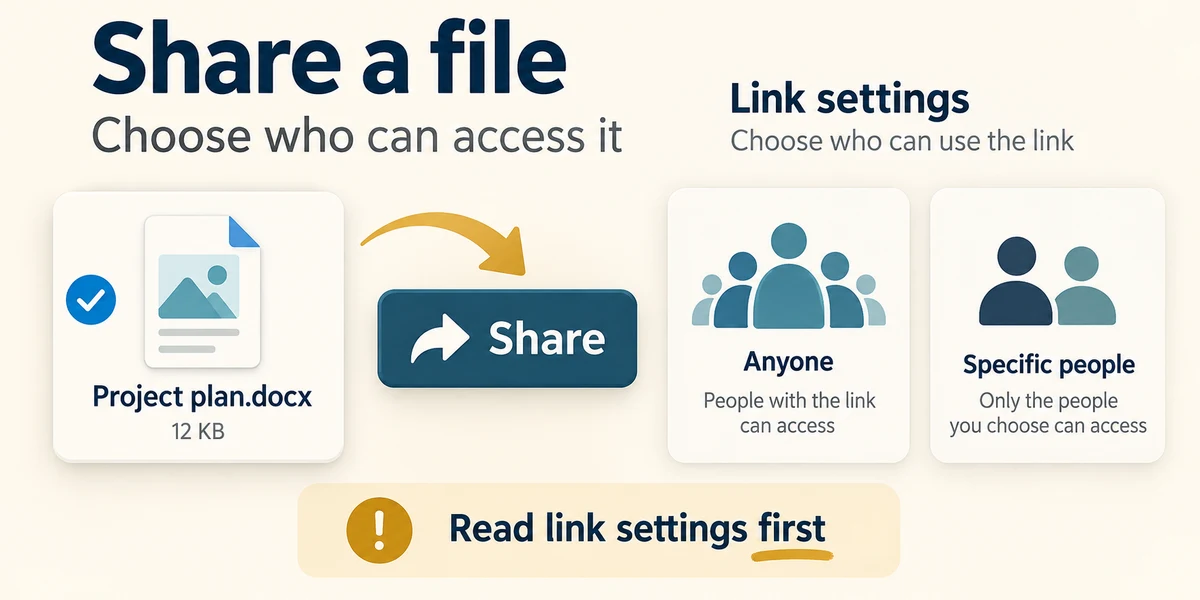
In your OneDrive file list, select the intended file using its selection circle or checkbox, then click Share. Read the current link settings before copying or sending anything. Available audiences depend on personal, work or school accounts and organisational policy; Anyone and Specific people are not interchangeable.

For a file intended only for named people, choose the specific-person option if available, enter their exact addresses and choose viewing rather than editing when they only need to read. Read the permission label near their names or in link settings, then apply the change. Do not assume the default is read-only.

Copy link creates a route on your clipboard. It still needs to be placed in an intended message if that is how you are sharing: click the message field, hold Ctrl and press V, then release both. Check the recipient before sending. A direct Send control in the sharing panel may notify the entered people instead; read which action you chose.

To review existing access, select the file and use its Manage access control, which may be in the Share or details panel. Review people and links, and remove the relevant access or link when you intend to stop sharing. Removing one link does not necessarily remove access granted another way. Stopping access cannot retrieve copies someone already downloaded or captured.
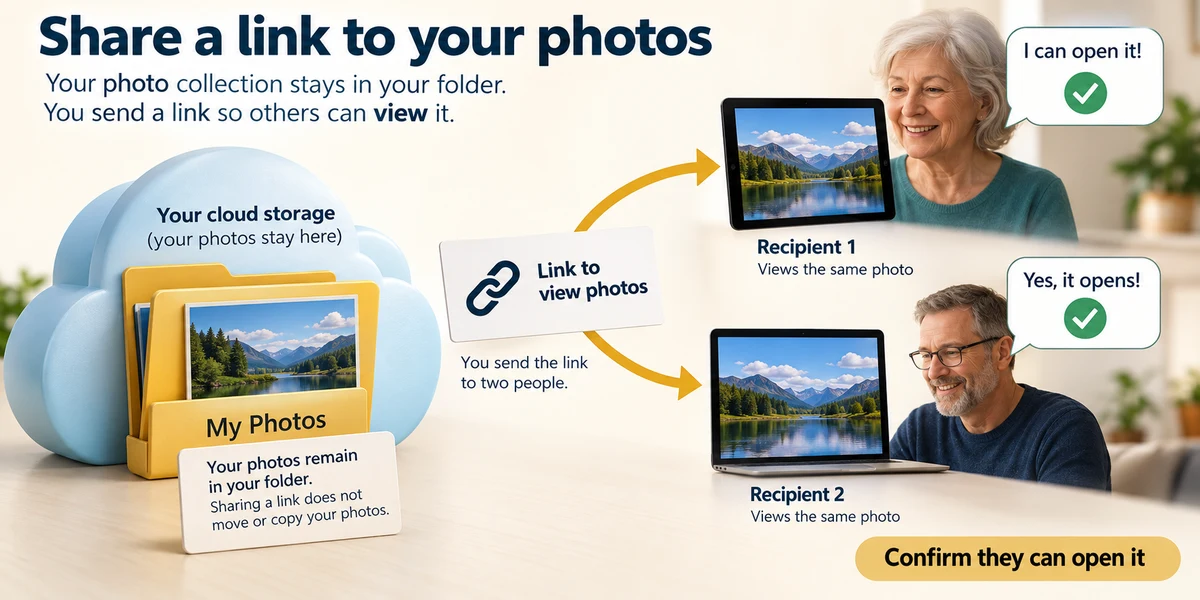
A cloud link can help with a large file or family photo collection that exceeds an email attachment limit. Check that the upload has finished, share only pictures the people involved are comfortable sharing, and grant the intended named recipients viewing access when editing is unnecessary. Ask the recipient to confirm they can open the intended contents through that account. A sent link is not proof of usable access. Sharing does not move the original out of your collection.
One colleague needs to read a private draft but must not edit it. Which setup best fits?
Specific access for that colleague with viewing permission, then send through the intended route.
Try a fictional example
Give Sam permission to read Community timetable. Choose Sam only and Can view, then create the practice link. Sam does not need to edit the file, and it should not be available to everyone. The interactive example uses only sample data and sends nothing. Read the Learn guidance for the same decisions.
Check what you understand
In guided learning, click Start 3 questions to receive a selection from this lesson. Click the circle beside an answer, then click Check answer. Read the feedback and try again if needed. Click Next question after each correct answer. Answer all 3 correctly to continue.
Returning to guided learning keeps the questions and answers in your current attempt.
Read all 3 questions and explanations
You click Copy link. What has happened?
Answer: A sharing route is copied, but it may still need to be sent to the intended person.
Copying and delivering are different actions. Check permissions and recipients before sending.
Why read the edit/view setting?
Answer: It determines what recipients can do to the shared file.
Viewing and editing are different permissions, separate from how the link is delivered. Neither provides a blanket guarantee against copying visible contents.
You remove one sharing link. What else may need checking to stop access to the online file?
Answer: Other links or directly granted access to the file.
Access can be granted in more than one way. Deleting a message or changing a name does not necessarily revoke that access.
Take this to your computer
- 1
Use the fictional permission choice here. No real sharing is required.
- 2
If you later intend to share a disposable example, review the account, audience and view/edit setting before copying or sending its link.
This lesson grants no permissions. Work or school policies and OneDrive layouts can change the available controls.
Prefer a more personal, one-to-one lesson? Basic Computing can help. Explore our services.