Scroll and find your place
There can be more beyond the edge
Scroll a longer practice list and find the requested folder.
Explain scrolling, choose the intended pane and recover your place.
A window is often a view onto something larger. A page, list or folder can continue beyond what fits on screen. Scrolling moves your view through that content; it does not delete the part that disappears or make the words smaller.

Move the view a little at a time
How this works
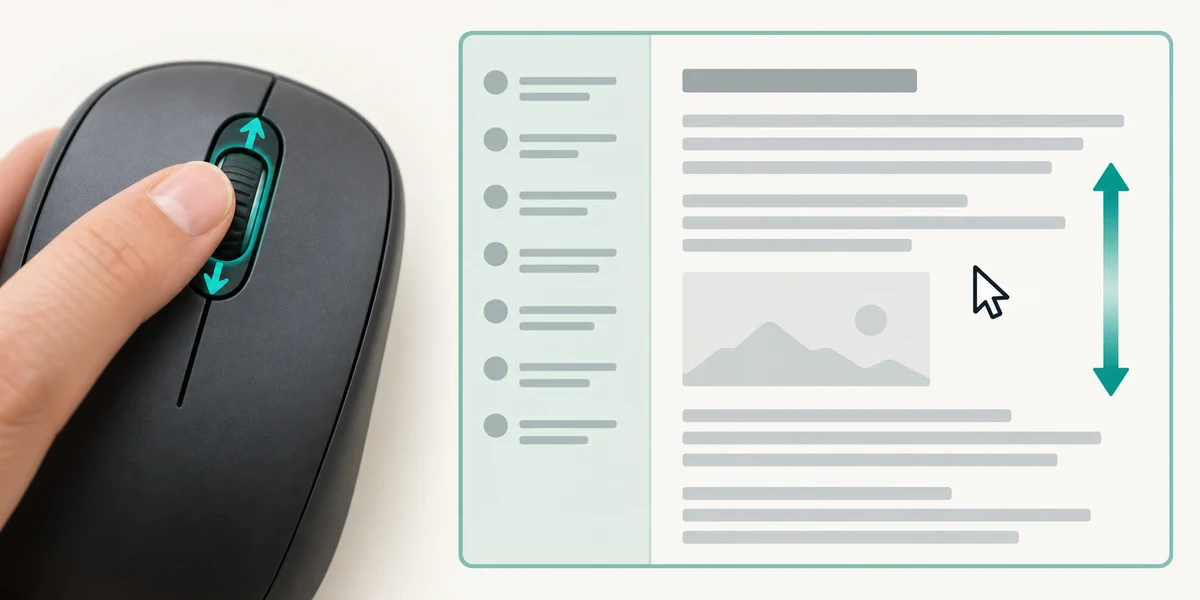
Move the pointer over the page or list you want to scroll. Roll the mouse wheel gently and watch which content moves. If a side list scrolls instead of the main page, move the pointer over the main page and try again. Some apps need you to click the intended area first.

On many laptop touchpads, place two fingers on the pad and slide them together to scroll. A single finger normally moves the pointer instead. The scrolling direction and available gestures depend on settings, so make a small movement and watch the result. You do not need to press hard.
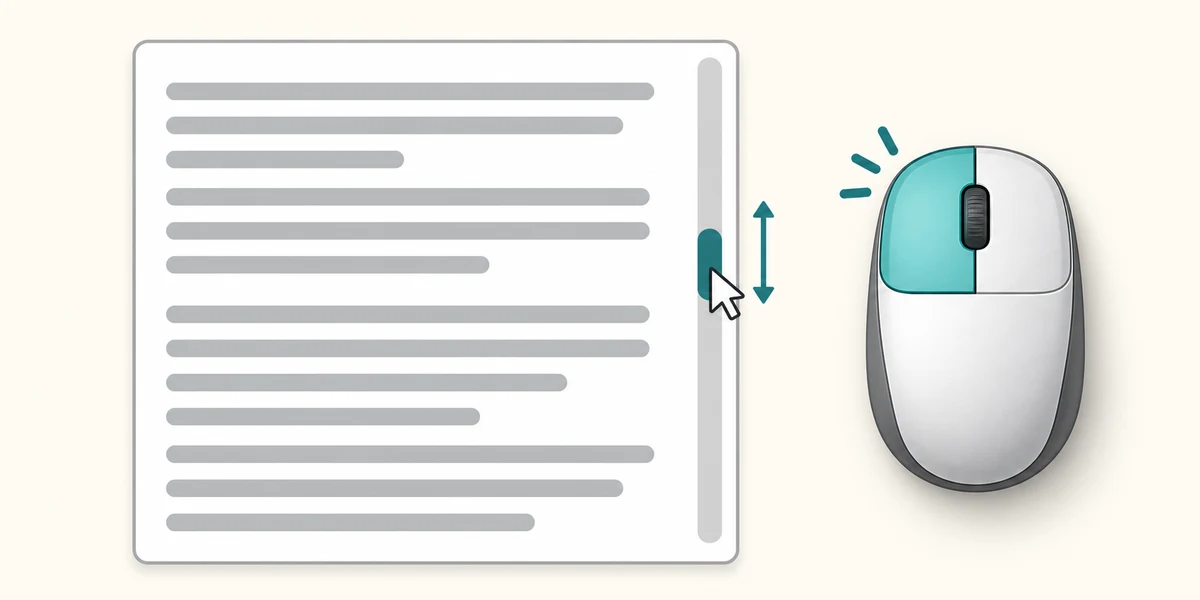
A scrollbar usually appears at the edge of a scrollable area. Its movable part shows roughly where you are. Point at that part, hold the left mouse button, move it a little along the bar and release. Moving further along a long bar can jump a large distance; the mouse wheel may be easier for a small adjustment.
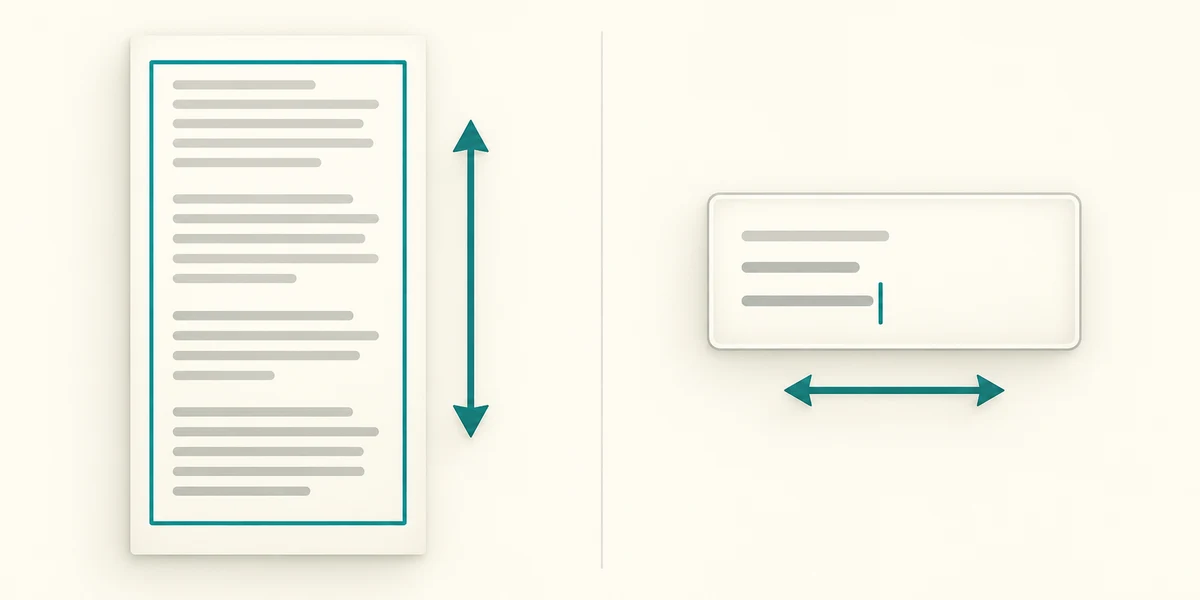
For keyboard navigation, click an appropriate non-editable page area or use Tab to reach the scrollable region, then try Page Down and Page Up. Arrow keys can move the view in smaller steps, but inside a text box they can move the typing cursor instead. To find your place again, scroll back gradually and look for a heading you recognise.
You turn the wheel and only the folder list at the left moves. You wanted the document beside it to move. What should you try?
Move the pointer over the document and scroll gently again.
Try the controls here
Point inside the list below and roll the mouse wheel down, or slide two fingers on your touchpad. Find Green folder near the bottom and click it once. With a keyboard, Tab to the list and use Down arrow or Page Down; Tab also reaches the folder buttons.
Keep the pointer inside the white list. Move down until Green folder is visible, then click its button. The other folder buttons are not the requested destination. Using Tab to reach the button is an equally valid keyboard route.
The practice controls need JavaScript. You can read this explanation and the optional real-PC guidance without it. No real computer setting is changed by these examples.
Check what you understand
In guided learning, click Start 3 questions to receive a selection from this lesson. Click the circle beside an answer, then click Check answer. Read the feedback and try again if needed. Click Next question after each correct answer. Answer all 3 correctly to continue.
Returning to guided learning keeps the questions and answers in your current attempt.
Read all 3 questions and explanations
A heading disappears above the window as you move down. What normally happened?
Answer: It remains on the page, outside the current view.
Scrolling changes your position in the content.
One finger on your touchpad moves the pointer but not the page. What is a common scrolling gesture?
Answer: Slide two fingers together on the touchpad.
Two-finger scrolling is common on supported touchpads; settings can vary.
Arrow keys move a line inside a text box instead of moving the page. Why?
Answer: The text box is receiving the key presses.
Keys act on the control with focus, so choose the appropriate area.
Take this to your computer
- 1
Use a long, harmless page. Move the pointer over its main content and roll the wheel a little.
- 2
Scroll back to a heading you recognise. If you use a touchpad, compare a small two-finger gesture.
- 3
Look for the page scrollbar and notice how its position changes.
Trying this on your own computer is optional. Use only disposable practice information. This lesson's choices check your decisions; they do not operate your computer or prove that you have performed the real task.
Prefer a more personal, one-to-one lesson? Basic Computing can help. Explore our services.