Right-click menus
Use a computer with a mouse and keyboard. This practice desktop is designed for clicking, right-clicking, dragging and typing with physical keys, rather than touchscreen use on a phone or tablet.
Ask what you can do with an item
You are going to show Holiday plans’ actions menu and choose Open.
You will learn how a right click reveals actions for the item under the pointer.
Right-click means press and release the right mouse button once while pointing at an item. It usually opens a small list of actions for that item. This is called a context menu.
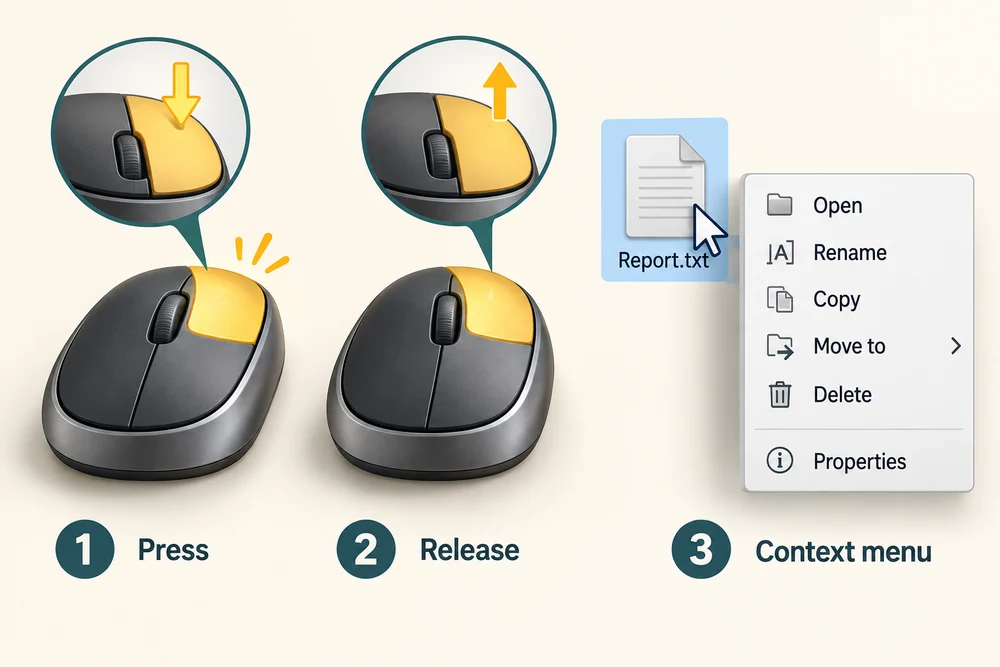
The choices depend on what you pointed at. Once the menu is open, move the pointer onto the action you want and click it with the left mouse button.

To dismiss a menu without choosing anything, press the Escape key on your keyboard or click an empty area outside the menu.

See an item’s actions appear
Follow the instruction popup on the practice desktop. Carry out each action yourself. The guide moves to the next step when you complete the action. On the last step, click Check the result. Afterwards, Try it gives you a fresh desktop to practise independently. Click Check my work when you finish, or use the optional hints underneath.
Right-click Holiday plans using the right mouse button to reveal its menu. Then click Open once with the left mouse button. Opening the menu and choosing a command are two separate actions.
Use the folder’s menu
You are going to show Holiday plans’ actions menu and choose Open. This fresh practice desktop stays inside the webpage. Try the task independently, using the optional hints underneath if you need help.
Point at Holiday plans and press the right mouse button once. In the small menu that appears, click Open with the left mouse button. Press Escape to close the menu if you want to try again. For an alternative, click Holiday plans once, then click Show actions, the three dots in the top command bar, and choose Open. With keyboard focus on the folder, hold Shift and press F10 to open its menu.
Check the idea
A folder’s actions menu is already on screen. How do you choose Open with the mouse?
Point at Open and click once with the left button.
Try this outside the practice desktop
You have practised inside this webpage. If you feel ready, you can repeat the skill in Windows on the same computer, outside the practice desktop. This is optional. The steps below use your actual apps and files, so use only disposable practice items. Files made in the webpage do not appear in Windows File Explorer.
A context menu is a useful way to find actions connected to the item you are working with.
- 1
Hold the Windows logo key, press D, then release both keys to show your desktop. Point at an empty area away from any icon. Press and release the right mouse button once to see the desktop’s menu.
- 2
Read the menu without choosing a command. Its choices relate to the desktop.
- 3
Press the Escape key, usually at the top left of the keyboard, to close the menu.
Trying this is optional. On many touchpads, tapping with two fingers opens a context menu. Settings vary. The webpage’s visible actions control is another way to practise choosing from a menu.
Prefer a more personal, one-to-one lesson? Basic Computing can help. Explore our services.