Rename a file
Use a computer with a mouse and keyboard. This practice desktop is designed for clicking, right-clicking, dragging and typing with physical keys, rather than touchscreen use on a phone or tablet.
Change the name, keep the words
You are going to rename Packing list.txt to Travel checklist.txt in Documents.
You will learn how to change a file’s name without changing its contents or type.
A useful file name helps you recognise what you saved. Rename changes the existing file’s name. It does not rewrite the words inside or move the file into a different folder.
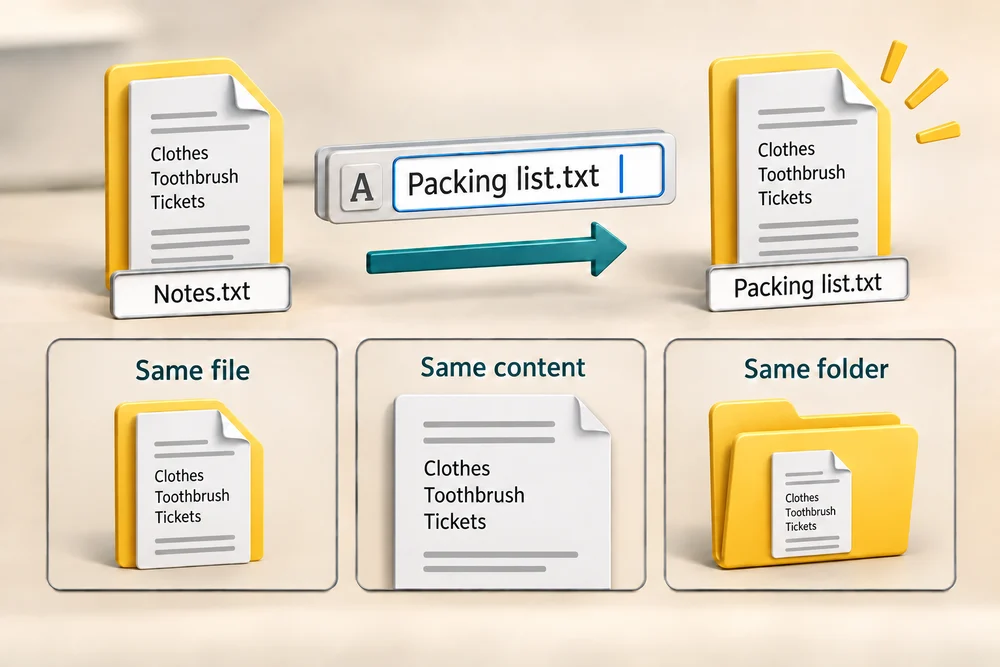
In Packing list.txt, Packing list is the descriptive name and .txt is the extension for a text file. Only the descriptive part is selected for renaming. Leave .txt unchanged. On your PC, if Windows hides the extension, do not add it yourself.

Rename the file with guidance
Packing list.txt is ready in Documents. Follow the instruction popup to change its descriptive name to Travel checklist yourself, then open it to check the same saved list. Afterwards, Try it gives you a fresh desktop to practise independently. Click Check my work when you finish, or use the optional hints underneath.
Click Packing list.txt once to select it. Click Rename in the top command bar, just after Paste. Its icon looks like an A beside a typing cursor. Only the descriptive part of the name is highlighted. Type Travel checklist to replace those words, leave .txt unchanged and press Enter. Double-click Travel checklist.txt to open it. Its words and location have not changed.
Give the list a clearer name
Give the existing Packing list.txt the name Travel checklist.txt, then read it again. When you click Rename, only the descriptive part of its name is highlighted. Typing replaces that part, so you can keep the .txt ending. This is a fresh sample file for this lesson.
Click Packing list.txt once to select it. Click Rename in the top command bar, just after Paste: look for an A beside a typing cursor. You can also press the F2 key. Type Travel checklist to replace the highlighted words, leave .txt unchanged and press Enter. Double-click Travel checklist.txt, clicking twice quickly, to read it. While naming, press the Escape key if you want to cancel the change and try again.
What did the new name change?
You use Rename to change Packing list.txt to Travel checklist.txt, keeping .txt at the end. What is the result?
One file with the same saved words, type and location.
Try this outside the practice desktop
You have practised inside this webpage. If you feel ready, you can repeat the skill in Windows on the same computer, outside the practice desktop. This is optional. The steps below use your actual apps and files, so use only disposable practice items. Files made in the webpage do not appear in Windows File Explorer.
Select the file you mean to rename, change its descriptive name and then check the result. Renaming is useful when the original name no longer helps you recognise the file.
- 1
If your practice list is open in an app, click the X at the top right of that app window to close it. Press the Windows logo key, type File Explorer and click the app in the results. Click Documents on the left, double-click Learning Hub practice, or the practice folder name you chose, then double-click the folder holding one of your disposable Packing list files, if needed.
- 2
Click the file once to select it. Click Rename in the command bar at the top, or press the F2 key. The Rename icon looks like an A beside a typing cursor. Rest your pointer over an icon without clicking to see its name. Check which part of the file name is highlighted before typing.
- 3
Type Travel checklist to replace the highlighted descriptive name. If .txt is visible, leave that ending unchanged. If extensions are hidden, type only Travel checklist.
- 4
Press Enter to keep the name. If Windows reports that the name is already used, press Escape, click Rename again and type another unused practice name. If it asks about changing the extension, click No, then repeat Rename while leaving the ending unchanged.
- 5
Double-click the renamed file, clicking its name twice quickly, to read it. You can also click it once and press Enter. Its words are still the same. Click the X at the top right of the app window to close it and see the file in the same folder.
PC practice is optional. Use your own disposable file. The webpage’s file is separate. A shortcut or saved link using the old file name may need updating after a rename.
Prefer a more personal, one-to-one lesson? Basic Computing can help. Explore our services.