Recover a cloud file or earlier version
Missing files and changed contents need different routes
Choose a recovery feature for an existing document whose recent edits were wrong.
Distinguish cloud recycle-bin recovery, version history and an independent backup.
A file can be missing because it was deleted, or still present with changes you did not want. Cloud services may offer a recycle bin for deletion and version history for earlier contents. These are useful recovery features with limits, not a reason to treat syncing as a permanent independent backup.

Identify what you want to bring back
How this works
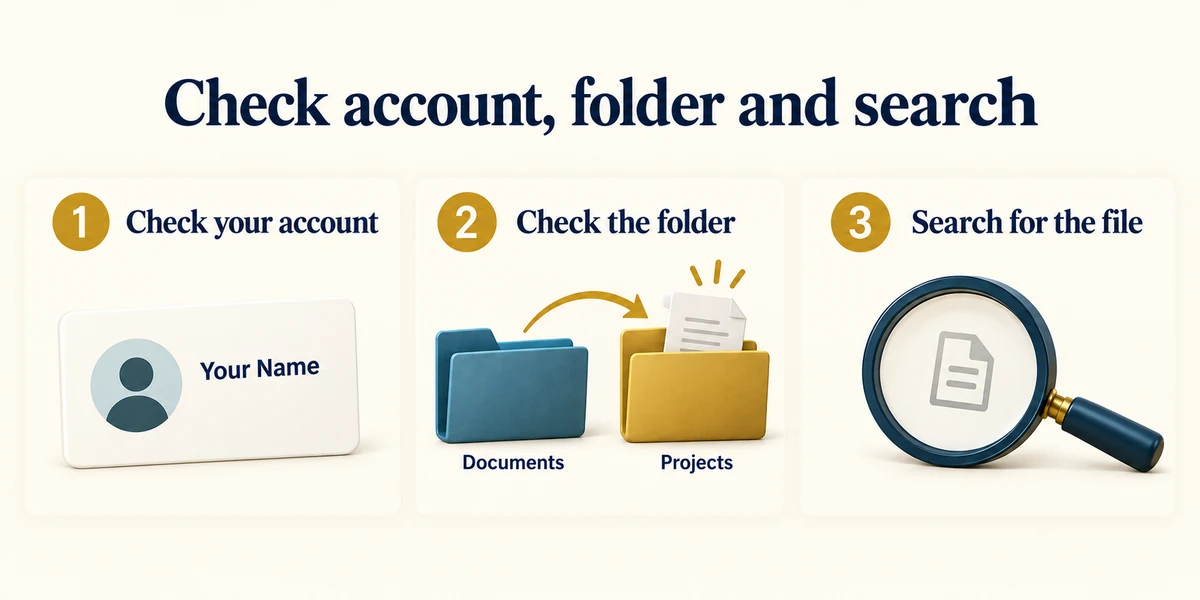
First check the account, folder and search before assuming deletion. A file may have moved or been renamed. Deleting from a synced OneDrive folder can also remove the online file and affect other synced devices; looking on another synced PC is not necessarily finding an untouched backup.

For a deleted OneDrive file, open the genuine OneDrive website in the intended account. Click Recycle bin in its navigation. Select the known item using its checkbox or circle, then click Restore if you intend to recover it. Check its returned location afterwards. The cloud recycle bin is separate from the Windows desktop bin, especially for online-only files.
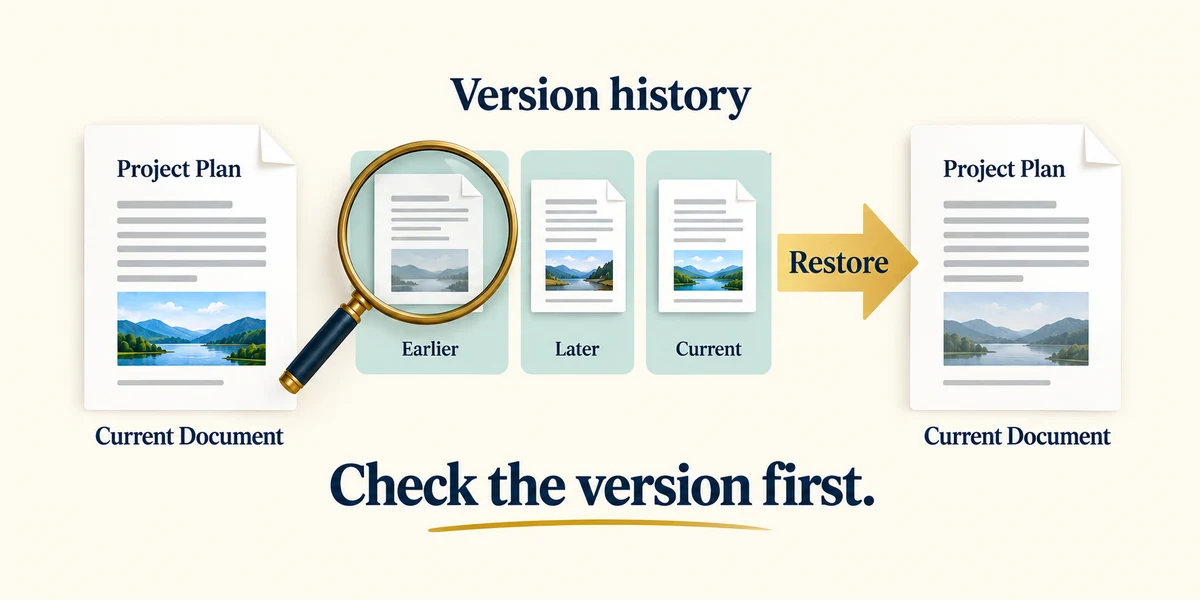
For a file that still exists but contains unwanted edits, use Version history if offered. On OneDrive's website, right-click the file once and choose Version history, then read the dates and available versions. Use the menu beside the intended version and choose Restore only after checking it. Availability and retention depend on the account and service settings.

Do not empty a recycle bin or delete current work to test recovery. Earlier versions and deleted items are not kept forever, and administrators can affect what is available. If the needed version is unavailable, use your independent backup or the service's official help. Important files deserve recoverable copies that do not merely mirror today's deletion or mistake.
Your document is still in OneDrive, but yesterday's useful paragraphs were replaced by today's edits. Which feature is the relevant first check?
Version history for that existing file.
Check what you understand
In guided learning, click Start 3 questions to receive a selection from this lesson. Click the circle beside an answer, then click Check answer. Read the feedback and try again if needed. Click Next question after each correct answer. Answer all 3 correctly to continue.
Returning to guided learning keeps the questions and answers in your current attempt.
Read all 3 questions and explanations
A OneDrive file was deleted from a synced folder. Why might it be missing on another synced PC too?
Answer: Deletion can sync to the shared online state and other devices.
Sync coordinates changes, including deletion. Another synced device is not automatically a separate recovery copy.
Which route is intended for an item deleted from OneDrive?
Answer: The service's recycle bin, if the item is still recoverable there.
The service's recycle bin may retain that deleted item. A different file's versions and an unrelated download list are different records.
Why keep an independent backup of important work?
Answer: Cloud sync and recovery features have limits and can reflect unwanted changes.
A backup provides another recovery route. Sync and temporary recovery are useful but not unlimited history.
Take this to your computer
- 1
No deletion or restoration is needed. Decide whether the fictional case concerns a missing item or unwanted edits.
- 2
If you later need real recovery, check the account and available history before changing anything, and follow the service's current official help.
This activity cannot restore your files. Retention and permissions vary, so do not rely on a fixed number of recovery days.
Prefer a more personal, one-to-one lesson? Basic Computing can help. Explore our services.