Read your computer’s specifications
Read your computer’s specifications
Read a sample specification and identify what each detail describes.
You can provide useful device information for support or a buying comparison.
A specification lists different facts about a computer. Its model identifies the design, RAM describes working memory, storage describes saved-file capacity and the Windows version identifies software. These details answer different questions, even when some use the same units.
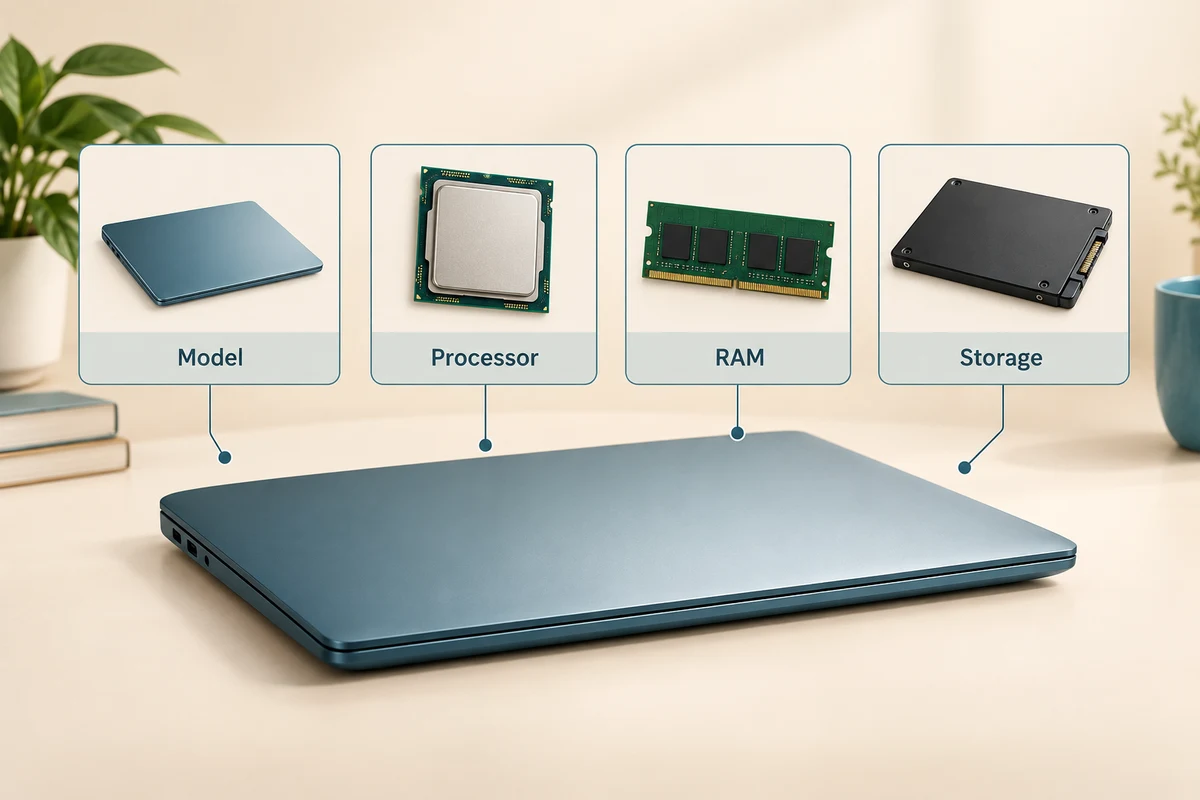
Work through the useful checks
How this works
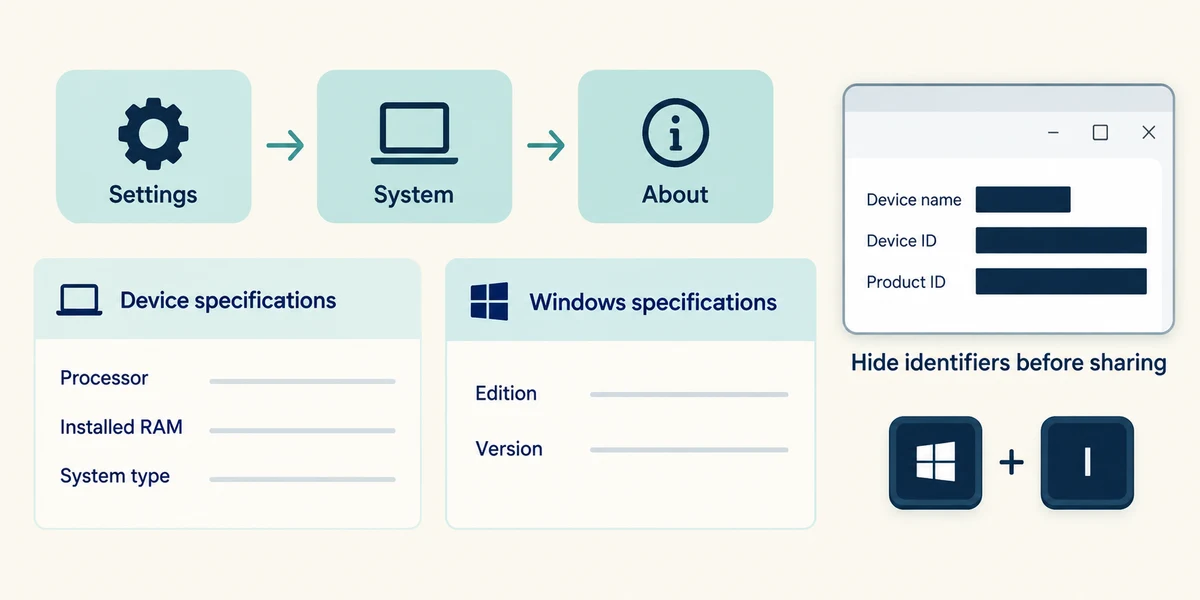
Hold the Windows key, press I once, then release both keys to open Settings. Click System, then About. Read Device specifications and Windows specifications. Record the processor name, installed RAM, system type and Windows edition/version when relevant. Do not publish device identifiers or account information in a public screenshot.
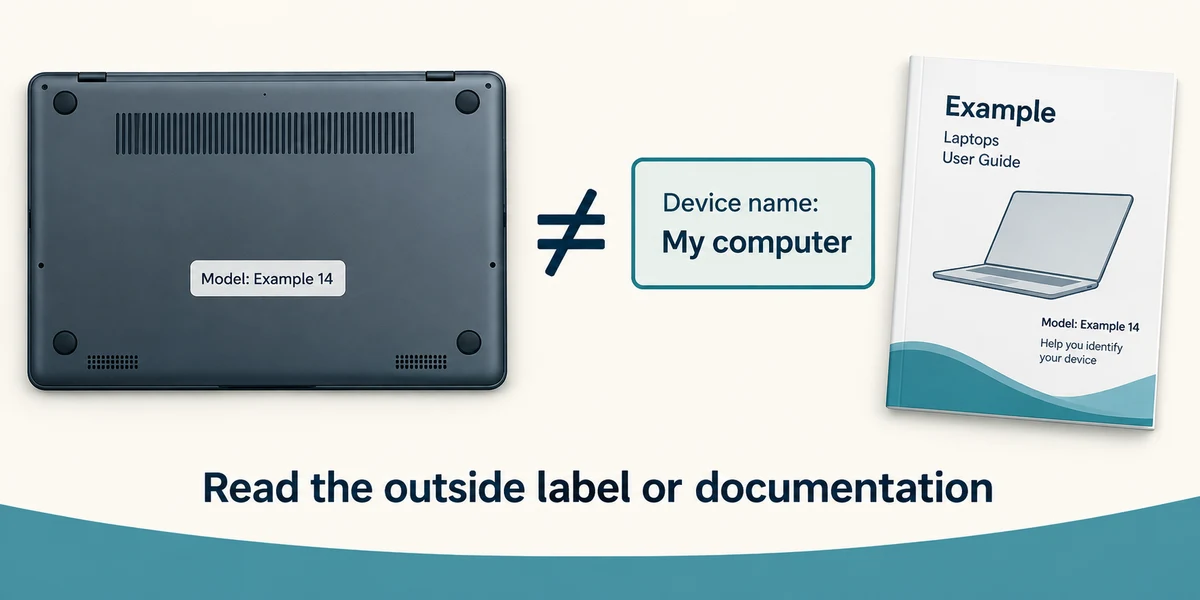
A device name can be chosen by its owner and is not always the manufacturer’s model. Find the exact model in the manufacturer’s documentation or a readable outside label. Do not dismantle the computer to find it.
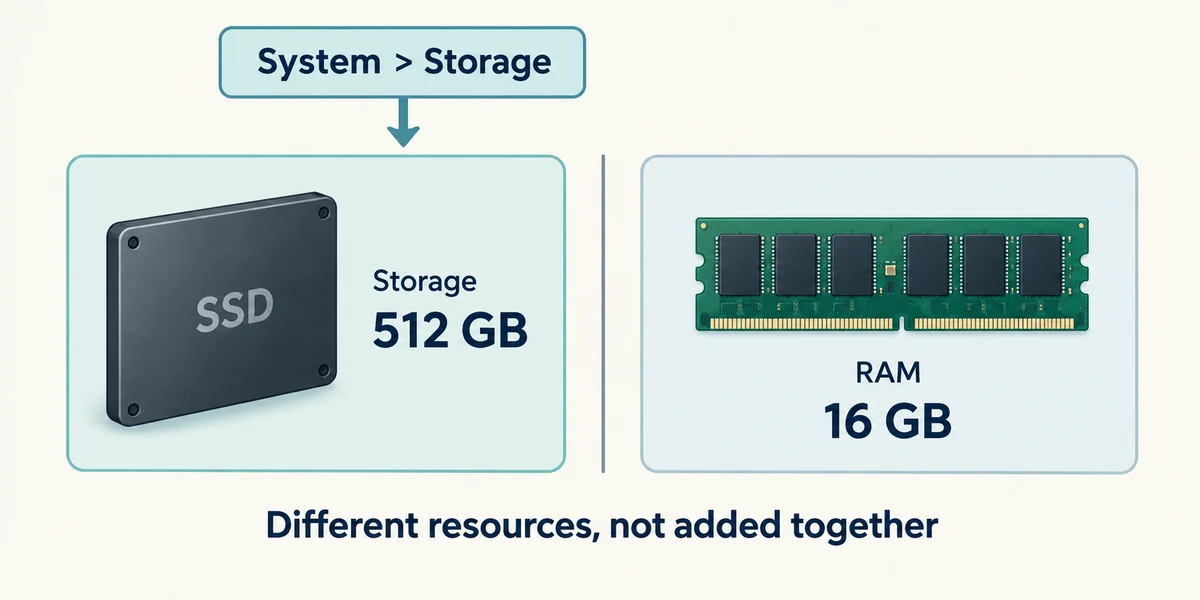
For saved-space information, return to System and click Storage. Read the capacity and used/free amounts separately from RAM. A 512 GB drive and 16 GB RAM are two resources, not 528 GB of interchangeable memory.
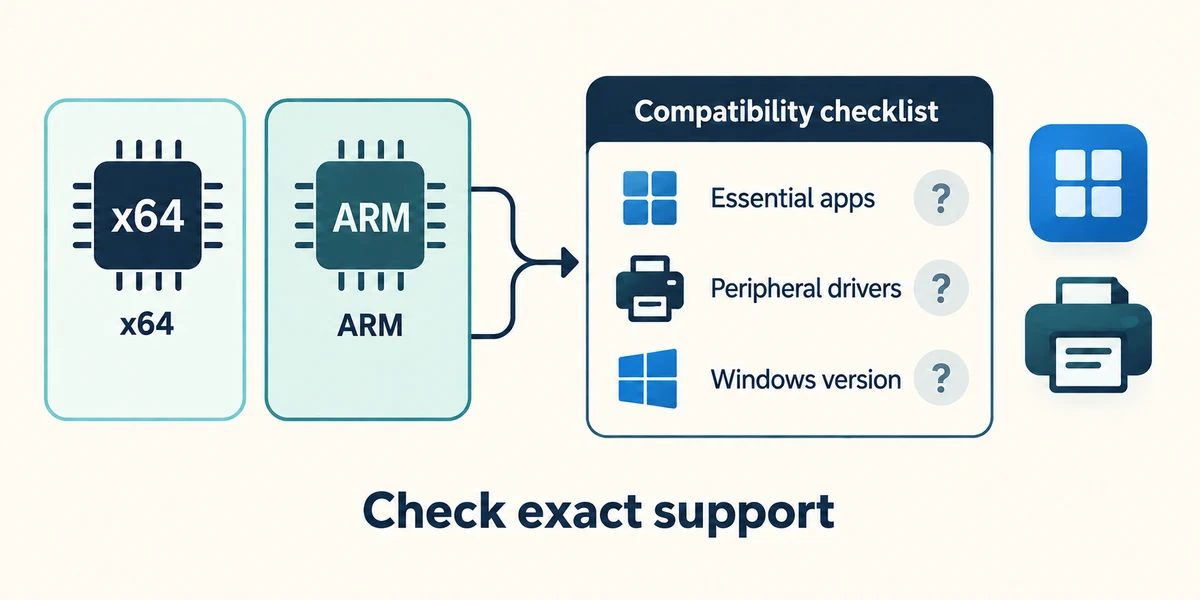
System type can identify a processor platform such as x64 or ARM. Check support for essential apps and peripherals against that platform and exact Windows version. A familiar product name alone does not guarantee every older app or driver works.
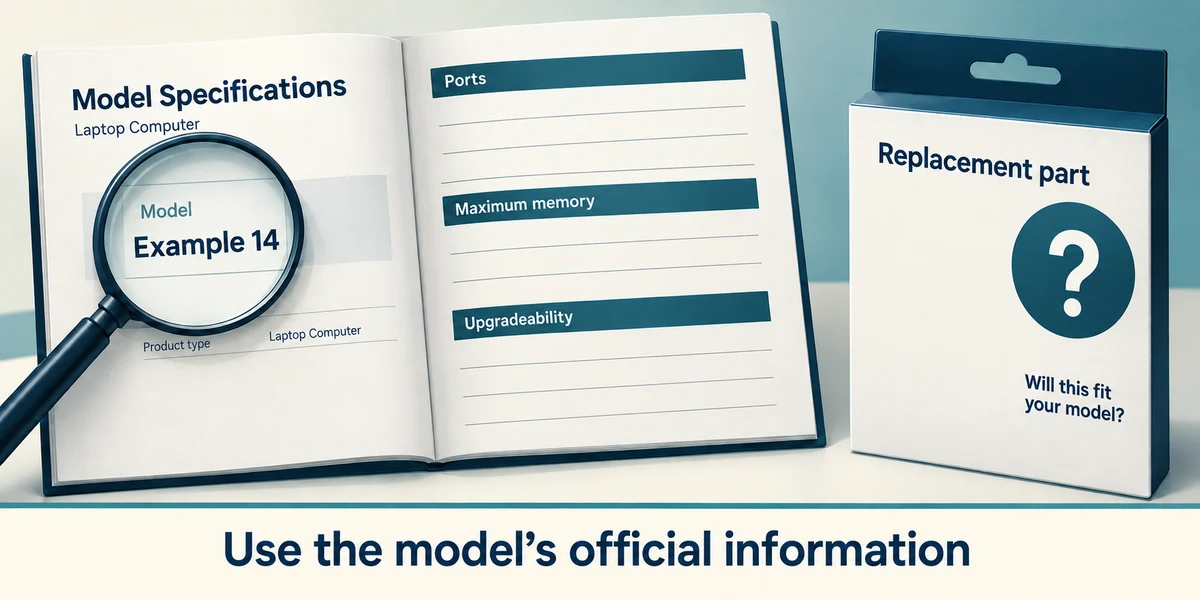
Use the model’s official specification and service information for ports, maximum memory and upgradeability. An empty-looking space or a high advertised number is not enough to choose a replacement part.
A listing shows 16 GB RAM and 512 GB SSD. What does that mean?
Separate working-memory and storage capacities.
Check what you understand
In guided learning, click Start 3 questions to receive a selection from this lesson. Click the circle beside an answer, then click Check answer. Read the feedback and try again if needed. Click Next question after each correct answer. Answer all 3 correctly to continue.
Returning to guided learning keeps the questions and answers in your current attempt.
Read all 3 questions and explanations
Windows calls a device Family laptop. Is that enough to choose its replacement charger?
Answer: No; find the manufacturer’s exact model and requirements.
A device name may be owner-chosen. Use the exact manufacturer model and compatibility information.
An app requires a supported processor platform. Which detail helps check that?
Answer: System type together with the app’s requirements.
The platform and supported Windows version matter for compatibility. Available storage and installed RAM do not identify the processor platform.
You need support for a storage-space warning. Which figures are relevant?
Answer: The affected drive’s total and free space.
A storage warning concerns the affected drive’s capacity and remaining space, not RAM capacity.
Take this to your computer
- 1
Hold the Windows key, press I once, then release both keys to open Settings. Click System and About. Write the processor name, RAM and Windows version on a private note, omitting account and device identifiers.
- 2
Return to System, click Storage and compare its capacity with RAM. Close Settings with its top-right X. No settings need changing.
The lesson uses fictional examples. Optional checks on your computer can be observational. Settings and available features vary by model and Windows version.
Looking to build a computer or find one that suits your needs? Contact Basic Computing for help.