Print the pages you need
A small check can save a large print job
Choose pages, copies and a destination in a safe print preview, then cancel.
Distinguish page range, copy count and printer destination.
Printing turns chosen document pages into an output such as paper. The print window is a chance to check what will be produced. You can inspect it and cancel without committing to a printer or using any supplies.
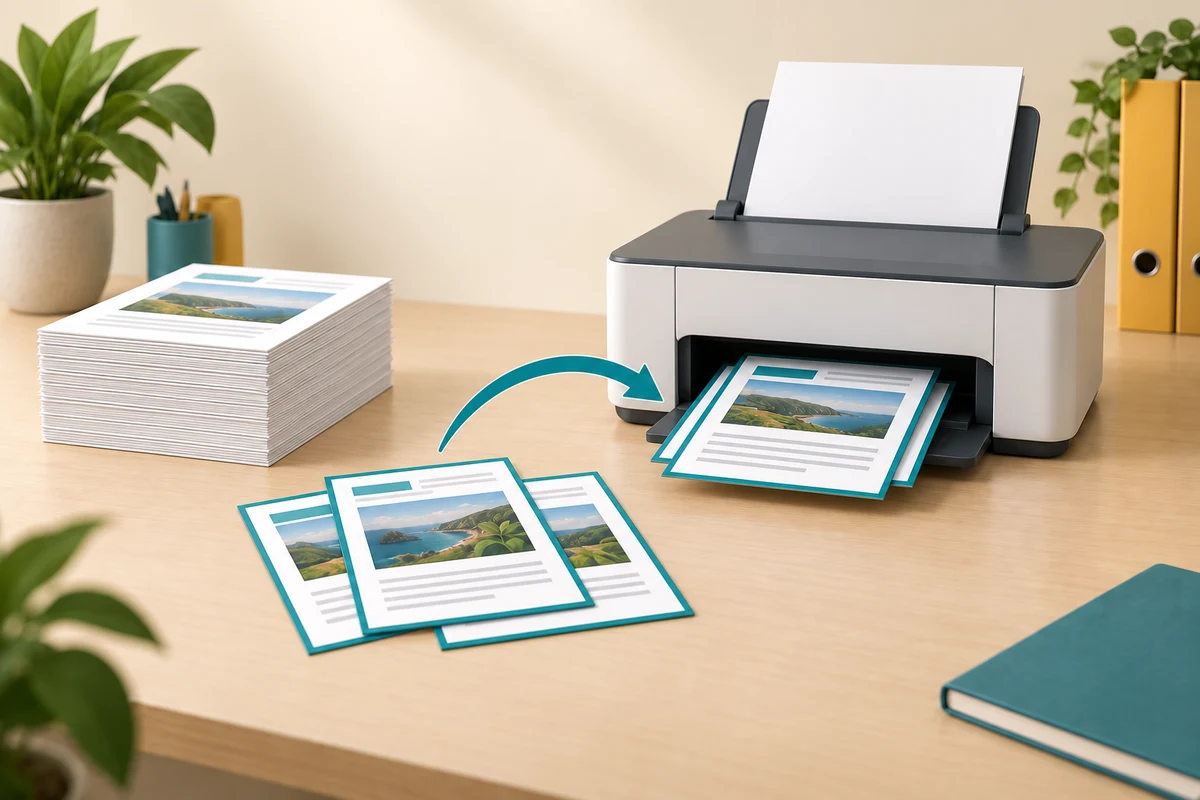
Preview before pressing Print
How this works
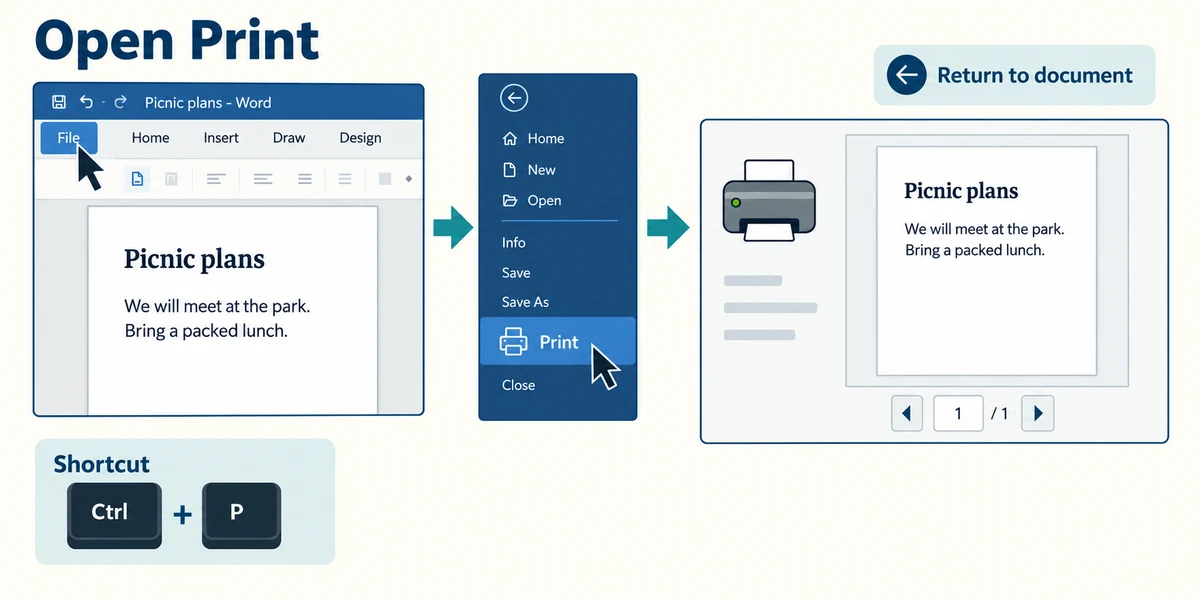
In desktop Word, open a harmless saved document and click File, then Print. Holding Ctrl, pressing P and releasing both is another common route. Look at the preview and its page controls. Your app's print window may look different; choose Cancel or return to the document if you only wanted to inspect it.
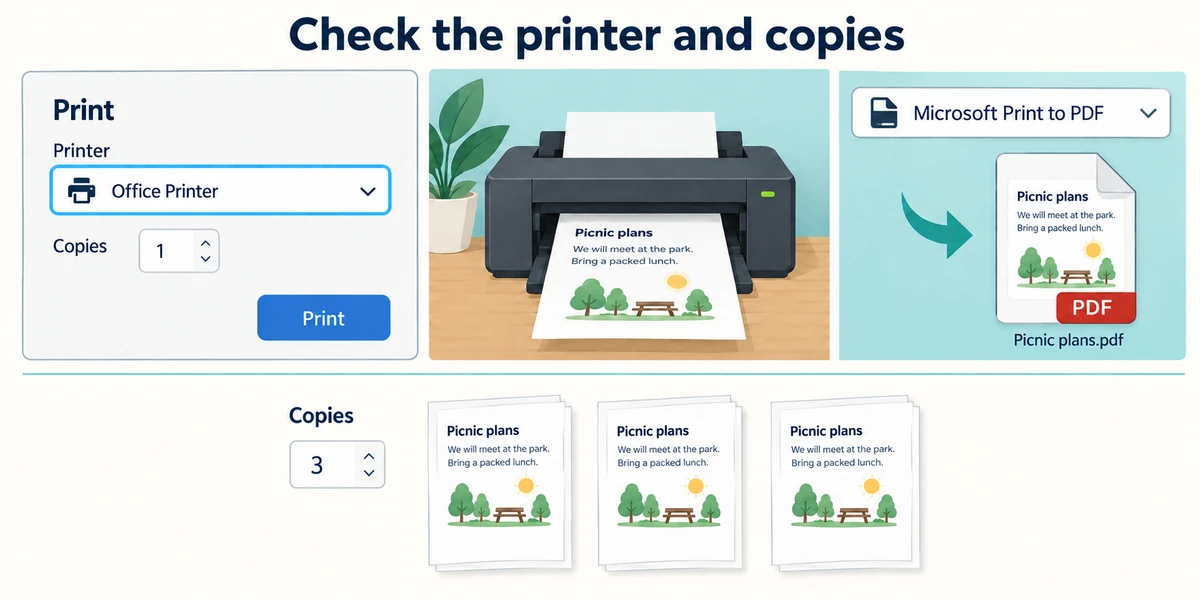
Read the selected printer's name. A physical printer produces paper, while a destination such as Microsoft Print to PDF creates a file instead. Check the printer is the one you intend, especially on a shared or work computer. The copy count means how many copies of the chosen pages, not which pages are included.
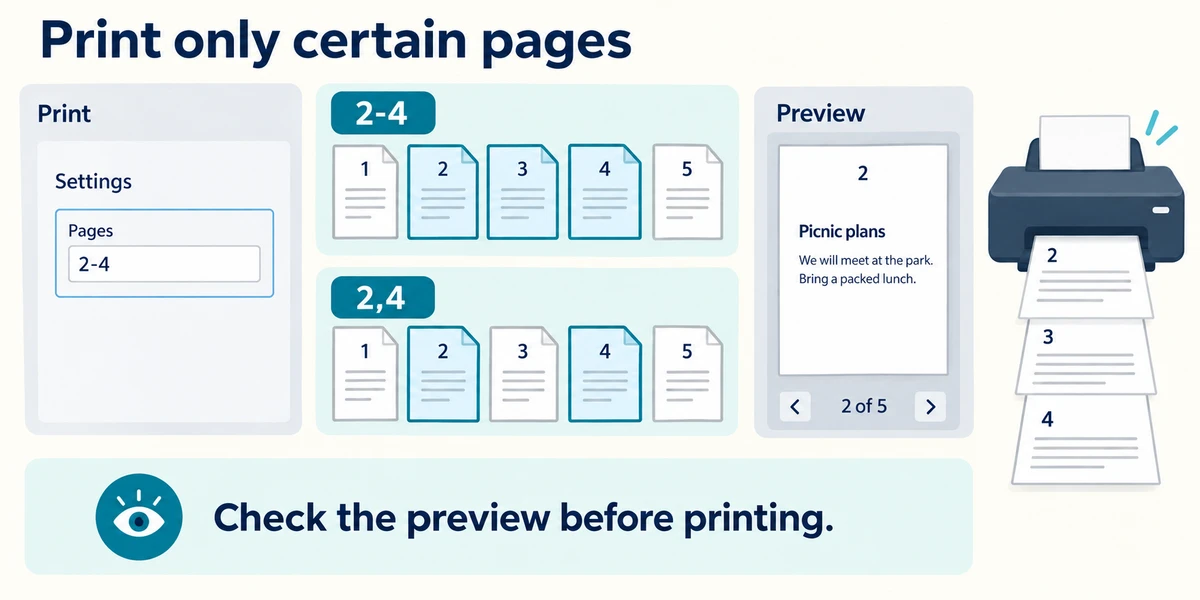
To print only part in Word, use the Pages box under Settings. For example, 2-4 requests pages two through four; 2,4 requests two separate pages. Read the preview and the app's interpretation before printing. Page numbers printed inside a document may differ from the page positions in the print dialog, so inspect the actual preview.
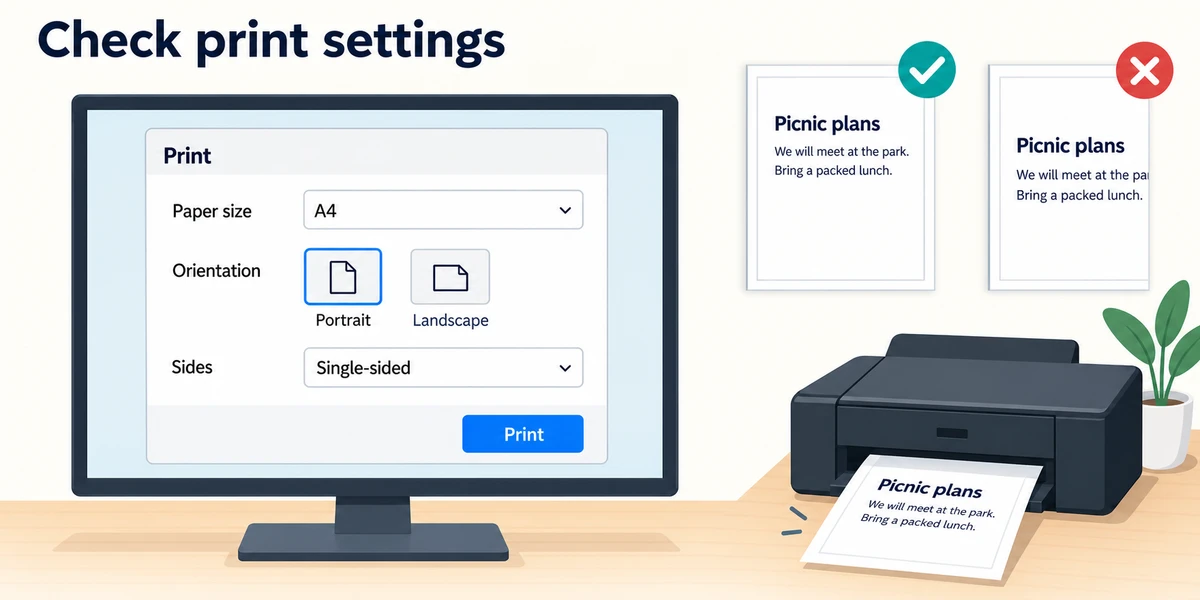
Check paper size, orientation and any single-sided or double-sided setting supported by the printer. The wrong choice can crop or rearrange the result. Click Print only when ready. This lesson never sends a job to your real printer; for optional practice you can inspect the dialog and leave without printing.
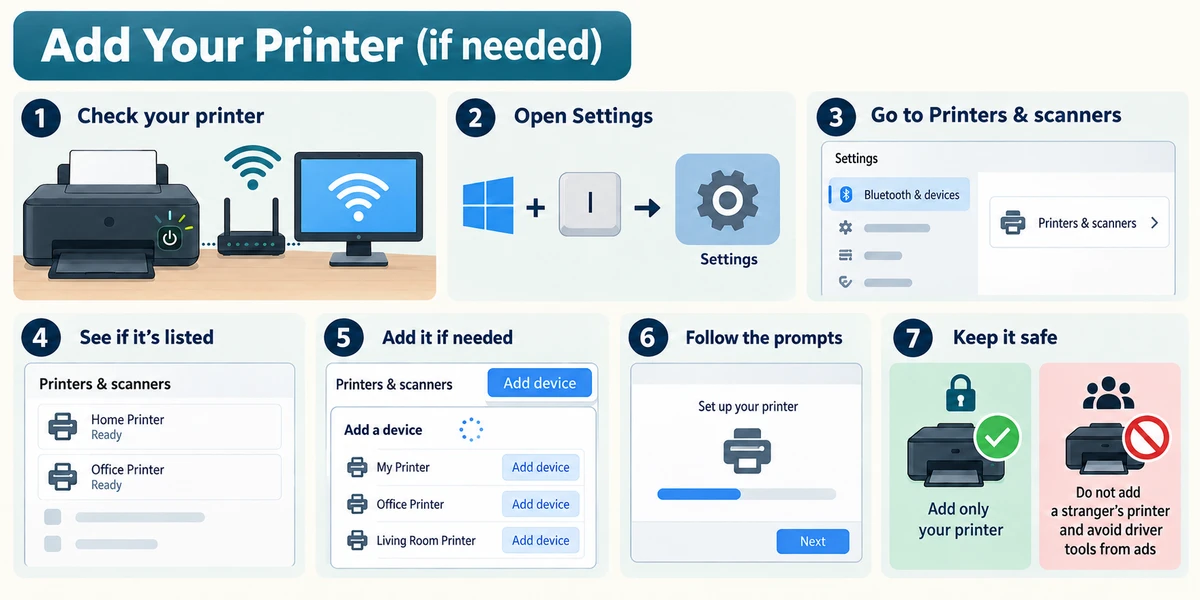
If you later need to add your own printer, follow its manufacturer’s connection instructions first. Turn it on; a wireless printer and PC should use the same known network. Hold Windows, press I and release to open Settings. Click Bluetooth & devices, then Printers & scanners. Check whether the printer is already listed. If not, click Add device, wait for the list and click Add device beside its confirmed name if offered. Follow the displayed prompts; names and steps can vary. Do not add a stranger’s printer or install an advertised driver tool. Real setup is not required here.
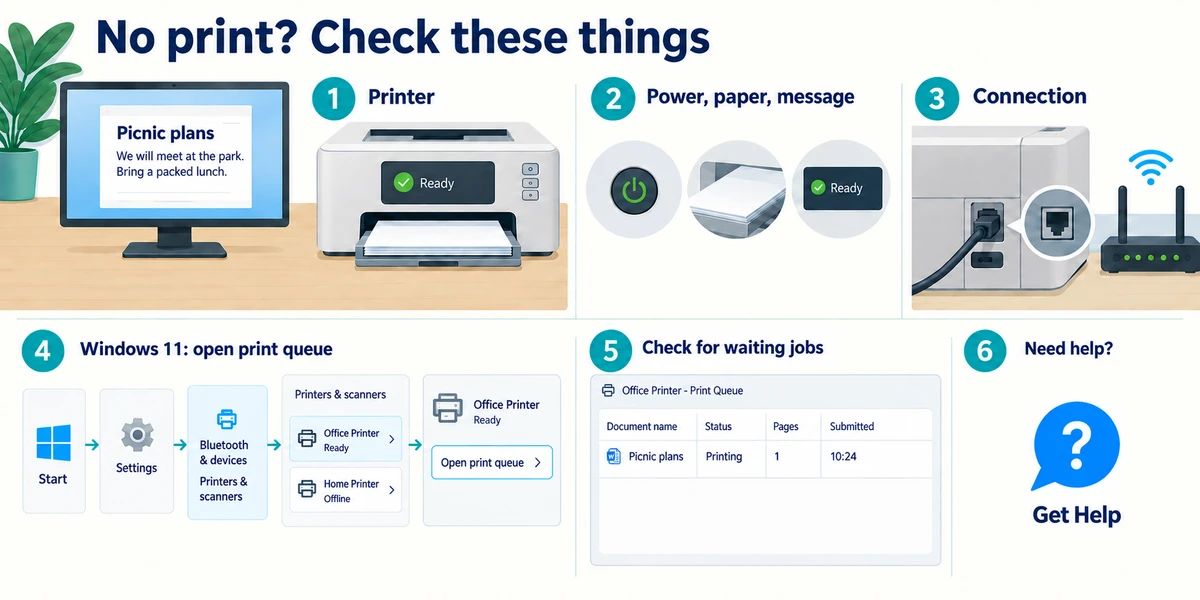
If a real print does not appear, avoid repeatedly pressing Print. Check the named printer, its power, paper and displayed message, then its cable or network connection. In Windows 11, click Start > Settings > Bluetooth & devices > Printers & scanners, choose the printer and click Open print queue to see whether work is waiting. Use the printer's official help or the Windows Get Help app if unsure; opening the queue does not itself print another copy.
You need pages two, three and four of a ten-page document, once each. Which choice fits?
Choose the page range 2-4 and one copy, then check the preview.
Check before printing
Practise preparing pages 2 and 3 of a four-page newsletter, one copy, for Study printer. Click the Page range box and type 2-3. Set Copies to 1 and choose Study printer. Click Preview pages, check the selected page numbers, then click Cancel printing. This example never contacts a printer or creates a PDF.
Check what you understand
In guided learning, click Start 3 questions to receive a selection from this lesson. Click the circle beside an answer, then click Check answer. Read the feedback and try again if needed. Click Next question after each correct answer. Answer all 3 correctly to continue.
Returning to guided learning keeps the questions and answers in your current attempt.
Read all 3 questions and explanations
The destination says Microsoft Print to PDF. What should you expect?
Answer: A request to save a PDF file rather than paper from a printer.
That destination creates a file; it is not a physical printer.
You enter 2,4 in a supported Pages box. What does that commonly request?
Answer: Pages two and four only.
A comma separates individual page choices in this example.
The preview cuts off part of a page. What should you do before committing?
Answer: Check paper size, orientation and relevant scaling settings.
The preview can reveal a layout mismatch before wasting paper.
Take this to your computer
- 1
Open Print for a disposable document and read the destination.
- 2
Inspect a small page range and the preview, without clicking Print.
- 3
Return to the document or cancel when finished.
Trying this on your own computer is optional. Use only disposable practice information. This lesson's choices check your decisions; they do not operate your computer or prove that you have performed the real task. Page-selection controls vary by app and printer. No real printing is required.
Prefer a more personal, one-to-one lesson? Basic Computing can help. Explore our services.