Prepare before repair, reset or device failure
Keep a way back before changing the computer
Identify what is still missing from a recovery preparation plan.
Verify independent files, account access and recovery keys before proceeding to repair or reset.
A recovery action may make Windows work again while changing apps, settings or files. Preparation keeps the important work and access separate from the device being repaired. It is much easier to check those things while the computer still works than after its only copy becomes unavailable.

Check the essentials without starting a reset
How this works
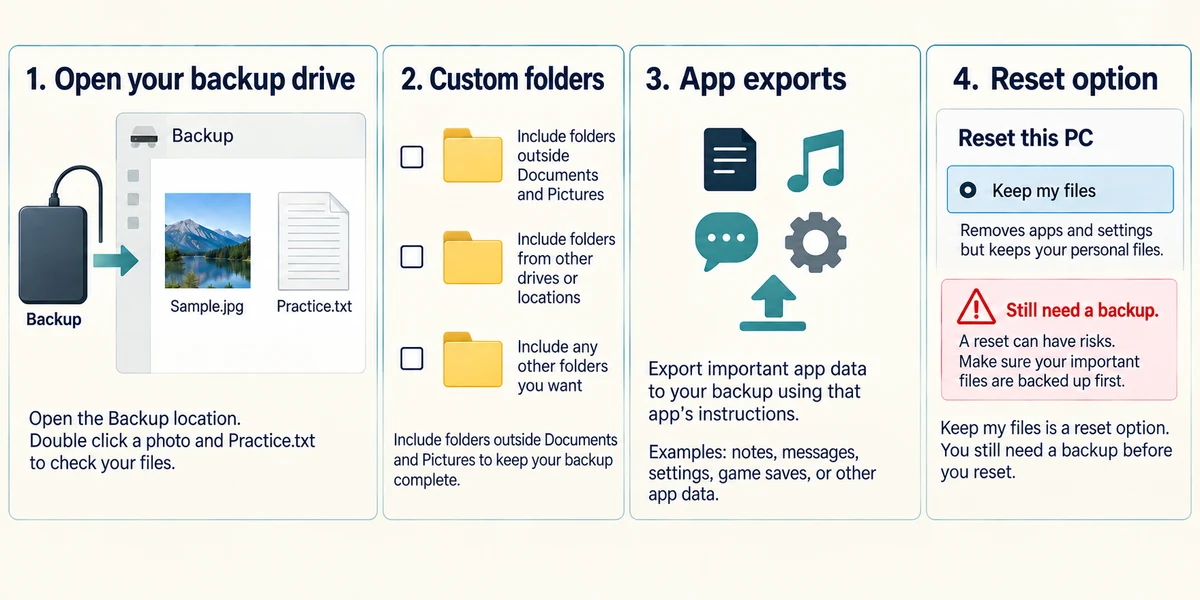
List important files and verify a recent independent backup. Open sample copies from the backup location, not from the original PC. Include custom folders, photographs and any app-specific data that needs its own export. Do not assume a reset option named Keep my files replaces the need for a backup.

Check that you can reach the accounts needed for recovery from another trusted device if necessary. Know where passwords, recovery email or phone access and any app licence details are kept. Do not put real passwords or codes into this lesson, a support chat or a shared checklist.

An encrypted device may ask for a BitLocker recovery key during recovery. This is different from the normal Windows PIN. Use Microsoft’s official guidance to find and securely retain the correct key, matching its identifier to the device. Keep access separate from the locked computer and do not share the key casually.

A Windows recovery USB contains recovery tools or system files; it is not automatically a backup of your personal documents. Creating such media can erase the selected USB drive. Use a separate suitable device and the dedicated official instructions if you later need it. This lesson does not ask you to create media or start a reset.
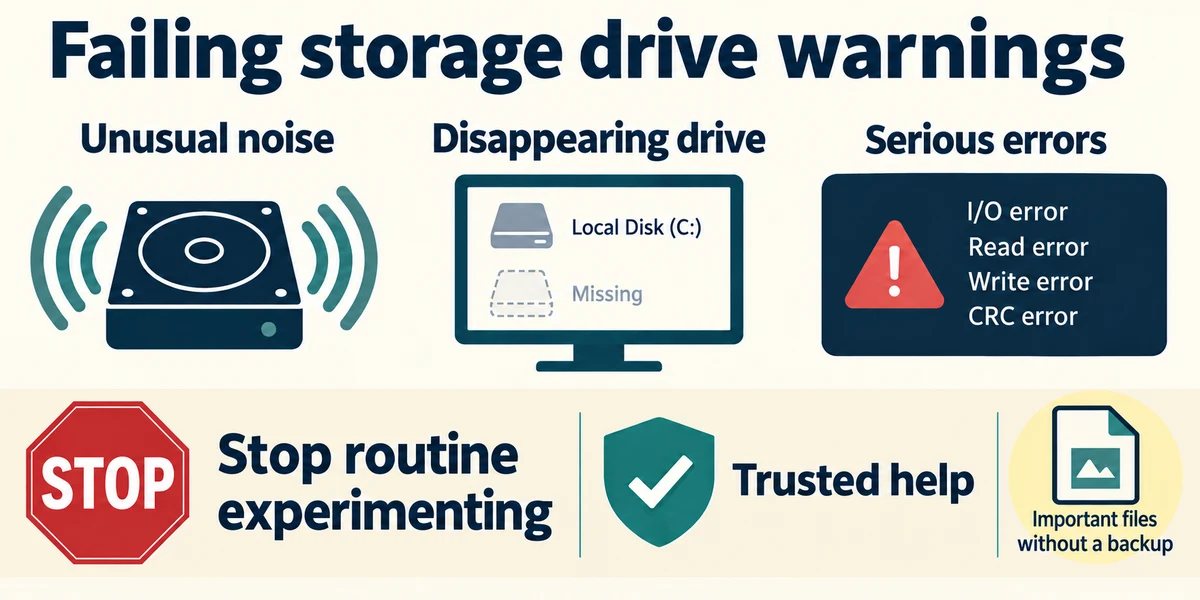
If a drive is making unusual noises, disappearing repeatedly or reporting serious failures and holds irreplaceable unbacked-up files, stop routine experimenting and seek trusted help. Repeated writes or repair attempts can reduce recovery options. For an ordinary planned repair, confirm your files and access first, then follow the relevant recovery lesson and read every removal warning.
You have a recovery USB but no separate copy of family photographs. What is missing?
A verified backup of the personal photographs.
Check what you understand
In guided learning, click Start 3 questions to receive a selection from this lesson. Click the circle beside an answer, then click Check answer. Read the feedback and try again if needed. Click Next question after each correct answer. Answer all 3 correctly to continue.
Returning to guided learning keeps the questions and answers in your current attempt.
Read all 3 questions and explanations
A recovery screen asks for a BitLocker recovery key. Is that simply the normal Windows PIN?
Answer: No, it is a separate recovery credential that must match the device.
The key is distinct and identifies access to the encrypted drive.
A reset option says Keep my files. What preparation is still sensible?
Answer: Verify a separate backup and app/account access before proceeding.
A backup and access plan remain important before major recovery actions.
An unreliable drive holds the only copy of irreplaceable work. What is a careful response?
Answer: Stop repeated repair experiments and seek trusted recovery advice.
Limiting further changes helps preserve available recovery options.
Take this to your computer
- 1
Write a checklist of file locations, backup verification and recovery-access locations without recording secrets here.
- 2
Inspect readiness only. Do not reset Windows, create recovery media or alter encryption as part of this lesson.
This is a preparation lesson, not a reset or data-recovery procedure. Keep real passwords, recovery keys and financial documents private. Seek trusted help when essential data has no verified copy.
Prefer a more personal, one-to-one lesson? Basic Computing can help. Explore our services.