Ports and connections
Connections have different jobs
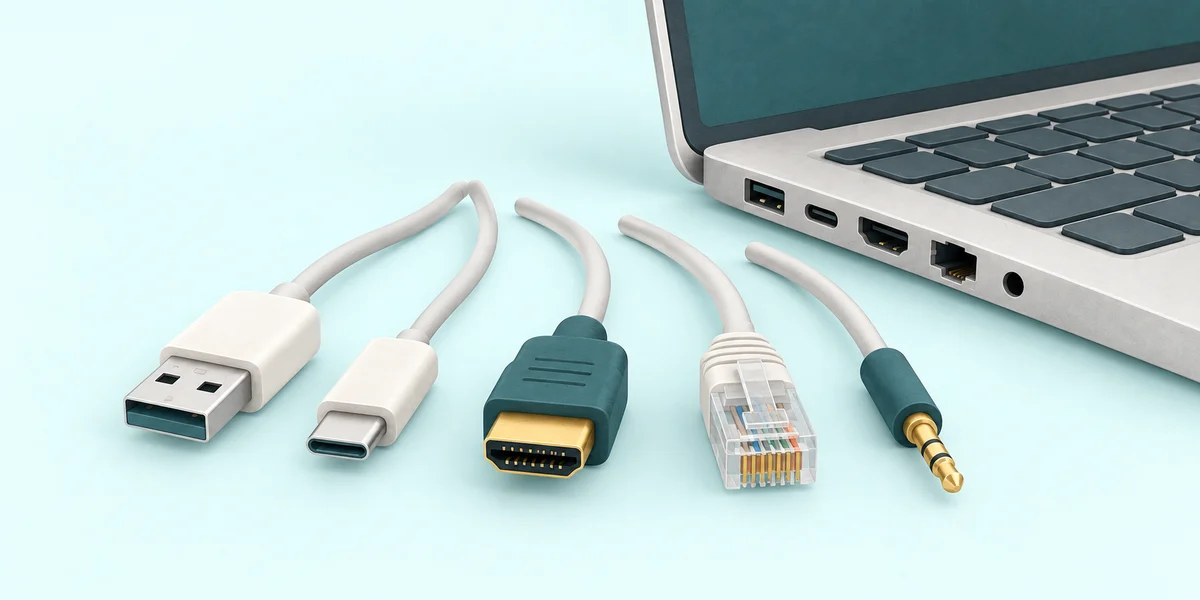
You are going to explore cable ends, computer sockets and wireless connections, then answer two matching questions chosen from ten. Starting again can give you a different pair.
You will learn to match a connection to its purpose, instead of judging only by its shape.
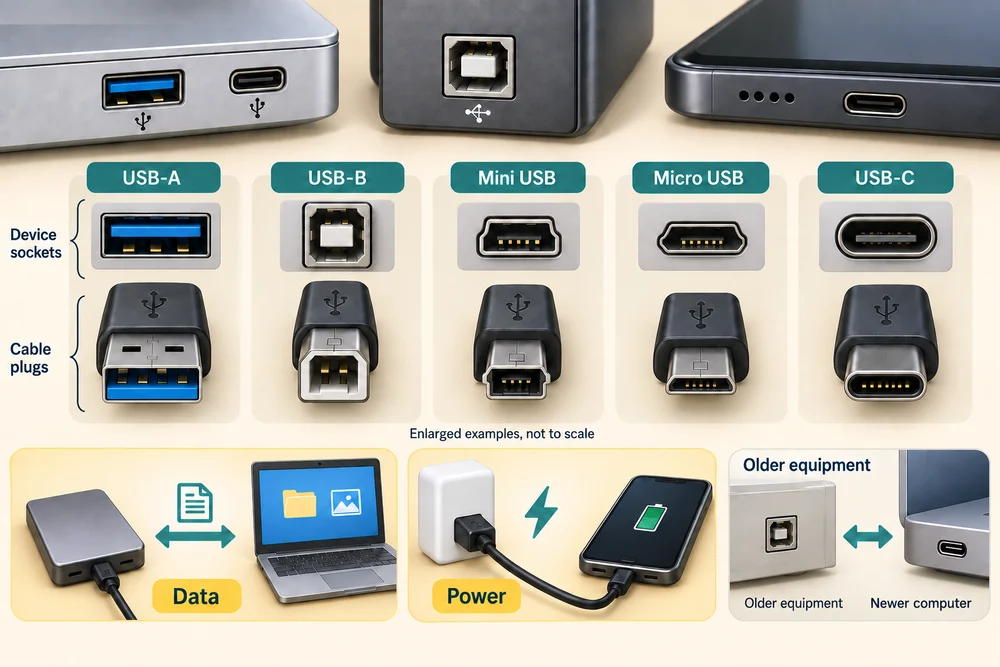
A port is a socket on a device. A cable has a plug that fits into the matching socket. USB connects many accessories and can carry data or power. USB-A, USB-B, Micro USB, Mini USB and USB-C have different shapes. Older equipment may use a different type from a newer computer.
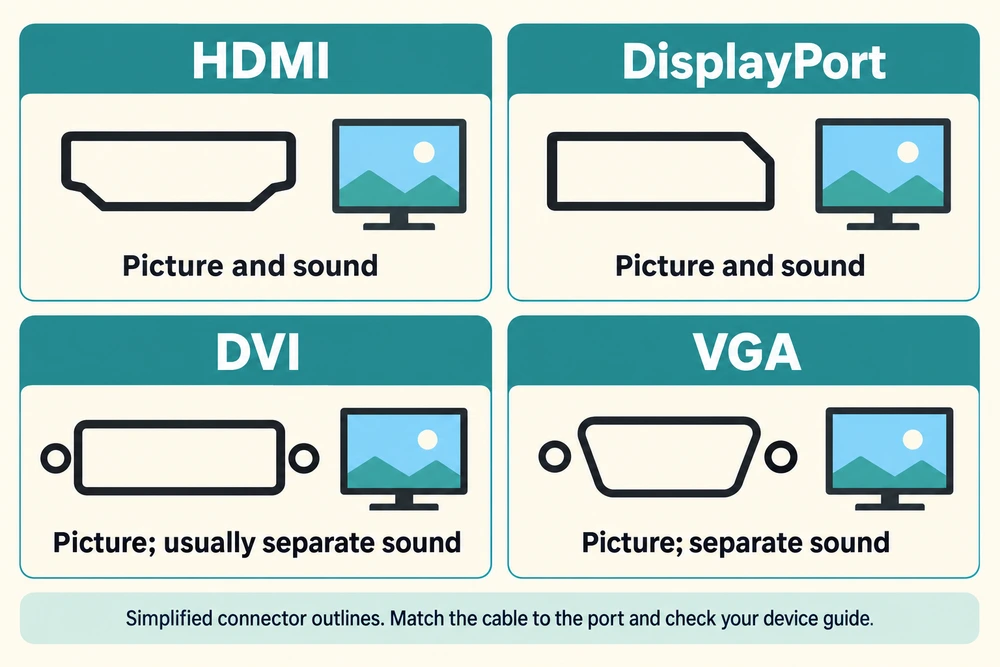
HDMI and DisplayPort can carry picture and sound to a suitable monitor or television. Mini versions have smaller plugs and sockets. DVI and VGA are screen connections you may see on older equipment; sound usually needs a separate connection with DVI, and always does with VGA.
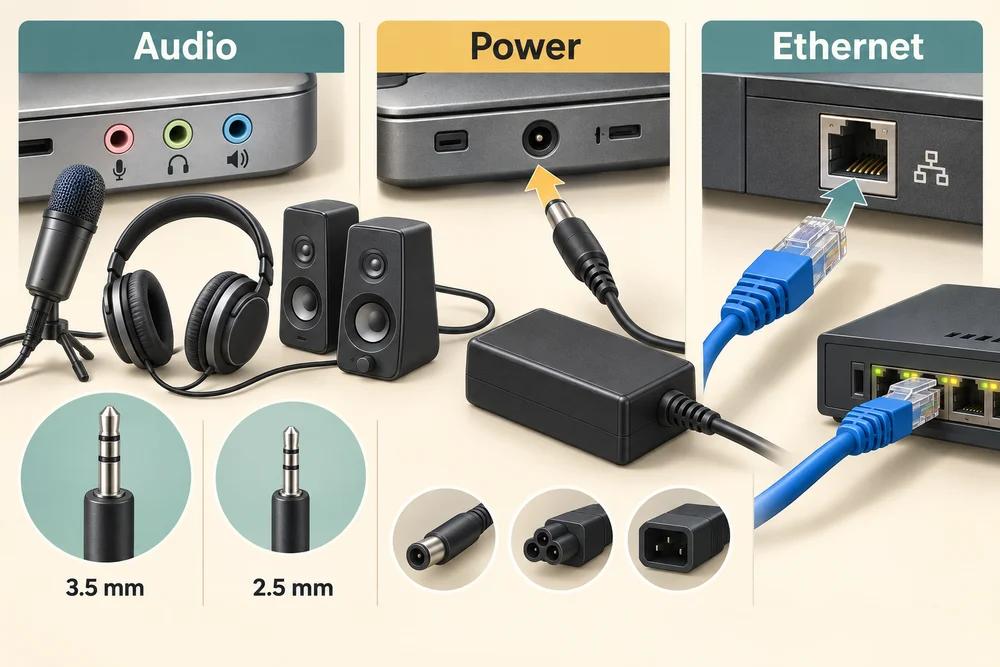
Audio sockets connect compatible headphones, speakers or microphones. The 3.5 mm size is common on PCs; 2.5 mm is smaller and used on some older or specialist equipment. Power connections supply electricity and vary between devices. Ethernet connects a computer to a network using a cable.
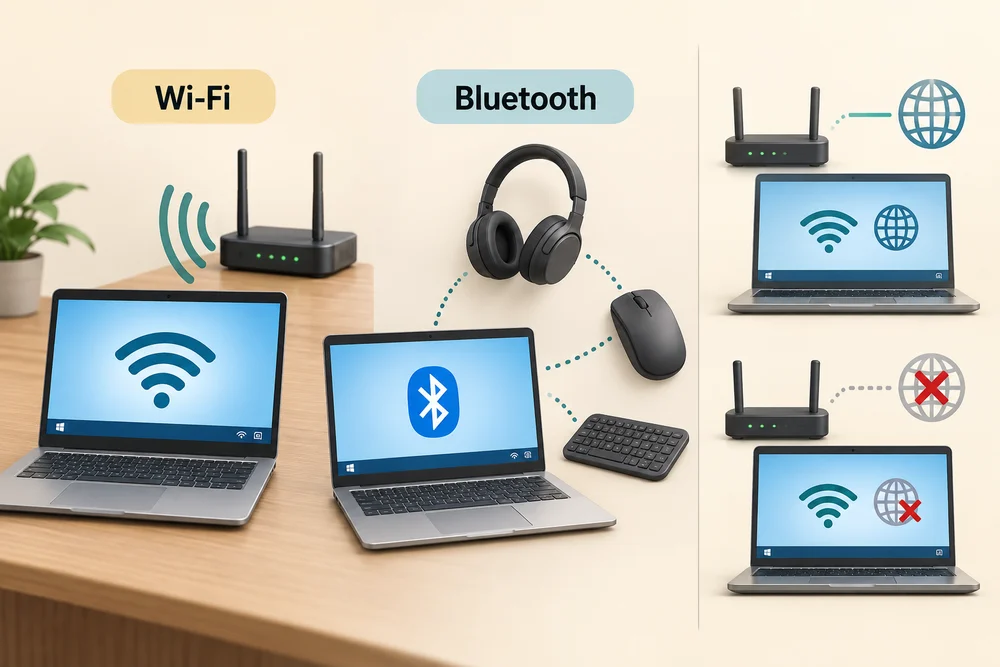
Wi-Fi connects a device to a wireless network, often through a router. Bluetooth commonly connects nearby accessories such as headphones, mice or keyboards. Being connected to Wi-Fi does not by itself guarantee that the network has internet access.
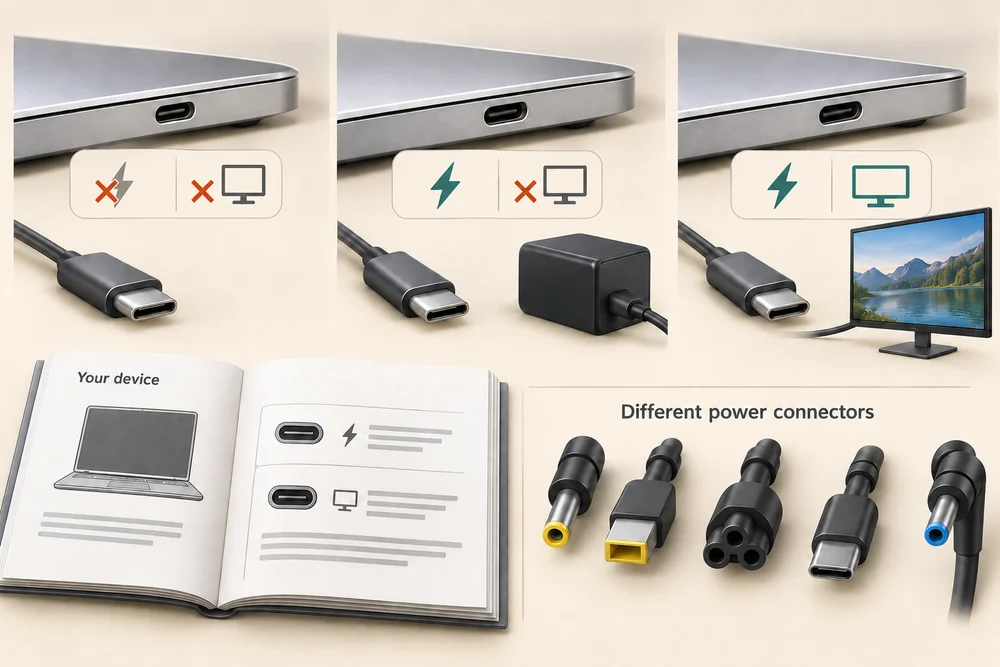
A USB-C socket does not guarantee support for charging or an external screen. Check the device’s instructions for the port and cable you have. Power connectors also vary between devices.
Choose the connection for the job
You are going to explore cable ends, computer sockets and wireless connections, then answer two matching questions chosen from ten. Starting again can give you a different pair. Explore the labelled cards, then match each job to its part. Click Show me a hint if you need help with the matching questions.
Click a connection card once, or tap it, to select it. Read its explanation and any labelled socket pictures below the cards. With a keyboard, press Tab until the card has an outline, then press Enter. Each attempt has two questions chosen from ten. In the questions below, click the circle beside an answer, then click Check answer. With a keyboard, Tab reaches the choices, arrow keys change the answer, and Tab then Enter activates Check answer. Click Start learning again below the activity to begin a fresh pair.
Check the idea
You want to connect your computer to a nearby router using a network cable. Which connection would you look for?
Ethernet.
Try this on your computer
Look for a connection’s purpose and the device’s instructions before choosing a cable.
- 1
Look along the outside of your computer for sockets and their labels. Keep existing cables in place while you identify them.
- 2
Click Learn in the section navigation at the top to return to the connection cards. Click a card once, then read its labelled socket pictures below the cards. With a keyboard, press Tab until the card has an outline, then press Enter. Compare a socket you can see on your computer with the picture and any label beside it. The pictures are enlarged rather than actual size, and available ports vary by model.
- 3
Look at the label on the charger supplied for your computer. Use the computer’s own instructions to identify its power connection.
This is optional identification practice. You do not need to plug in or remove anything. If a connector does not fit easily, check the device’s instructions rather than forcing it.
Looking to build a computer or find one that suits your needs? Contact Basic Computing for help.