Point and left-click
Use a computer with a mouse and keyboard. This practice desktop is designed for clicking, right-clicking, dragging and typing with physical keys, rather than touchscreen use on a phone or tablet.
Point first, then choose
You are going to select the Holiday plans folder with one click.
You will learn how pointing and clicking choose an item on the screen.
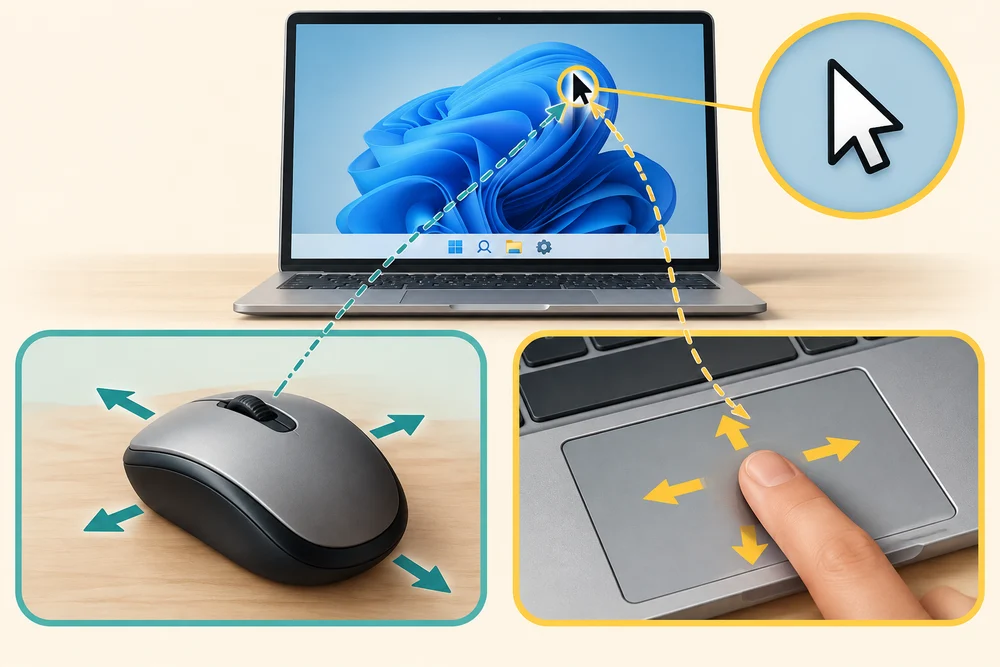
The pointer is the small arrow or other marker that moves on the screen. Moving a mouse across your desk moves the pointer. On a touchpad, slide one finger over its surface.
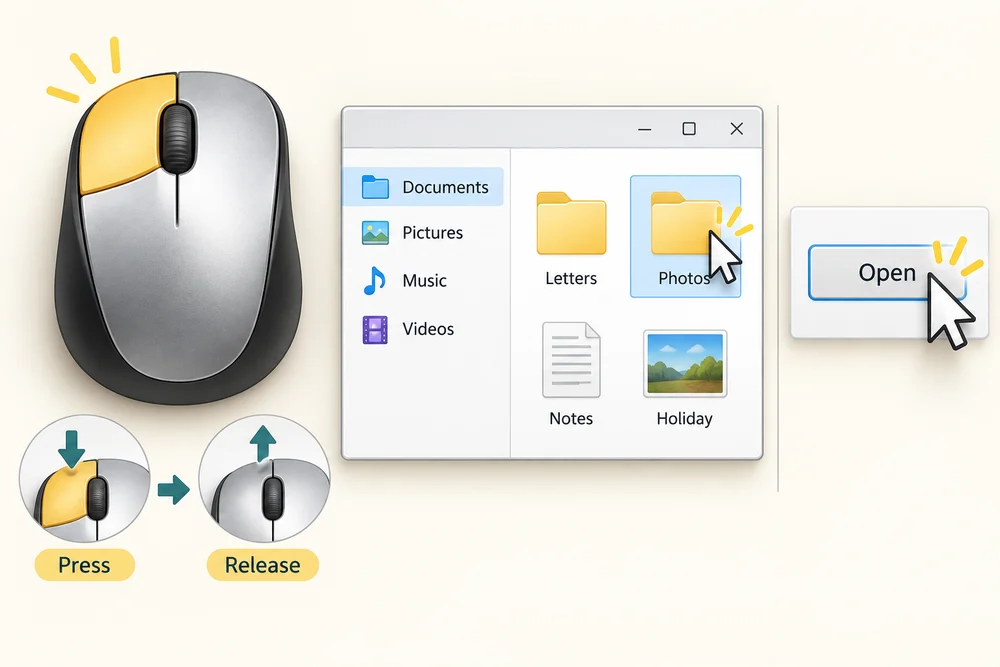
To left-click, press and release the left mouse button once. In our folder example, one click selects an item: its highlight shows which one you chose. A button usually performs its action with one click.
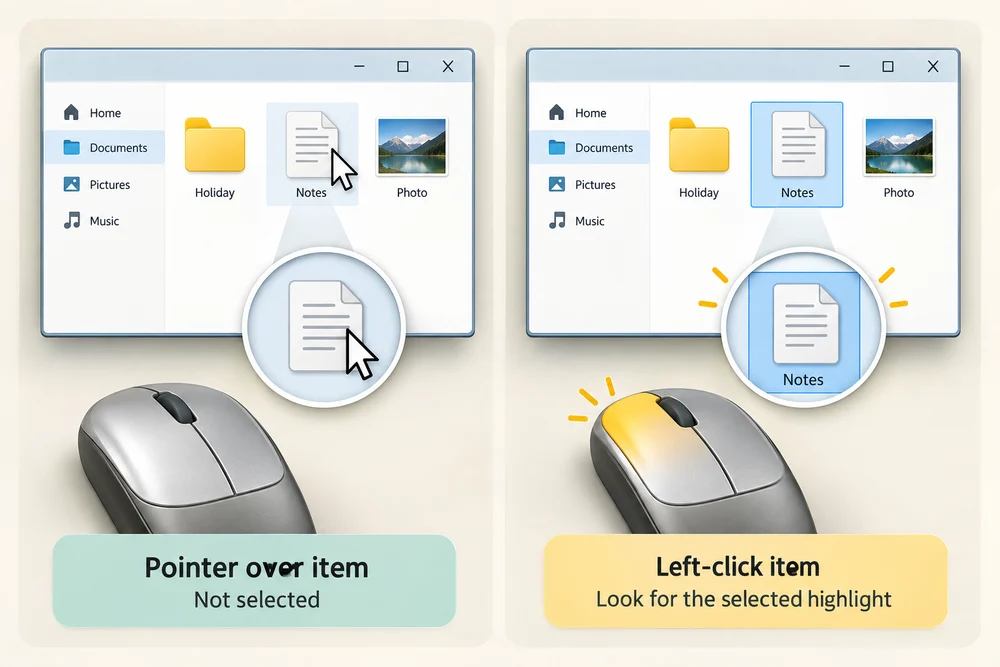
Moving the pointer over an item is not the same as selecting it. Look for the selected highlight after your click. These lessons use the usual left button as the primary button; your mouse settings can swap the buttons.
Select a folder with guidance
Follow the instruction popup on the practice desktop. Carry out each action yourself. The guide moves to the next step when you complete the action. On the last step, click Check the result. Afterwards, Try it gives you a fresh desktop to practise independently. Click Check my work when you finish, or use the optional hints underneath.
Move the pointer over Holiday plans and click once with the left mouse button. Its row becomes highlighted. The desktop recognises your selection; the folder has not been opened.
Choose Holiday plans
You are going to select the Holiday plans folder with one click. This fresh practice desktop stays inside the webpage. Try the task independently, using the optional hints underneath if you need help.
Move the pointer onto Holiday plans. Press and release the left mouse button once, then look for its selected highlight. The desktop recognises the selection automatically. If another item is highlighted, click Holiday plans once. With a keyboard, press Tab until Holiday plans has an outline, then press Space to select it.
Check the idea
In this example, what happens when you click a folder once with the left mouse button?
The folder is selected for a later action.
Try this outside the practice desktop
You have practised inside this webpage. If you feel ready, you can repeat the skill in Windows on the same computer, outside the practice desktop. This is optional. The steps below use your actual apps and files, so use only disposable practice items. Files made in the webpage do not appear in Windows File Explorer.
Point at the item you mean, click once and check the result before choosing another action.
- 1
Move your mouse gently and watch the pointer follow. On a touchpad, slide one finger to move the pointer.
- 2
Point at a visible button or item on this lesson page. Rest the pointer there before clicking.
- 3
Click a lesson section button once with the left mouse button. Notice that a button performs its action with a single click.
PC practice is optional. A single touchpad tap often works as a click, depending on your settings. You can use the webpage practice to repeat the selection exercise.
Prefer a more personal, one-to-one lesson? Basic Computing can help. Explore our services.