Open a video in a suitable player
A video file needs a reader that understands it
Choose a useful response to an unsupported video message.
You will know how to check the file, player and official support route.
A video file can contain picture, sound and other information stored using particular methods. Its extension, such as MP4, identifies a container but does not guarantee that every player supports everything inside. A codec is software used to encode or decode that media.

Check support before changing the file
How this works
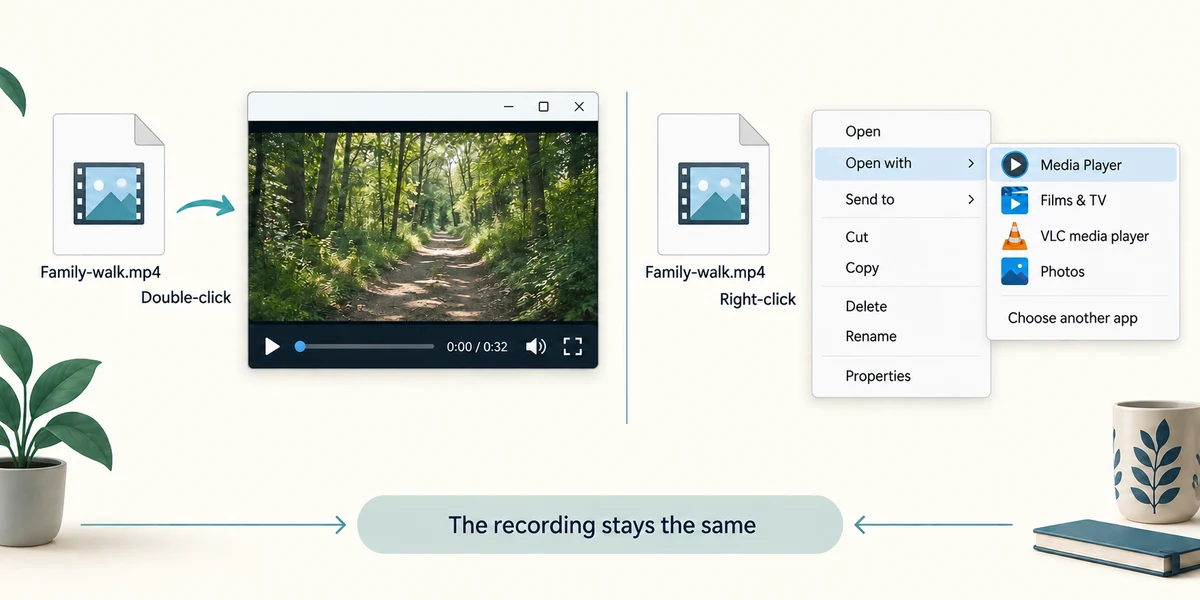
Find a recording you trust in File Explorer. Two quick left clicks open it in its assigned app. To choose a different player already installed, right-click the file, choose Open with and select the intended player. This changes how you open it, not the recording itself.
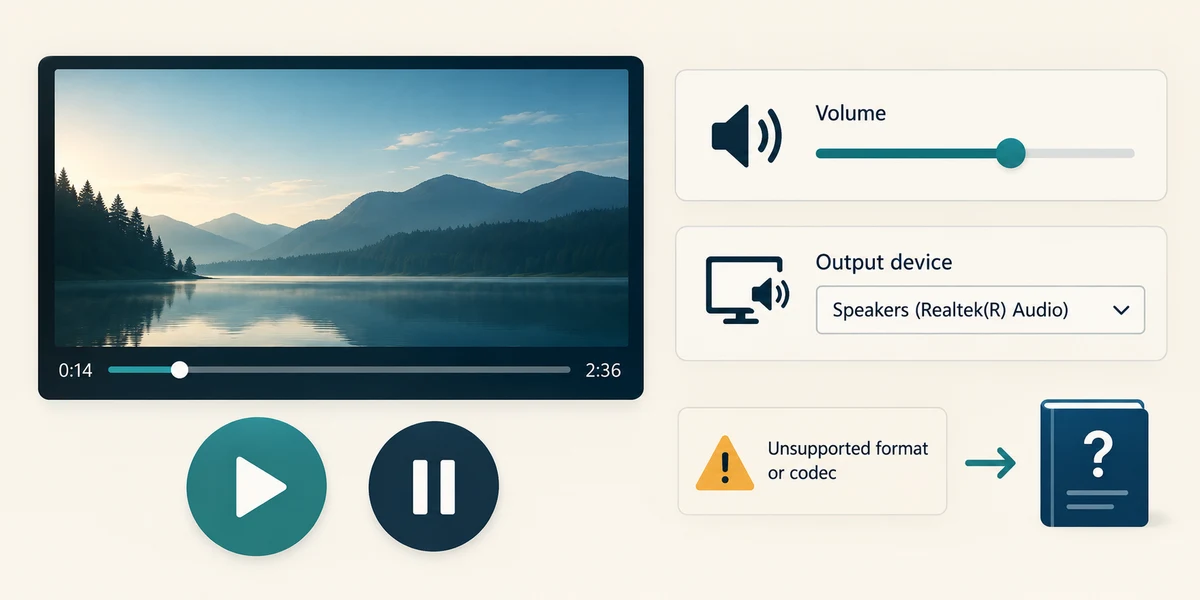
Use Play, usually a triangle, and Pause, usually two upright bars. Check the player’s volume and Windows output device if you cannot hear sound. If the player reports an unsupported format or codec, note the exact message and consult that player’s official support. A different supported player may read it; the error alone does not prove the file is damaged.
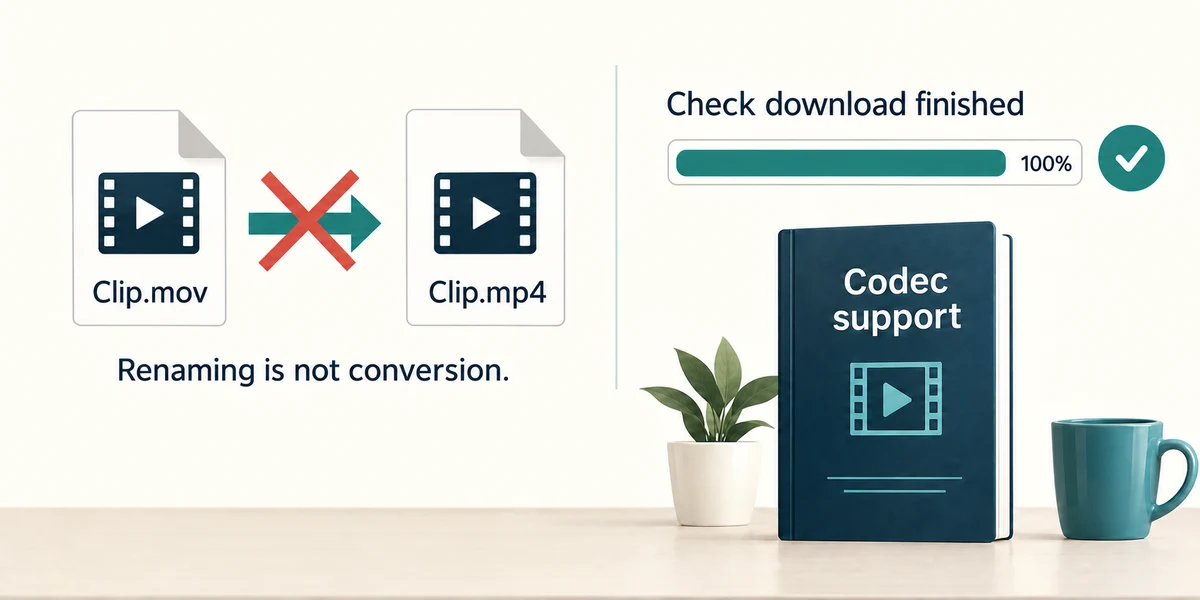
Keep the original. Changing .mov to .mp4 does not convert the video. If extra codec support is genuinely needed, use the app or operating system’s official guidance and trusted source rather than an advertisement’s urgent installer. An incomplete download can also fail, so confirm it finished before retrying through the genuine source.
A trusted recording produces an unsupported-codec message. What is a useful next step?
Read the exact error and check the player’s official supported-format guidance
Check what you understand
In guided learning, click Start 3 questions to receive a selection from this lesson. Click the circle beside an answer, then click Check answer. Read the feedback and try again if needed. Click Next question after each correct answer. Answer all 3 correctly to continue.
Returning to guided learning keeps the questions and answers in your current attempt.
Read all 3 questions and explanations
Two videos end in .mp4, but only one plays. What can explain this?
Answer: They may use different encoding methods inside the container
A container can hold differently encoded media. Player support depends on the actual content.
The picture plays but there is no sound. What is worth checking first?
Answer: The player’s volume and the selected sound output
Sound playback has its own volume and output route. Start with relevant controls.
A downloaded recording is still incomplete. What should you establish before diagnosing a codec problem?
Answer: Whether the genuine download has finished successfully
A partial file can fail to play. Check completion before drawing conclusions about format support.
Take this to your computer
- 1
Optional: read the official format help for your existing player. No download or codec installation is needed.
Format support varies by app, Windows version and installed components.
Prefer a more personal, one-to-one lesson? Basic Computing can help. Explore our services.