Organise a collection without losing originals
Tidy enough to find things again
Compare names, locations and contents before choosing a file to keep.
Plan a reversible collection tidy-up without treating similar names as proof of duplication.
A useful collection is organised around how you will look for things later. More folders are not always better, and similar names do not prove that files are interchangeable. A careful review protects the useful differences between originals, edits and copies.

Sort a small sample before a whole collection
How this works
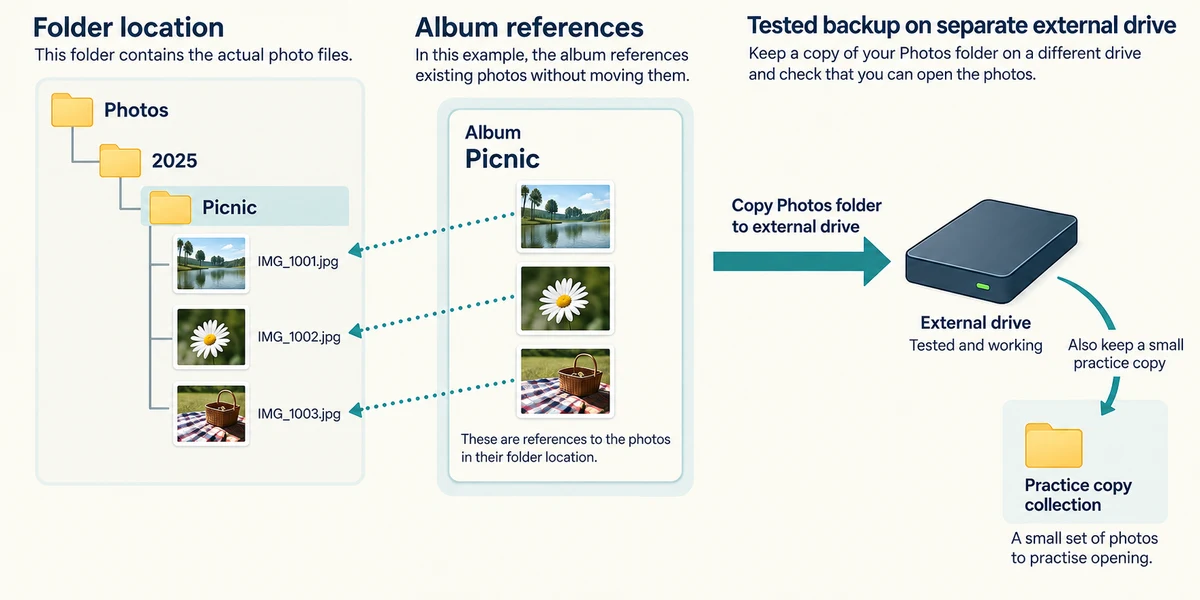
Start with a tested backup and a small practice copy of the collection. Choose a simple scheme, such as year then event for photographs, or project then document type. Use names that make sense to you later. An app’s album may group references without moving the underlying files, so distinguish an album from a real File Explorer folder.
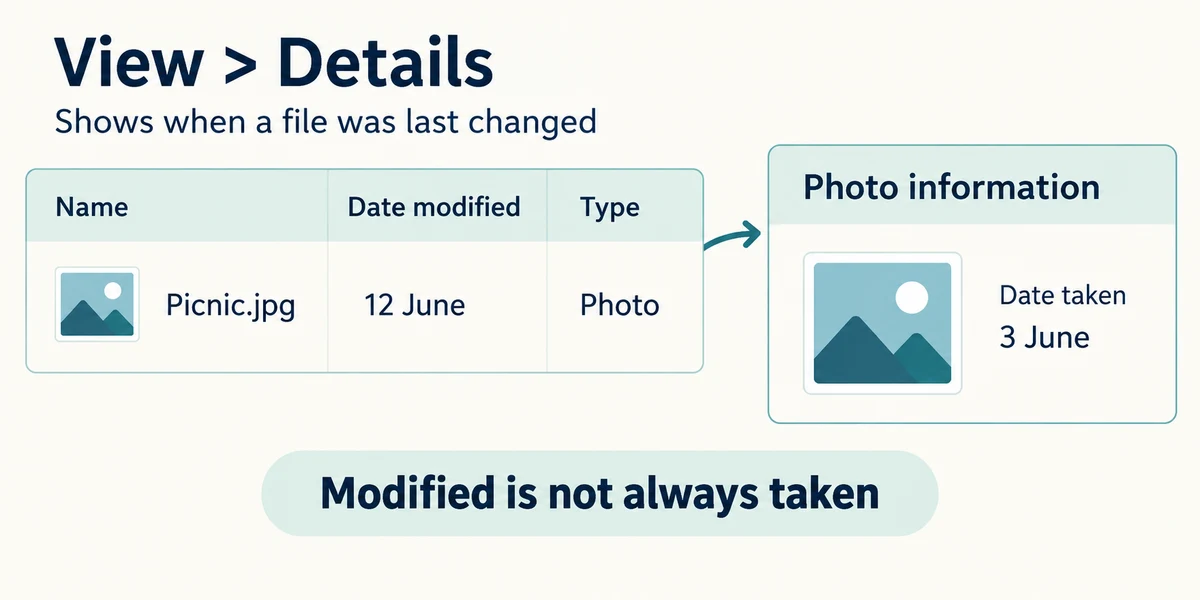
In File Explorer, open the practice collection and use View then Details. Click a column heading such as Name, Date modified or Type to organise the view. Date modified is not necessarily the date a photo was taken. Inspect a sample before using a date as your only grouping rule.

Compare suspected duplicates by location, file size and actual contents. Two different crops or document revisions may both be useful. Open only files you recognise, using two quick left clicks, then close their app with its top-right X after checking. A matching name alone is not proof; even matching size alone is not enough.
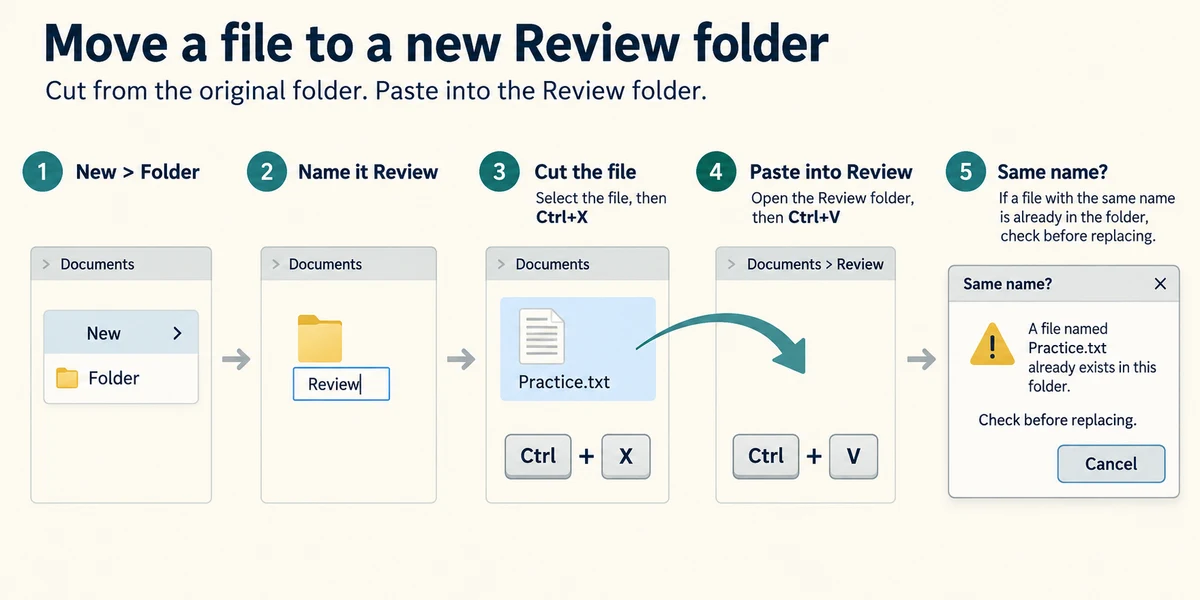
In the practice collection, click New in the command bar, then Folder. Type Review and press Enter. Put items needing another look there instead of deleting them immediately. Click a practice copy once to select it, hold Ctrl and press X, then release both to cut it. Open Review with two quick left clicks, hold Ctrl and press V, then release both to paste. Verify the result. If a name collision appears, cancel until you know what each file contains; do not automatically replace the destination.

After a small test, check that files open and can be found by your chosen scheme. Keep originals and the backup until the collection is verified. Bulk rename and duplicate-cleaner tools can act on many items at once; do not give an unfamiliar tool permission to remove files merely because it reports a large space saving.
Two photos have the same name, but one is a careful crop and the other is the original. What should you do?
Treat them as potentially useful different versions and review both.
Check what you understand
In guided learning, click Start 3 questions to receive a selection from this lesson. Click the circle beside an answer, then click Check answer. Read the feedback and try again if needed. Click Next question after each correct answer. Answer all 3 correctly to continue.
Returning to guided learning keeps the questions and answers in your current attempt.
Read all 3 questions and explanations
A photo app album contains a picture. Does that always mean its file moved into a matching Windows folder?
Answer: No, an album may group references while the file stays elsewhere.
Albums and physical folder locations can be different concepts.
A move reports that a same-name file already exists. What is the careful next step?
Answer: Cancel and compare both files before choosing a replacement or new name.
Inspecting preserves both until you understand the conflict.
Why start a new organisation scheme with a small practice copy?
Answer: To check that it is understandable and reversible before affecting many files.
A small test reveals mistakes with limited consequences.
Take this to your computer
- 1
Make a small disposable collection and try a simple folder scheme, keeping the originals separately.
- 2
Compare two suspected duplicates and stage uncertain items for review without deleting real files.
Use fictional practice information. These explanations and decisions do not change your real files. Desktop Microsoft 365 controls are used where named; web editions and other versions can differ. No purchase or account is needed to complete this lesson.
Prefer a more personal, one-to-one lesson? Basic Computing can help. Explore our services.