Make a PDF copy to share
Let someone else see the finished layout
Choose a useful format and verify it before sharing.
Explain PDF export, the editable original and checking the finished copy.
A PDF is useful when you want another person to see a document's intended page layout. It is a separate file format from the document you edit. Keeping the original gives you an easier place to make future changes.
Create a copy, then read that copy
How this works
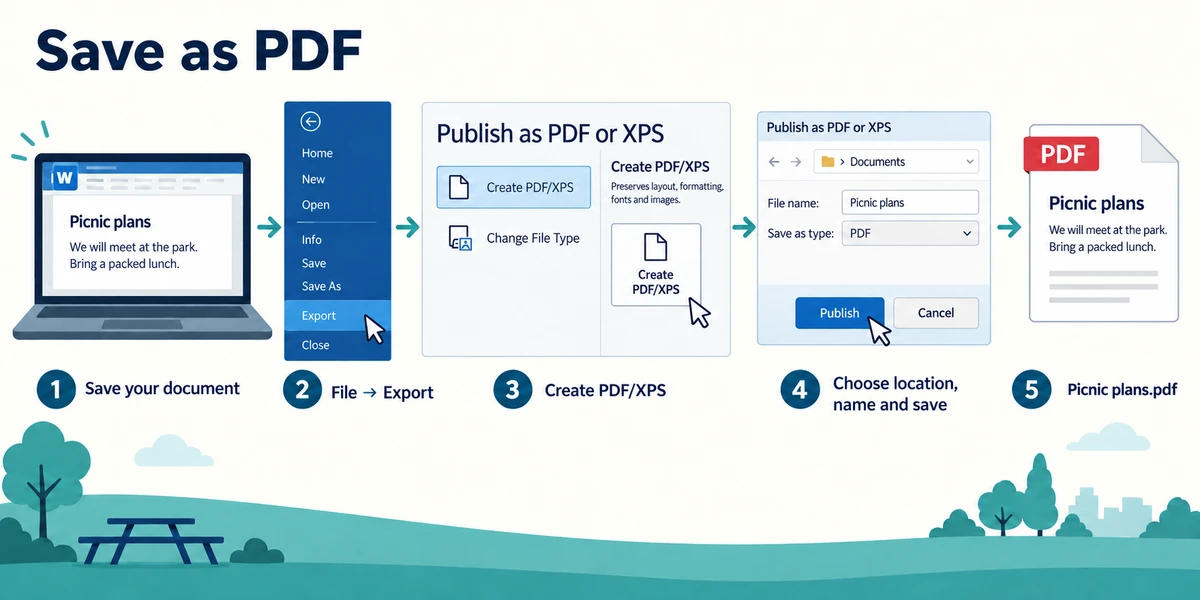
Save your original document first. In desktop Word, click File, then Export, then Create PDF/XPS and the matching create button. Alternatively, some versions offer PDF in Save As. Choose a known folder and a useful name, check that PDF is the selected format, then use Publish or Save as shown by your version.
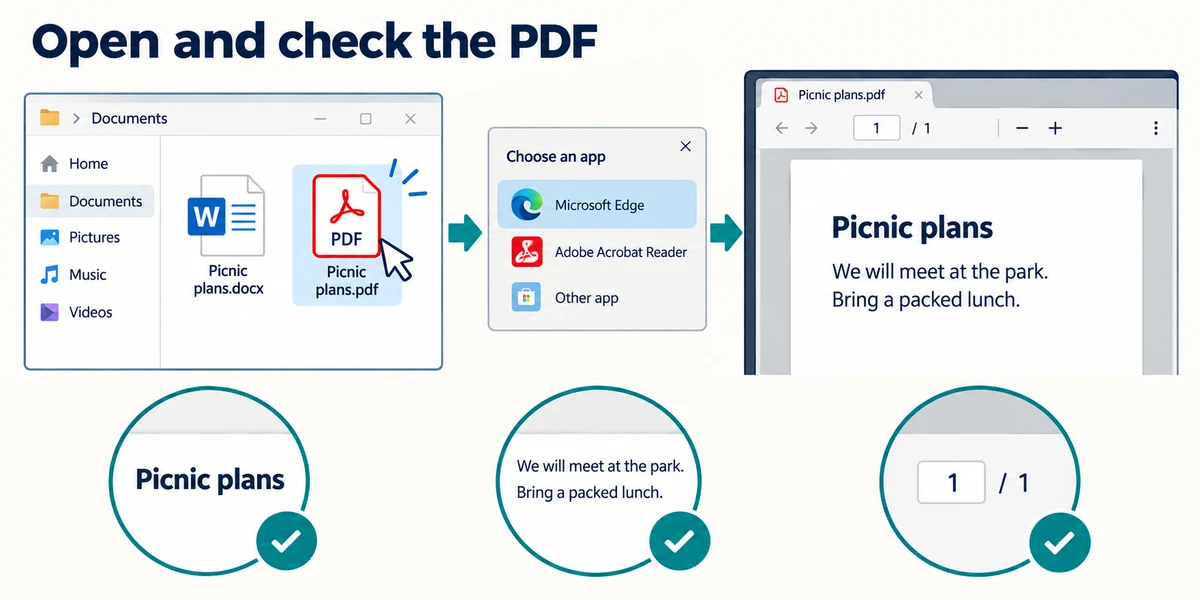
Open the new PDF in a reader such as Microsoft Edge or another suitable app. You can find it in File Explorer and double-click it. If Windows asks which app to use, choose a PDF reader you recognise. Inspect every needed page, including any pictures, page breaks or missing characters. The editable source and the PDF are separate versions.
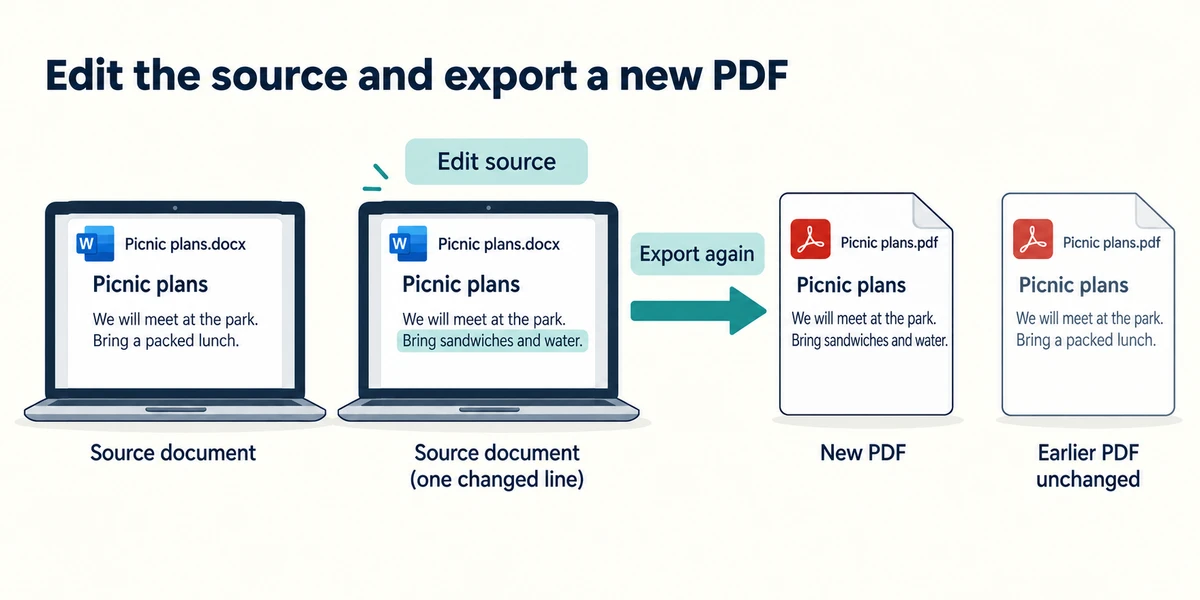
To make a later change, normally edit the source document and export a new PDF. Do not assume that changing the source automatically updates a PDF you already sent. A PDF can sometimes be edited by suitable software, and exporting does not make its contents secret, trustworthy or impossible to change.
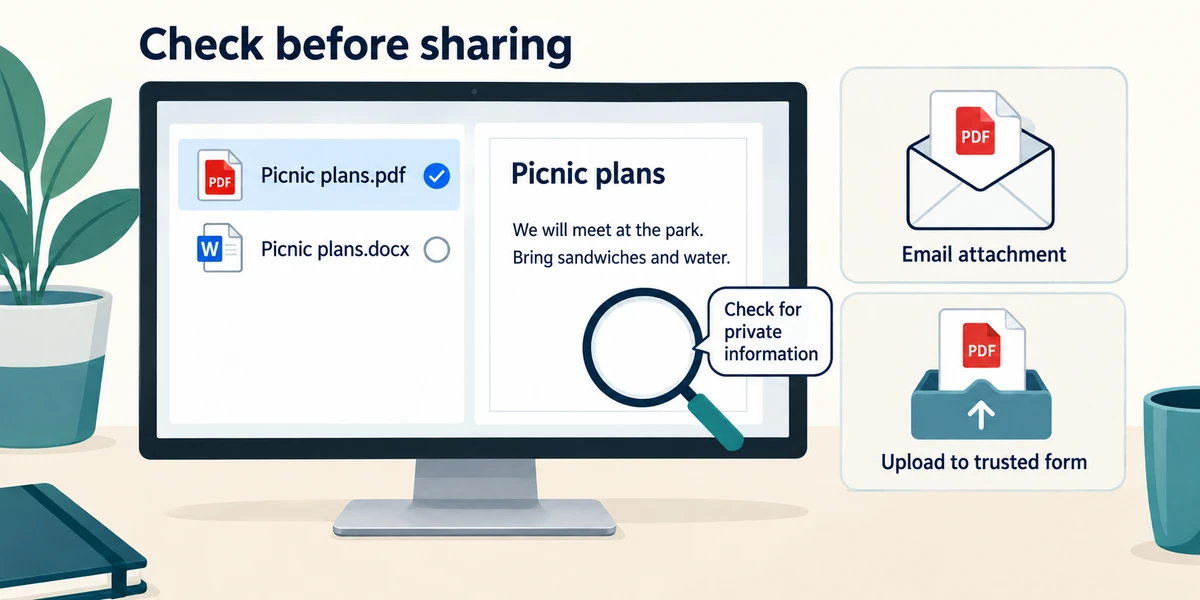
Before sharing, check the file name and contents for private information. Use the recipient's requested method, such as attaching the PDF to an email or uploading it through a trusted form. Select the actual PDF file rather than accidentally sending the source or an older version. Creating the PDF alone does not send it to anyone.
You have finished a letter and want someone else to see its page layout while you keep a version for later editing. What fits?
Keep the source document and export a separate PDF copy.
Check what you understand
In guided learning, click Start 3 questions to receive a selection from this lesson. Click the circle beside an answer, then click Check answer. Read the feedback and try again if needed. Click Next question after each correct answer. Answer all 3 correctly to continue.
Returning to guided learning keeps the questions and answers in your current attempt.
Read all 3 questions and explanations
You edit the original after sending a PDF. What happens to the previously sent copy?
Answer: It stays as it was unless you send an updated version.
An ordinary exported file is a separate copy.
The PDF has been created. What useful check comes next?
Answer: Open it and inspect the pages and private information.
Inspection catches the actual output and unintended content.
Does making a PDF guarantee that nobody can alter or misuse its contents?
Answer: No. PDF is a format, not a guarantee of secrecy or protection.
Protection and access depend on additional controls and handling.
Take this to your computer
- 1
If you have a suitable document app, export a harmless saved document as a PDF copy.
- 2
Find and open that PDF separately, then inspect each page.
- 3
Keep the original and the PDF with distinct, useful names. No sending is required.
Trying this on your own computer is optional. Use only disposable practice information. This lesson's choices check your decisions; they do not operate your computer or prove that you have performed the real task. The export example uses desktop Word. Other apps may offer Download as PDF or a different export menu.
Prefer a more personal, one-to-one lesson? Basic Computing can help. Explore our services.