Drag and drop
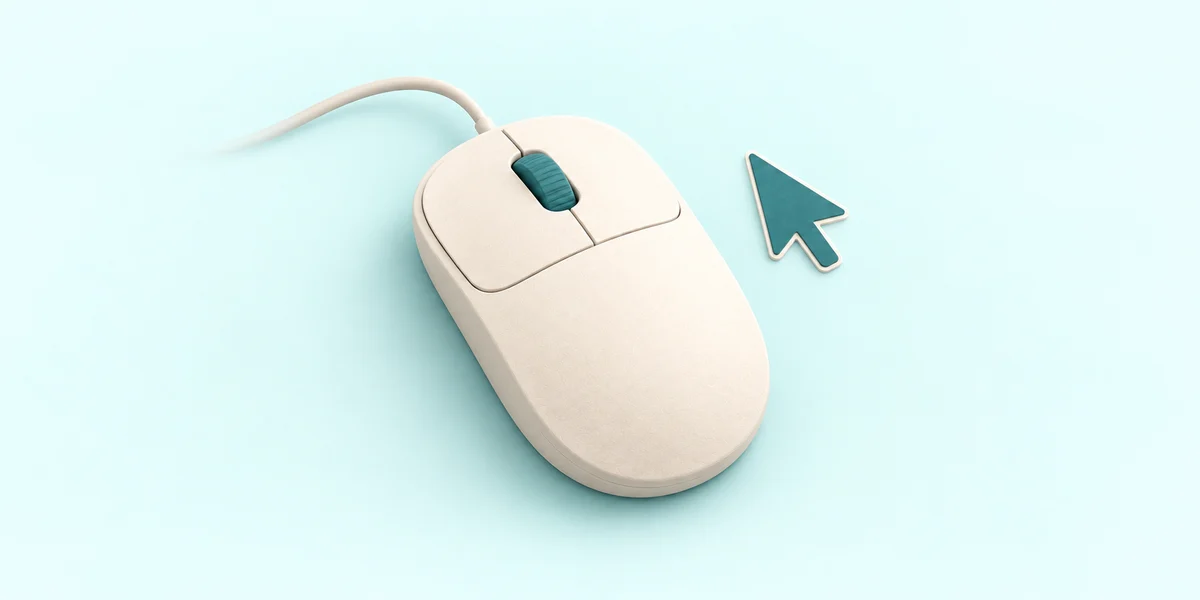
Use a computer with a mouse and keyboard. This practice desktop is designed for clicking, right-clicking, dragging and typing with physical keys, rather than touchscreen use on a phone or tablet.
Hold, move, then release
You are going to drag Holiday photo into Holiday plans.
You will learn how a drag starts, how to choose its destination and when to release the mouse button.
Dragging means moving the pointer while keeping the mouse button held down. Dropping means releasing that button over a destination.
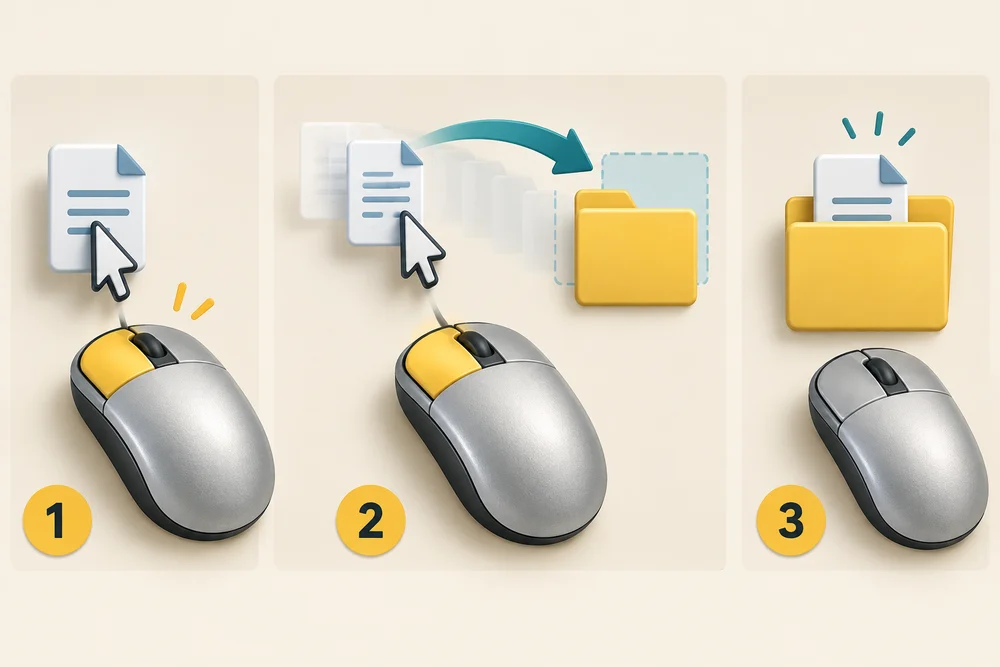
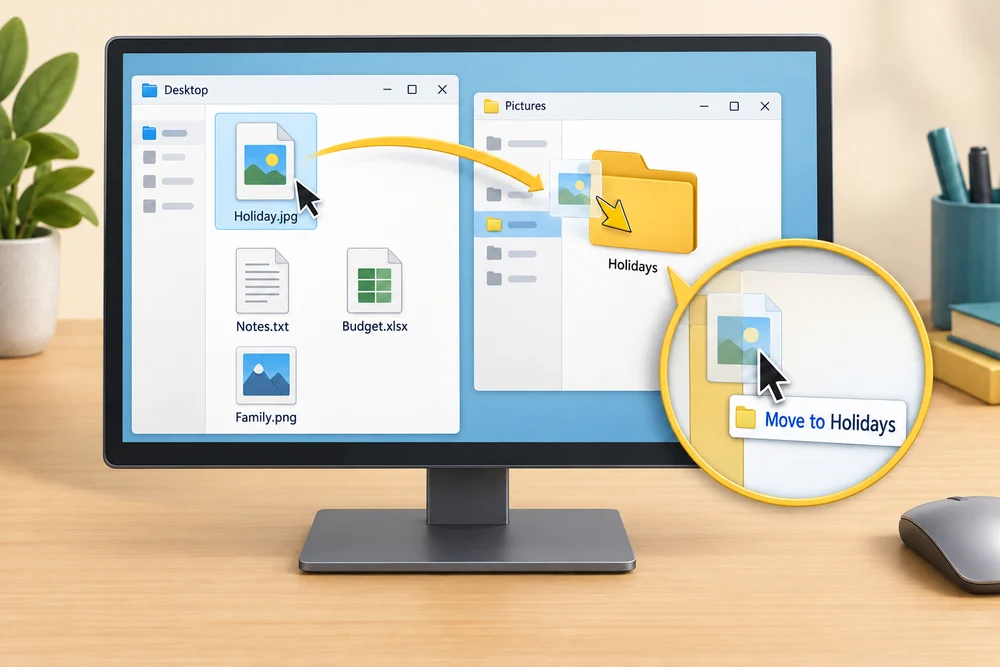
In this practice, dragging Holiday photo onto Holiday plans moves the photo into that folder. The folder’s response shows where the item can be dropped.

On your PC, dragging can move, copy or create a shortcut, depending on the locations and keys held. Read the message beside the pointer before releasing. This example uses a simple move into a folder.
Follow a photo into its folder
Follow the instruction popup on the practice desktop. Carry out each action yourself. The guide moves to the next step when you complete the action. On the last step, click Check the result. Afterwards, Try it gives you a fresh desktop to practise independently. Click Check my work when you finish, or use the optional hints underneath.
Point to Holiday photo, press and hold the left mouse button, move over Holiday plans, then release the button. Open the destination folder to check that the photo is inside.
Put the photo in Holiday plans
You are going to drag Holiday photo into Holiday plans. This fresh practice desktop stays inside the webpage. Try the task independently, using the optional hints underneath if you need help.
Point at Holiday photo, press the left mouse button and keep it held down. Move the pointer onto Holiday plans, then release the mouse button over the folder. Double-click the folder, clicking twice quickly, to check that the photo is inside. If dragging is difficult, select the photo with one click, choose Cut using the scissors in the top command bar, open Holiday plans and choose Paste using the clipboard icon.
Check the idea
You are holding the mouse button down while moving a photo towards a folder. Where should the pointer be when you release it?
Over the folder that should contain the photo.
Try this outside the practice desktop
You have practised inside this webpage. If you feel ready, you can repeat the skill in Windows on the same computer, outside the practice desktop. This is optional. The steps below use your actual apps and files, so use only disposable practice items. Files made in the webpage do not appear in Windows File Explorer.
Watch both the item you are moving and the place where you plan to release it.
- 1
Use the webpage’s prepared photo and folder if you do not already have a disposable practice file and destination on your PC.
- 2
For a real practice file, point at it, press and hold the left mouse button, then move over your intended folder. Read any move or copy message beside the pointer.
- 3
Release only when the intended folder is the destination. Double-click the folder, using two quick left clicks, to check where the file ended up.
PC practice is optional. The visible move control offers a way to complete the webpage exercise without a dragging gesture. Use only a disposable file for a first attempt on your PC.
Prefer a more personal, one-to-one lesson? Basic Computing can help. Explore our services.