Check a USB device that is not recognised
Check a USB device that is not recognised
Choose one safe test from a USB problem’s evidence.
You can narrow a USB fault without treating formatting as a general repair.
USB links a device through a plug or cable to a computer. A hub or adapter adds another link. Failure at any link can look like a missing device, so compare one thing at a time. Formatting storage changes its contents; it is not a universal cure for a connection problem.
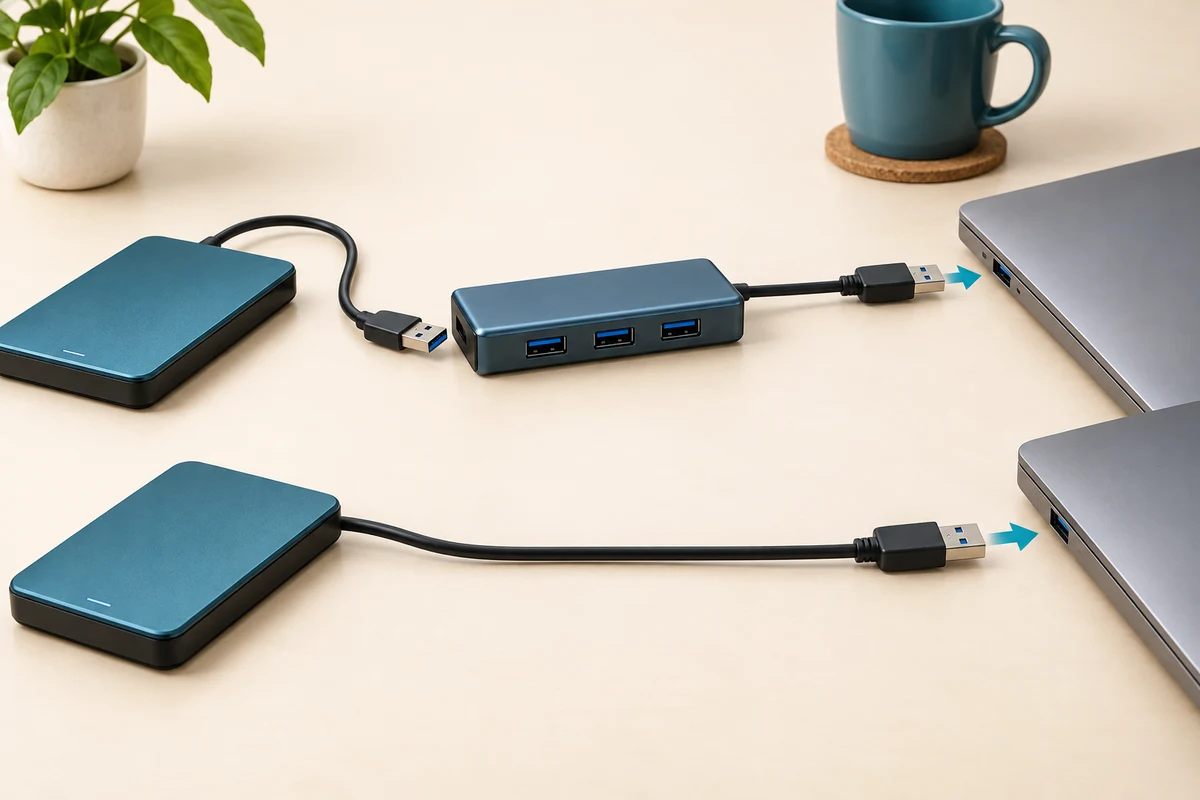
Work through the useful checks
How this works
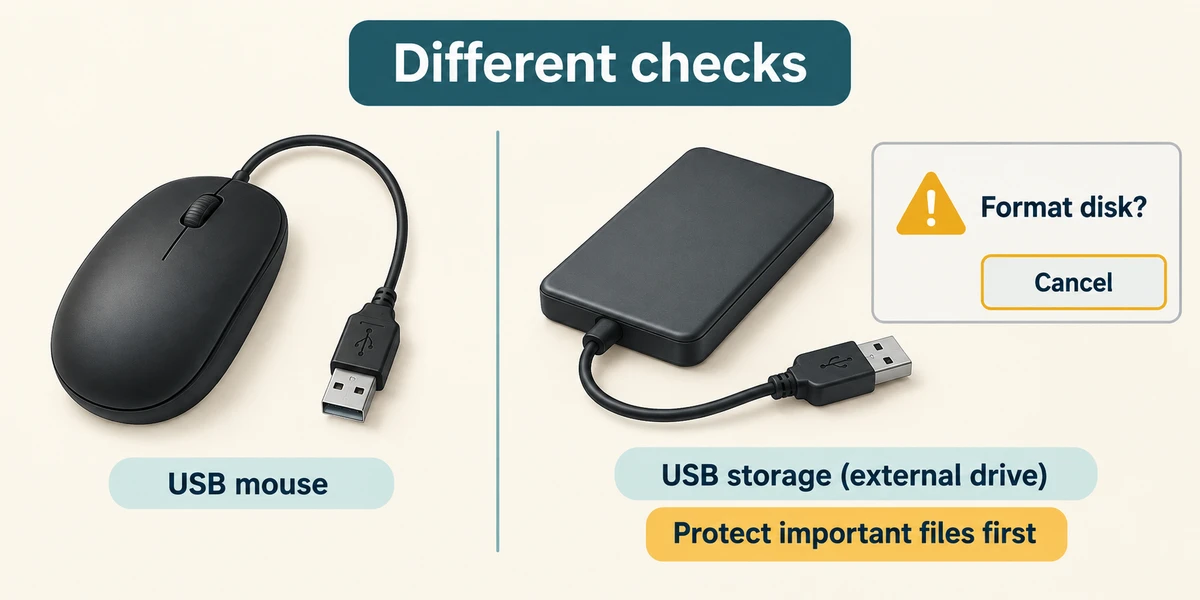
Identify the item and record any message. A mouse and storage drive need different checks. If a drive holds important files and Windows asks to format it, cancel and seek advice about protecting the files first.
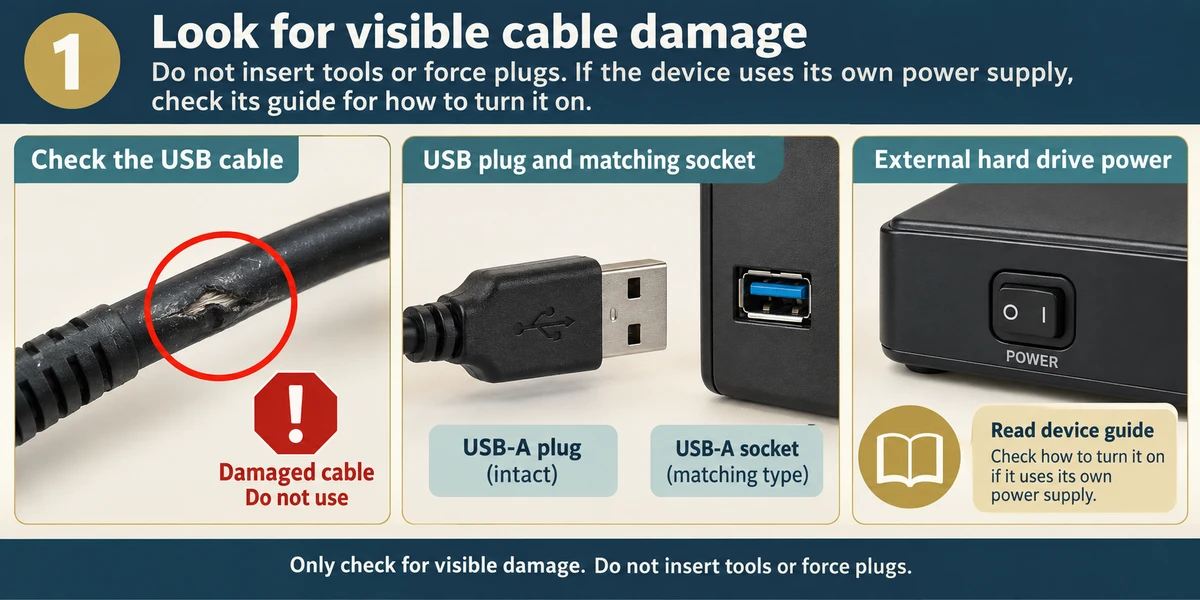
Look for visible cable damage without inserting tools or forcing plugs. If the device uses its own power supply, check its guide for how to turn it on.
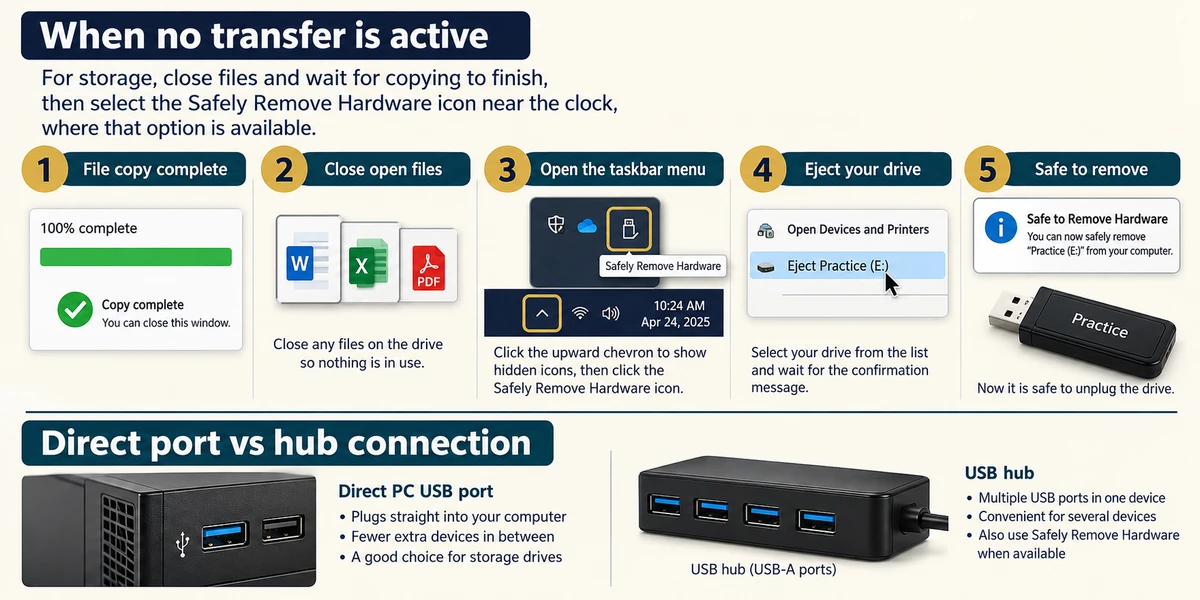
When no transfer is active, compare a suitable direct port with a hub connection. For storage, close files and wait for copying to finish, then select the Safely Remove Hardware icon near the taskbar clock (use the small up arrow to show hidden icons if needed), choose the drive and wait for permission before unplugging, where that option is available.
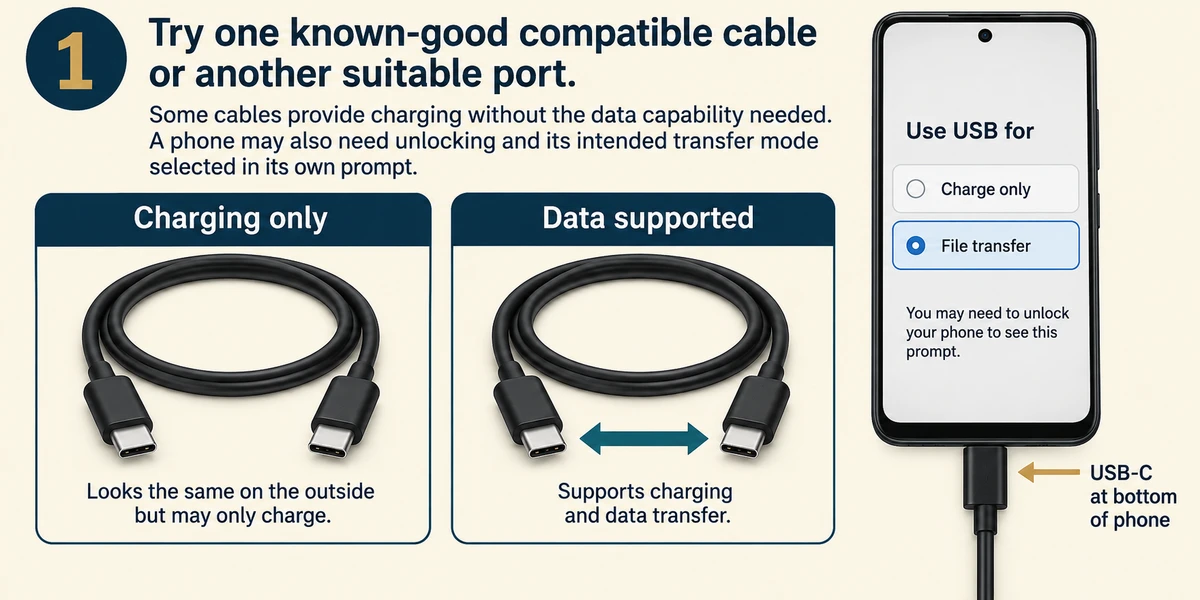
Try one known-good compatible cable or another suitable port. Some cables provide charging without the data capability needed. A phone may also need unlocking and its intended transfer mode selected in its own prompt.
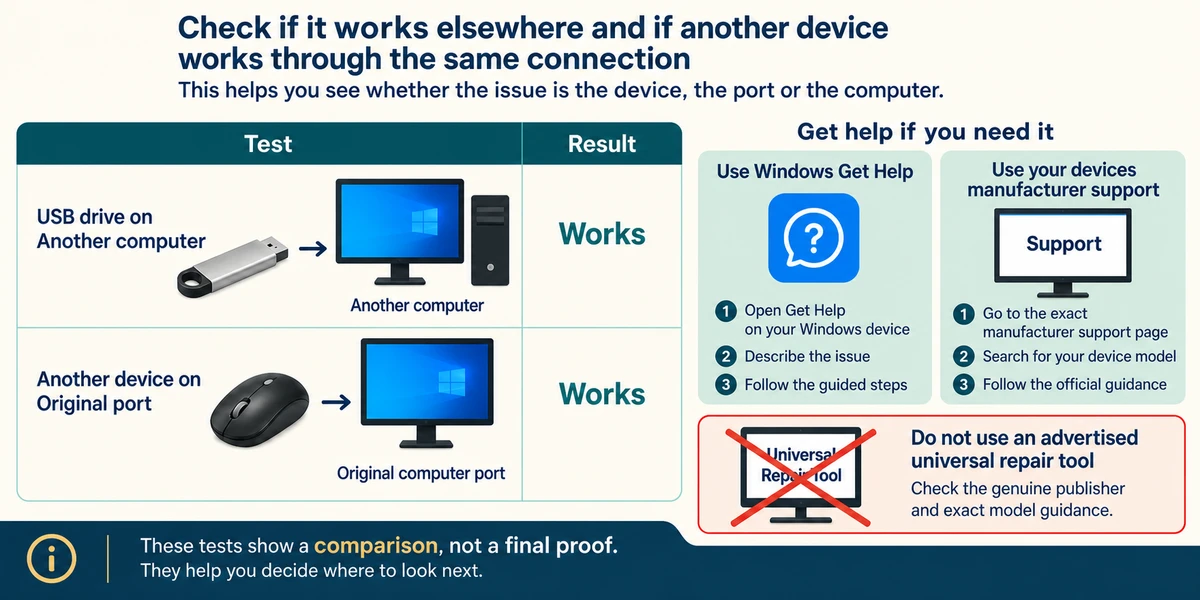
Record whether the device works elsewhere and whether another device works through the original connection. Use Windows Get Help or the exact manufacturer’s support page, rather than an advertised universal repair tool.
A portable drive is not detected
A portable drive lights up, but does not appear in File Explorer. A light proves it receives some power, not that data can pass.
- Compare the same computer port. A known-working USB mouse works in that same port. This shows the port can communicate with that device; it does not prove every device is compatible.
- Read the supplied cable’s description. The cable’s own description says charging only. No data capability is promised.
- Compare a suitable known data cable. With a compatible known-working data cable, the same drive appears and its harmless sample file opens.
The cable comparison points to the missing data connection in this case. There is no reason here to format the drive. Keep comparisons controlled and stop if important data is at risk.
Windows asks to format a drive holding your only photo copy. What comes first?
Cancel and protect the files before choosing repair steps.
Check what you understand
In guided learning, click Start 3 questions to receive a selection from this lesson. Click the circle beside an answer, then click Check answer. Read the feedback and try again if needed. Click Next question after each correct answer. Answer all 3 correctly to continue.
Returning to guided learning keeps the questions and answers in your current attempt.
Read all 3 questions and explanations
A device works directly but fails through a hub. Where should the next check focus?
Answer: The hub, its power and added connections.
The comparison changes the hub route while keeping the device. Investigate that added part of the connection.
A phone charges but no files appear. What remains possible?
Answer: The cable or phone mode does not support the intended data transfer.
Power is not proof of the required data route. Cable capability and phone permission or mode can differ.
A file is still copying to an external drive. When should you test another socket?
Answer: After copying finishes and the drive is safely disconnected.
Disconnecting active storage can interrupt writing. Finish and safely disconnect before changing its route.
Take this to your computer
- 1
Trace one device’s connection and note any hub or adapter. Leave active transfers undisturbed.
- 2
Write one safe comparison, such as a known-good compatible cable. If important files are involved, record the message and seek help before a format or erase action.
The lesson uses fictional examples. Optional checks on your computer can be observational. Settings and available features vary by model and Windows version.
Prefer a more personal, one-to-one lesson? Basic Computing can help. Explore our services.