Look after your computer physically
Look after your computer physically
Choose safe cleaning and ventilation decisions for everyday equipment.
Keep equipment clean and ventilated without unsafe dismantling.
A computer needs a stable surface, clear airflow and appropriate cleaning. Dust, blocked vents and spills can cause problems that software cannot fix. You do not need to open the case to carry out ordinary care, and different screen coatings and devices may need different cleaning methods.
Make the choice that fits your task
How this works
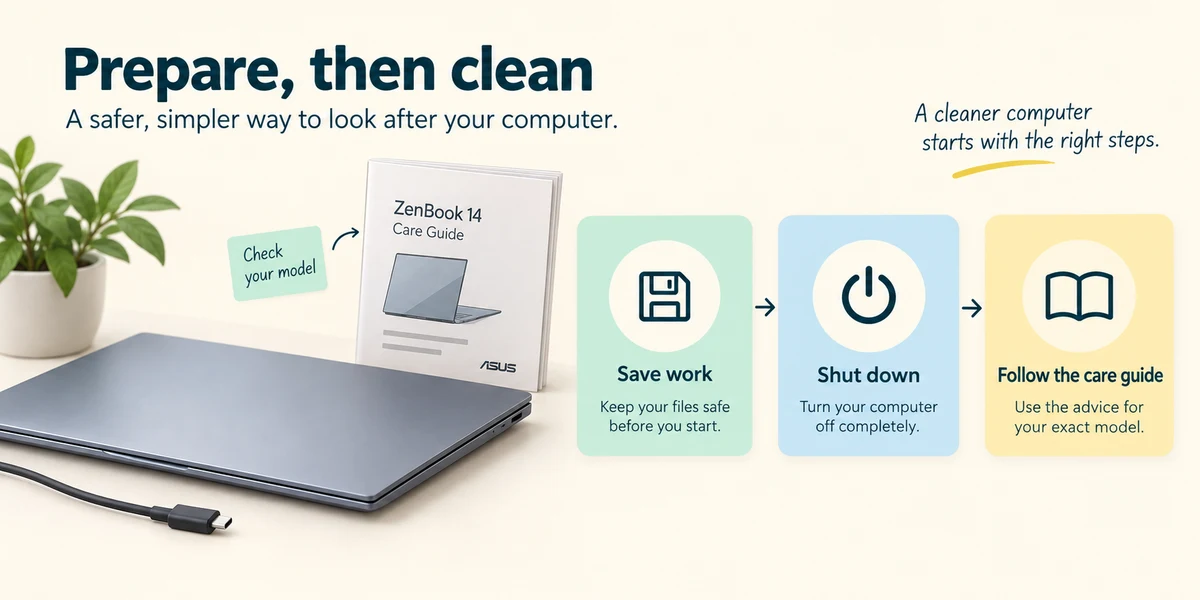
Find the care instructions for your exact model on its manufacturer’s site. Before cleaning, save work and shut down using Start, the power symbol and Shut down. Unplug power and accessories as the guide directs.
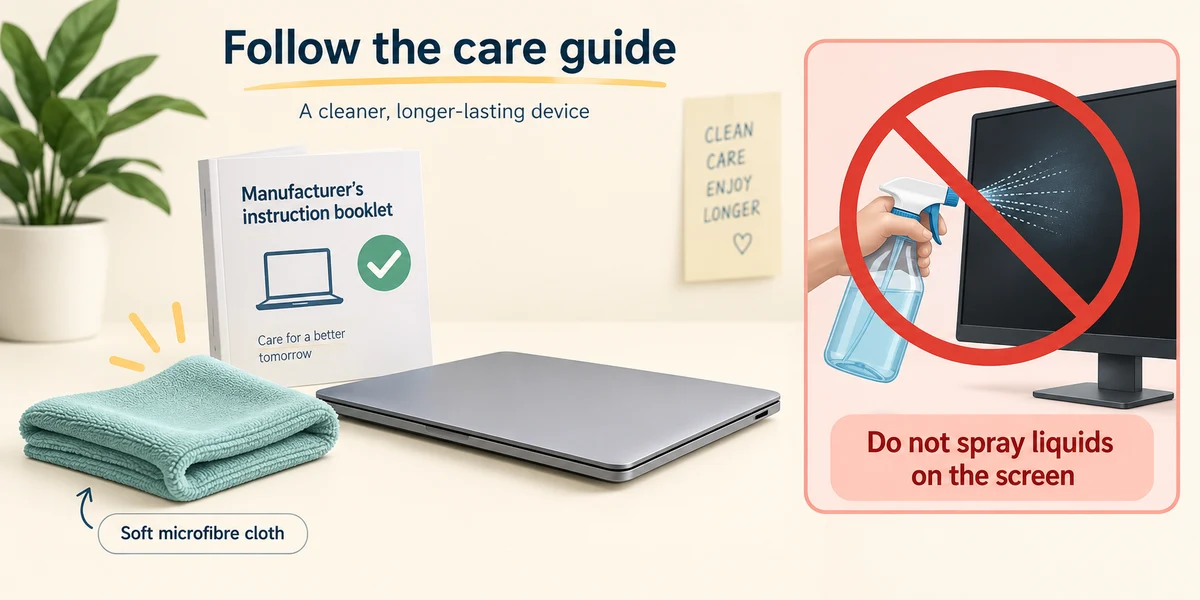
Use a soft, clean microfibre cloth for routine exterior cleaning. Apply only cleaning products and amounts permitted by the manufacturer. Never spray liquid directly at the computer or screen, and do not allow moisture into openings.
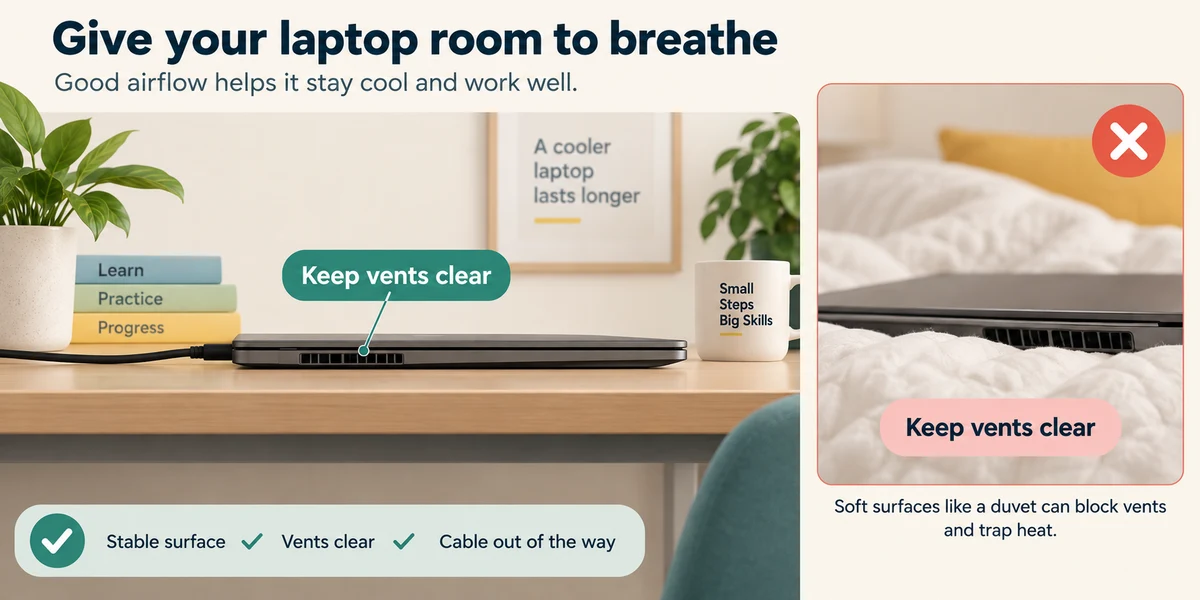
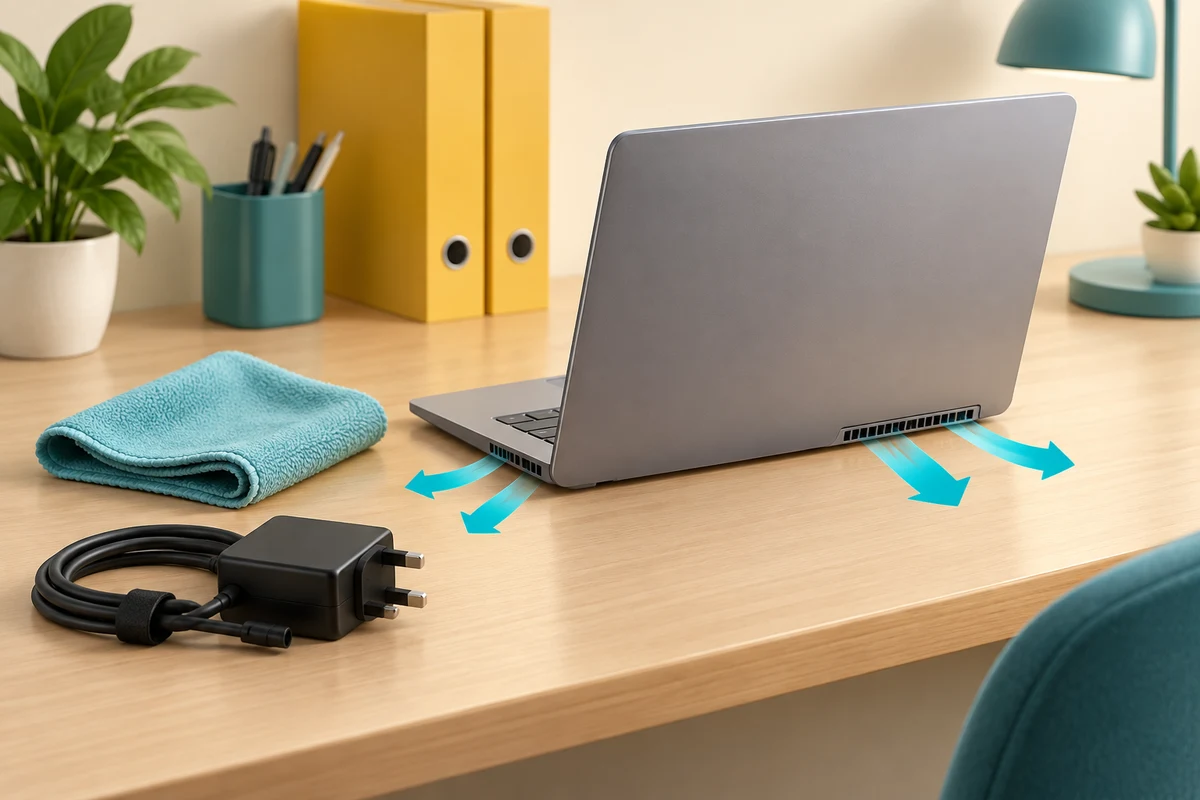
Keep ventilation openings clear. Use a laptop on a firm surface rather than bedding that can obstruct vents. Route cables so they are not strained or likely to pull the device off the table.
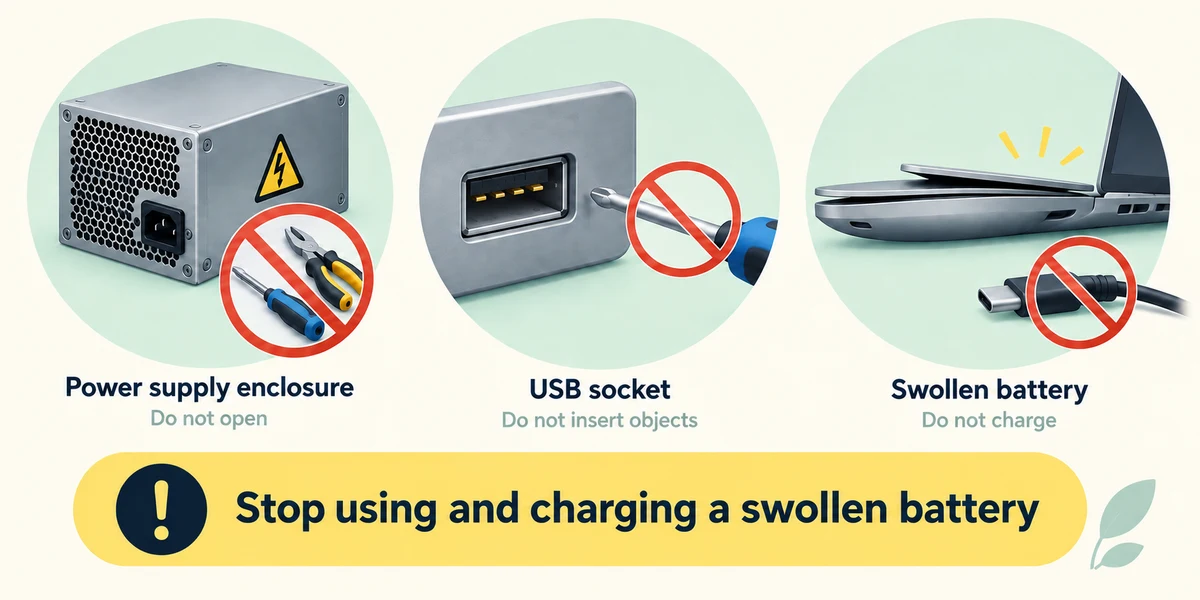
Do not open a power supply or force tools into ports. Internal dust removal and battery replacement require model-specific instructions and suitable skills. If the battery looks swollen, stop using and charging the device and seek qualified help.
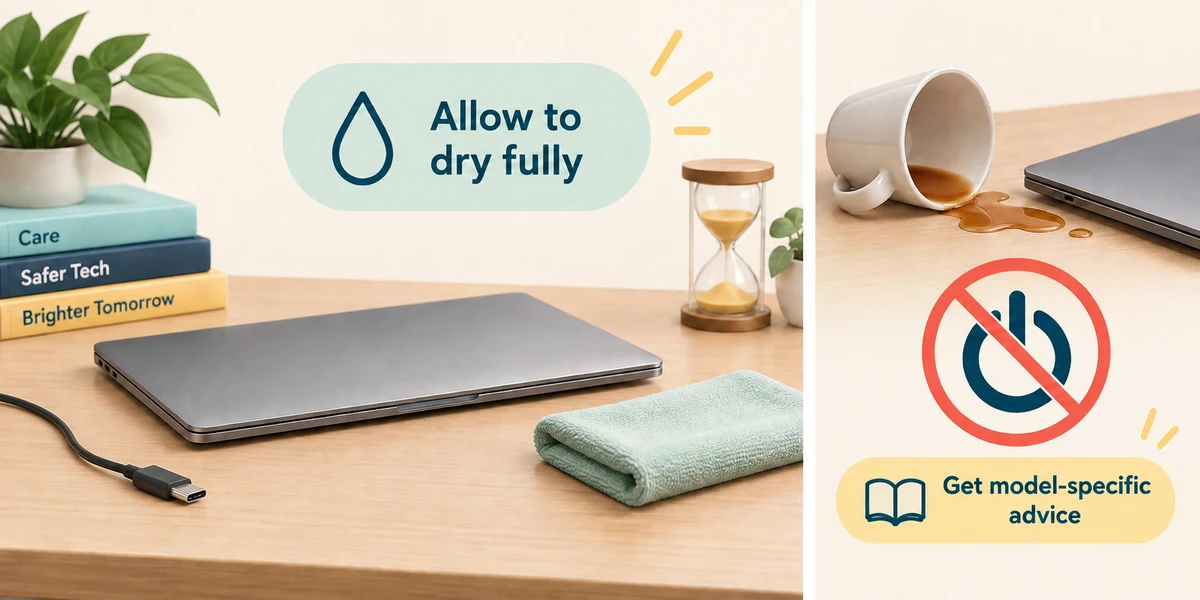
Allow any permitted damp cleaning to dry fully before reconnecting. If liquid has entered the computer, do not switch it on just to see whether it still works; get advice about that model.
A laptop’s vents press into a soft duvet during use. What is the better arrangement?
Use a stable hard surface with clear vents
Check what you understand
In guided learning, click Start 3 questions to receive a selection from this lesson. Click the circle beside an answer, then click Check answer. Read the feedback and try again if needed. Click Next question after each correct answer. Answer all 3 correctly to continue.
Returning to guided learning keeps the questions and answers in your current attempt.
Read all 3 questions and explanations
Where should you check whether a cleaning product is suitable?
Answer: The care guide for the exact device
Materials and coatings differ between products.
You have a cleaner permitted by the device guide. How should you approach applying it?
Answer: Follow the guide’s cloth method and keep moisture out of openings
Use the manufacturer-approved method, usually applying to a cloth instead.
You notice a bulging battery area. What should you do?
Answer: Stop use and charging, then get qualified help
A swollen battery needs appropriate safety handling.
Take this to your computer
- 1
Inspect your computer’s position without taking it apart. Identify vents, cables under strain and any nearby drinks. Move a drink away and make sure a laptop rests on a stable hard surface.
- 2
Find the exact model’s official care guide before cleaning. If cleaning later, save work, shut down through Start and its power menu, unplug as directed and use only the manufacturer’s approved method.
The lesson examples do not change your computer. On your PC, read each confirmation before continuing; available controls can vary.
Prefer a more personal, one-to-one lesson? Basic Computing can help. Explore our services.