Backspace and Delete
Use a computer with a mouse and keyboard. This practice desktop is designed for clicking, right-clicking, dragging and typing with physical keys, rather than touchscreen use on a phone or tablet.
Two keys, two sides of the cursor
You are going to remove one letter with Backspace and another with Delete.
You will learn which side of the typing cursor each key removes when editing text.
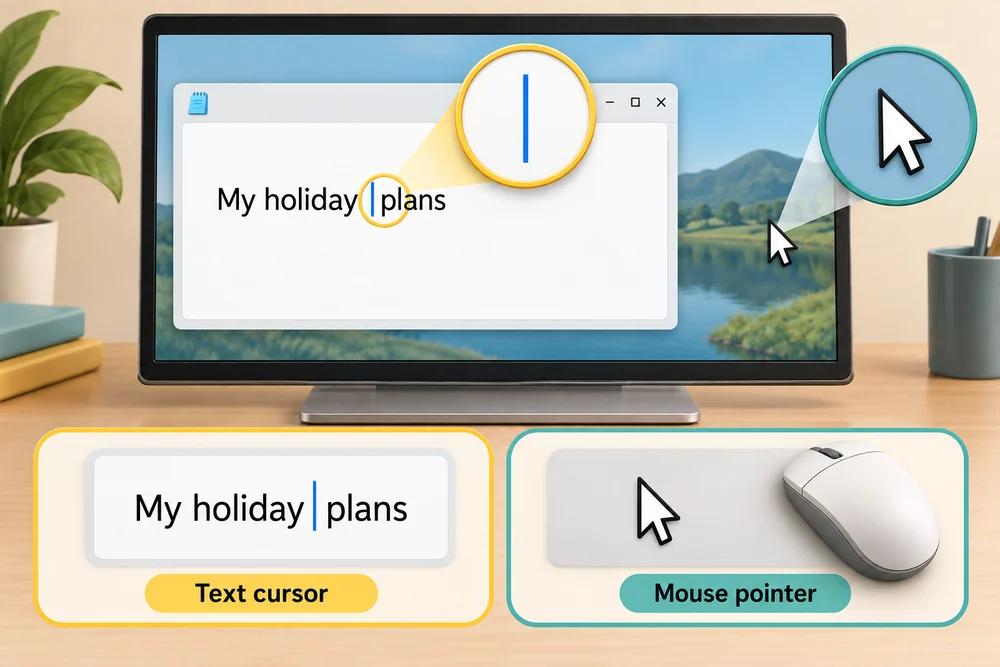
The typing cursor is the thin line showing where the next character will go. It is different from the mouse pointer that moves around the screen.
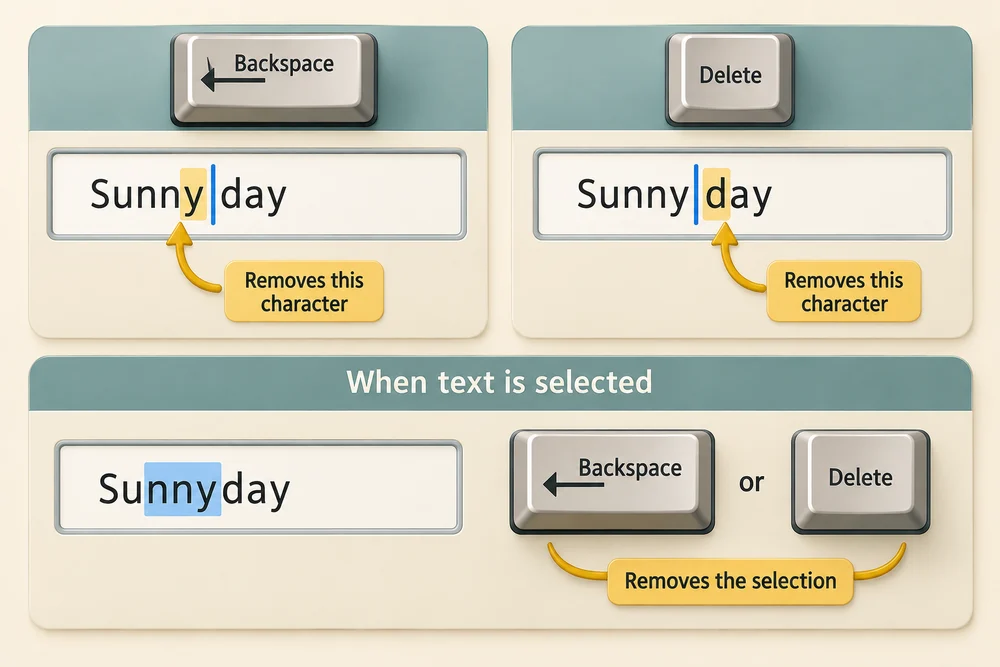
When no text is selected, Backspace removes the character just before the typing cursor, on its left. Delete removes the character just after the cursor, on its right. If text is selected, either key can remove the selection.
This lesson uses keys inside a text box. In File Explorer, Delete can remove a selected file instead. Check where the typing cursor or focus is before pressing a key.
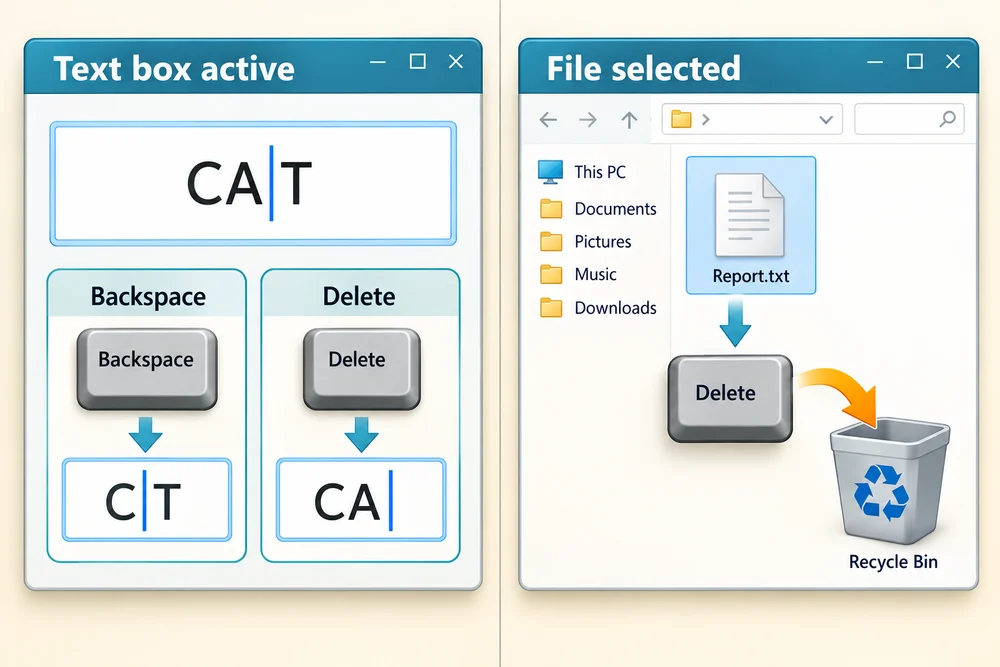
Compare the two directions
Follow the instruction popup on the practice desktop. Carry out each action yourself. The guide moves to the next step when you complete the action. On the last step, click Check the result. Afterwards, Try it gives you a fresh desktop to practise independently. Click Check my work when you finish, or use the optional hints underneath.
Follow the popup to put the typing cursor after T in CAT and press Backspace once, leaving CA. Then use a fresh CAT with the cursor before C and press Delete once, leaving AT.
Remove a letter from each side
You are going to remove one letter with Backspace and another with Delete. This fresh practice desktop stays inside the webpage. Try the task independently, using the optional hints underneath if you need help.
Click the writing area of Backspace practice.txt in Notes and press End to place the typing cursor after T in CAT. Press Backspace once to make CA. Click File Explorer’s yellow folder icon on the bottom taskbar, then double-click Delete practice.txt in Documents, clicking twice quickly. Click its writing area and press Home to place the cursor before C in CAT, then press Delete once to make AT. If you remove the wrong letter, select the text with Ctrl held while you press A, release both keys, type CAT and try again.
Check the idea
The box contains CAT, with the typing cursor after T and no letters selected. What remains after one Backspace press?
CA.
Try this outside the practice desktop
You have practised inside this webpage. If you feel ready, you can repeat the skill in Windows on the same computer, outside the practice desktop. This is optional. The steps below use your actual apps and files, so use only disposable practice items. Files made in the webpage do not appear in Windows File Explorer.
Place the typing cursor deliberately, then choose the key that removes the character on the intended side.
- 1
Press the Windows logo key, type Notepad and click the app in the results. Hold Ctrl, press N and release both keys to start a new blank tab. Click its writing area and type CAT.
- 2
With the typing cursor after T, press Backspace once. Check that CA remains.
- 3
Type T again to make CAT. Press the Left arrow key three times to move the cursor before C, then press Delete once. Check that AT remains.
- 4
Click the X at the top right of Notepad when finished. If asked to save this disposable practice text, choose Don’t save.
PC practice is optional. Some compact keyboards need an extra key combination for Delete. Use the visible practice key if yours has no separate Delete key.
Prefer a more personal, one-to-one lesson? Basic Computing can help. Explore our services.