Prepare an email to send
One message, several important parts
Prepare a fictional message and check its recipient, subject and words.
Check an email's recipient and contents before sending it.
An email needs a destination as well as the words you want to say. The address identifies a mailbox, the subject helps describe the message, and the body contains your words. Preparing these carefully is more reliable than assuming a familiar name means the right person has been selected.

Prepare, review, then send
How this works
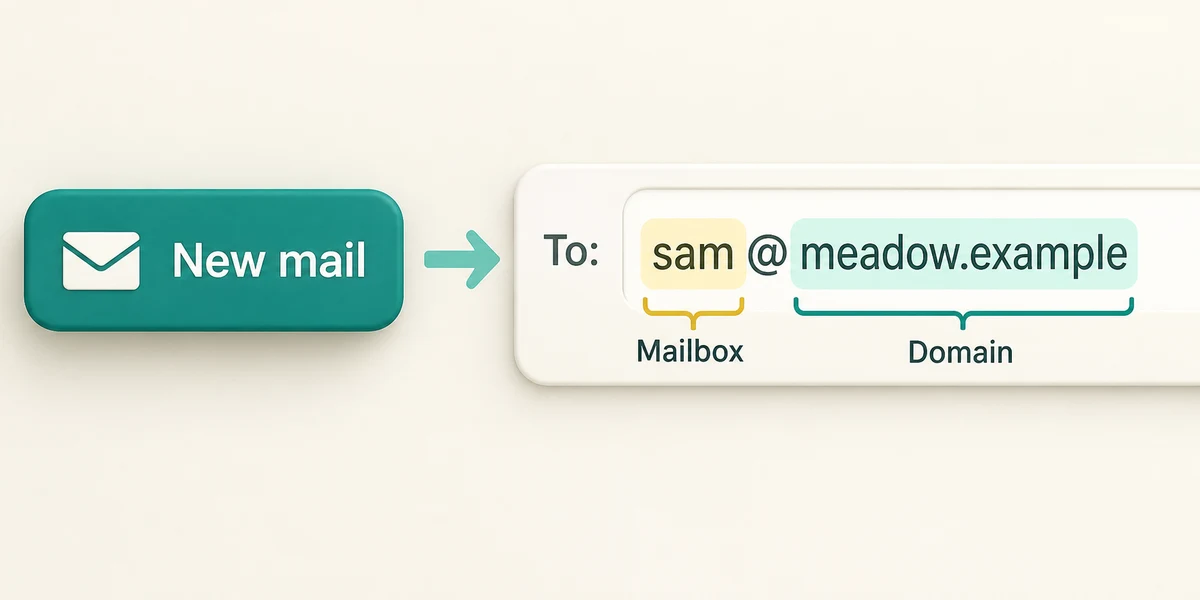
In Outlook on the web, click New mail near the top left once. In other services this may be Compose. Click To and type the intended address. In sam@meadow.example, the part before @ identifies the mailbox within that domain; the part after @ names its domain. These fictional addresses are for this lesson only.
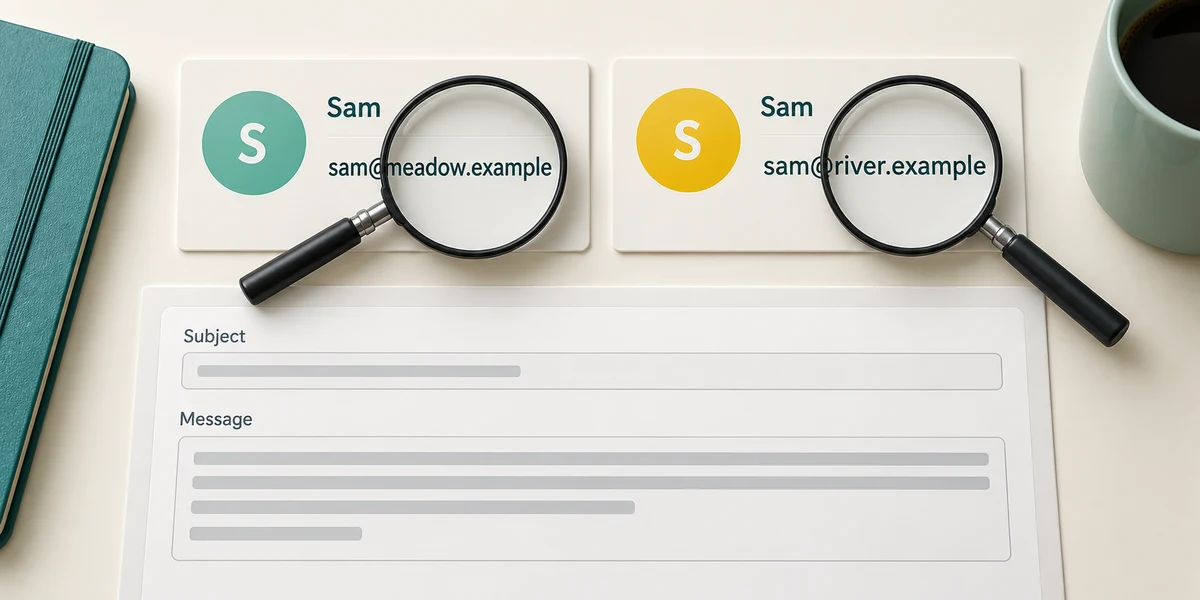
If the app suggests contacts, read the full address before clicking one. Two people can share a display name. Click Subject and type a short useful heading, then click the main message area and write your message. To replace existing text within a field, hold Ctrl and press A, release both keys, then type the replacement.
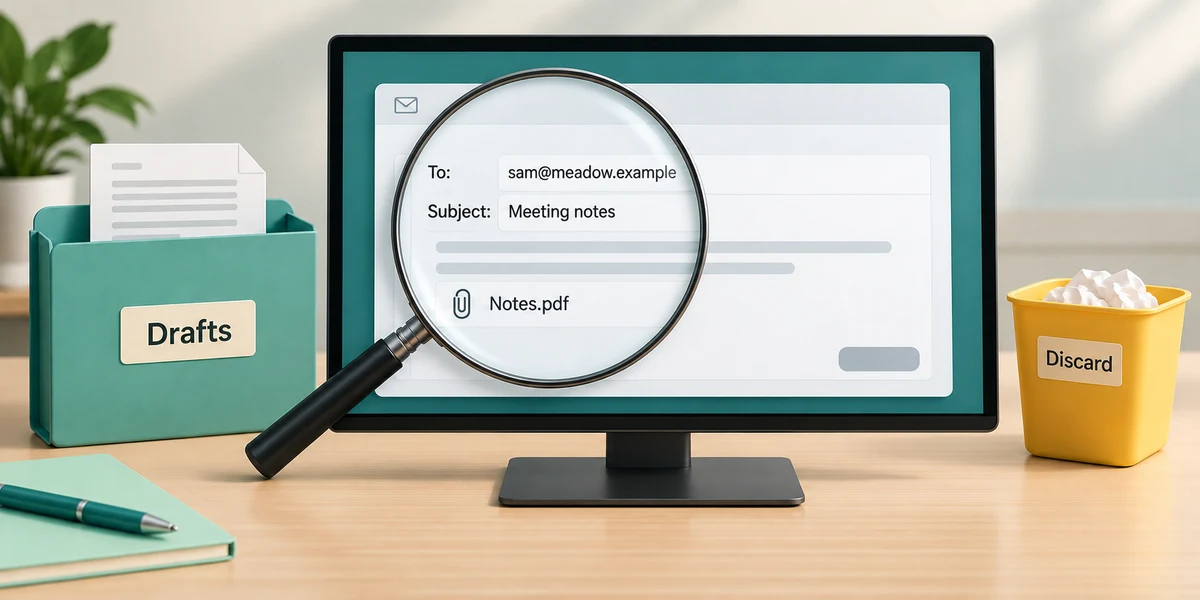
Before sending, read To, the subject and the message together. Confirm any attachment is the intended file. A draft is still being prepared; many services save drafts automatically, but check Drafts before relying on unfinished work being kept. Cancel or discard is different from keeping a draft.

Click Send only when you intend those recipients to receive the message. Look for a sent confirmation or the item in Sent Items. An item in Outbox may still be waiting to send. Sent does not prove the recipient has read it, and a delivery-failure message can arrive later. Do not rely on recall or undo-send being available after a mistake.
A draft is addressed to Alex, but the suggested address belongs to a different Alex. The message itself is correct. What should happen before sending?
Replace the recipient with the intended full address and review again.
Try a fictional example
Write a practice message to sam@meetup.example. Use Tea time as the subject and Please arrive at 3. as the message. Check all three fields before clicking Send practice message. The interactive example uses only sample data and sends nothing. Read the Learn guidance for the same decisions.
Check what you understand
In guided learning, click Start 3 questions to receive a selection from this lesson. Click the circle beside an answer, then click Check answer. Read the feedback and try again if needed. Click Next question after each correct answer. Answer all 3 correctly to continue.
Returning to guided learning keeps the questions and answers in your current attempt.
Read all 3 questions and explanations
What does the part after @ identify in an email address?
Answer: The address's domain.
The domain follows @; the part before it identifies the mailbox within that domain. A later sender or reply is separate.
A message remains in Outbox. What should you check?
Answer: Whether it is waiting to send or has a sending problem.
Outbox can hold pending messages. It is not evidence of reading, delivery or a reply.
A message appears in Sent Items. What can you safely conclude?
Answer: Your service has treated it as sent, but this does not prove it was read.
Sent status and reading are different; recipients can also copy or forward messages.
Take this to your computer
- 1
Use the fictional review here; no real email is required.
- 2
When you next intend to write an email, use the compose steps above and pause at the recipient review. Keep private addresses off shared screens.
This activity sends nothing and never connects to your mailbox. Outlook examples may differ from your service.
Prefer a more personal, one-to-one lesson? Basic Computing can help. Explore our services.