Understand video-calling apps
Understand video-calling apps

You are going to explore three short illustrated stages, try a practice choice and answer three quick-check questions.
Distinguish microphone, camera and speaker roles. Understand device permissions and call controls. Recognise app and browser ways to join a meeting.
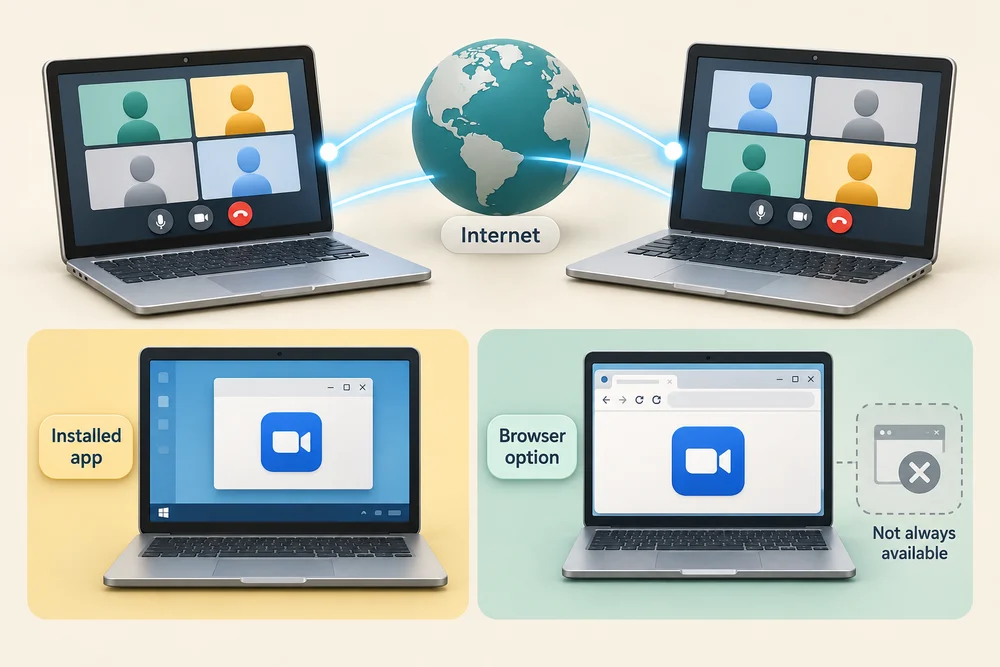
Video-calling tools let people talk over an internet connection, often with live pictures. Microsoft Teams and Zoom are examples. Depending on the meeting and supported setup, you may use an installed app or a browser option. A browser option is not available in every meeting or configuration.
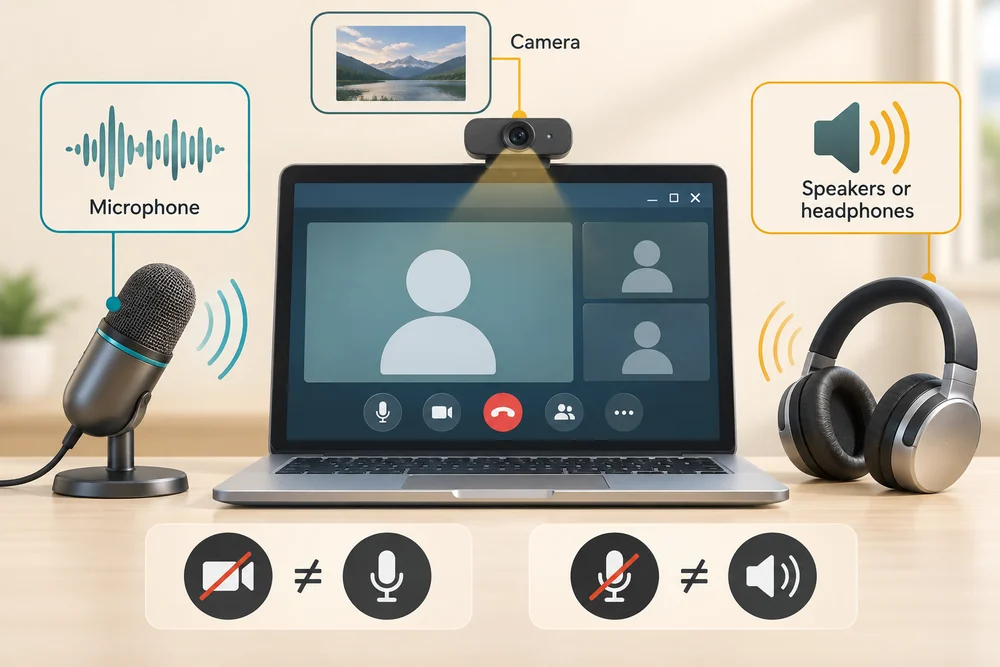
The microphone sends your sound to the call. The camera supplies your picture. Speakers or headphones let you hear other people. These have separate roles: turning your camera off does not automatically mute your microphone, and muting your microphone does not turn down their voices.
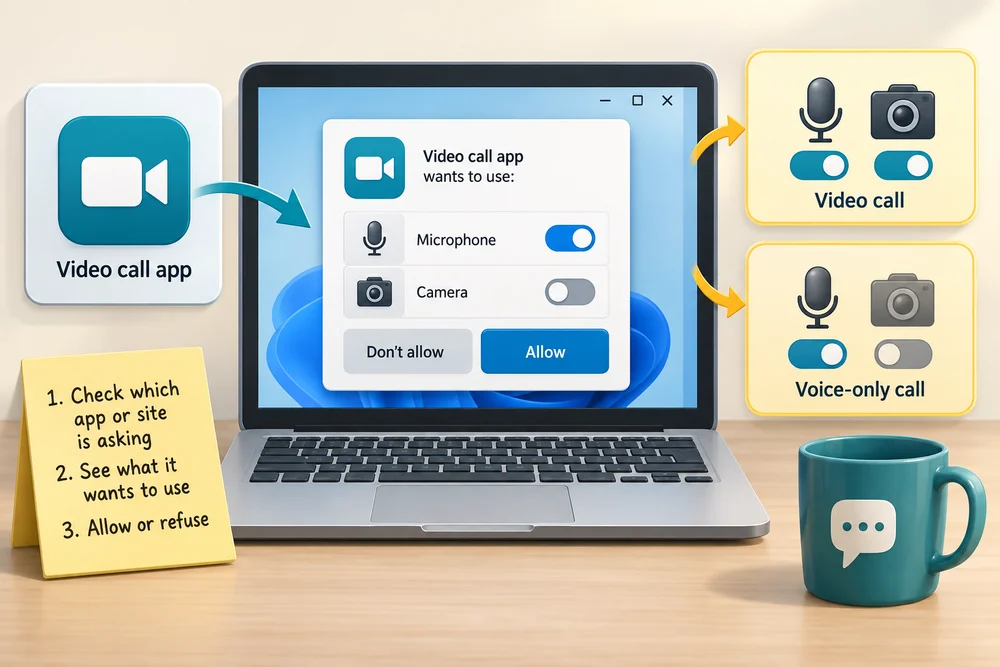
Permission means allowing a particular app or website to use a device. A call you chose may ask to use your microphone, camera or both. Read which app or site is asking and what you intend to use. You can refuse an unexpected request. A voice-only call may need microphone access without camera access.
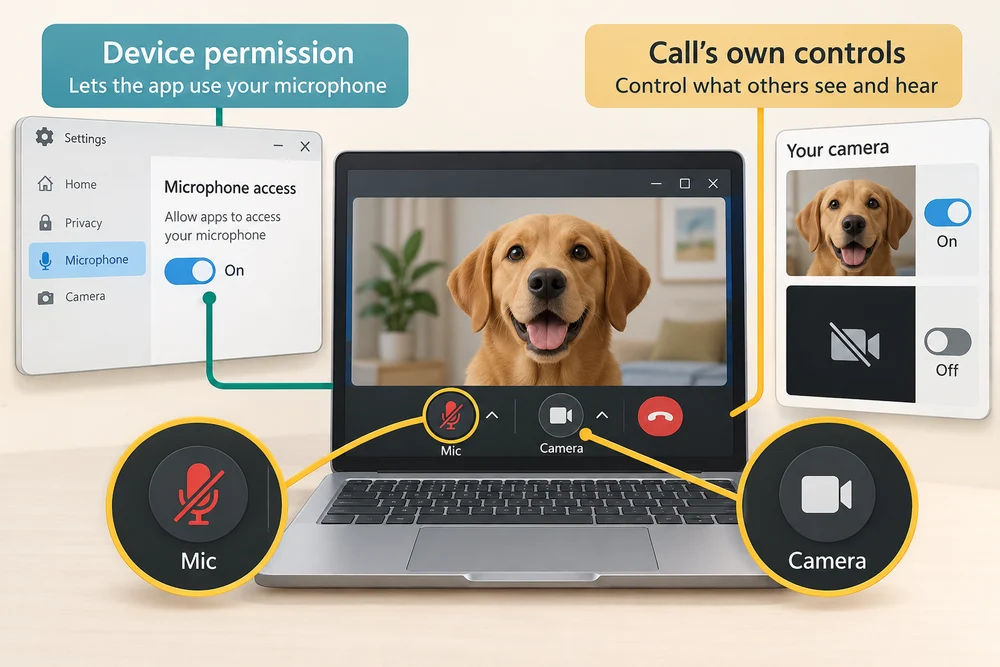
Device permission and the call’s own controls are different. Even with microphone access allowed, the meeting can still have you muted. A microphone symbol with a line through it commonly means muted. The camera control separately turns your outgoing picture on or off; check the visible labels and preview.
A preview screen may let you check your name, camera and microphone before joining. Share screen is a separate action that shows other participants a chosen window or screen, not merely your camera picture. Leave ends your participation in the call. This lesson requests no real device access and joins no meeting.
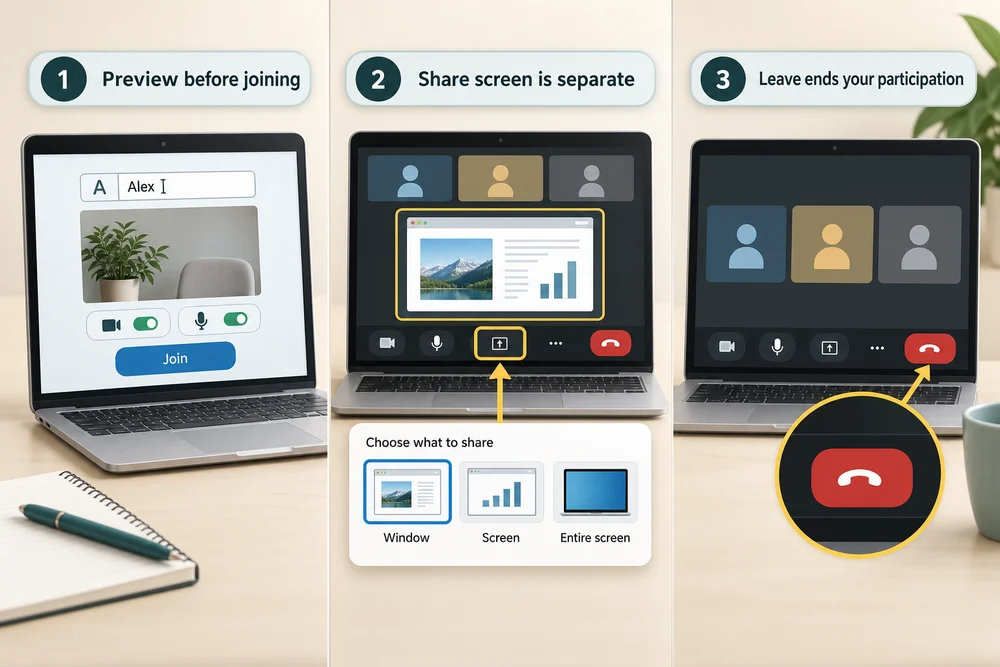
Explore the example
Explore the devices and meeting controls, then consider the intention described in the practice scenario. Every switch and permission shown here is a simulation.
Explore the three stages, then try the practice choice. The guidance beside each control explains what to do. The separate Quick check comes next.
Choose how you join a call
1. Check camera and microphone
A calling app may ask permission to use your microphone or camera. Permission allows access to that device; the call’s mute and camera controls separately decide whether you are currently sending sound or video. A preview can help you check before joining.
2. Take part in the call
The microphone sends your voice, the camera sends your picture, and speakers or headphones let you hear others. You can often join with your camera off. Check the app’s labelled mute and camera controls because their appearance varies.
3. Leave when you are finished
Click the labelled Leave or End call button once in the meeting controls when you want to stop taking part. Closing a chat panel is not necessarily the same as leaving the call. This practice does not connect to a real meeting or request device access.
Try a small task
You chose a call, but have not yet allowed device access. You want others to hear you while your picture stays off. Which setup fits?
- Allow the camera and leave the microphone muted
That provides a picture rather than your voice. Your intention needs microphone access and an unmuted call control, while the camera stays off.
- Refuse microphone access but switch the meeting’s mute control off
Unmuting alone cannot supply device access that you refused. Permission lets this calling app use the microphone; its mute control then governs sending your voice.
- Allow the microphone for this call, unmute when ready, and keep the camera off (the suitable choice)
This combines the access needed for your voice with the meeting’s separate sending controls. It does not require sending a camera picture.
Your activity stays as you left it when you return to one section at a time.
Check your understanding
Click Start 3 questions to begin. Click the circle beside your answer, then Check answer. After each of the first two correct answers, click Next question. When all three are correct, click Continue below. You can change a wrong answer and check again. With a keyboard, Tab reaches choices, arrow keys choose an answer, and Tab then Enter activates a button.
In guided learning, click Start 3 questions to receive a selection from this lesson. Click the circle beside an answer, then click Check answer. Read the feedback and try again if needed. Click Next question after each correct answer. Answer all 3 correctly to continue.
Returning to guided learning keeps the questions and answers in your current attempt.
Read all 10 questions and explanations
Other participants need to hear you speak. Which device supplies that sound?
Answer: The microphone.
Yes. The microphone captures your sound; speakers or headphones play incoming sound.
Other participants need to see you rather than a shared document. Which device supplies that view?
Answer: The camera.
Yes. The camera and microphone have separate picture and sound roles.
You can see another participant but need to hear what they say. Which part plays their sound for you?
Answer: Speakers or headphones.
Yes. Speakers or headphones play incoming call audio.
A calling site asks to use a device. What would allowing that request mean?
Answer: That particular site may access the requested device.
Yes. Permission grants a particular app or website access to a requested device.
You chose a call and want to speak while keeping your picture off. Which device access serves that intention?
Answer: The chosen call’s access to your microphone.
Yes. Voice needs the microphone; you need not enable a camera merely to send your voice.
A site you did not choose for a meeting unexpectedly asks for your camera. What fits your intention?
Answer: Refuse the request and check which site is asking.
Yes. Read the requesting app or site and only allow the device access you intend.
The app may use your microphone, but its meeting control shows muted. What does that tell you?
Answer: Device access and sending your voice in the meeting are separate controls.
Yes. An app can have microphone access while its meeting control keeps you muted.
You turn off your outgoing picture during a call. What should you know about your voice?
Answer: It has a separate control and may still be heard.
Yes. Camera and microphone controls affect different outgoing media.
Others need to see the spreadsheet open on your computer while you talk. Which call control fits?
Answer: Share screen, with that window selected.
Yes. Screen sharing is a separate action from sending your camera picture.
An invitation offers a supported way to join through a webpage. What does that tell you?
Answer: This meeting can be joined without newly installing a desktop app.
Yes. Browser joining can be available, but it depends on the service, meeting and supported setup.
Connect the idea to your computer
These observations are optional. You can finish using the lesson’s examples, without installing an app or changing your computer’s settings.
- 1
Use this lesson’s sample preview to identify the microphone and camera controls. Click Learn at the top to return to it, then click the numbered stage you want to inspect.
- 2
For a real call you intend to join in future, read the app or website name and any requested permissions before deciding. The microphone supplies your voice and the camera supplies your picture.
- 3
In that call’s preview, read the labels beside its microphone and camera controls before joining. If a control needs changing, click its labelled button once and check the resulting state. There is no need to join a real call for this lesson.
App names and layouts can vary. If a suggested app or screen is not available, use the lesson example instead. Nothing needs to be bought, downloaded, sent or deleted.
Prefer a more personal, one-to-one lesson? Basic Computing can help. Explore our services.