Use captions for computer audio
Use captions for computer audio
Choose a caption route and check an example transcription.
You can use text support for audio without assuming every word is exact.
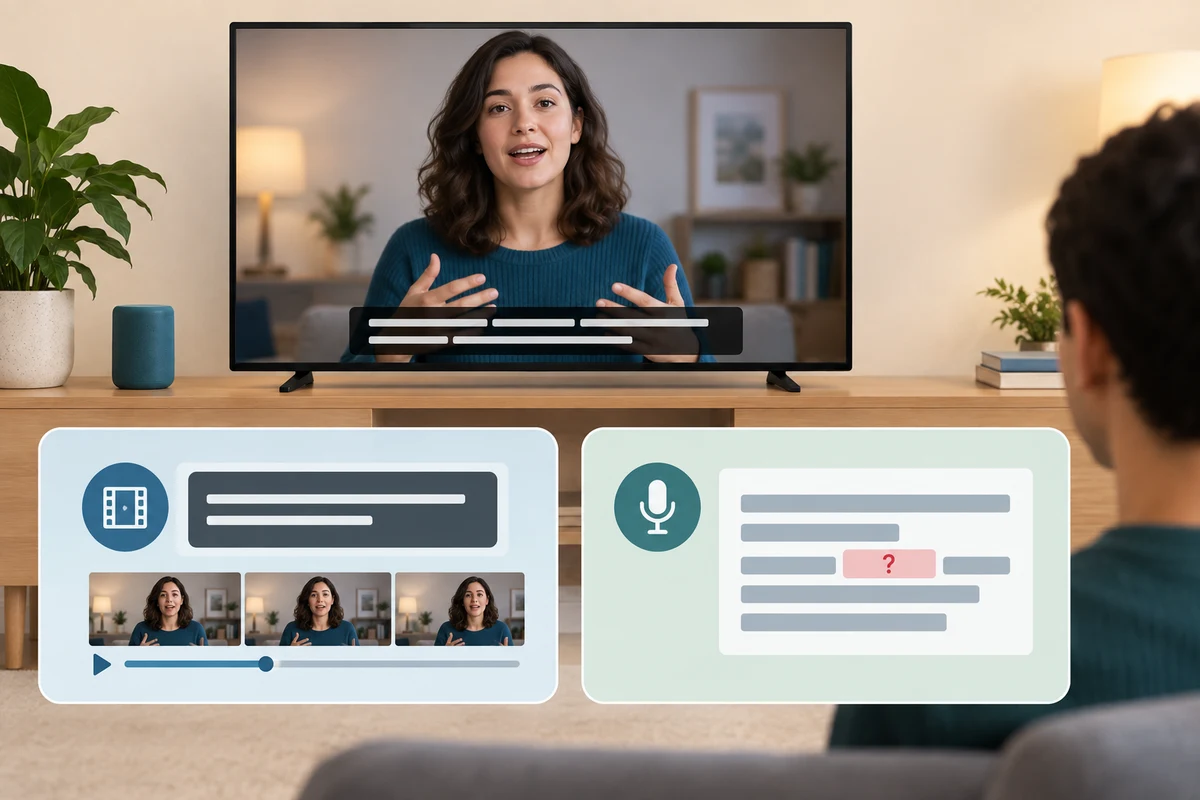
Captions show words and sometimes other useful sound information as text. A video can supply its own captions, while Windows Live captions can transcribe supported audio playing on the computer. Automatic transcription may miss names or other details, so captions help access without guaranteeing perfect wording.
Work through the useful checks
How this works
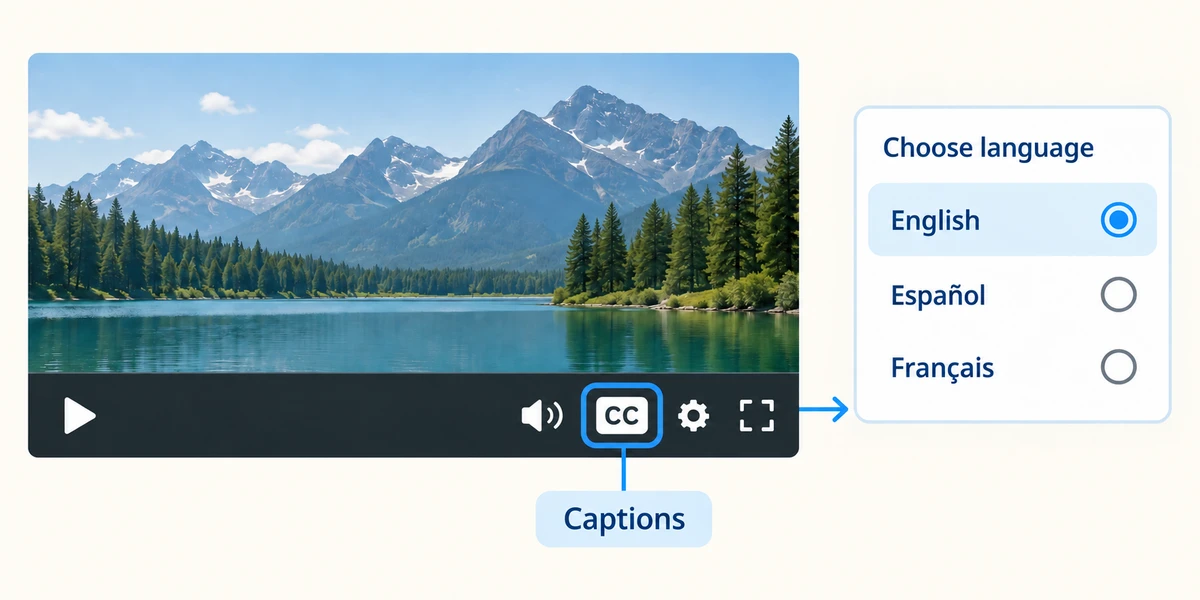
In a video player, look for the labelled captions or subtitles control, often CC. Click it once and choose the available language. Supplied captions and automatically generated ones can differ in quality; read the player’s label.
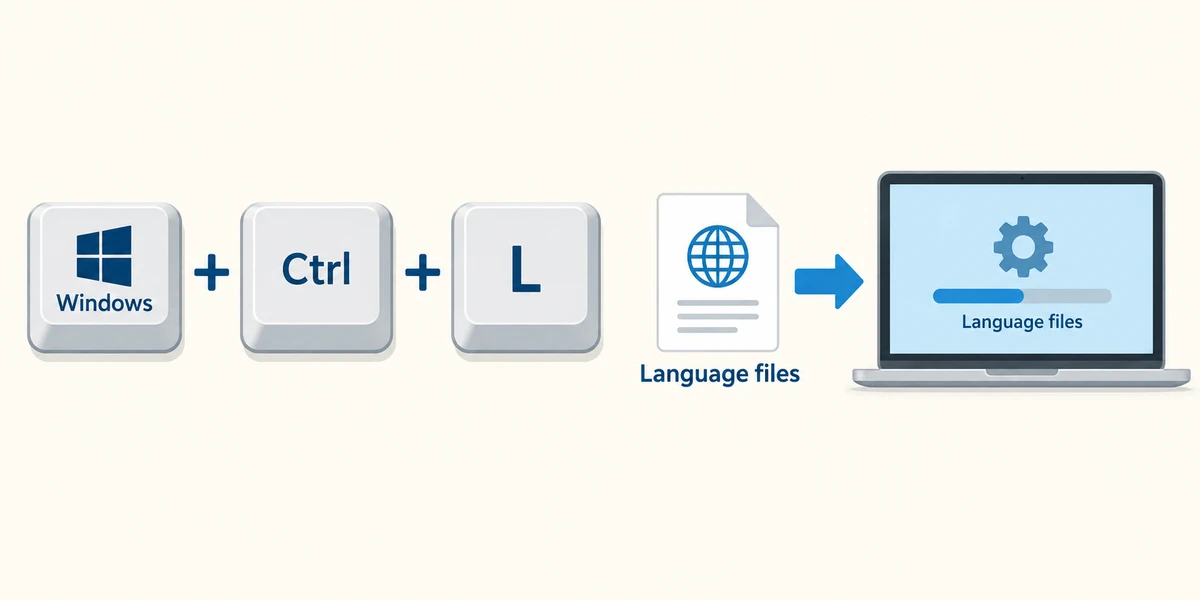
For Windows Live captions, hold Windows and Ctrl, press L, then release all keys. First use may ask permission to download language files. Read the setup choices and wait for them to finish if you want to use the feature.
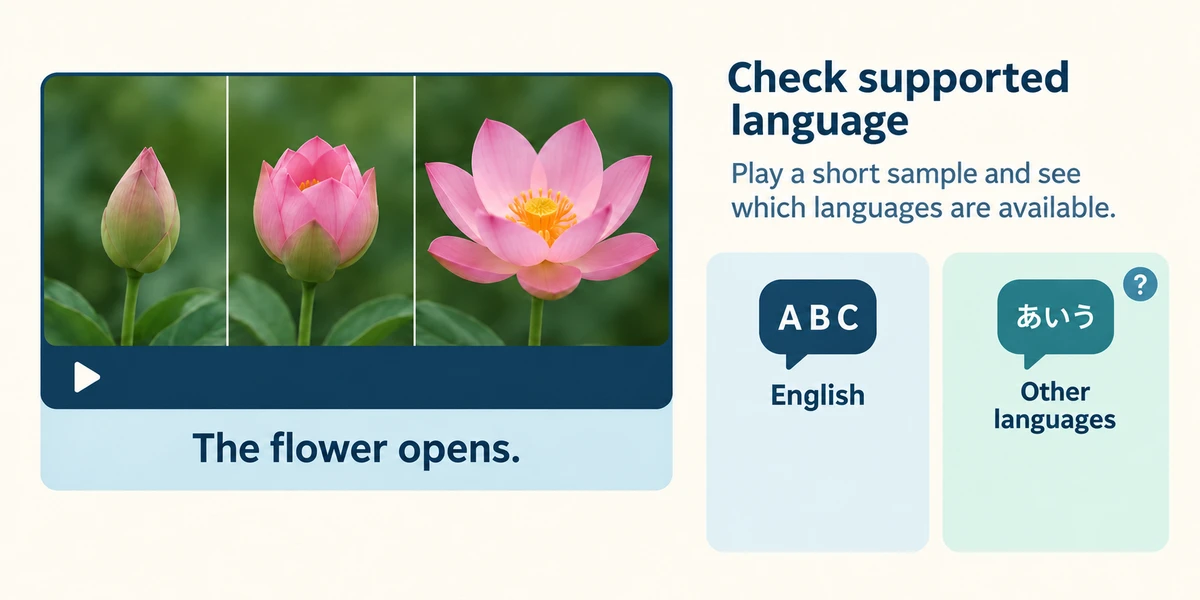
Play a harmless short clip and compare its captions. Supported languages and optional translation features vary by Windows version and hardware. Do not assume a caption setting supplies every language or converts every video automatically.
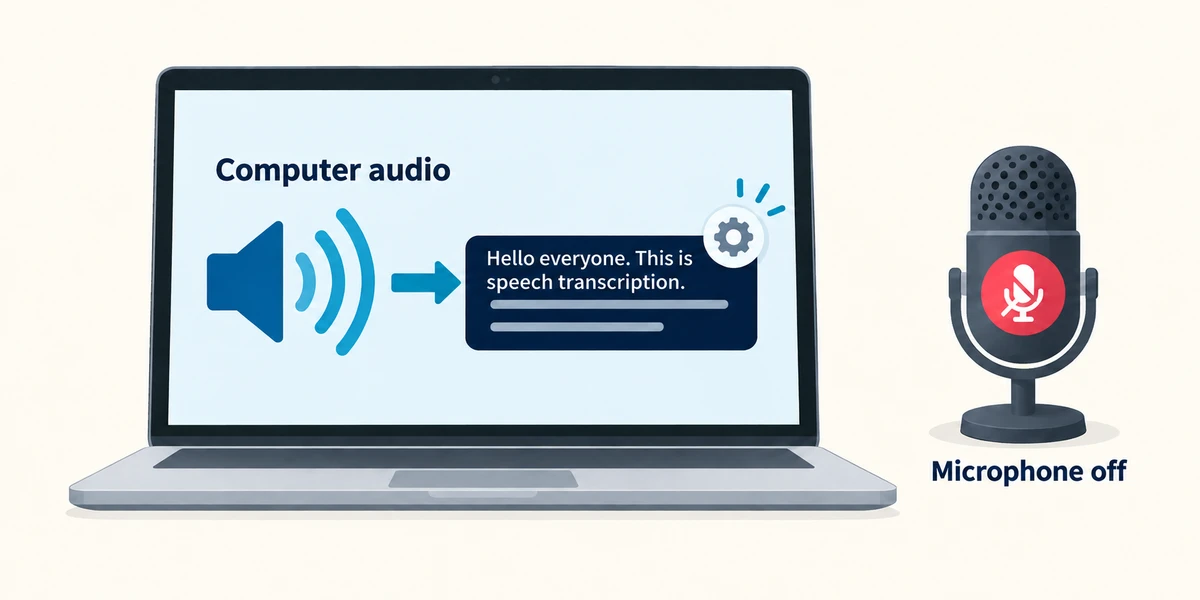
The captions bar has settings for placement and appearance. Its optional microphone-audio setting is separate from captioning computer playback. Leave microphone input off unless you intend to include surrounding speech. Windows describes Live captions processing as on-device.
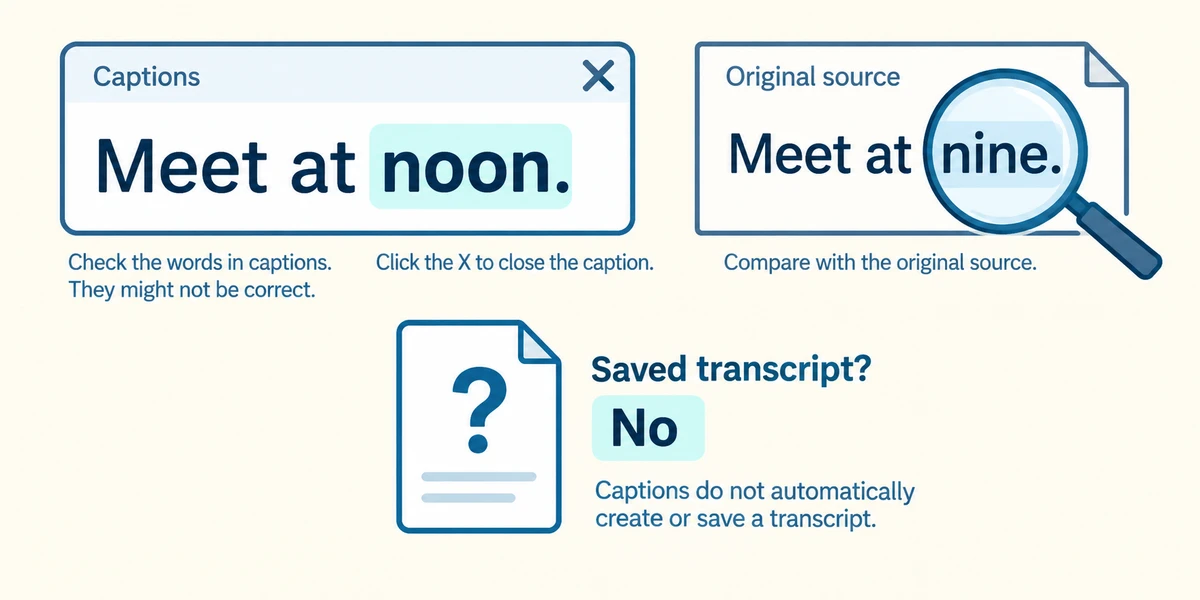
Check important names, numbers and meaning against the source where possible. Close the Live captions bar with its X when finished. A saved transcript is a separate action; seeing captions does not mean a permanent text file has been created.
A video has no supplied captions, but you need text support for its sound. What could help?
Windows Live captions for supported audio and language.
Check what you understand
In guided learning, click Start 3 questions to receive a selection from this lesson. Click the circle beside an answer, then click Check answer. Read the feedback and try again if needed. Click Next question after each correct answer. Answer all 3 correctly to continue.
Returning to guided learning keeps the questions and answers in your current attempt.
Read all 3 questions and explanations
An automatic caption gives an unexpected medicine name. What is the sensible response?
Answer: Verify the important wording against a reliable source rather than relying on the transcription alone.
Automatic recognition can mishear important terms. Appearance does not establish accuracy; verify consequential information.
You want captions for computer playback but not the room conversation. Which option should remain off?
Answer: The optional microphone-audio input.
Microphone input is a separate source. Leave it off when you only intend to caption computer playback.
Captions appeared during a clip. What can you assume about a saved text file?
Answer: Nothing yet; displaying captions does not automatically prove a transcript was saved.
Live display and saving a transcript are separate. Showing captions does not by itself create a text file or add captions permanently to the original video.
Take this to your computer
- 1
On a familiar harmless video, locate its captions or CC control and read the language choices. You can leave playback off and simply inspect the control.
- 2
If you try Windows Live captions, use Windows, Ctrl and L together, release, follow setup choices and use a short clip. Keep microphone input off unless intended and close the bar with its X afterwards.
The lesson uses fictional examples. Optional checks on your computer can be observational. Settings and available features vary by model and Windows version.
Prefer a more personal, one-to-one lesson? Basic Computing can help. Explore our services.