Choose a file to upload
Send a copy in the other direction
Choose the requested sample file and check it before a pretend upload.
Distinguish selecting a local file from completing its upload.
Uploading transfers a file from your device to an online service. The service may need a document or photograph as part of a task. The file's name, contents and destination all matter because selecting the wrong copy can reveal information or leave the request incomplete.

Choose, check and wait for completion
How this works
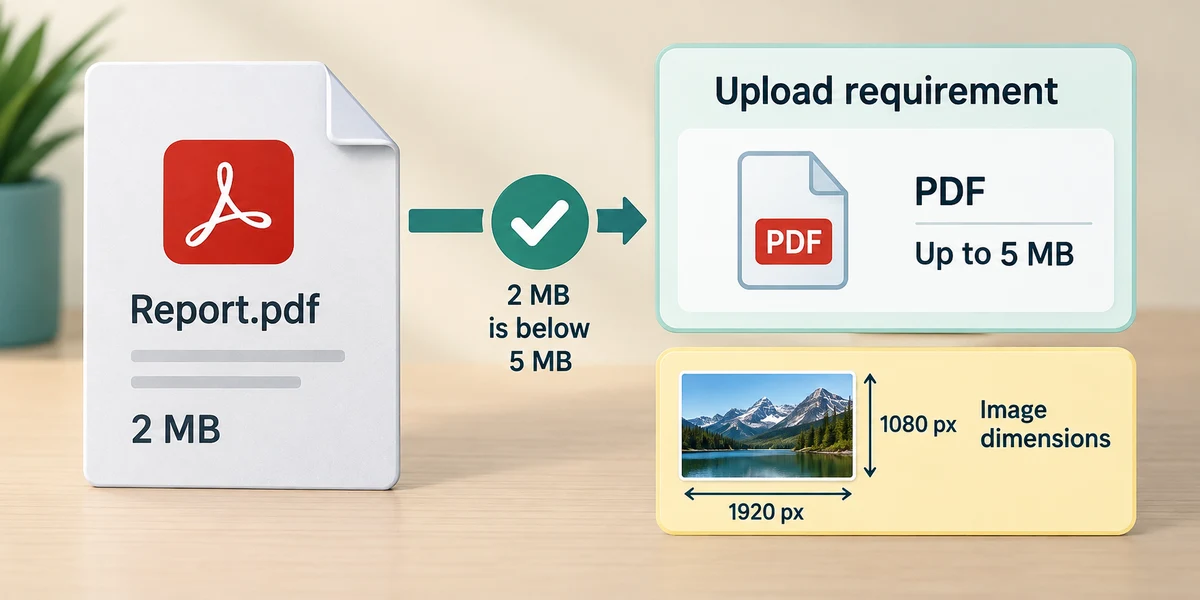
Read the website's file requirements before choosing anything: the intended document, allowed file types and maximum size. A file-size limit concerns how much data can be sent, not how wide a photograph appears on screen. Renaming a file's extension does not convert it into an accepted format.
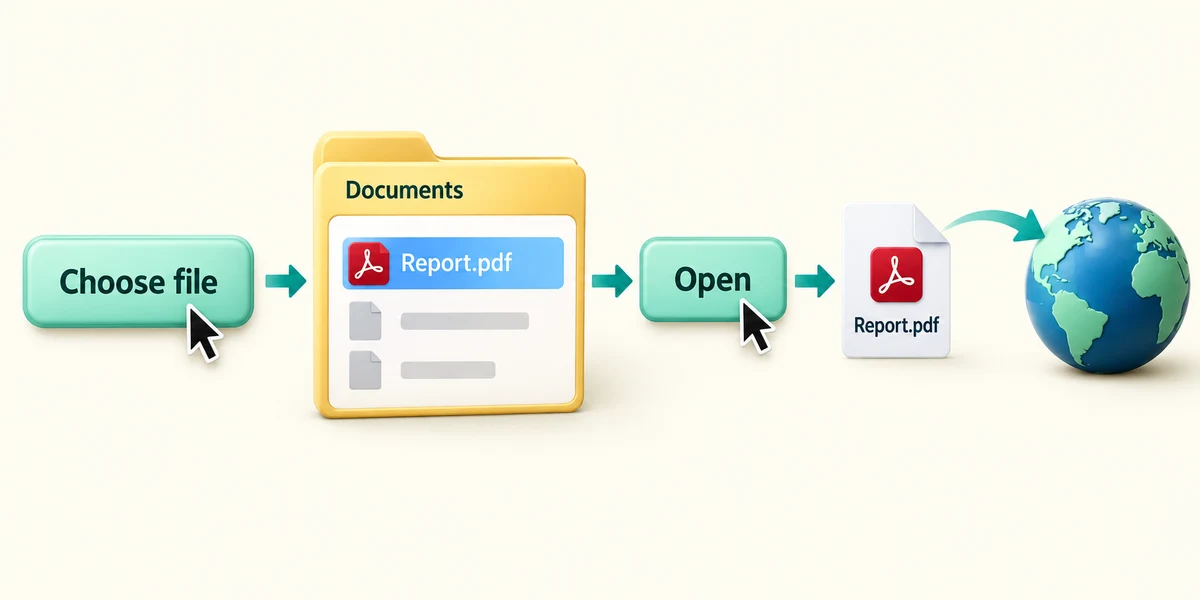
Click the website's Choose file, Browse or Upload control once. In the file picker, click a familiar location on the left and double-click folders to open them. Click the intended file once to select it, then click Open. In this context Open passes the selected file to the website; it is not the same as reading it in its usual app.

Check the displayed filename or preview. If it is wrong, use the site's Remove or Replace control and choose again. Some websites start uploading immediately after selection, so check the destination and permissions before opening the picker. Others need a separate Upload button. Wait for a completed state rather than assuming a name on screen proves the transfer finished.

An uploaded attachment and a submitted form can be separate stages. Review the final request before its Send or Submit button. Keep your original until you know the task is finished; uploading a copy does not normally delete it. If a transfer fails, read the file-type, size or connection message before retrying.
A practice form shows Holiday photo.jpg, but it asks for your prepared Letter.pdf. Nothing has been submitted. Which action fits?
Remove or replace the selected photo and choose the intended PDF.
Try a fictional example
The fictional application asks for Final application.pdf. Choose that sample file, check its name and finish the practice upload. An old draft is not the requested version. The interactive example uses only sample data and sends nothing. Read the Learn guidance for the same decisions.
Check what you understand
In guided learning, click Start 3 questions to receive a selection from this lesson. Click the circle beside an answer, then click Check answer. Read the feedback and try again if needed. Click Next question after each correct answer. Answer all 3 correctly to continue.
Returning to guided learning keeps the questions and answers in your current attempt.
Read all 3 questions and explanations
What direction does an upload take?
Answer: From your device to an online service.
Uploading sends information to a service. Downloading brings it to your device; moving locally is a different operation.
The site shows a filename and a progress indicator still moving. What should you check before continuing?
Answer: That the transfer finishes successfully.
A selected name can appear before completion. Wait for the site's successful result.
A service rejects a document because it is too large. What helps?
Answer: Read the allowed size and use an appropriate smaller copy or the service's supported alternative.
The limit concerns data size. Changing a name or display zoom does not reduce the file's bytes.
Take this to your computer
- 1
You can finish using the fictional decision alone. No file is uploaded by this page.
- 2
For a future upload you already intend, find and inspect the file in File Explorer first. Double-click only your own known file, then close its preview with the top-right X before starting the upload.
Do not upload private documents merely to practise. A file selection may start transfer immediately on some websites.
Prefer a more personal, one-to-one lesson? Basic Computing can help. Explore our services.