Understand web browsers
Understand web browsers
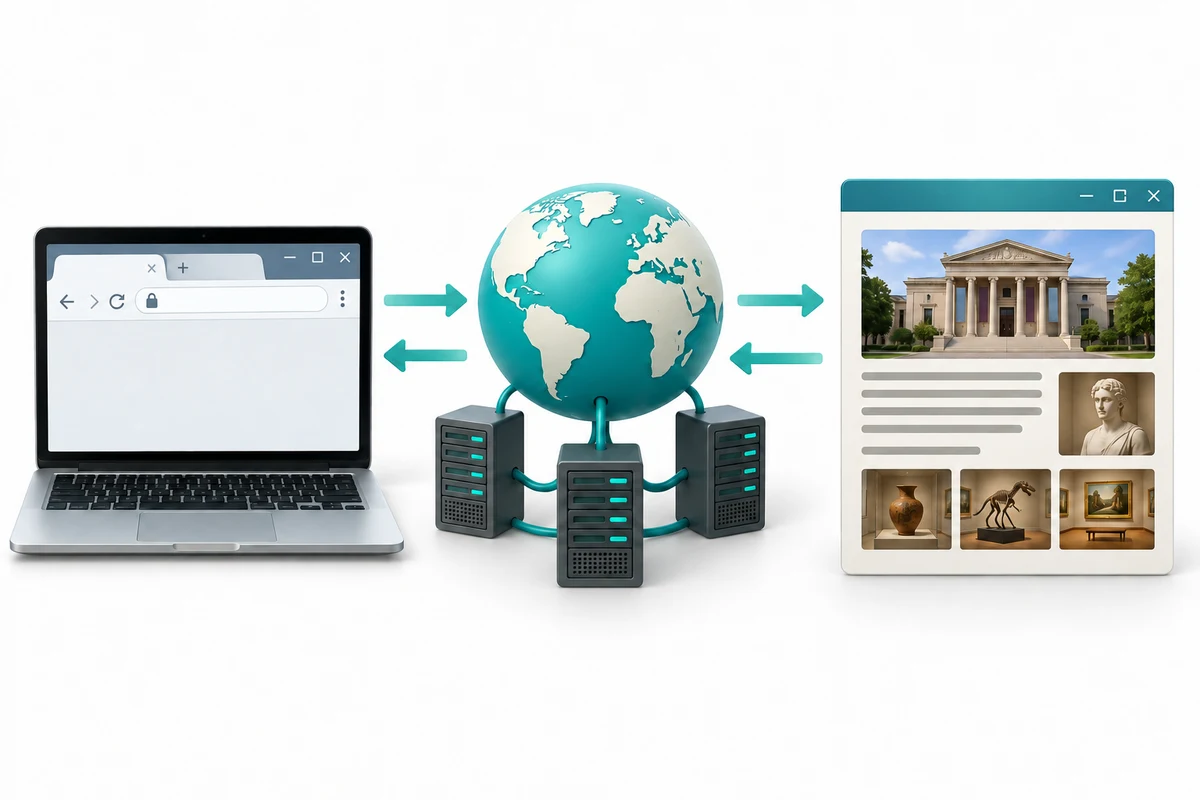
You are going to explore three short illustrated stages, try a practice choice and answer three quick-check questions.
Distinguish a browser from a website and search engine. Recognise address bars and tabs. Understand that browser choice depends on your needs and computer.
A web browser is an app for opening and using websites. Microsoft Edge is included with Windows 11. Google Chrome and Mozilla Firefox are other browser examples. Which you use can depend on familiarity, accessibility features, required websites and what your computer supports or allows.
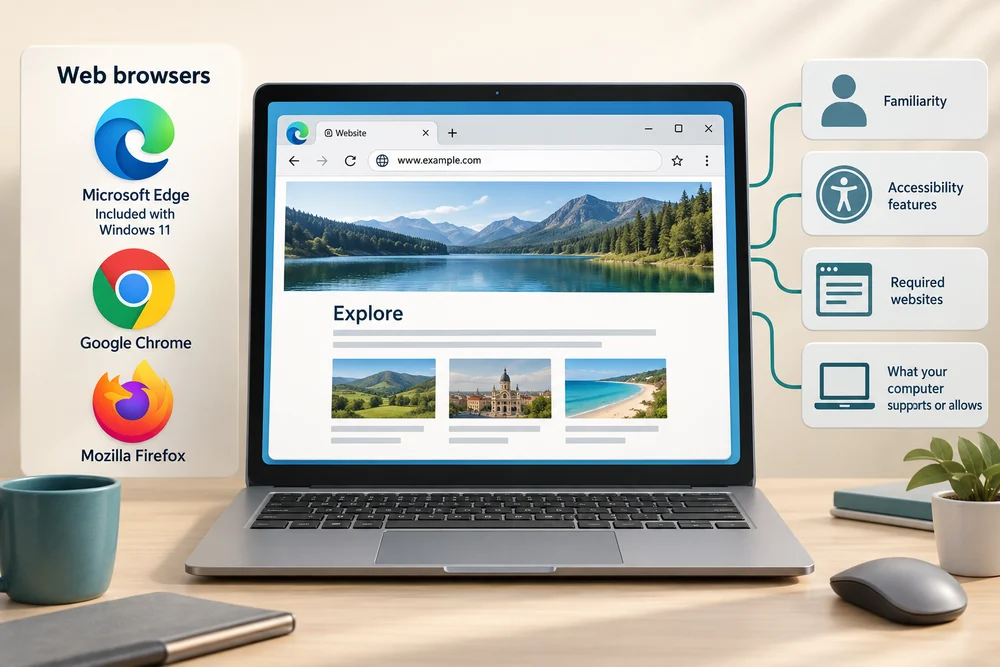
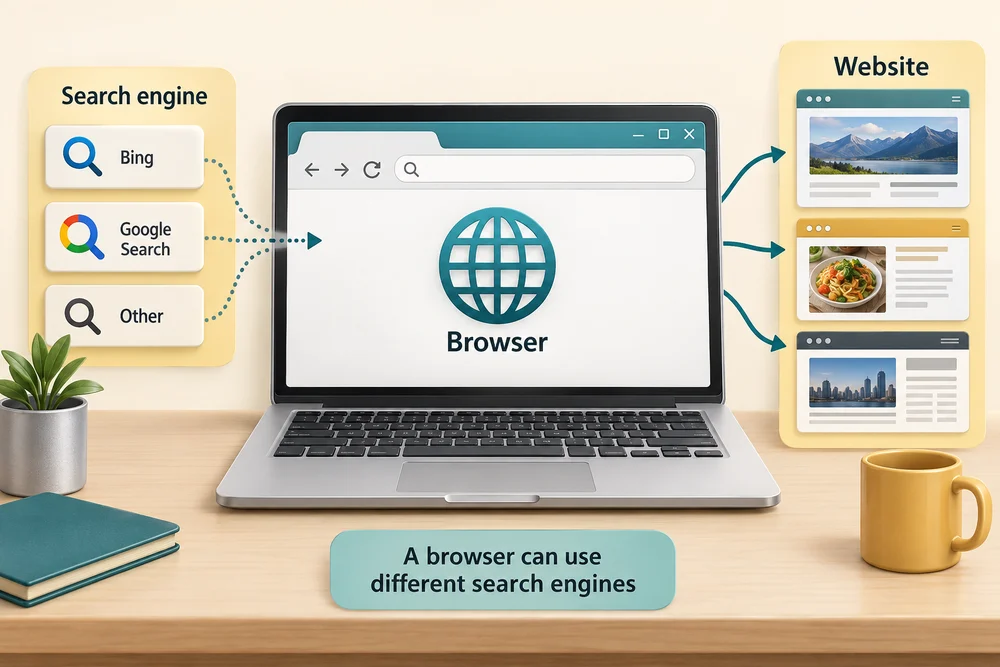
A website is the place you visit through the browser. A search engine, such as Bing or Google Search, is a service that helps find web pages. The browser and search engine are different: a browser can use different search engines. No one browser is automatically the best for every person or task.
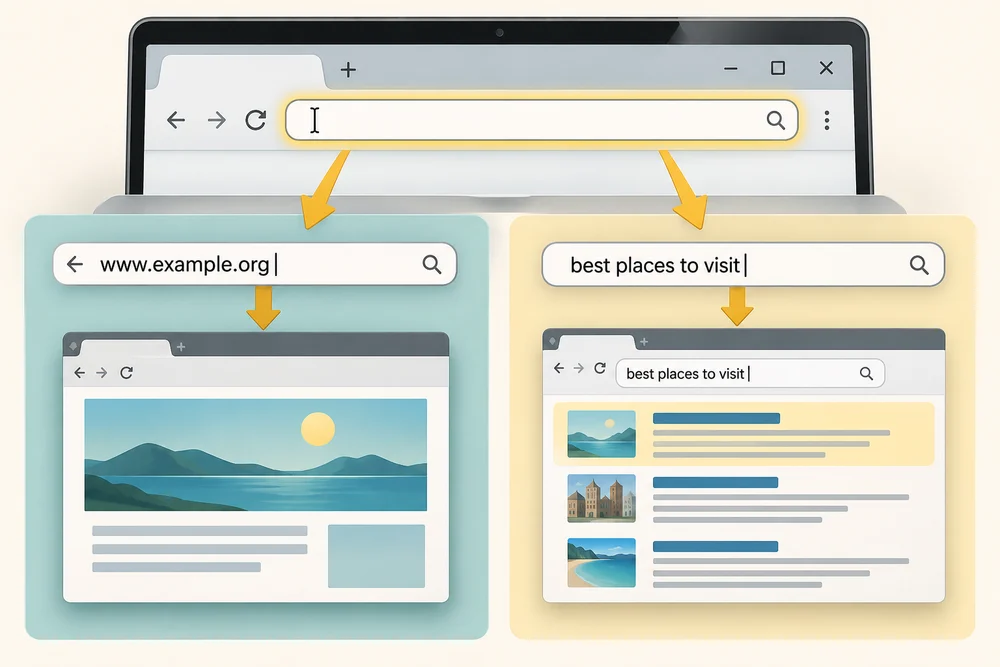
The address bar is the long field usually near the top of the browser. A known web address belongs there. Words that describe what you want can also start a search. Search results are possible destinations; the first result is not automatically the exact site you intended.
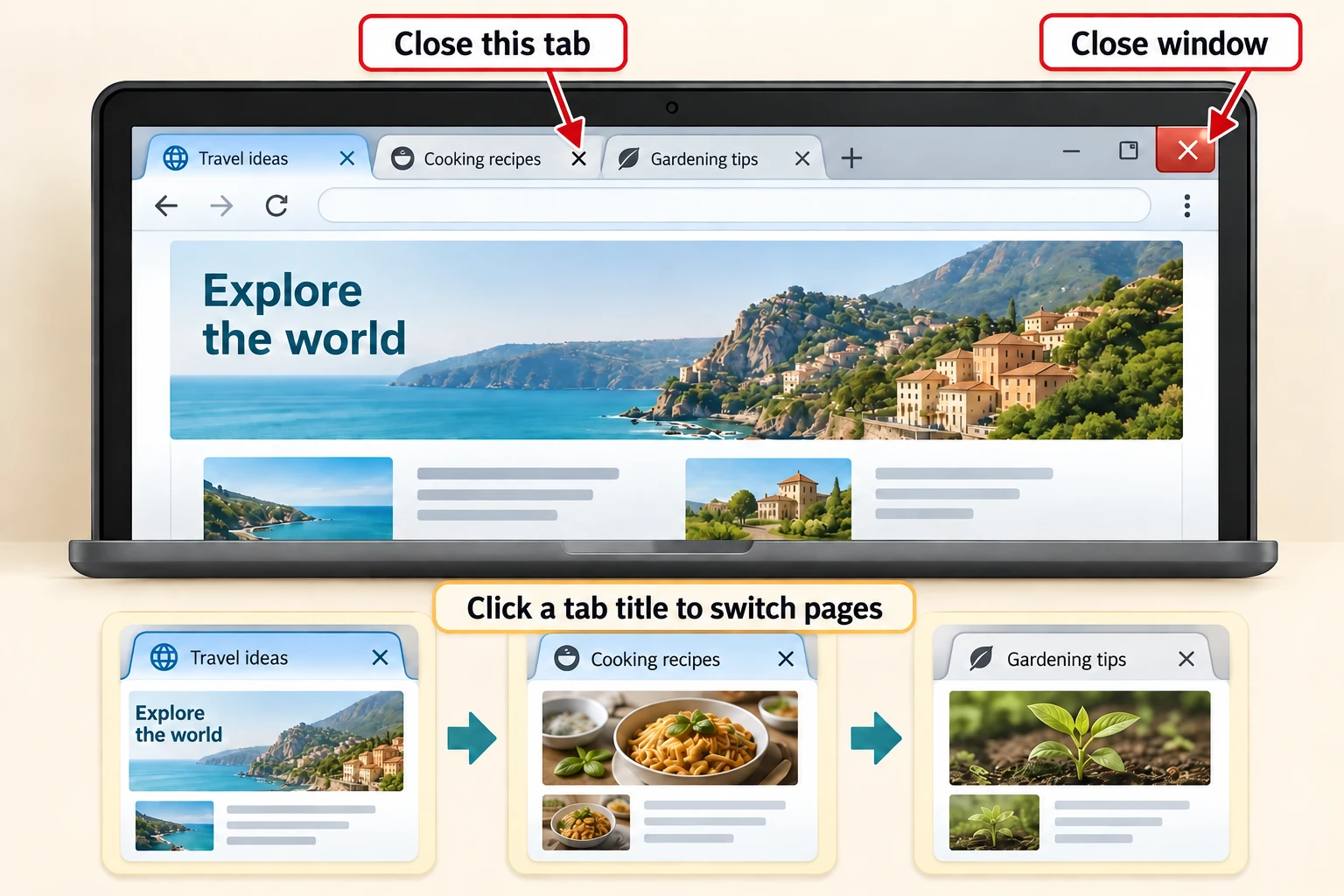
A tab keeps one page open within the browser window. Clicking another tab changes which page you see. It does not normally close the other tabs. The small X on a tab closes that tab; the X at the top right of the whole window closes the browser window.
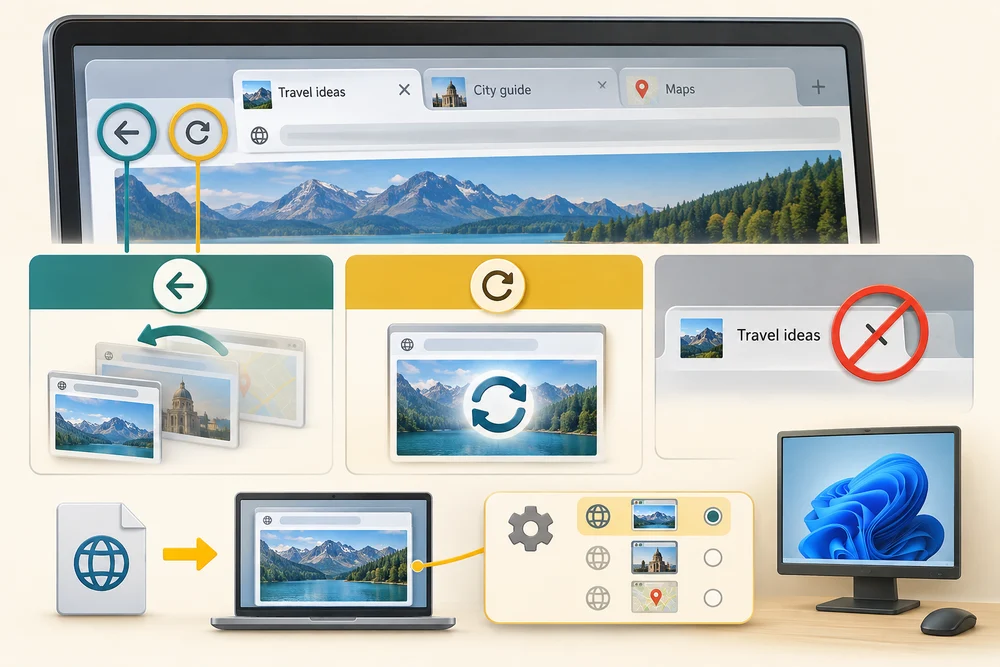
Back returns towards a page you visited earlier in that tab. Refresh reloads the current page. Neither button is the same as closing a tab. A default browser is the one Windows normally opens for web links; your settings or an organisation’s rules can affect that choice.
Explore the example
Follow the example browser through its three stages, then apply what you have learned to the practice choice. This example does not open a real website or change your browser settings.
Explore the three stages, then try the practice choice. The guidance beside each control explains what to do. The separate Quick check comes next.
From an address to a webpage
1. Tell the browser where to go
A browser is an app for visiting websites. If you know a website’s address, click the address bar near the top. Hold Ctrl and press A, release both keys, type the address and press Enter. Search words can help you find a site when you do not know its address.
2. The browser requests a page
The browser uses your internet connection to request information from the website’s computer, called a server. A search engine is a website that helps find pages; it is not the same thing as the browser app.
3. Read the page in a tab
The browser displays the webpage in a tab. Several tabs let you keep several pages available in one browser window. Closing one tab does not remove the browser app from your computer.
Try a small task
You have an exact web address from the organisation you want to visit. Where would you put it to ask your browser to go there?
- The search field belonging to the page currently on screen
A page’s search field searches according to that site’s own purpose. Use the browser’s address bar to request a particular website directly.
- The long address field in the browser’s own toolbar (the suitable choice)
The browser’s address bar accepts the destination. Click it, hold Ctrl and press A, release both keys, type the address and press Enter.
- A reply field within the page currently on screen
A reply field is for information sent within that page, not for choosing the browser’s destination. The address bar has that job.
Your activity stays as you left it when you return to one section at a time.
Check your understanding
Click Start 3 questions to begin. Click the circle beside your answer, then Check answer. After each of the first two correct answers, click Next question. When all three are correct, click Continue below. You can change a wrong answer and check again. With a keyboard, Tab reaches choices, arrow keys choose an answer, and Tab then Enter activates a button.
In guided learning, click Start 3 questions to receive a selection from this lesson. Click the circle beside an answer, then click Check answer. Read the feedback and try again if needed. Click Next question after each correct answer. Answer all 3 correctly to continue.
Returning to guided learning keeps the questions and answers in your current attempt.
Read all 10 questions and explanations
You follow a link and a page appears. What job does the browser perform?
Answer: It opens the website and lets you use its pages.
Yes. A browser is the app through which you visit websites.
Which of these comes with Windows 11 for opening websites?
Answer: Microsoft Edge.
Yes. Microsoft Edge is a web browser included with Windows 11.
Which pair consists of apps you can use to visit websites?
Answer: Google Chrome and Mozilla Firefox.
Yes. Chrome and Firefox are browser examples; availability and suitability vary.
You use Google Search inside Firefox to find a local service. What role does Google Search have?
Answer: Finding possible web pages for your search.
Yes. A search engine is a service used through a browser, not the browser itself.
You have been given the exact address of a website. Which field is intended for that destination?
Answer: The browser’s long address field near the top.
Yes. The address bar accepts a web address and can also accept search words.
Two pages are open in one window. You select the other page’s tab. What normally happens?
Answer: That page becomes visible while the first stays available.
Yes. Tabs keep separate pages open within a browser window.
Two pages are open in one window. You click the small X beside one page’s tab title. What happens?
Answer: That page’s tab closes.
Yes. A tab’s X closes that tab; the window’s top-right X closes the whole window.
You followed a link and want the page you were looking at just before it. Which action fits?
Answer: Return through that tab’s earlier navigation.
Yes. Back follows that tab’s earlier navigation; Refresh reloads the current page.
Several results appear after a search. What does the top position tell you?
Answer: It is a possible destination; you still need to check it is the site you wanted.
Yes. A search result’s position does not establish that it is the exact destination you wanted.
You find small text hard to read and often use a keyboard instead of a mouse. What should you check when comparing browsers?
Answer: How comfortably you can read and operate their controls.
Yes. Browser choice can depend on familiarity, accessibility, website requirements and supported setup.
Connect the idea to your computer
These observations are optional. You can finish using the lesson’s examples, without installing an app or changing your computer’s settings.
- 1
If a browser is already open on your PC, look near its top for the address bar and page tabs. You can use this lesson’s picture if no browser is open.
- 2
If more than one tab is open, click another tab’s title once to show its page, then click the original tab’s title to return. Avoid the small X while changing tabs.
- 3
Notice that the browser app stays the same as you change pages. You do not need to search, sign in, install a browser or change a default for this observation.
App names and layouts can vary. If a suggested app or screen is not available, use the lesson example instead. Nothing needs to be bought, downloaded, sent or deleted.
Prefer a more personal, one-to-one lesson? Basic Computing can help. Explore our services.