Understand a Windows recovery drive
Understand a Windows recovery drive
Choose appropriate preparation for recovery media.
You can explain what recovery media protects and what needs a separate backup.
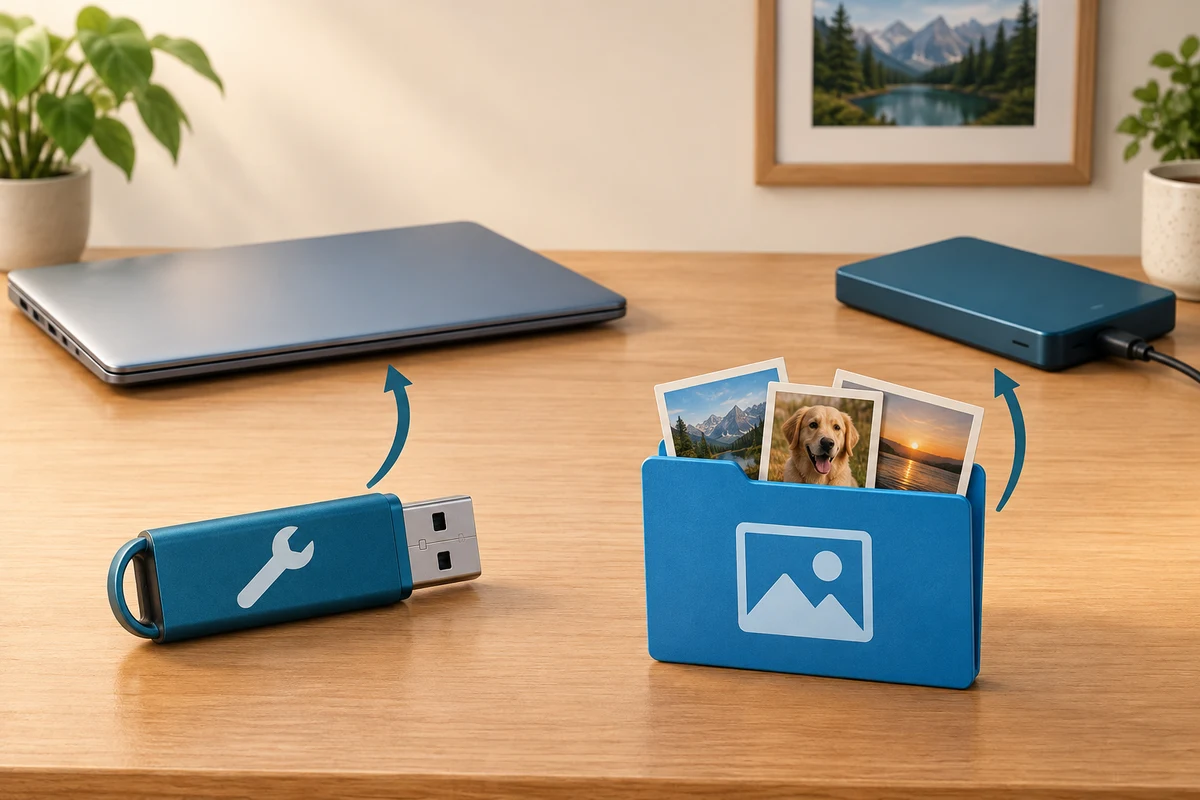
A Windows recovery drive is USB media prepared for system recovery when ordinary startup is unavailable. It does not contain your personal documents and photos. Preparing it erases the selected USB, so system recovery and file backup require separate planning.
Work through the useful checks
How this works
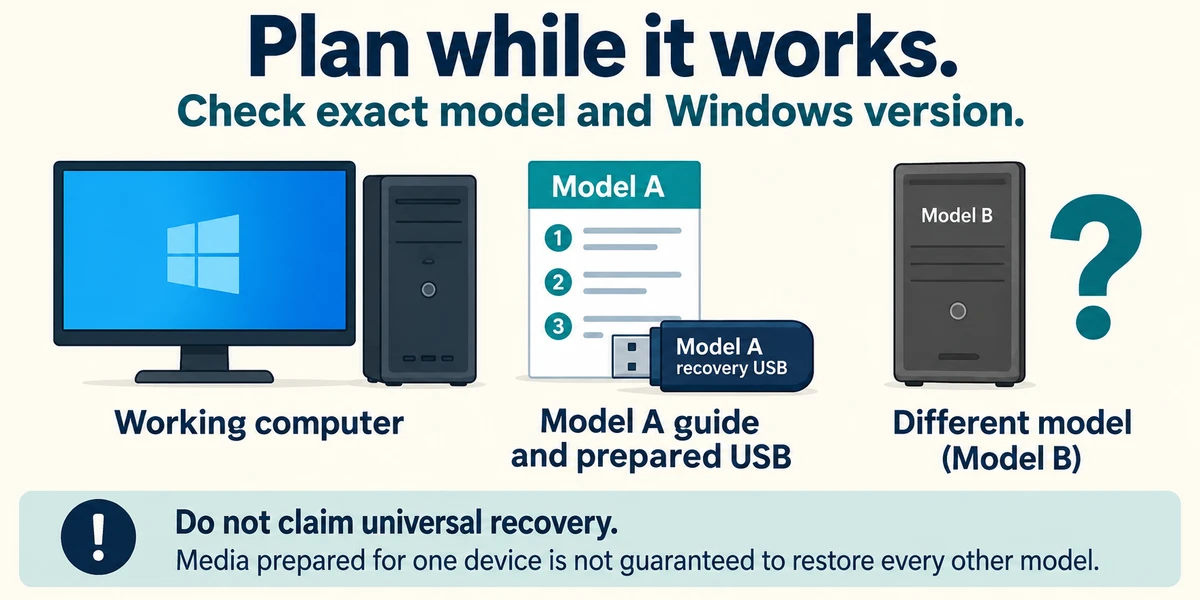
Plan while the computer works. Follow guidance for its exact model and Windows version. Media prepared for one device is not guaranteed to restore every other model.
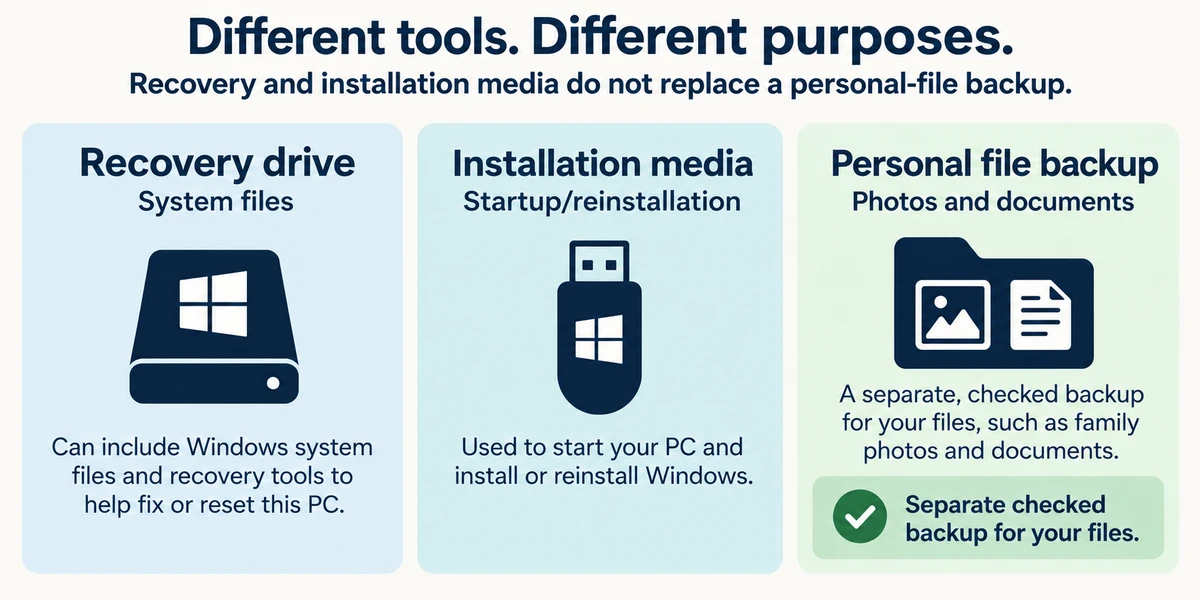
Recovery Drive can include system files. Your own files need a separate checked backup. Windows installation media is another startup/reinstallation tool; none of these names means that family photos were backed up.
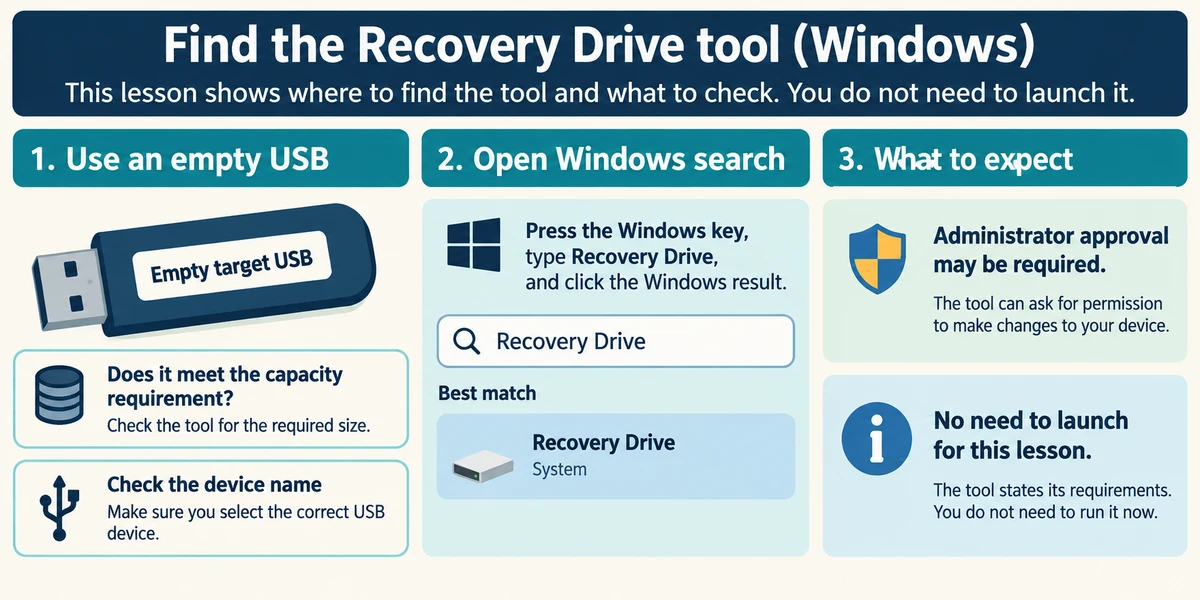
If creating media later, use an empty suitable USB and identify it carefully. Press Windows, type Recovery Drive and click the Windows result. The tool may request administrator approval and states its requirements. You do not need to launch it to finish this lesson.
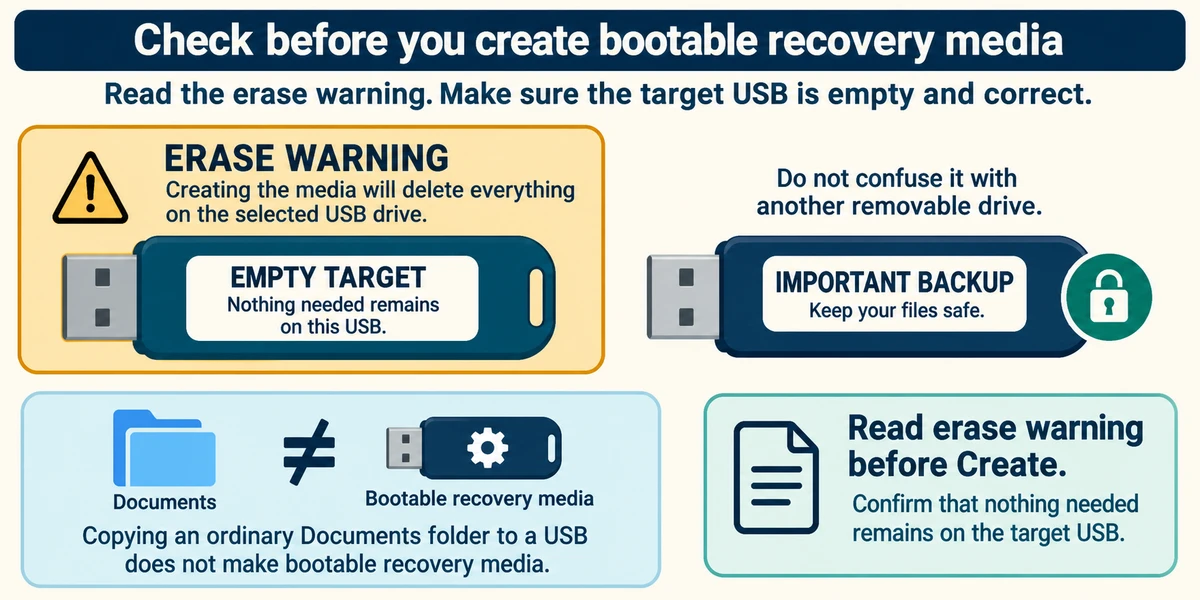
Before selecting a drive and Create, read the erase warning and confirm that nothing needed remains on the target USB. Avoid confusing it with another removable drive. Copying an ordinary Documents folder to a USB does not make bootable recovery media.
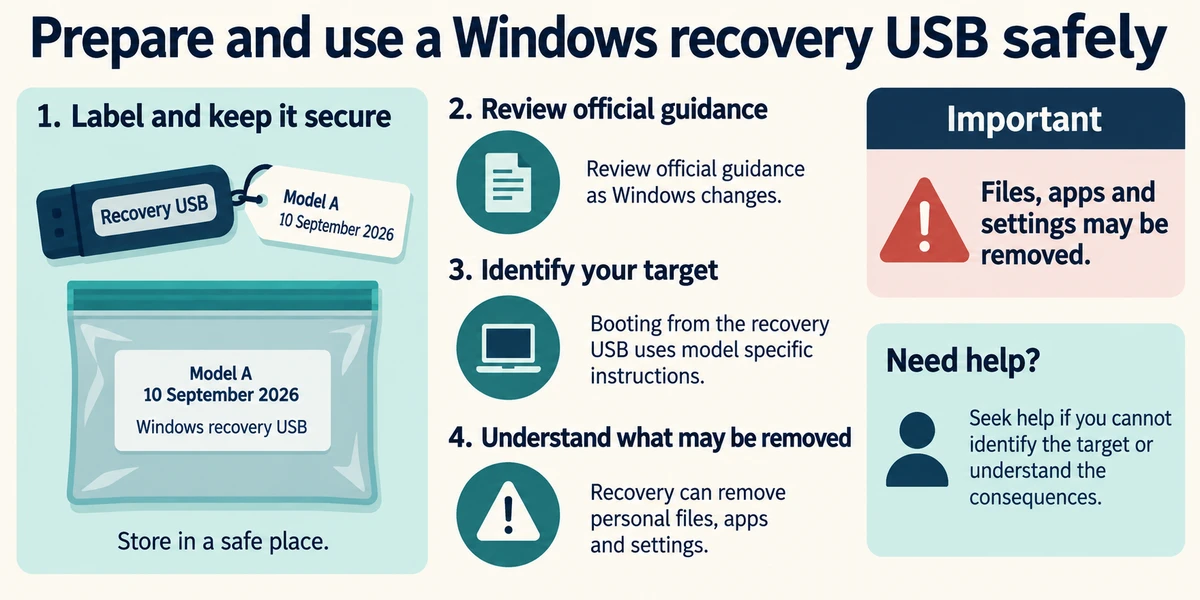
Label prepared media with its device and date and keep it secure. Review official guidance as Windows changes. Booting from it uses model-specific instructions and recovery can remove personal files, apps and settings. Seek help if you cannot identify the target or consequences.
A recovery USB is ready. What still needs protection?
Personal documents and photos through a separate backup.
Check what you understand
In guided learning, click Start 3 questions to receive a selection from this lesson. Click the circle beside an answer, then click Check answer. Read the feedback and try again if needed. Click Next question after each correct answer. Answer all 3 correctly to continue.
Returning to guided learning keeps the questions and answers in your current attempt.
Read all 3 questions and explanations
The selected USB has the only copy of a video. What should happen?
Answer: Preserve and verify that video elsewhere before any erase step.
Recovery creation erases the selected USB, including existing personal files. Choosing to include system files does not protect a video already on that drive.
You copy Documents to a blank USB. What have you made?
Answer: A file copy, not automatically bootable recovery media.
Ordinary file copying and preparing startup recovery media have different purposes and processes.
Recovery media comes from another model. What can you assume?
Answer: Compatibility needs checking against official device guidance.
The connector and date do not establish recovery contents or model compatibility.
Take this to your computer
- 1
Read Microsoft’s Recovery Drive guidance and your device’s recovery instructions. Note the intended device and the separate location protecting personal files.
- 2
Do not create or boot from recovery media for this exercise. Check that a prospective USB is not the only copy of anything important before any later creation.
The lesson uses fictional examples. Optional checks on your computer can be observational. Settings and available features vary by model and Windows version.
Prefer a more personal, one-to-one lesson? Basic Computing can help. Explore our services.