Spot scam emails
Spot scam emails
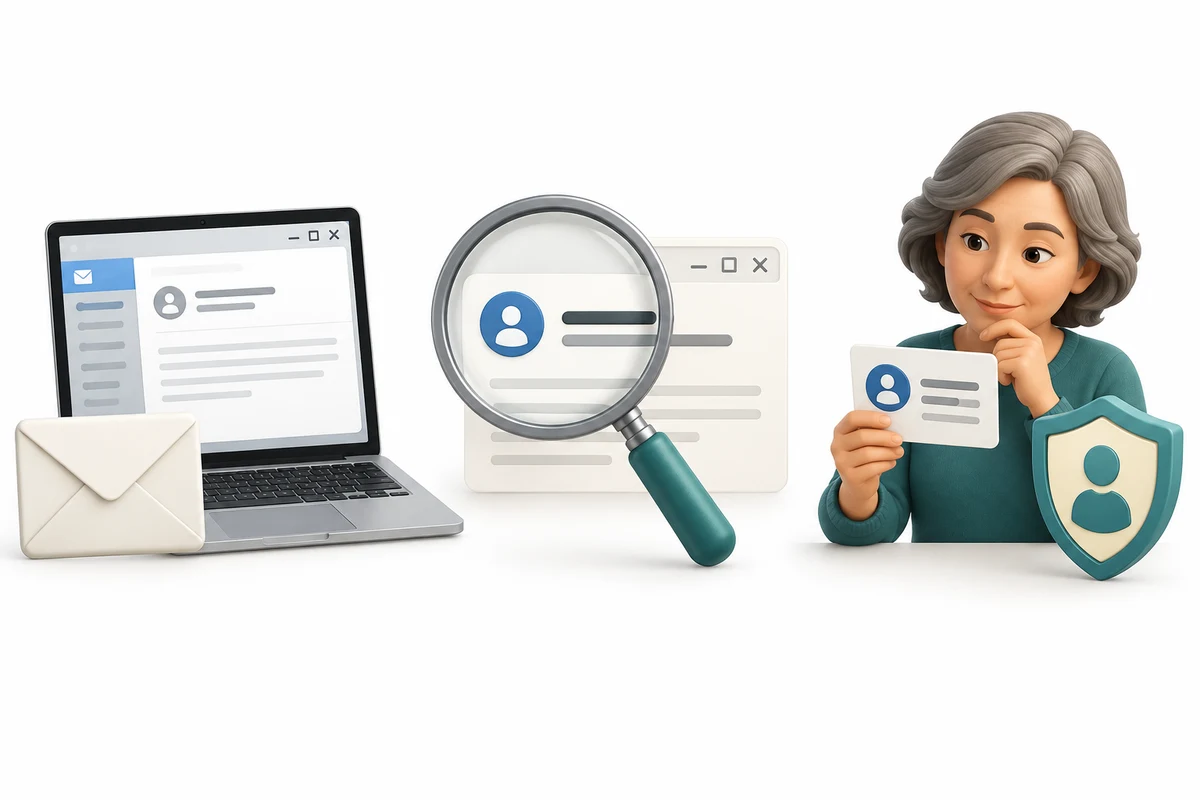
You are going to examine eight fictional emails, consider their clues and answer three quick-check questions.
Explain what phishing tries to make you do. Weigh a message’s context and clues without treating them as proof. Choose an independent way to check an uncertain request.
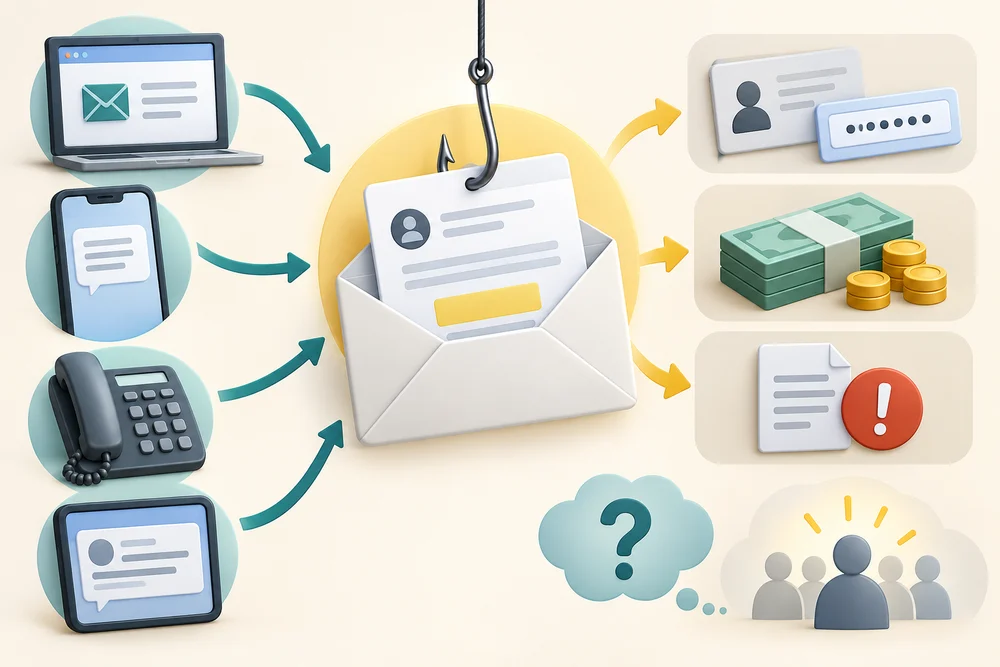
Phishing is a trick that uses a message to make you reveal information, send money or open something harmful. An email may pretend to come from a shop, a delivery company or someone you know. The same trick can arrive by text, phone or social media. Being unsure does not mean you have failed: convincing scams can fool experienced people too.
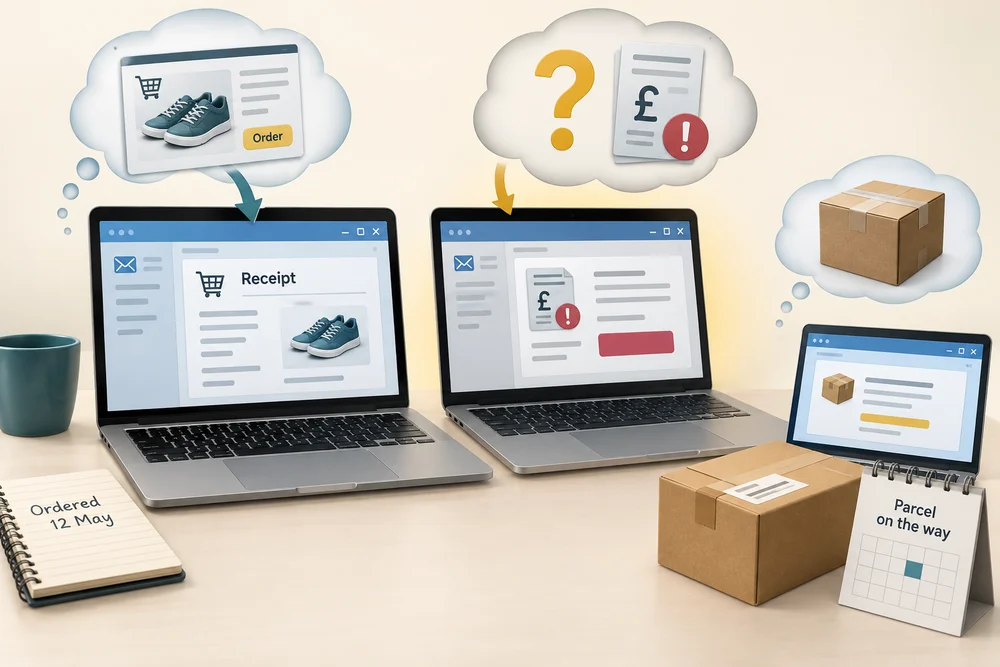
Begin with the situation. Were you expecting this message? Does its request fit something you actually did? A receipt after an order is different from a demand for a surprise payment. However, expecting a parcel does not prove a delivery email is genuine. A scam can arrive at a convincing moment by chance.
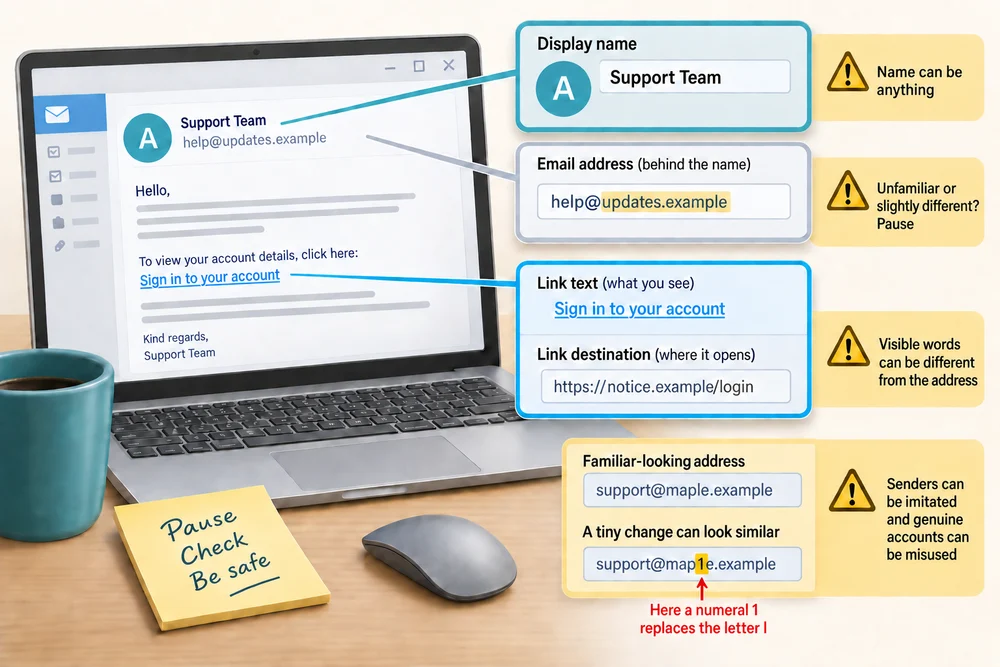
A sender’s display name is the label shown beside the message. The email address behind it can be different. A link’s visible words can also differ from its destination, the address it would open. An unfamiliar address or a small spelling change is a reason to pause. A familiar-looking address is only one clue: senders can be imitated and genuine accounts can be misused.
A logo, tidy design, correct spelling or your own name cannot prove who sent a message. A padlock or HTTPS means the website connection is encrypted, not that the person running the site is honest. Do not open a link just to see whether it looks professional. A QR code can lead to a website too, so scanning one in a doubtful email is not a safer shortcut.

Notice pressure and unusual requests. A threat to close an account, a surprise refund or a request for your password or a sign-in code deserves a pause. An attachment is a file included with a message. Even a familiar filename is not proof it is safe to open. Check an unexpected attachment with the sender through a separate route first.
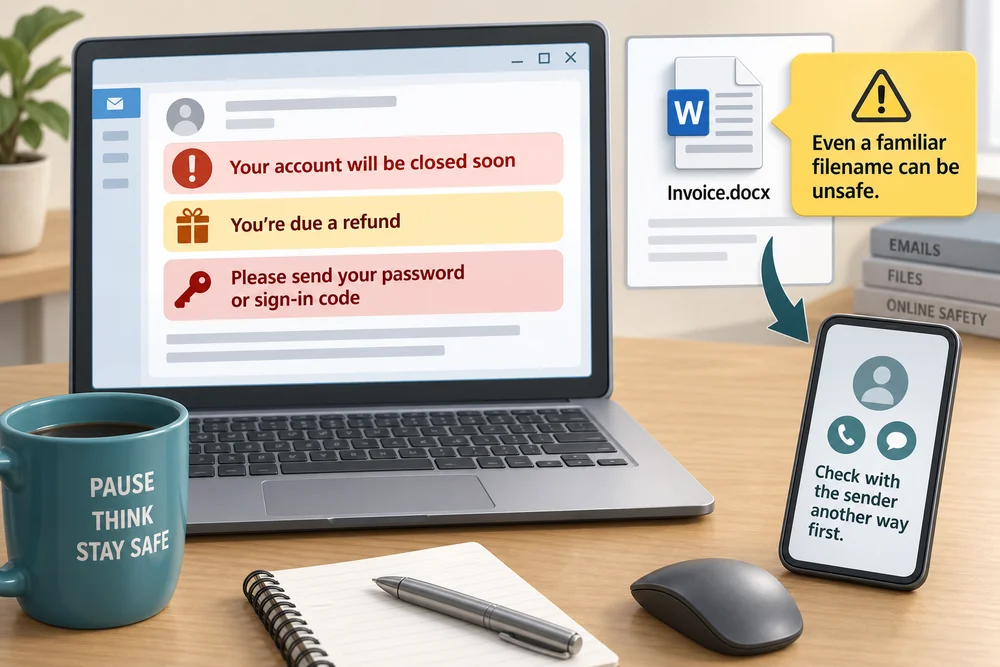
If a message is uncertain, leave its links, attachments and reply button alone. Check through an app you already use, a saved address you trust, or contact details from an existing statement. Do not use a phone number supplied by the doubtful message to verify that same message. If someone you know makes an unusual request, contact them using details you already had.

The eight practice emails are invented. Some are expected messages in their story; others are scams. Two use the same bookshop artwork, so consider their requests and context rather than trusting the picture. Looks expected means the details fit that fictional situation, not permission to trust every similar email. Read the feedback after each choice. In real life you may not be able to decide from the email alone, and an independent check is the useful next step.
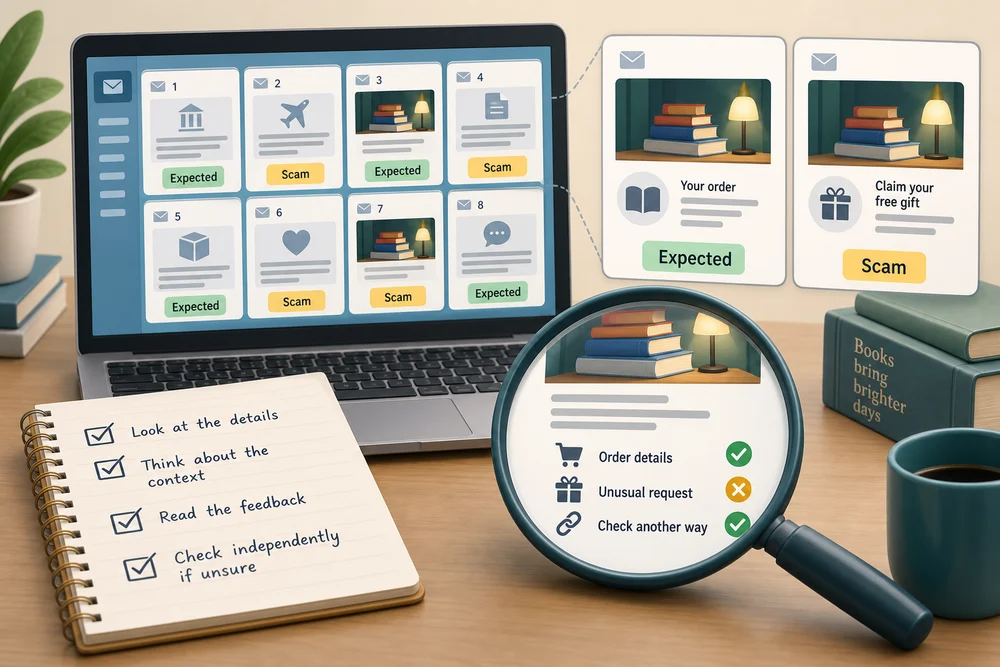
Explore the examples
Explore eight fictional messages and weigh the situation as well as the visible clues. The practice controls reveal sender and link details without opening a website. After choosing, read the explanation before moving to the next email. The separate Quick check comes afterwards.
8 fictional email examples
These are invented scenarios, not real messages or working links. Appearance alone cannot prove that a real message is safe.
1. Your library books are due on Friday
What you know: You borrowed two books from Willow Library. Its usual website is willow-library.example, and you asked for return reminders.
From: Willow Library, loans@willow-library.example
Hello Alex,
The two books on your account are due back this Friday. You can return them at your usual branch or review your loans through your library account.
Thank you for using Willow Library.
Link wording: Review my loans
Shown destination: willow-library.example/account/loans
This example is an expected library reminder.
- The message fits something you did and a reminder you requested.
- The shown address and destination match the library named in the scenario. That is supporting context, not proof that a real message is safe.
- It does not ask you to send a password or make an unexpected payment.
Next action: If you want to review your loans, open the library through your saved bookmark or the address you already know. You do not need the message’s link.
2. Delivery update: address confirmation required
What you know: You are not expecting a parcel. You have previously used a delivery company whose website is meadow-parcels.example.
From: Meadow Parcels, dispatch@meadow-delivery-notice.example
Dear customer,
Your parcel is waiting at our local depot. Please confirm your address and pay the £1.80 redelivery charge today so we can keep your delivery slot.
Our secure form accepts your payment card details. Thank you for your prompt attention.
Link wording: Confirm redelivery
Shown destination: meadow-redelivery.example/confirm
This example is a scam seeking payment-card details.
- The parcel and payment request are unexpected.
- The sender and destination differ from the company’s known address in the scenario.
- Professional wording and a small fee can still be used to pressure someone into entering details.
Next action: Do not pay through the message. If you think a parcel may exist, check the delivery service using its known app or website independently.
3. The account reset you requested
What you know: You are already on meadow-club.example and have just requested a password reset for your club account.
From: Meadow Club accounts, accounts@meadow-club.example
Hello Alex,
We received your request to reset your Meadow Club password. You can return to the account page you opened to continue the reset process.
If you did not request this, leave your password unchanged and contact the club using your usual route.
Link wording: Account help
Shown destination: meadow-club.example/account/help
This example follows the reset request described in the scenario.
- The timing and purpose match an action you just took.
- It directs you back to the account process already open, rather than asking you to reply with a password.
- A reset message you did not request would need a different response. The same appearance would not make it expected.
Next action: Continue through the genuine account page you already opened. Never reply with your password or share a sign-in code with another person.
4. Could you help me with something today?
What you know: Your friend Jamie normally emails from jamie@friends.example. You have not discussed buying gift cards or lending Jamie money.
From: Jamie, jamie@friends.example
Hi Alex,
I am stuck in a meeting and need a favour. Could you buy £100 of gift cards and send me the codes? I will pay you back this evening.
Please keep this between us for now. I cannot take a call, so reply here when you have them.
Link wording: Gift card instructions
Shown destination: gift-card-request.example/instructions
In this fictional case, someone has taken over Jamie’s email account.
- The sender address is familiar, but a familiar account can be misused.
- The unexpected request combines gift-card codes, secrecy and pressure to avoid a call.
- There are no spelling mistakes to rely on. The unusual request matters more than polished wording.
Next action: Contact Jamie through a number or another method you already know. Do not use contact details supplied in this message or send gift-card codes.
5. Order H204 has been dispatched
What you know: Yesterday you ordered a notebook from Harbour Stationery at harbour-stationery.example. Your order confirmation showed order H204.
From: Harbour Stationery orders, orders@harbour-stationery.example
Hello Alex,
Your notebook order H204 has left our warehouse. The delivery estimate remains three working days. There is nothing further to pay.
You can check the same order in your account on our website.
Link wording: View order H204
Shown destination: harbour-stationery.example/orders/H204
This example is the expected update for your order.
- The product, order reference and timing match your recent purchase.
- There is no new demand for payment or secret information.
- Even correct-looking details could appear in a real scam, so they are not a guarantee on their own.
Next action: If you need to check progress, open the shop using the address or bookmark you already trust and find the order there.
6. Your repair invoice and updated payment details
What you know: You expect an invoice from a local repair business, Brook Repairs. Its known website is brook-repairs.example. It has not previously told you about a change of bank account.
From: Brook Repairs accounts, accounts@brook-repairs-billing.example
Hello Alex,
Thank you for using Brook Repairs. Please use our new bank details for this invoice. Payment is required today to avoid an administration charge.
The invoice page includes the new account number. Please use only those details rather than a saved payment record.
Link wording: Review invoice and bank details
Shown destination: brook-repairs-billing.example/invoice
This example is a scam trying to redirect a payment.
- An invoice may be expected, but that does not verify new payment details.
- The similar-looking address is not the known address from the scenario.
- The deadline encourages you to act before independently checking the change.
Next action: Verify any change of payment details with the business through a contact route you already have, such as the number on an earlier trusted document.
7. A reminder for Thursday’s reading evening
What you know: You booked a free reading event at Willow Books through willow-books.example. Your confirmation says Thursday at 6 pm, booking W318.
From: Willow Books events, events@willow-books.example
Hello Alex,
We look forward to welcoming you to our reading evening on Thursday at 6 pm. Your free place is confirmed under booking W318. Please arrive a few minutes early so we can show you to your seat.
There is nothing to pay. You can find the same event information in your booking account.
This message uses the bookshop reading-table picture also used in another example. The same illustration appears in an expected message and a scam.
Link wording: Reading evening information
Shown destination: willow-books.example/events/reading-evening
This example is the expected reminder for your free booking.
- The event, time and booking reference match the confirmation you already have.
- It does not introduce a payment or ask for a secret.
- The bookshop picture makes the email attractive, but an image can be copied. It is not evidence of who sent the message.
Next action: Use the booking confirmation or open the bookshop through its known website if you need to check the arrangements.
8. Please complete your reading-evening reservation
What you know: You booked the same free Willow Books reading event through willow-books.example. Your original confirmation says your place is confirmed and there is no charge.
From: Willow Books events, reservations@willow-event-booking.example
Hello Alex,
We are finalising the seating plan for Thursday’s reading evening. Please complete the £2 reservation payment today to keep your place. Our booking page will ask for your payment-card details.
Thank you for helping us prepare a comfortable evening for everyone.
This message uses the bookshop reading-table picture also used in another example. The same illustration appears in an expected message and a scam.
Link wording: Complete my reservation
Shown destination: willow-event-booking.example/reservation
This example is a scam using copied event artwork to request payment.
- The new payment contradicts the free, confirmed booking described in the situation.
- The sender and destination differ from the bookshop’s known website.
- It uses the same picture as the expected event reminder. Copied artwork and polished wording do not establish that the message is genuine.
Next action: Do not enter card details through the message. Check with the bookshop through its known website or contact details from your original booking.
Check your understanding
Click Start 3 questions to begin. Click the circle beside your answer, then Check answer. After each of the first two correct answers, click Next question. When all three are correct, click Continue below. You can change a wrong answer and check again. With a keyboard, Tab reaches choices, arrow keys choose an answer, and Tab then Enter activates a button.
In guided learning, click Start 3 questions to receive a selection from this lesson. Click the circle beside an answer, then click Check answer. Read the feedback and try again if needed. Click Next question after each correct answer. Answer all 3 correctly to continue.
Returning to guided learning keeps the questions and answers in your current attempt.
Read all 10 questions and explanations
A message leads to a false sign-in page imitating a company. What is the main risk of entering the requested details?
Answer: Someone else could collect the details and try to enter your account.
Yes. Phishing can use a false sign-in page to collect account details. A familiar company name does not make that page genuine.
An account warning has a familiar logo and carefully written sentences. What can you conclude from those features?
Answer: They do not establish who really sent the warning.
Yes. Scammers can copy branding and write convincingly. Appearance alone cannot establish the sender or the safety of an attachment.
You ordered a parcel yesterday and receive a message asking for an extra delivery payment. What is the best next step?
Answer: Check the order through the shop or delivery route you already use.
Yes. Timing is useful context, but scams can coincide with real orders. Check independently before paying or sharing information.
A message carries your friend’s name but asks for an unusual urgent money transfer. Which check is most useful?
Answer: Contact your friend using a number you already had.
Yes. A known contact route is separate from the questionable message. A familiar name or signature can be copied, and an account can be misused.
The full sender address differs slightly from the organisation’s usual address. How should that affect your decision?
Answer: Treat it as a reason to pause and verify independently.
Yes. A mismatch is a useful warning clue. Verify through contact details you already trust, not details supplied by the message itself.
A sign-in page uses HTTPS and shows a connection padlock. What does that tell you?
Answer: The connection is encrypted, but the site could still be dishonest.
Yes. Encryption protects information in transit. It does not establish that a website’s operator or request is trustworthy.
An unexpected message includes a file called Invoice.pdf. How should you handle it?
Answer: Confirm the reason for the file through a separate known contact route.
Yes. The filename does not prove what is inside or who sent it. Check an unexpected attachment before opening it.
An email threatens to close your account within an hour unless you give a sign-in code. Which response fits?
Answer: Pause and check the account using its usual app or trusted address.
Yes. Pressure is a reason to stop and check, not to surrender a sign-in code. Use a route independent of the message.
A doubtful email offers a QR code instead of a button. How should you treat it?
Answer: As another route to a destination that needs the same caution.
Yes. A QR code can open a website, including a scam site. It does not remove the need to check the message.
A practice message fits the story and has no obvious warning signs. What does that teach about real messages?
Answer: Context helps, but uncertain requests still need an independent check.
Yes. The practice has an authored answer. In real life, clues do not provide certainty about every message.
Connect the idea to everyday use
These observations are optional. You can finish with the lesson examples. No real message, installation, password entry or settings change is required.
- 1
You can finish entirely with the fictional inbox. To revisit one example, click Learn at the top of this lesson, then click Start emails again in the practice area. This resets only the teaching examples.
- 2
For an optional real-world observation, look at contact details on a statement or document you already know is genuine. Notice how you could reach that organisation without following a new email. You do not need to call, send a message or open a link.
- 3
If a real message has worried you, ask a trusted person to help you check it through that independent route. If you have already shared account or payment details, use the provider’s known support route promptly. The exercise does not require finding or opening a suspicious message.
If your screen differs or you prefer not to use a real account, stay with the fictional examples. Nothing needs to be sent, bought, installed or revealed.
Prefer a more personal, one-to-one lesson? Basic Computing can help. Explore our services.