Find records with sorting and filtering
Change the view, keep the relationships
Choose a way to inspect a category without deleting other records.
Sort complete records and clear filters without confusing hidden rows with deleted data.
Sorting changes the order of records; filtering temporarily shows only records that meet a condition. Both help you inspect a list. The important safeguard is keeping every row’s related details together, even when the view looks very different.

Work with the whole table
How this works

Use a practice Excel list with one heading row and no unrelated notes inside it. Click a cell in the list, then Insert and Table. Check that the selected range covers every column and row, tick My table has headers when your first row is headings, and click OK. A table gives its headings filter arrows.
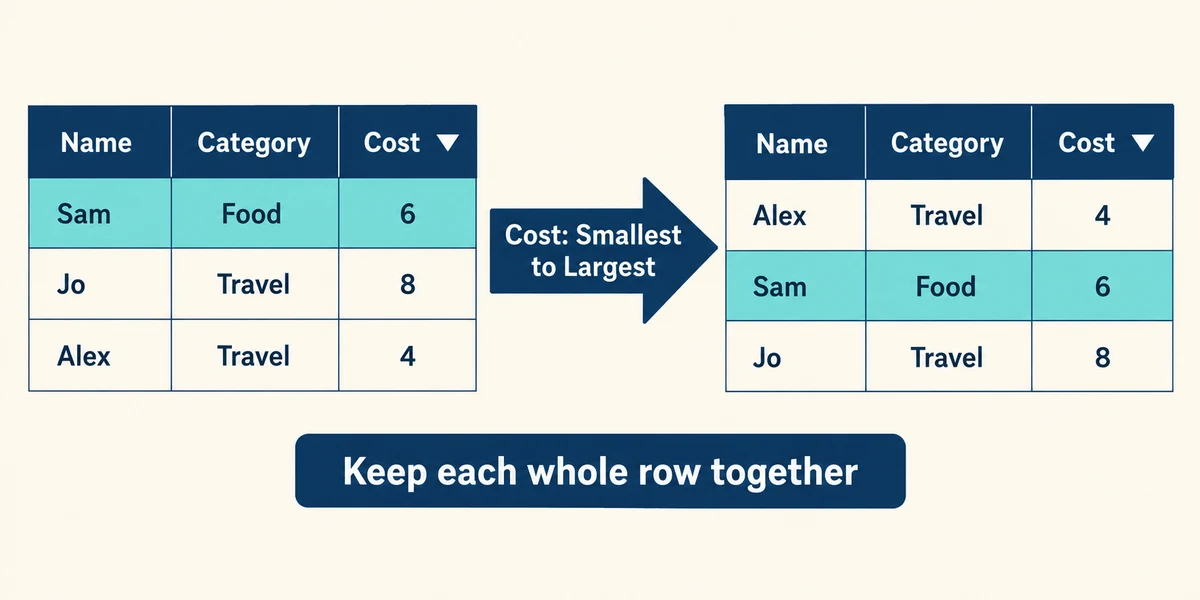
Click the arrow beside the heading you want to sort, such as Cost, and choose the required order. Read whether numbers are smallest to largest or largest to smallest. Check a known row afterwards: its name, category and amount should still match. Sorting only a detached column can scramble those relationships.
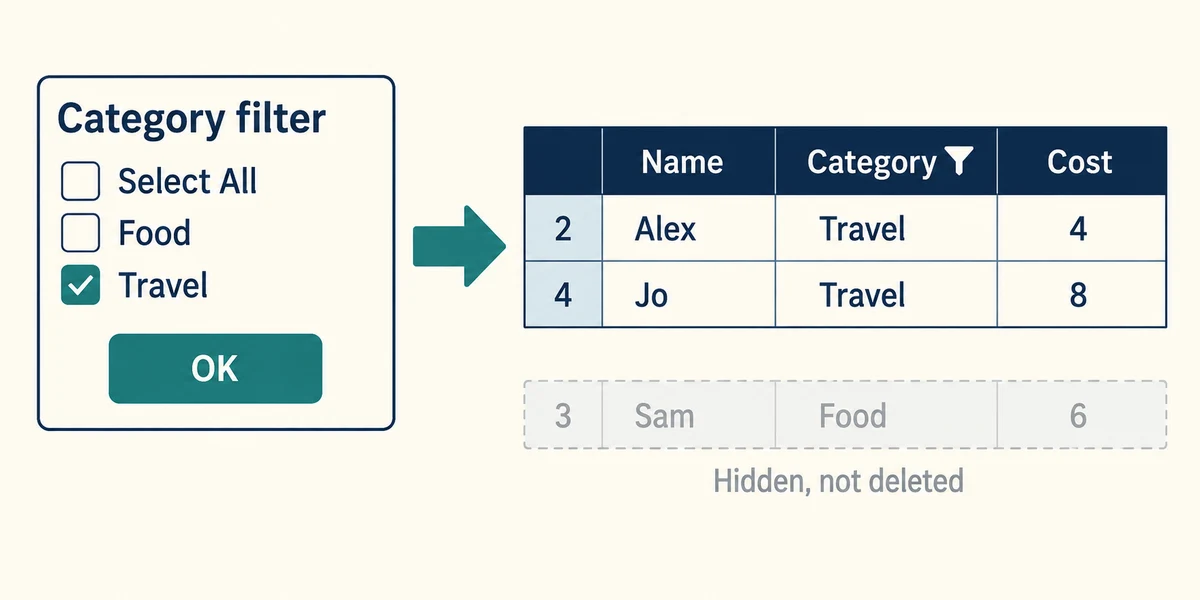
To show one category, click its heading arrow, clear Select All, then tick the wanted category and click OK. Other rows are hidden from this view, not deleted. A filter symbol and gaps in row numbers can help indicate a reduced view. Several filters together can hide more than you expected.
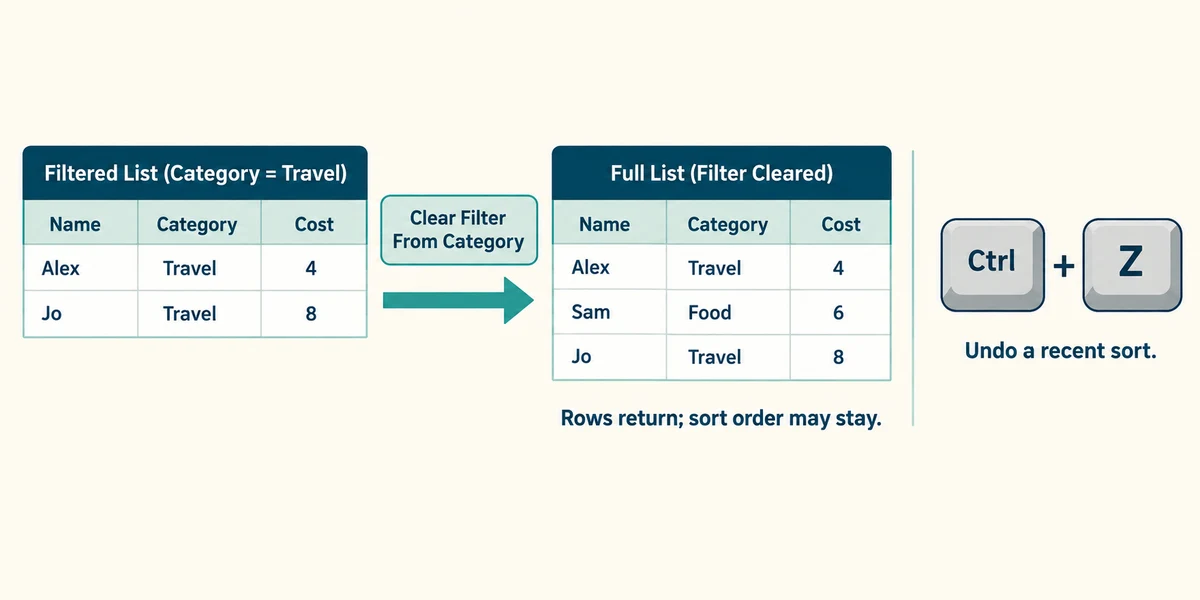
To restore the full list, open the filtered heading’s menu and choose Clear Filter From that column, or select all values again. Clearing a filter does not necessarily undo a previous sort. To undo a recent sort, hold Ctrl, press Z, then release both keys; do not assume the original order is permanently stored.
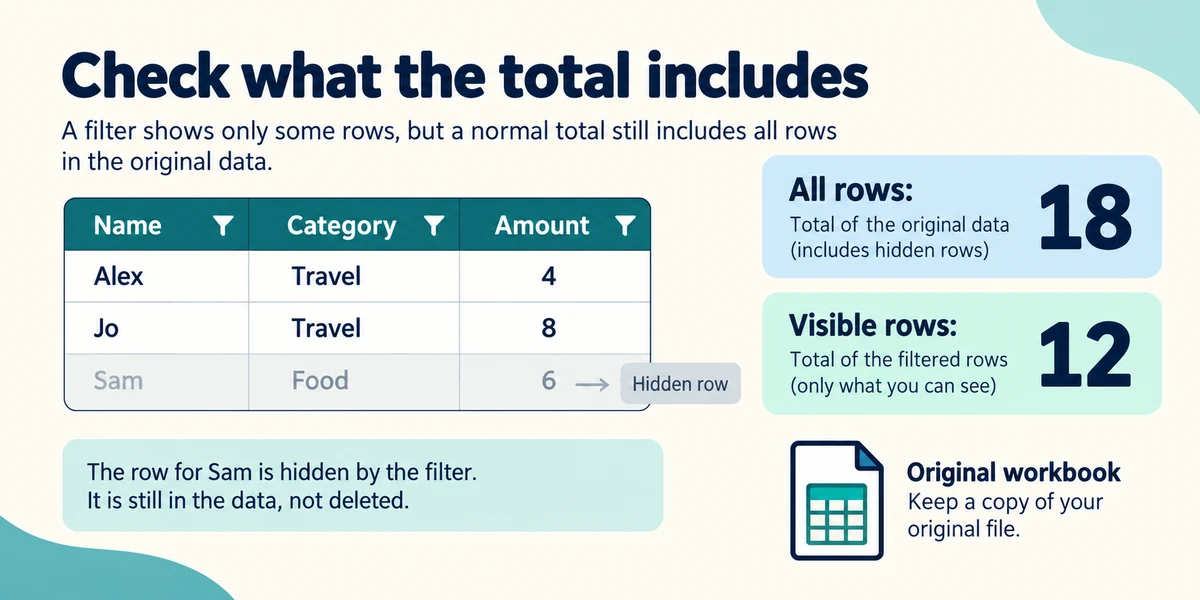
Check the meaning of any total beside a filtered list. A normal SUM can still include filtered-out rows; a suitable table Total Row may use a calculation for visible rows. Do not infer the total’s scope just from what happens to be visible. Keep a separate original before experimenting with a valuable list.
A small spreadsheet example
Notebooks (£12) and pens (£5) are stationery. Tea (£8) is refreshments. Sorting by cost keeps each whole record together. Filtering to stationery shows two rows and hides tea; clearing the filter brings it back.
You want to view only travel expenses without losing the other categories. What fits?
Filter the category column and later clear that filter.
Check what you understand
In guided learning, click Start 3 questions to receive a selection from this lesson. Click the circle beside an answer, then click Check answer. Read the feedback and try again if needed. Click Next question after each correct answer. Answer all 3 correctly to continue.
Returning to guided learning keeps the questions and answers in your current attempt.
Read all 3 questions and explanations
After sorting, one person’s amount is now beside someone else’s name. What likely went wrong?
Answer: Only part of the records was sorted instead of the whole table.
Sorting detached columns can break row relationships.
Clearing a filter reveals all rows, but their order is still different. Why?
Answer: Clearing a filter does not undo an earlier sort.
Filtering and sorting are separate operations.
Only two rows are visible, but a nearby SUM still includes more costs. What should you inspect?
Answer: The formula’s scope and whether it includes filtered-out rows.
A standard SUM can include hidden filtered rows.
Take this to your computer
- 1
Create a fictional table, sort its cost column and verify that each name still has the right amount.
- 2
Filter one category, then clear the filter and confirm that all records return.
Use fictional practice information. These explanations and decisions do not change your real files. Desktop Microsoft 365 controls are used where named; web editions and other versions can differ. No purchase or account is needed to complete this lesson.
Prefer a more personal, one-to-one lesson? Basic Computing can help. Explore our services.