Create and switch virtual desktops: Windows + Ctrl + D
When this helps
Read the idea, learn the key combination and answer a question about when it would help.
Know when and how to create and switch virtual desktops.
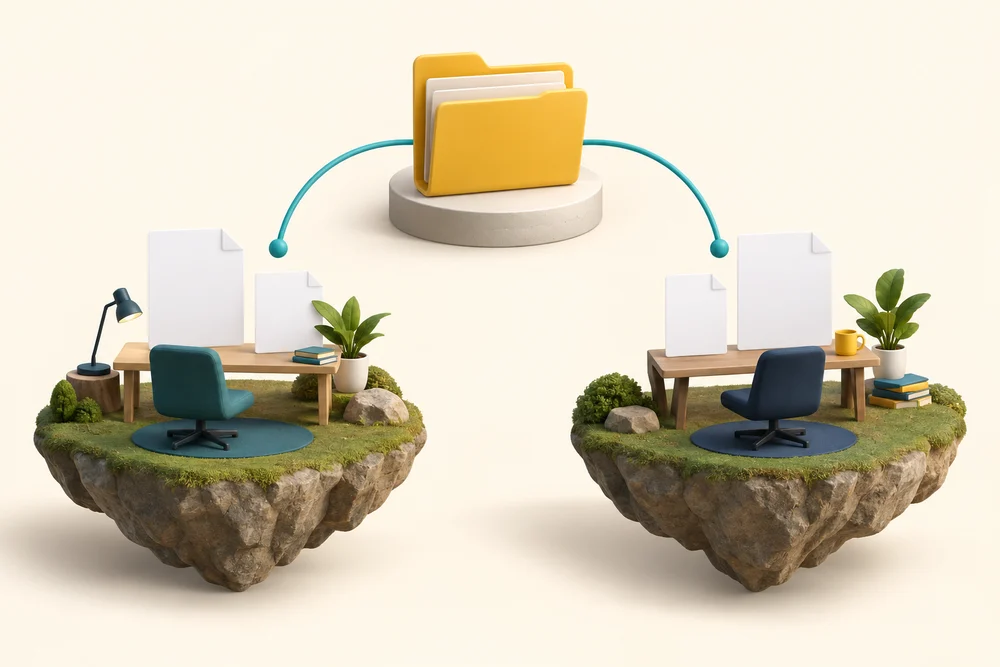
Virtual desktops let you group open windows into separate workspaces. They share the same computer, files and account.
The keys and what happens
Where it works Windows 11
Key names are shown separately, not as a keyboard layout. A + between key boxes means combine them. A box named Plus means the actual Plus key. Follow the steps below for alternatives.
How to use it
Hold Windows and Ctrl, press D, then release all three to create another desktop. To switch, hold Windows and Ctrl and press Left or Right arrow, then release. Hold Windows, press Tab and release both to open Task View, then click the desktop you want once.
What to watch for
To close the current virtual desktop, hold Windows and Ctrl, press F4, then release all three. Its windows move to another desktop. It does not delete files or create a separate private account. A new desktop is different from a new folder.
You can learn this shortcut without pressing it here. The real keys act on your computer or the app you are using.
When would you use it?
You want one workspace for planning and another for messages, using the same files and account. Which use fits?
Group the windows into virtual desktops.
Prefer a more personal, one-to-one lesson? Basic Computing can help. Explore our services.