Choose what personal information to share
Useful information has an intended audience
Decide whether an optional request needs your information.
Check purpose, recipient and visibility before sharing personal details.
Names, contact details, photographs and account information can reveal things about you or someone else. Sometimes sharing is needed to complete a real task. The useful habit is to check who will receive the information, why they need it and how much the task actually requires.

Check purpose and visibility
How this works
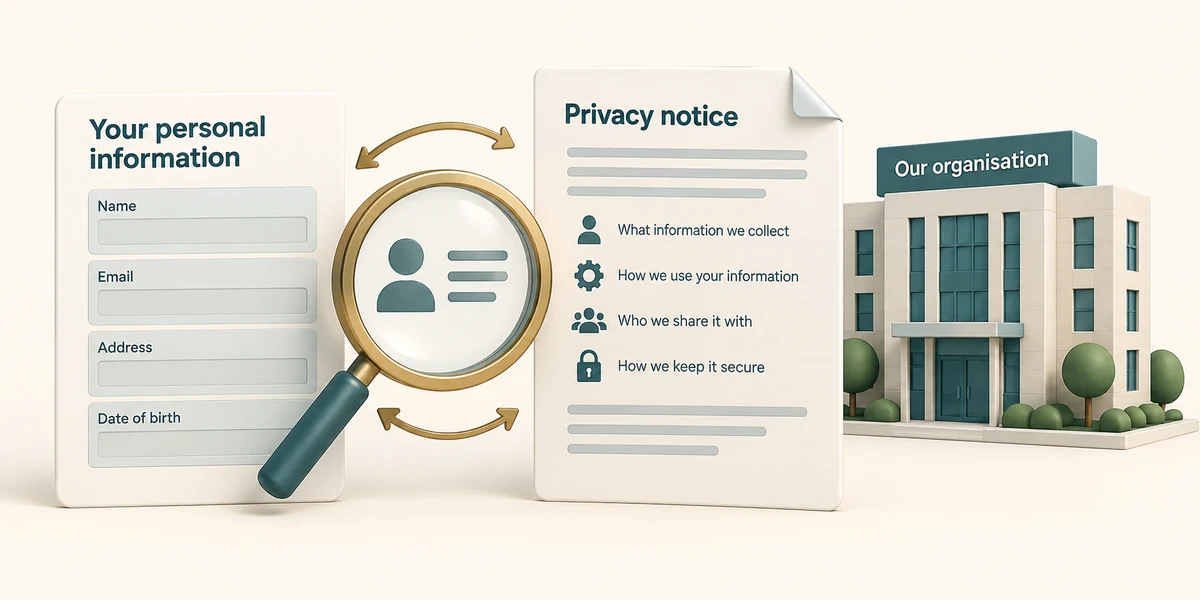
Before filling a form, read who is collecting the information and what it is for. A privacy notice should explain the organisation's intended use and sharing. Look for a Privacy or Privacy notice link near the form or at the bottom of the page and click it once if you need to read more. Its existence alone does not prove the site is genuine.
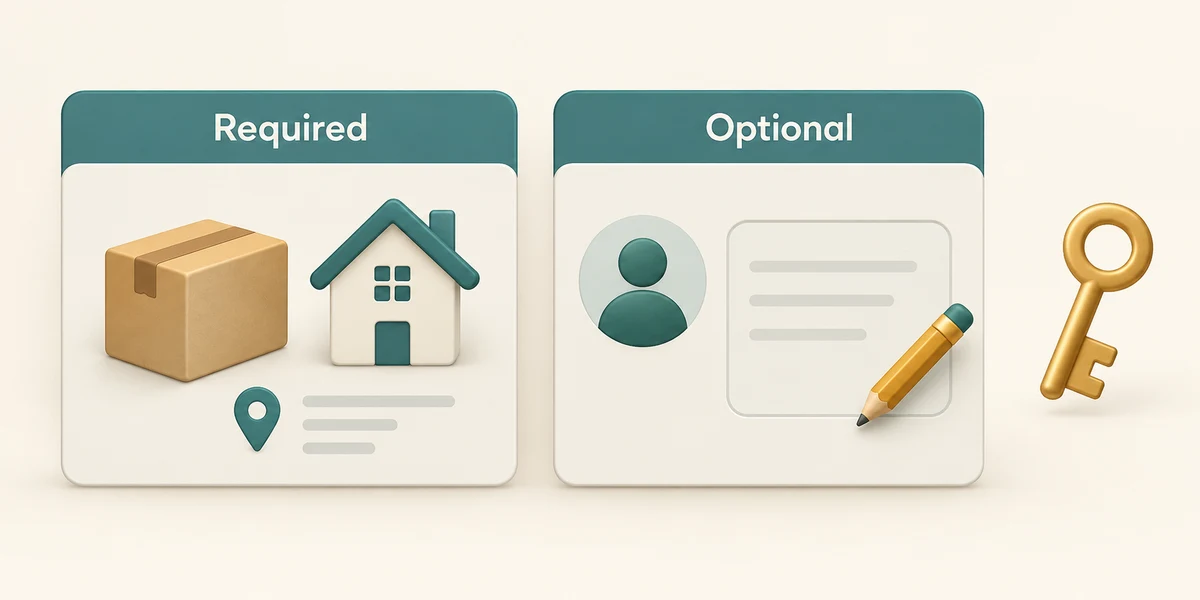
Read required and optional fields separately. A delivery address may be relevant to a posted order, while an optional profile biography may not be needed. If a request seems unrelated or unusually sensitive, pause and ask the organisation through its known route. Do not supply a password or sign-in code as ordinary profile information.
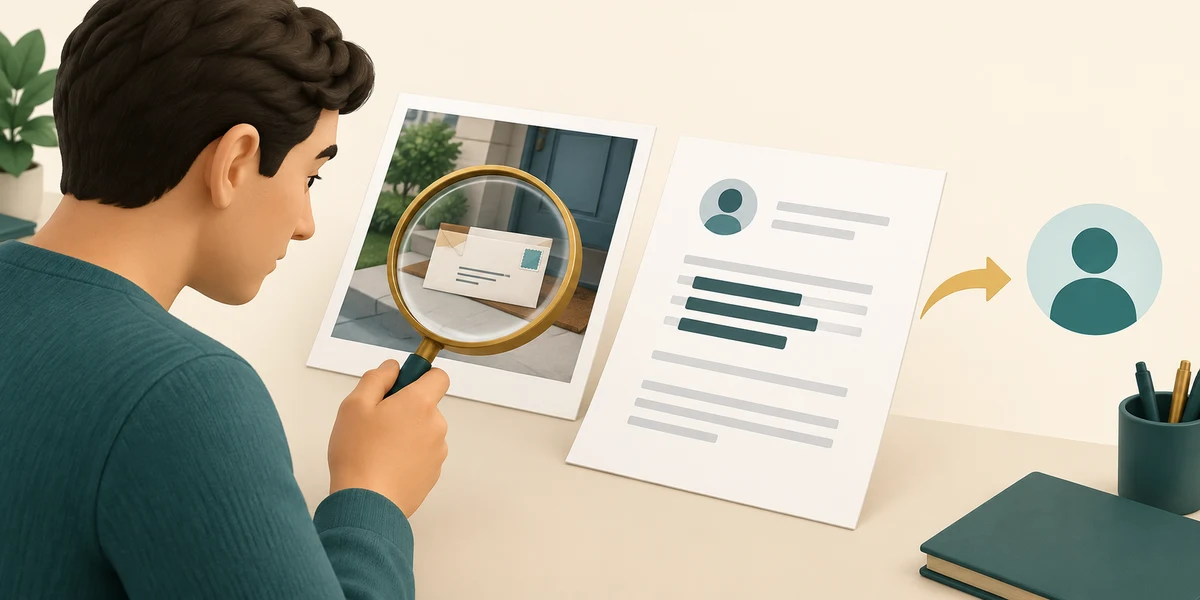
Before sharing a photograph, document or screenshot, inspect the contents for other people's details, addresses, account information or private background material. Use only what the recipient needs. A private message can still be forwarded or captured, so audience settings reduce exposure without guaranteeing secrecy. On social media, a familiar name and photograph do not prove who is writing: accounts can be copied or taken over. If a friend unexpectedly asks for money or a code, contact them another way using details you already trust before acting.
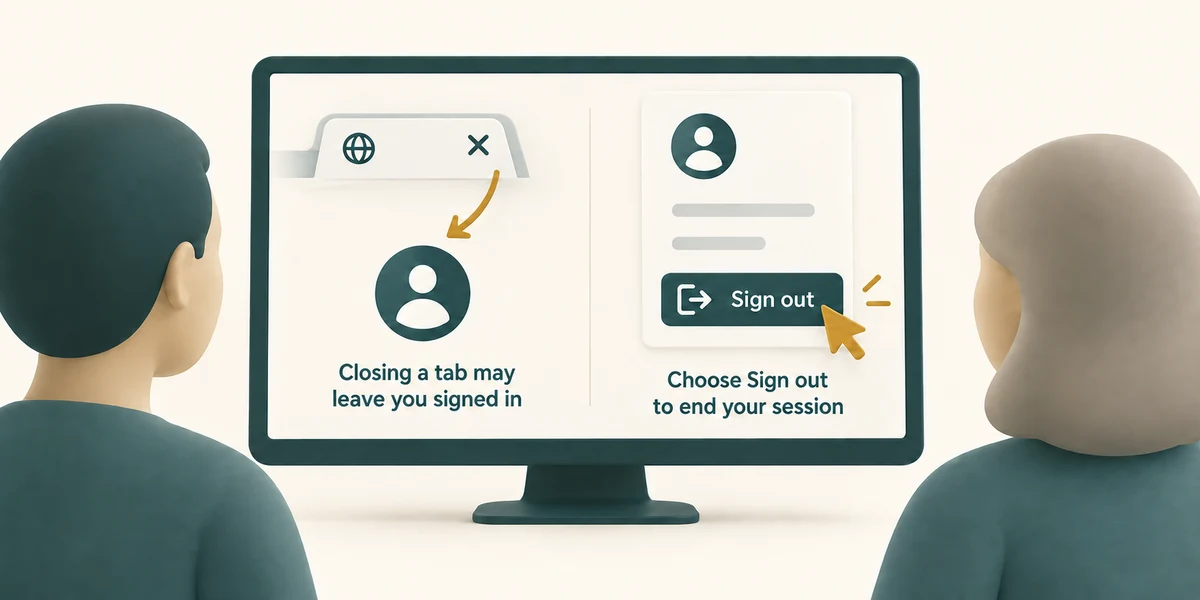
On a shared computer, do not save a password into the browser. When finished with an account, click its labelled Sign out or Log out control. Closing one tab does not necessarily sign the account out. Before posting publicly, read the audience label; a group, link or public setting can expose information to different people.
A genuine event form needs your name to reserve a place. It also offers an optional public biography. You do not want one published. What fits?
Complete the needed name field and leave the optional public biography empty.
Check what you understand
In guided learning, click Start 3 questions to receive a selection from this lesson. Click the circle beside an answer, then click Check answer. Read the feedback and try again if needed. Click Next question after each correct answer. Answer all 3 correctly to continue.
Returning to guided learning keeps the questions and answers in your current attempt.
Read all 3 questions and explanations
What is useful to read in a privacy notice?
Answer: Who collects the information and how they intend to use or share it.
A notice explains intended handling. You still check the organisation and understand the limits of sharing.
A helper only needs to see an error beside your account details. Which image fits that need best?
Answer: One showing the error while excluding unrelated private details.
Send the useful error information without unnecessary private contents. More visible information is not always more helpful.
You finish email on a shared computer. Which action addresses account access?
Answer: Use the account's Sign out control and decline password saving.
Signing out and refusing password saving reduce access left behind. Closing a tab may leave a session active.
Take this to your computer
- 1
Use the fictional form decision; do not enter personal details here.
- 2
For a future intended share, review its audience and content before pressing its final send or post control.
This lesson collects no personal information. Real services have different audience controls and privacy terms.
Prefer a more personal, one-to-one lesson? Basic Computing can help. Explore our services.