Begin setting up a new Windows computer
Begin setting up a new Windows computer
Choose what to prepare and which account belongs on a new device.
You can begin setup without confusing the owner’s account, optional services and recovery access.
Initial setup prepares Windows for its owner. It may ask about language, keyboard, network and an account before the familiar desktop appears. The order varies by edition, version and manufacturer. Preparing those details helps you read the choices calmly instead of borrowing an unsuitable account just to get through.
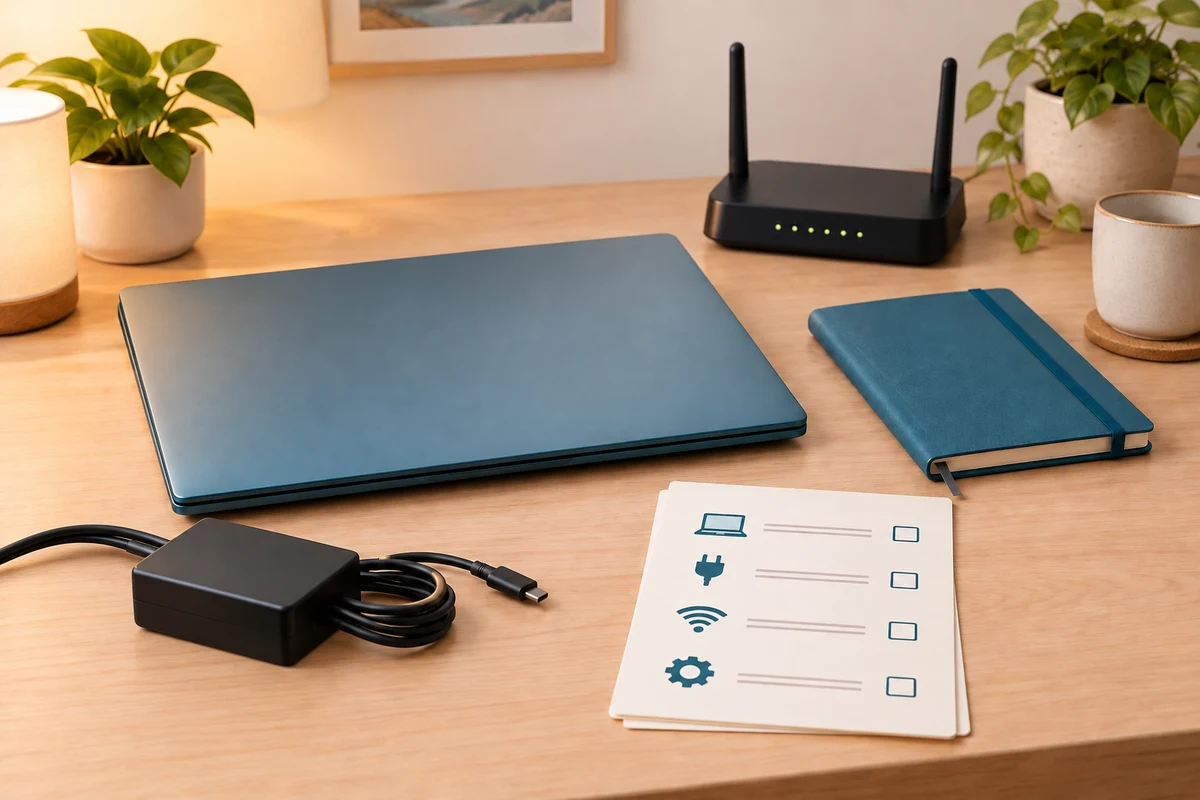
Work through the useful checks
How this works
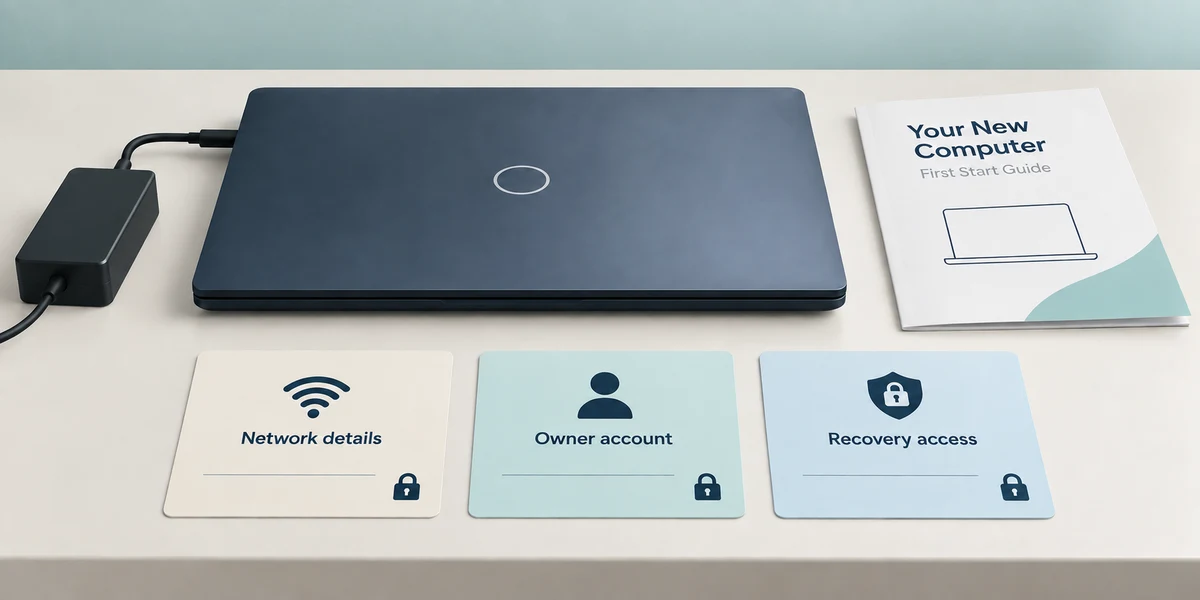
Use the supplied compatible charger and a stable surface. Have the intended network name and password available privately, with the owner’s account and recovery access. Follow the manufacturer’s first-start guide; do not assume every computer begins on the same screen.
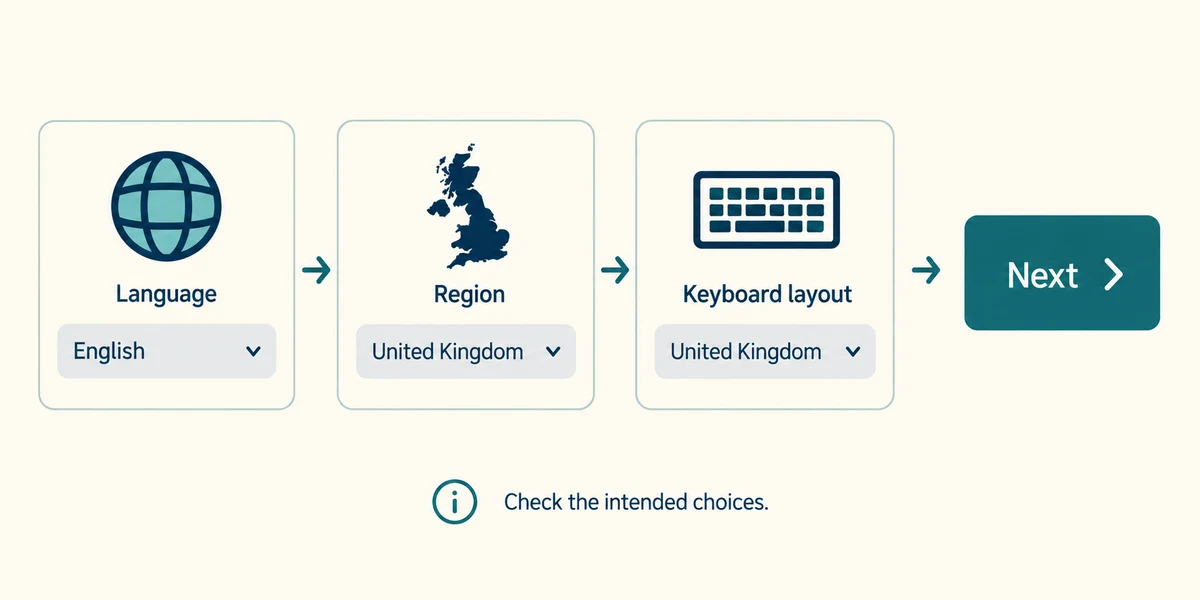
Read language, region and keyboard choices. Click the intended choice once, then the labelled Next or confirmation button. The keyboard layout changes what keys type, so check it if password characters seem unexpected. Do not share passwords in this lesson.
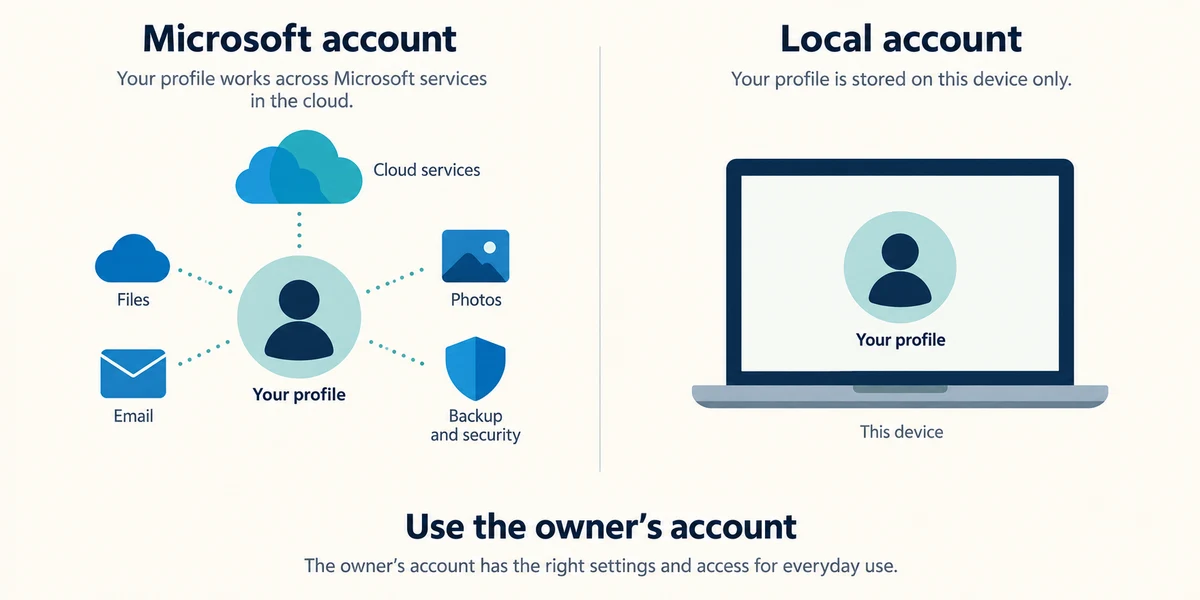
A Microsoft account can be used across Microsoft services. A local account belongs to that device’s Windows sign-in. Setup requirements and available options vary; follow supported instructions for the installed edition. Do not use a helper’s personal account as a substitute for the owner’s or follow bypass commands.
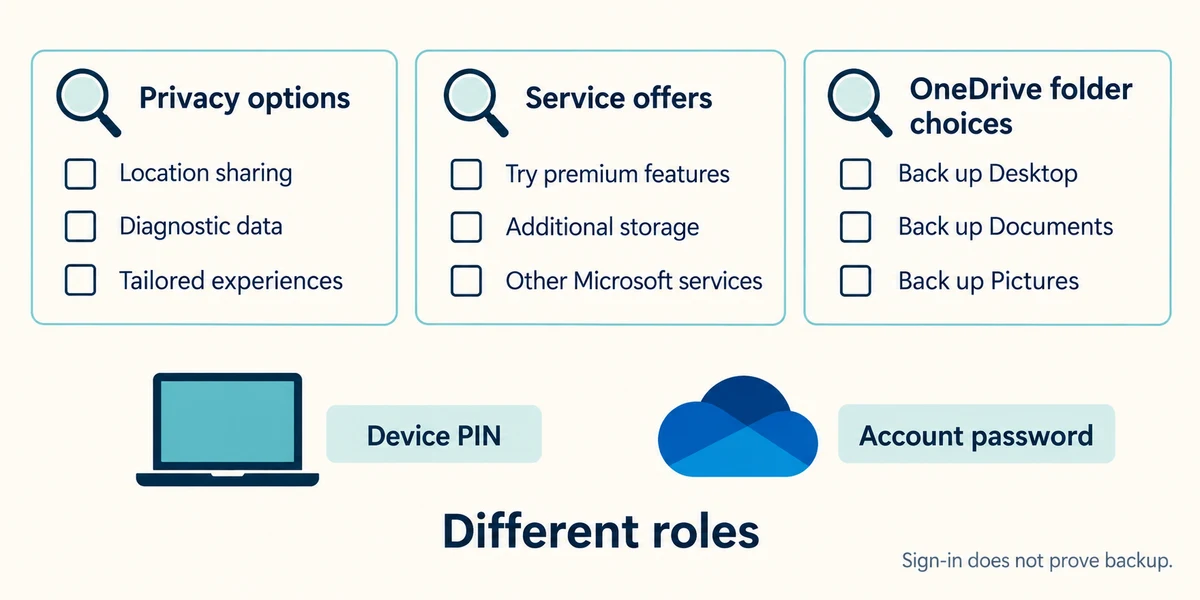
Review optional privacy and service offers individually. Signing in does not mean every file is already backed up, and not every offer is required. Read OneDrive folder choices before accepting them. A device PIN and the online account password have different roles.
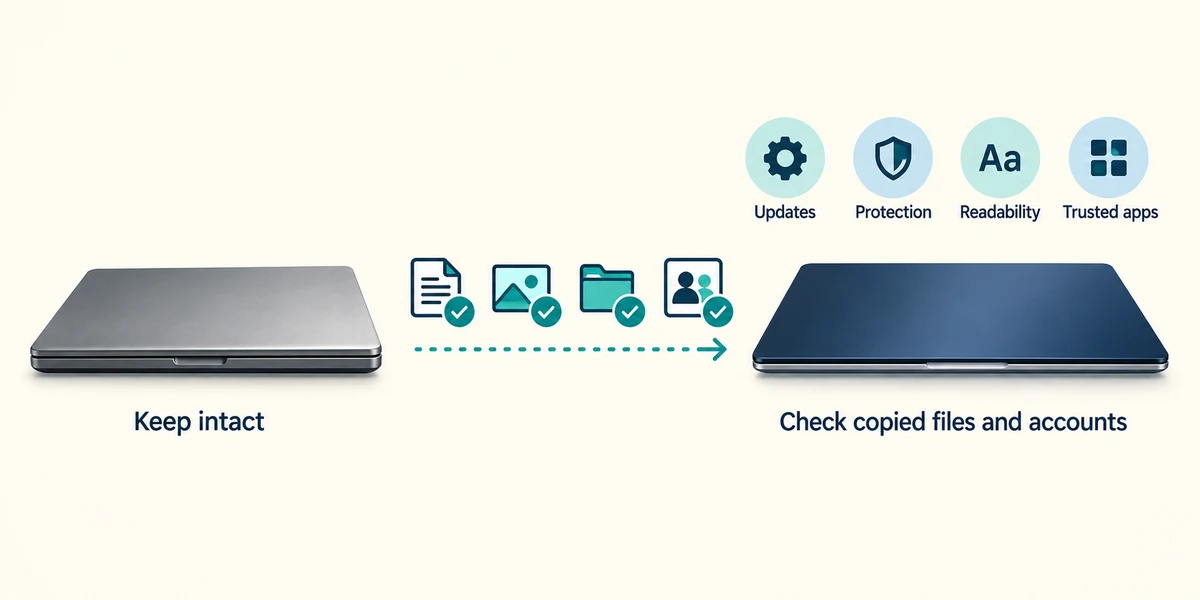
After reaching the desktop, use the shared lessons for updates, protection, readable controls and trusted app installation. Keep the old computer and its files intact until copies on the new device are checked and important accounts work.
A helper offers to use their own Microsoft account to finish your setup. What is the better approach?
Use the intended owner’s supported account and recovery arrangements.
Check what you understand
In guided learning, click Start 3 questions to receive a selection from this lesson. Click the circle beside an answer, then click Check answer. Read the feedback and try again if needed. Click Next question after each correct answer. Answer all 3 correctly to continue.
Returning to guided learning keeps the questions and answers in your current attempt.
Read all 3 questions and explanations
Keys produce unexpected characters in the password box. What should you check before resetting the account?
Answer: The selected keyboard layout.
A different keyboard layout can produce different characters. Check the intended layout before assuming the password itself is wrong.
Setup offers cloud folder protection. What should you read before accepting?
Answer: Which account and folders are included and how syncing behaves.
Understand the account, scope and sync effects. An offer is not proof every file is protected or that a paid plan is required.
The new desktop appears. When should the old computer’s only file copies be removed?
Answer: After migration is checked and a suitable backup and recovery access exist.
Reaching the desktop does not prove files migrated correctly. Verify copies and recovery before retiring the old source.
Take this to your computer
- 1
Prepare a private setup checklist: exact device, compatible power, chosen keyboard layout, confirmed network and owner account access. Do not write passwords into the lesson.
- 2
If your device is already set up, read System and About through Settings to identify its Windows version instead of resetting it. Use the setup checklist for a future device.
The lesson uses fictional examples. Optional checks on your computer can be observational. Settings and available features vary by model and Windows version.
Prefer a more personal, one-to-one lesson? Basic Computing can help. Explore our services.