Find useful information on the web
Give the search a clear starting point
Choose a more useful search for a specific local task.
Refine a search and compare a result with the information you need.
A search engine suggests pages that may answer your question. Useful words describe the subject and any detail that matters, such as a place or date. Results are starting points to examine, not a promise that the first page is correct, current or the organisation you wanted.

Search, read and refine
How this works
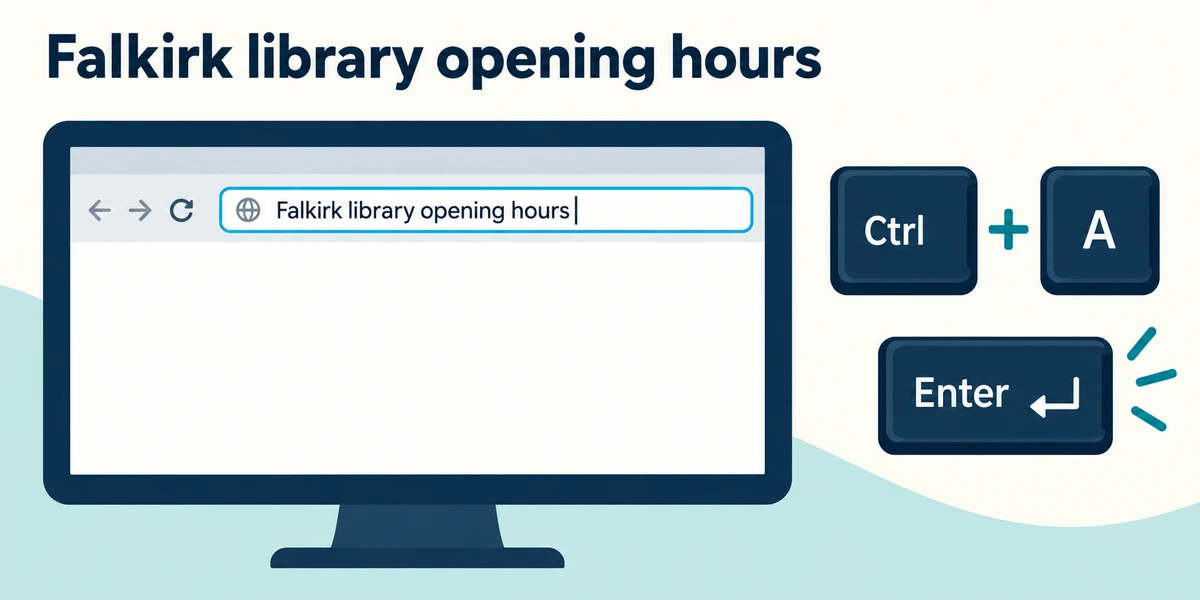
With your browser open, click the long address bar near the top. Hold Ctrl and press A, release both keys, then type a few words describing your task and press Enter. For example, Falkirk library opening hours gives more direction than opening hours alone. Do not include passwords or private account details in a search.
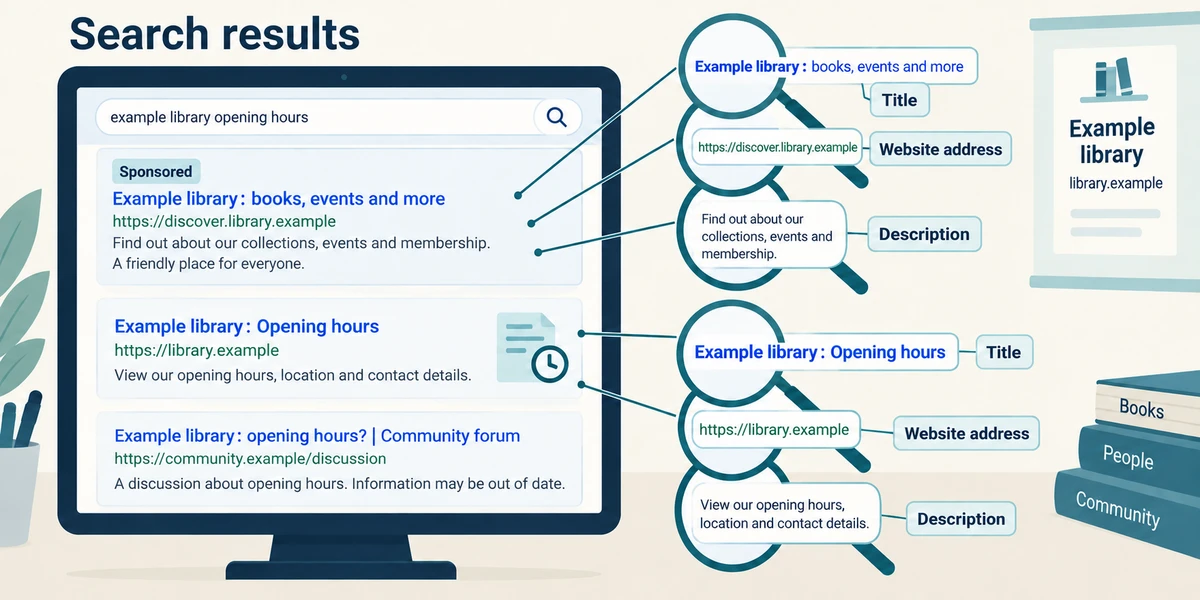
Read a result's title, website address and short description together. A label such as Sponsored or Ad means it is paid placement, not proof of the best answer. For an organisation's own opening hours, its own verified website is usually the more direct source than an old discussion about it.
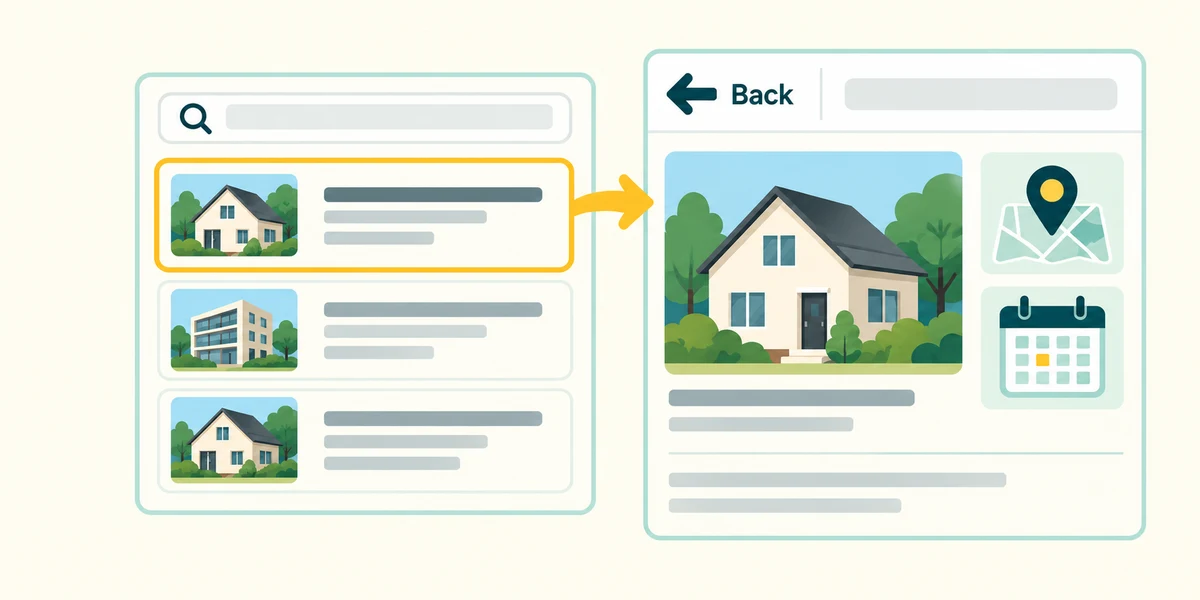
Click a suitable result's title once. On the page, check which location and date the information concerns. A recent-looking search summary can still lead to an outdated page. If the result does not fit, click the browser's Back arrow near the top left once to return to the results.
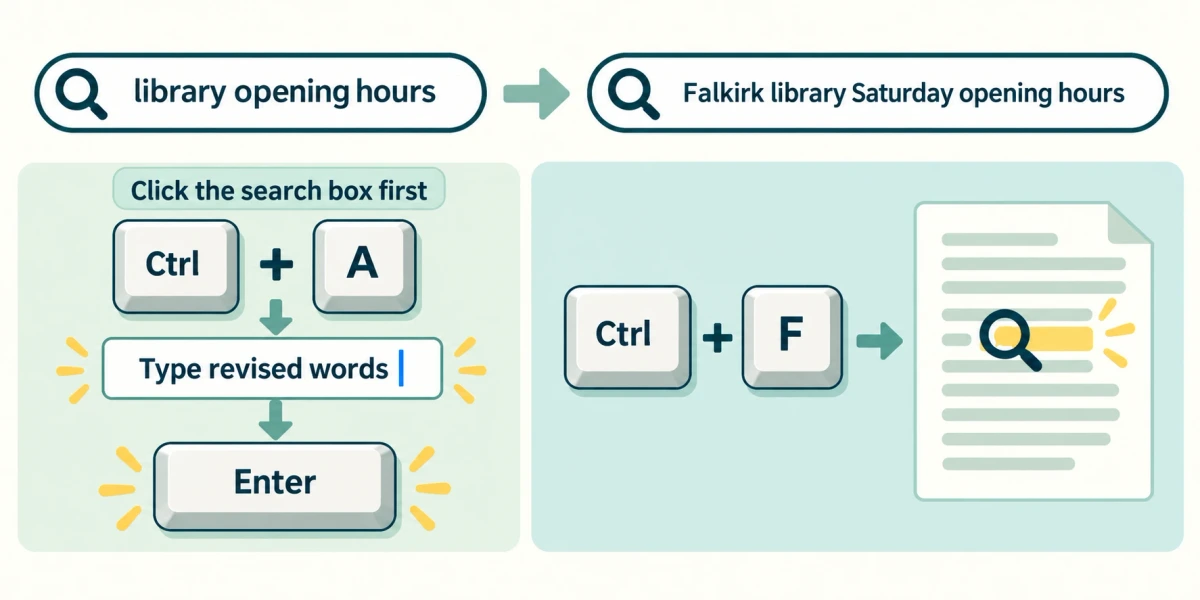
Refine rather than repeat a vague search. Add the town, product model or exact subject that was missing. To replace the search text, click its field, hold Ctrl and press A, release both, type the revised words and press Enter. Searching inside a page with Ctrl + F is a separate task: it finds words on that page rather than searching the web.
You need Saturday opening times for a library in Falkirk. A search for opening times returns shops across the country. What would improve the next search?
Include Falkirk, library and Saturday opening hours.
Check what you understand
In guided learning, click Start 3 questions to receive a selection from this lesson. Click the circle beside an answer, then click Check answer. Read the feedback and try again if needed. Click Next question after each correct answer. Answer all 3 correctly to continue.
Returning to guided learning keeps the questions and answers in your current attempt.
Read all 3 questions and explanations
A result is marked Sponsored. What does that label establish?
Answer: The placement is an advertisement.
Paid placement is not verification. Read the destination and whether it fits your task.
A page gives opening times for a different branch. What is a useful next step?
Answer: Return to the results and add the branch location.
Refining the location is more useful than assuming every branch has the same hours or making the search less specific.
You have the right page but need to locate one word within it. Which tool fits?
Answer: Find on page.
Find on page searches only the current page. The other searches can return information from elsewhere.
Take this to your computer
- 1
Try a harmless public-information search, such as your local library's opening hours, using the address-bar steps above.
- 2
Read the branch name and any dates before relying on the answer. You can leave the page by clicking the tab's small X.
The practice question searches nothing. Search designs and result labels vary between services.
Prefer a more personal, one-to-one lesson? Basic Computing can help. Explore our services.