Make a readable document scan
A scan is a digital copy of a page
Choose a useful correction to an unclear scan.
You will know how to check page edges, order and legibility before sharing a scanned document.
A phone can capture paper as a document file. A good scan keeps the information readable and the pages complete. Automatic cropping can help straighten the page, but it can also miss an edge, so the preview matters more than simply seeing that a picture was taken.
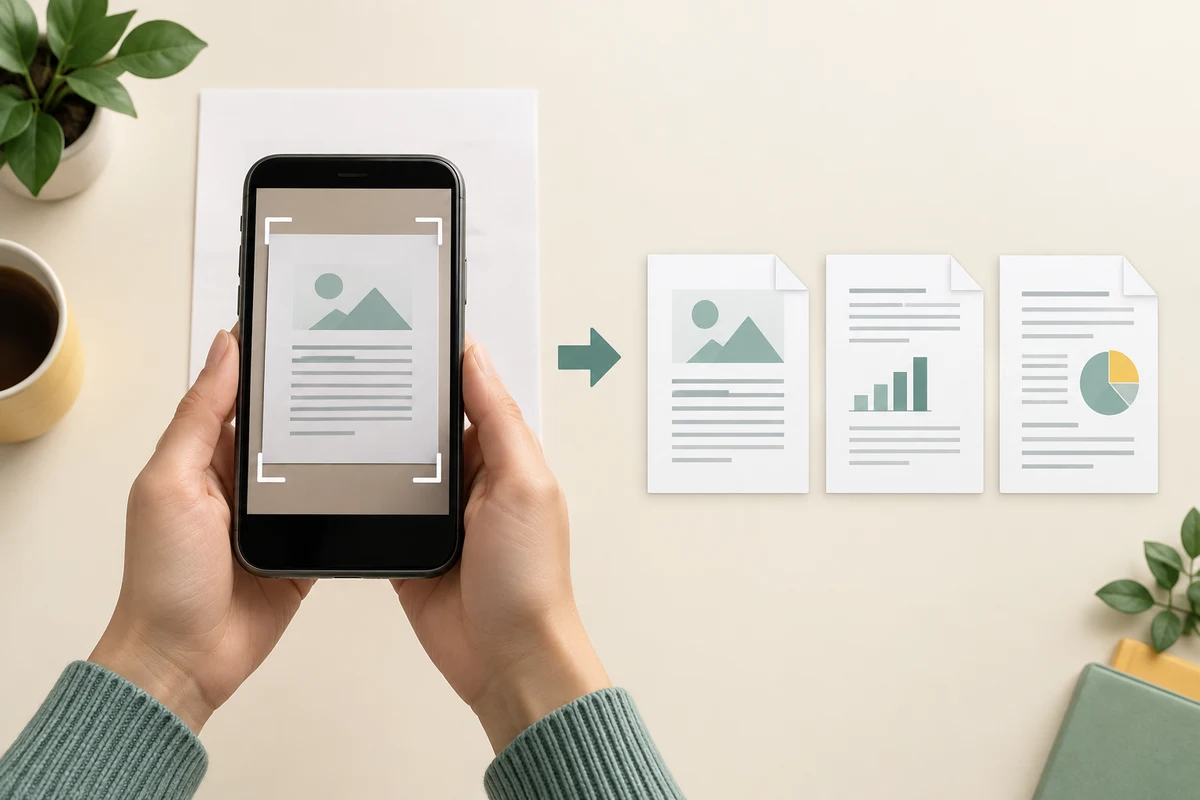
Capture, inspect and save
How this works
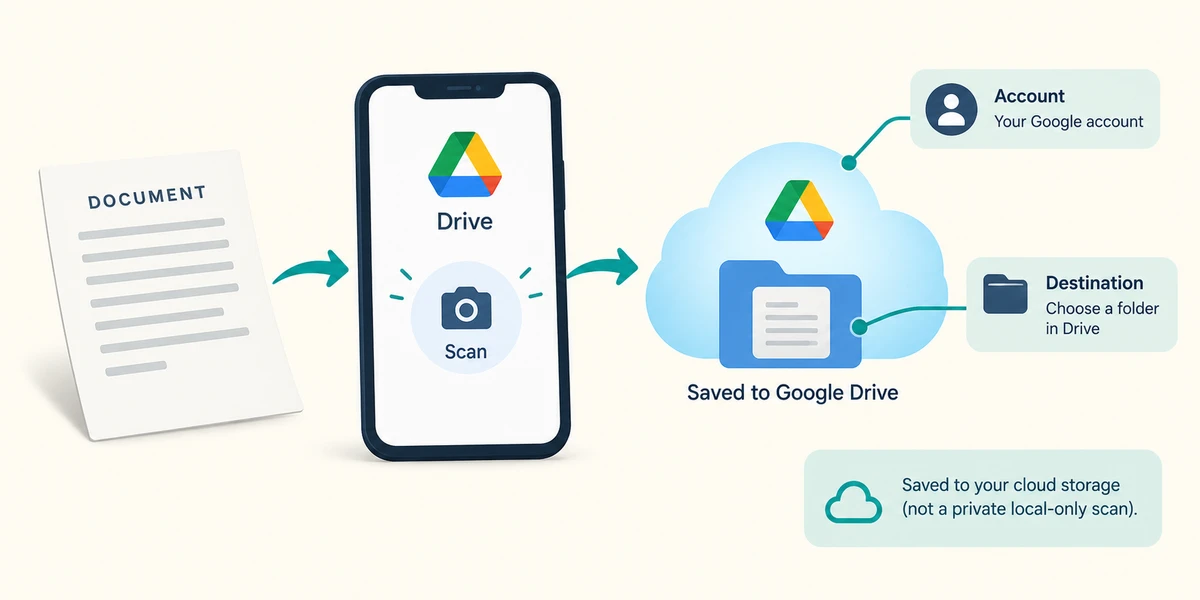
Use the document-scanning feature in a trusted app already available to you. For example, Google Drive on Android offers a camera/Scan control. This example saves into Drive, so it is cloud storage, not automatically a private local-only scan. Check the app, account and destination before using sensitive paper.
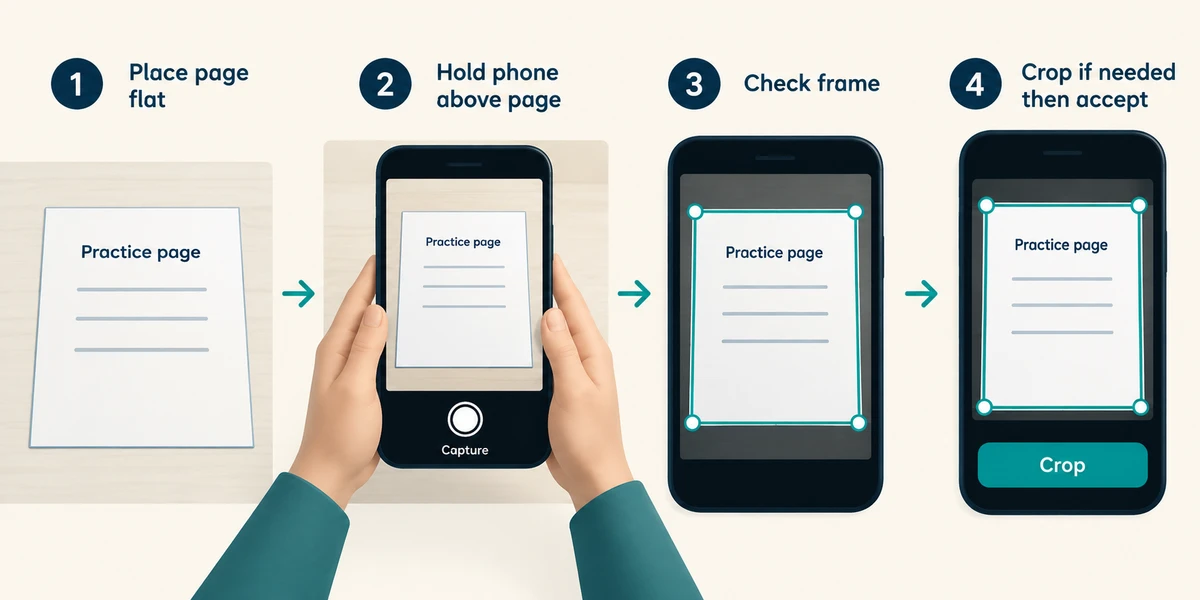
Place an ordinary practice page flat in good light. Hold the phone above it so all four edges are visible and avoid shadows or glare. Tap the labelled capture button once, or follow the app’s automatic capture instructions. Inspect the detected frame before accepting it; use Crop or the edge handles to include the full page.
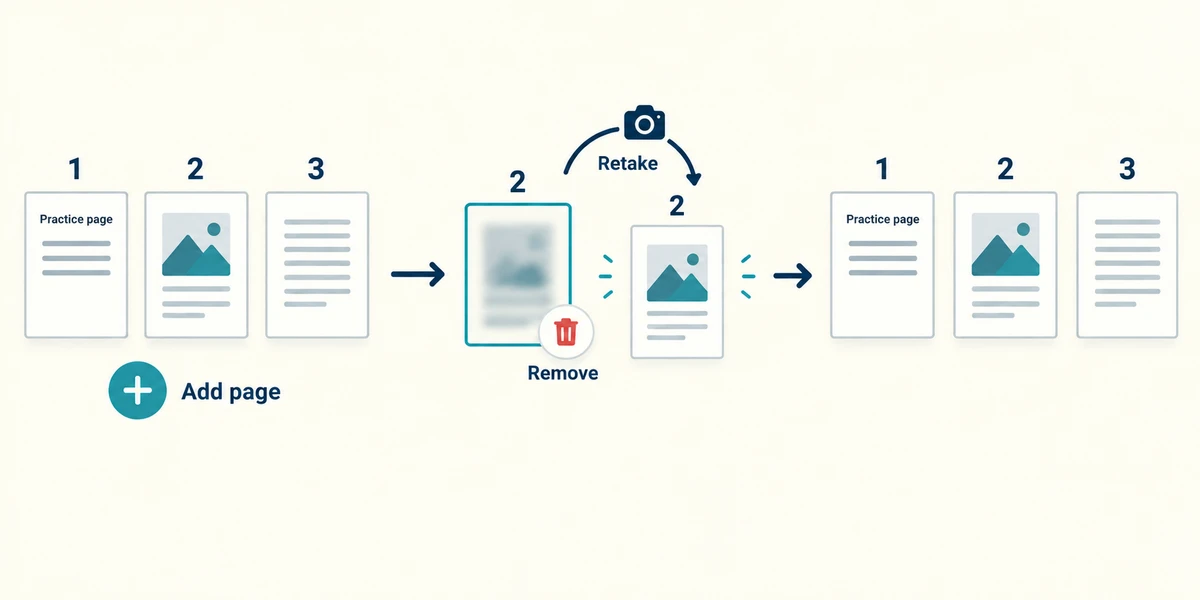
For several pages, use the labelled Add page or plus control and inspect the thumbnails. Remove a failed capture with its Delete/Remove control and retake it, then check page order. A document scan may look like text but still be a picture; text recognition, if offered, can make mistakes.
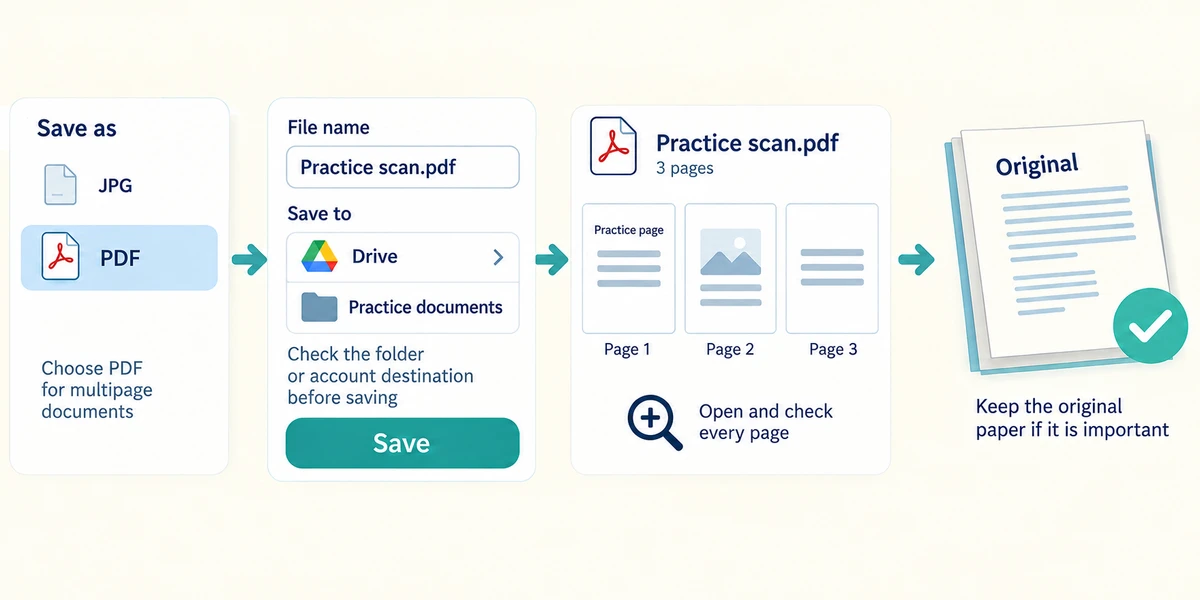
Choose the app’s PDF output when you need a multipage document, give it a useful name, and read the folder/account destination before tapping Save. Open the saved result and check every page at a readable size. Keep the paper original if it is important; a scan is not accepted as a replacement in every process.
A scan preview looks straight, but the right-hand amount is cut off. What will improve the document?
Adjust the capture frame or retake the page with all required edges visible
Check what you understand
In guided learning, click Start 3 questions to receive a selection from this lesson. Click the circle beside an answer, then click Check answer. Read the feedback and try again if needed. Click Next question after each correct answer. Answer all 3 correctly to continue.
Returning to guided learning keeps the questions and answers in your current attempt.
Read all 3 questions and explanations
You scanned three pages. What is worth checking before sending the PDF?
Answer: Every page is readable, complete and in the intended order
Each page can have a different capture problem. Review the saved multipage file, not only its name or first page.
A scanning app saves the result into your Drive account. Where is the result being stored?
Answer: In that cloud account, according to its upload and sync behaviour
Read the stated destination. Google Drive is cloud storage; other scanning apps can offer different destinations.
Recognised text differs from the printed postcode. What should you trust when checking this scan?
Answer: The original page and a careful comparison of the recognised text
Text recognition is fallible. Compare it with the source before relying on a detail.
Take this to your computer
- 1
Optional: find the scanning feature in a trusted app you already have. Use a blank practice page with a few harmless words only.
- 2
Check where it would save before capturing. No sensitive document or new app installation is needed.
Controls and output options differ by app. A digital copy does not automatically replace an original required by an organisation.
Prefer a more personal, one-to-one lesson? Basic Computing can help. Explore our services.