Save a file received by email
Keep the document where you can find it
Choose a local-save route for a known attached document.
Locate a saved attachment without treating preview as proof of a local copy.
An attachment may be visible within a message before you have deliberately saved it elsewhere. Saving a copy gives you a chosen place to keep and use it. You still need to decide whether the file and sender are expected before opening or downloading it.

Choose the destination deliberately
How this works
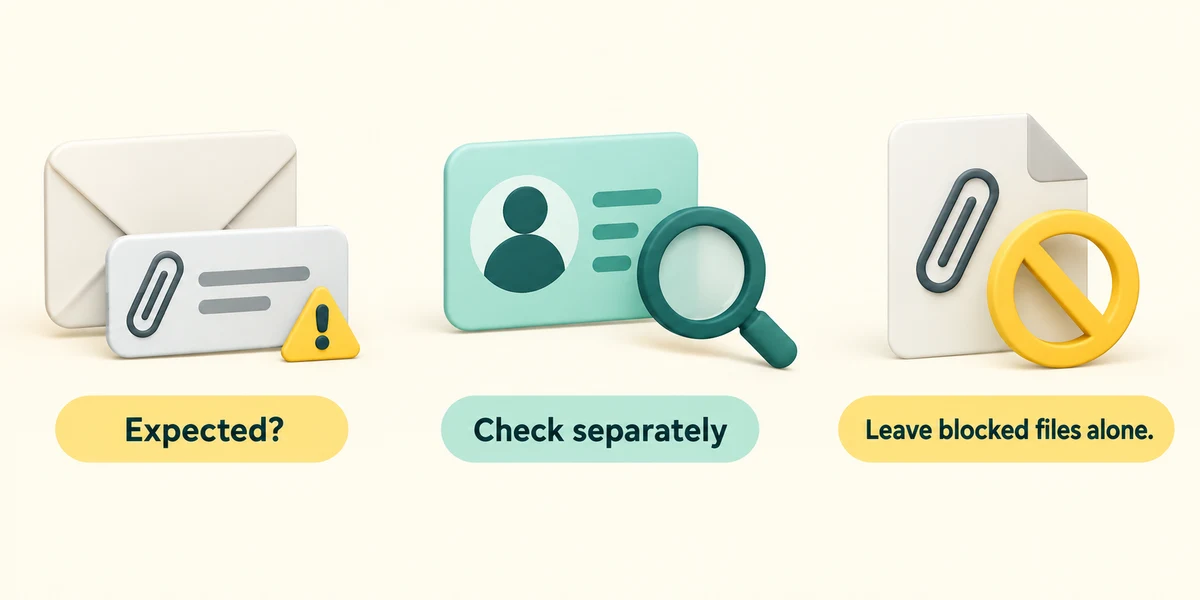
Begin with a message and file you expected. Check the sender and context through a separate known route if anything is unusual. A paperclip indicates included material, not that it is safe. Leave blocked or unexpected attachments alone rather than bypassing a warning.
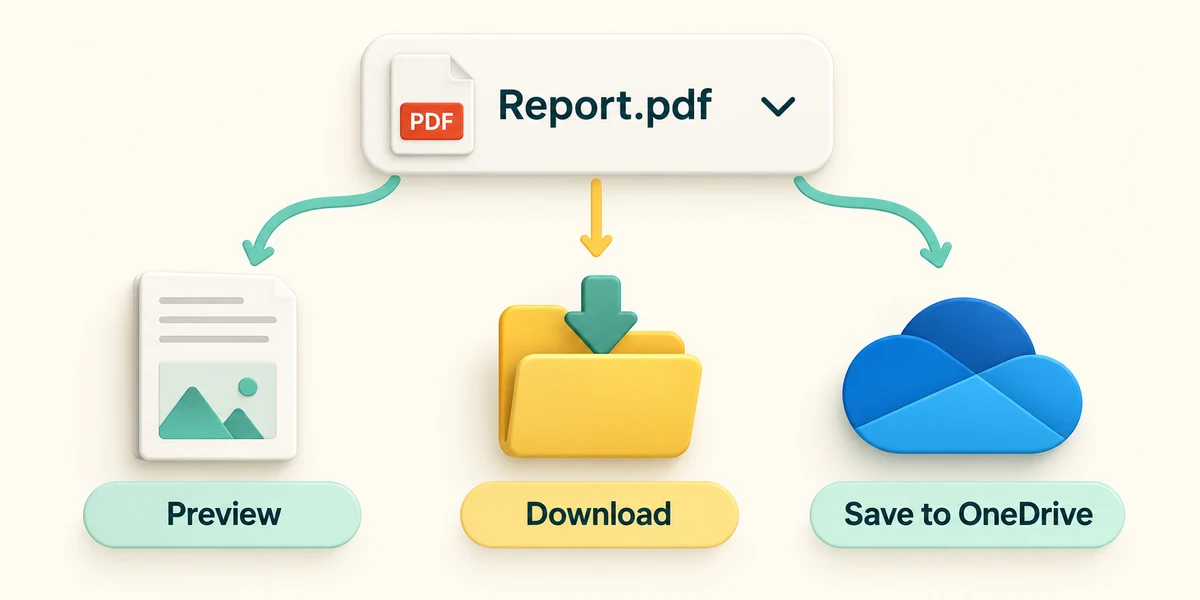
In new Outlook, attachments usually appear beneath the subject or message header. Click the attachment's small dropdown arrow, then read the available actions. Preview displays supported contents; Download saves a copy to a chosen computer location. Save to OneDrive is a different destination.
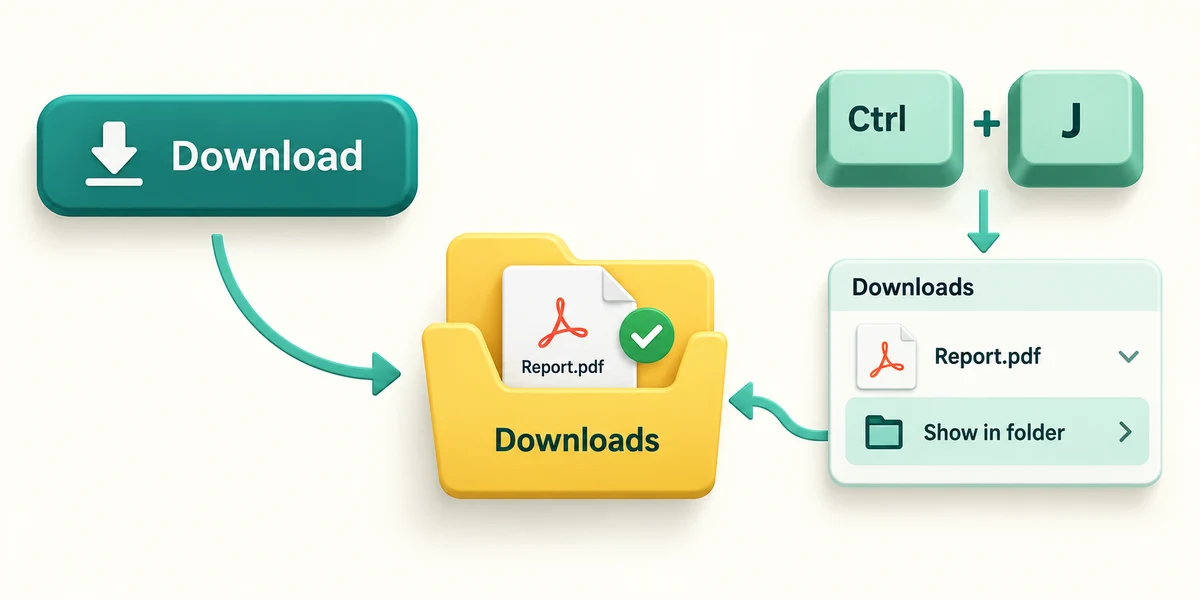
For a local copy, choose Download. If a Save window appears, choose a folder you recognise, read the filename and click Save. A browser version may use its configured Downloads location instead. Use the browser Downloads list, opened by holding Ctrl and pressing J then releasing both, to check completion and Show in folder where offered.

In File Explorer, double-click the known saved file with two quick left clicks to open it. Later edits to this copy do not change the original attachment inside the old email. If a same-name file already exists, read the replacement choice; keeping a separately named copy can avoid losing work you meant to preserve.
A known club programme is visible in an email preview. You want a copy in a folder on your PC. Which action fits?
Use the attachment's Download action and check the saved location.
Check what you understand
In guided learning, click Start 3 questions to receive a selection from this lesson. Click the circle beside an answer, then click Check answer. Read the feedback and try again if needed. Click Next question after each correct answer. Answer all 3 correctly to continue.
Returning to guided learning keeps the questions and answers in your current attempt.
Read all 3 questions and explanations
What does an attachment's paperclip indicator prove?
Answer: The message has included attachment material.
A paperclip describes the message's contents, not source trust or safety.
You edit a downloaded copy. What happens to the attachment in the old email?
Answer: The old message still holds its original attachment.
A downloaded copy is separate from the original email attachment.
A save prompt asks to replace an existing file. What should you do first?
Answer: Check whether that existing file is work you need to keep.
Same names do not prove same contents. Read the choice before replacing existing work.
Take this to your computer
- 1
Use the decision example without opening private email.
- 2
For a known attachment you later intend to keep, use the menu and destination steps above, then note where the file is saved.
Outlook versions differ. Download, Preview and Save to OneDrive are distinct actions, so read the labels.
Prefer a more personal, one-to-one lesson? Basic Computing can help. Explore our services.