Save a file and find it again
Visible is not the same as saved
Save a practice note with a name and location, then close and reopen it.
Explain a first save, later updates and reopening a named file.
Writing on screen is current work. Saving keeps a named file in a location so you can use it later. The name tells you what it is, while the location tells you where to look. Both matter when you return another day.

Choose, save and verify
How this works
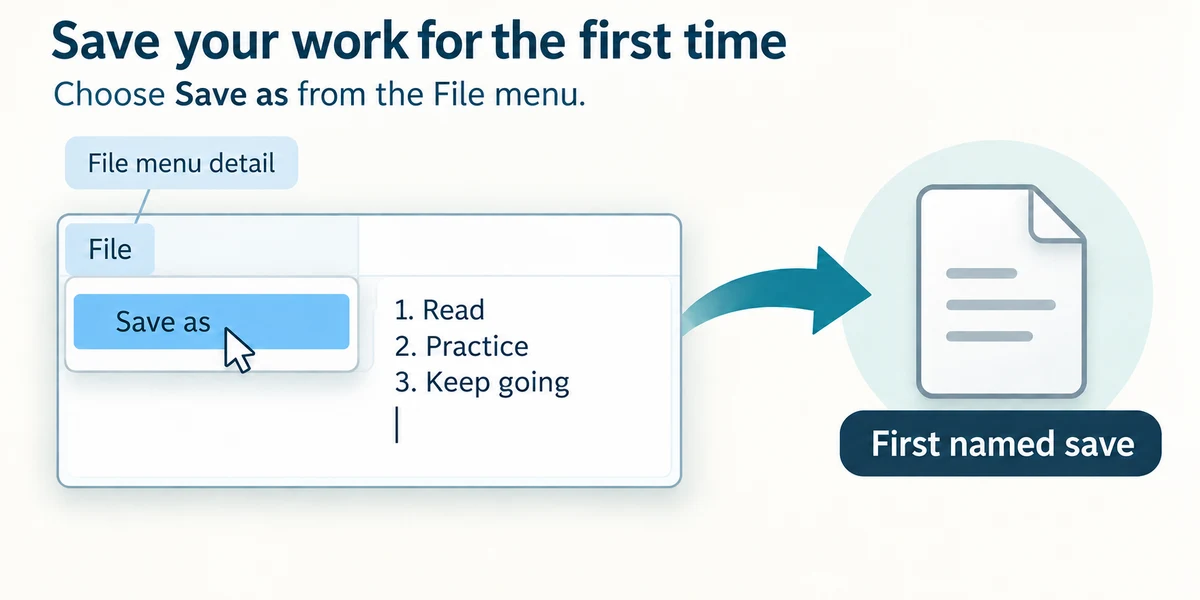
Use a blank Notepad note with harmless practice words. Press the Windows logo key, type Notepad and click its app result. Hold Ctrl, press N and release both for a new note or tab, then click the writing area and type a short list. For the first named save, click File near the top left, then Save as.
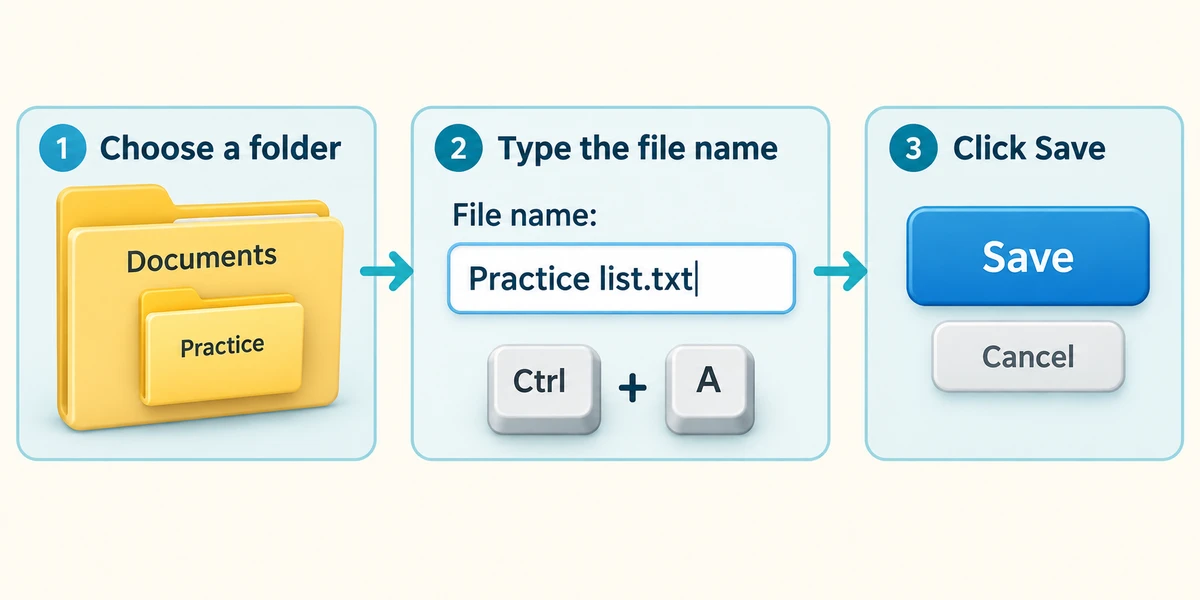
In the save window, choose Documents on the left and open your own disposable practice folder with two quick left clicks. Click the File name box, hold Ctrl, press A and release both to select its current text, then type Practice list.txt. Check the displayed folder and click Save once. If that name already exists, choose Cancel and use a different unused name instead of replacing anything.
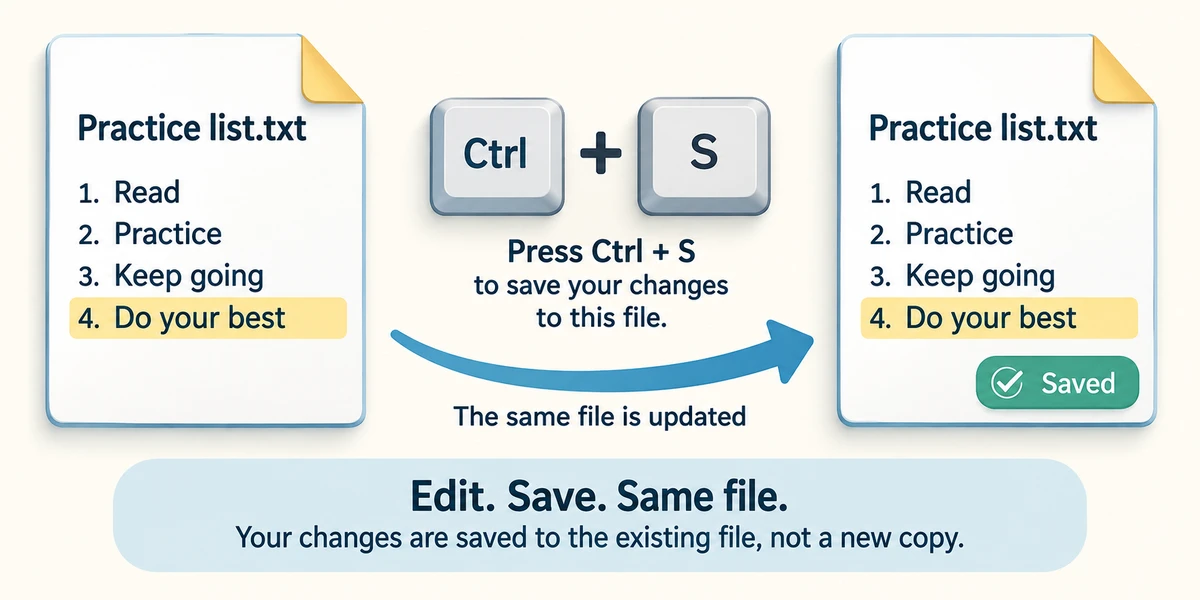
After changing a file you have already named, hold Ctrl, press S and release both to save changes to that file. Other apps may save automatically or offer different menus. Check the app's saved status rather than assuming that seeing the words is enough. Notepad can restore open tabs after closing, which is different from deliberately saving a named file.
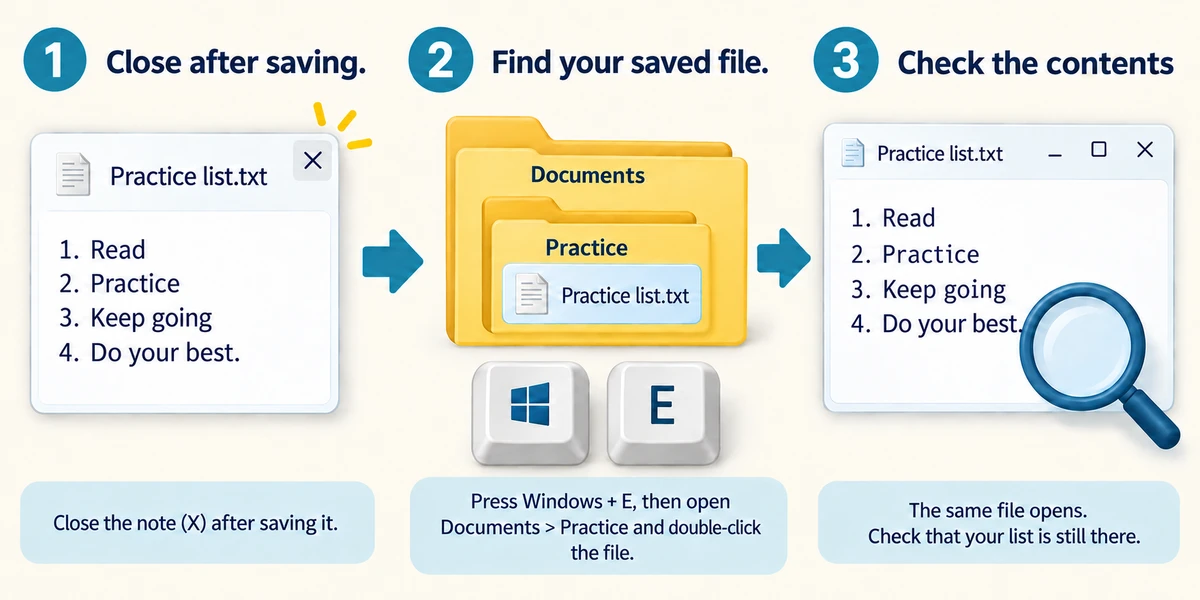
Close the app window with its top-right X after saving. Hold the Windows logo key, press E and release both to open File Explorer. Click Documents once, then double-click your practice folder. Double-click the saved list to open it. Read the words and location to check you found the intended file. This confirms more than merely seeing a similar recent-item name.
Your new note is still called an untitled tab. You want to find it tomorrow in your practice folder. What should you do?
Save it with a useful name in that folder, then verify the saved file.
Save and reopen a practice note
This saving example starts with the disposable note “Bring a notebook.”. Choose Save, select Documents / Learning Hub practice, enter Practice list.txt, then confirm Save. A different valid location really keeps the practice file there, so check the name and folder before continuing.
After saving, close the note. In the file browser, choose the same folder, select the saved file once and choose Open selected file, or double-click its name. The reopened words come from the saved copy.
Save updates a file you already named. Save as lets you choose another name or folder. Cancelling a save leaves the note open. Closing without saving can discard current changes. An existing-name warning needs care; this practice never replaces a different file without your choosing another name.
The interactive controls need JavaScript. They are a simplified teaching app, not an exact picture of Notepad or File Explorer, and they do not create files on your device.
Check what you understand
In guided learning, click Start 3 questions to receive a selection from this lesson. Click the circle beside an answer, then click Check answer. Read the feedback and try again if needed. Click Next question after each correct answer. Answer all 3 correctly to continue.
Returning to guided learning keeps the questions and answers in your current attempt.
Read all 3 questions and explanations
A first-save window shows Downloads but you intended Documents. What should you change?
Answer: Choose the intended folder before clicking Save.
The chosen folder determines where the saved file goes.
You have changed an already named note and want those changes in the same file. What commonly fits?
Answer: Save the changes, such as with Ctrl and S.
Save updates the file; inspect the app's saved status.
A save message says the proposed name already exists. You are unsure what it contains. What is the safest choice?
Answer: Cancel and choose a different unused name.
A different name avoids overwriting an unknown file.
Take this to your computer
- 1
Create a short disposable note and save it inside your practice folder with an unused name.
- 2
Make one harmless change and save again.
- 3
Close the window, find the file in File Explorer and reopen it to check the change.
Trying this on your own computer is optional. Use only disposable practice information. This lesson's choices check your decisions; they do not operate your computer or prove that you have performed the real task.
Prefer a more personal, one-to-one lesson? Basic Computing can help. Explore our services.